
It’s a familiar frustration: you eagerly install the latest software update on your smartphone, expecting improved performance and new features—only to find your battery life has plummeted. What was once a full day of use now barely lasts half as long. You’re not imagining things. Many users report rapid battery drain immediately following an OS upgrade, whether on Android or iOS. While software updates are designed to enhance security, stability, and functionality, they can temporarily—and sometimes permanently—affect battery efficiency. The reasons range from background optimization processes to poorly optimized code in early release builds. Understanding what's happening behind the scenes is the first step toward regaining control over your device’s power consumption.
Why Software Updates Impact Battery Life
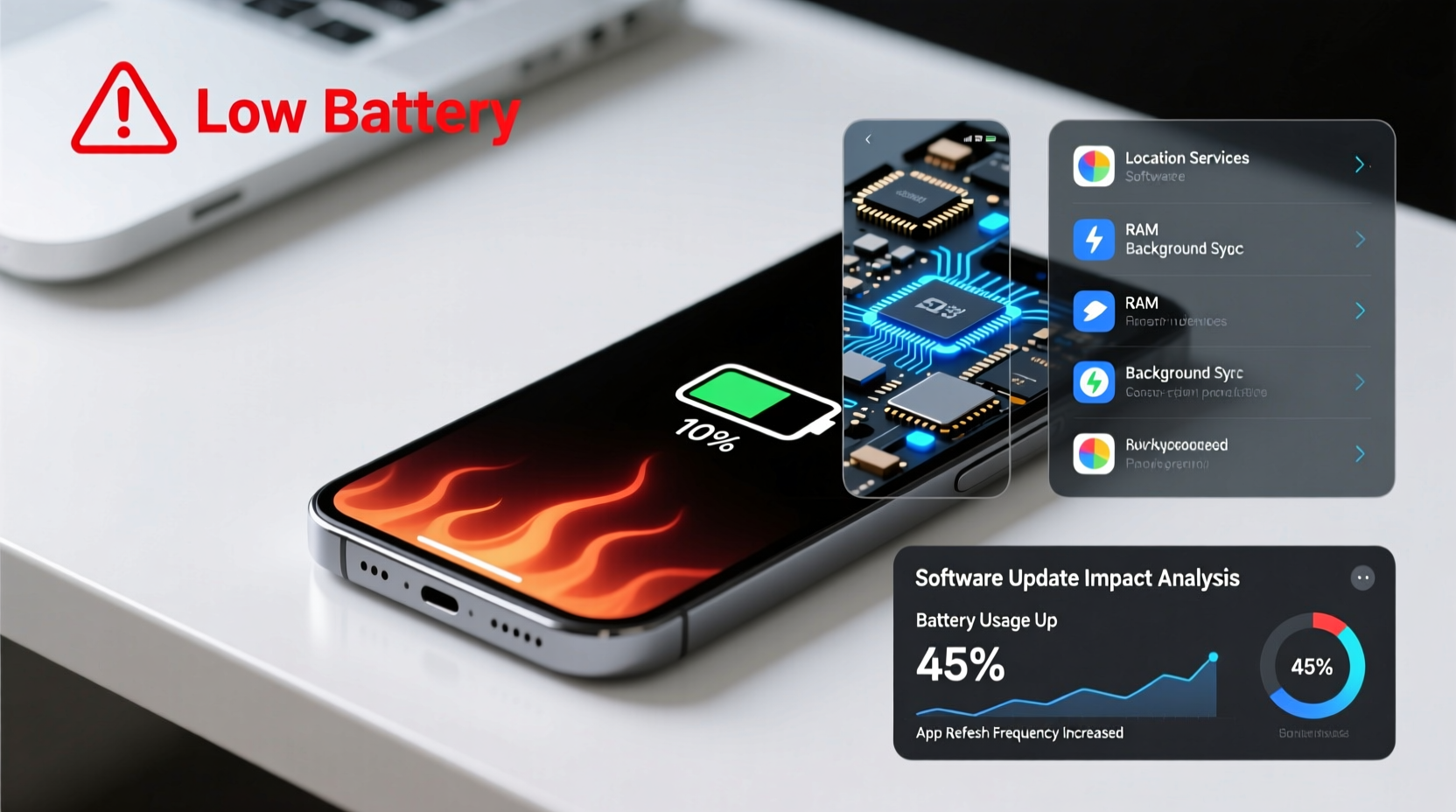
Software updates introduce new features, patch security vulnerabilities, and improve system performance. However, they also modify how your operating system manages resources—including CPU usage, background tasks, and connectivity settings. These changes can inadvertently increase energy demands. When a new OS version rolls out, especially major ones like Android 14 or iOS 17, your phone must re-index data, rebuild caches, and optimize apps for compatibility. This post-update “settling-in” phase often involves intensive background activity that drains the battery more quickly than usual.
Additionally, newer software may include features that run constantly in the background—such as enhanced location tracking, AI-powered assistants, or always-on display options—that weren’t present before. Even if these features are disabled by default, their underlying services might still consume power during initialization.
Common Causes of Post-Update Battery Drain
Battery issues after an update rarely stem from a single cause. Instead, they result from a combination of system-level adjustments and user-specific behaviors. Below are the most frequent culprits:
- Background App Optimization: After an update, apps must be re-optimized for the new OS. During this process, they may run inefficiently, consuming excess CPU and battery.
- Indexing and Caching: Your phone rebuilds search indexes, thumbnails, and predictive models, which increases processor load and power draw.
- Poorly Optimized Update Builds: Early versions of major OS releases often contain bugs or unrefined power management logic.
- New Features with High Power Demand: Features like live wallpapers, dark mode transitions, or constant cloud sync enhancements can raise baseline energy usage.
- Location Services & Sensors: Updated frameworks may enable more aggressive GPS polling or motion detection, even when not actively used.
- Push Notifications Overload: Some apps restart notification services aggressively after an update, leading to frequent wake-ups.
The Hidden Role of Adaptive Systems
Modern smartphones use machine learning to adapt to your usage patterns. After an update, this learning process resets. For example, iOS uses \"Adaptive Charging\" and Android employs \"Adaptive Battery,\" both of which rely on behavioral data. When that data is wiped or reset due to an OS change, the system no longer knows when to throttle background activity or delay non-essential tasks. As a result, it defaults to more active (and power-hungry) behavior until new patterns are established.
“After a major OS update, the device essentially forgets your habits. It takes time to relearn them, and during that window, battery efficiency drops significantly.” — Dr. Lena Patel, Mobile Systems Researcher at Stanford University
Step-by-Step Guide to Restore Battery Performance
If your phone is draining faster after an update, follow this structured approach to diagnose and resolve the issue:
- Wait 2–3 Days: Let the system finish indexing and optimizing. Avoid making drastic changes immediately after installation.
- Reboot Your Device: A full restart clears temporary processes and forces proper initialization of updated components.
- Check Battery Usage Stats: Go to Settings > Battery and identify which apps or services are consuming the most power.
- Reset Adaptive Learning: On Android, go to Digital Wellbeing > Settings > Reset Dashboard. On iOS, reset analytics via Settings > Privacy > Analytics & Improvements > Reset Analytics.
- Toggle Connectivity Options: Turn off Bluetooth, Wi-Fi, and Location Services temporarily to see if battery drain slows.
- Disable Non-Essential Background Apps: Restrict background data for apps you don’t need running constantly.
- Update All Apps: Ensure all third-party apps are up-to-date; developers often release patches shortly after OS updates.
- Reduce Screen Brightness & Timeout: Lower brightness and set screen timeout to 30 seconds to minimize one of the biggest power draws.
- Enable Built-in Power-Saving Modes: Activate Battery Saver (Android) or Low Power Mode (iOS).
- Factory Reset (Last Resort): If problems persist, back up your data and perform a clean install to eliminate corrupted caches.
Do’s and Don’ts After a Software Update
| Do | Don't |
|---|---|
| Allow 48 hours for system optimization | Immediately uninstall the update without investigation |
| Update all apps post-OS upgrade | Ignore battery usage reports |
| Reboot after installation | Keep unused widgets or live wallpapers active |
| Use built-in battery-saving modes | Install third-party \"battery booster\" apps |
| Monitor background app activity | Leave developer options enabled unnecessarily |
Real-World Example: Sarah’s iPhone 15 After iOS 17
Sarah, a marketing professional in Seattle, upgraded her iPhone 15 to iOS 17 the day it launched. Within hours, she noticed her battery dropped from 100% to 40% by noon—even though her usage hadn’t changed. She typically checks email, uses Slack, takes photos, and listens to podcasts during commutes.
She opened Settings > Battery and discovered that \"System Usage\" and \"Location Services\" were consuming disproportionate power. Further inspection revealed that Find My, Photos, and Safari were running extensive background refresh cycles. She rebooted her phone, turned off Background App Refresh for non-critical apps, and disabled Motion Calibration & Distance (a lesser-known setting under Privacy > Location Services > System Services). Over the next two days, her battery life stabilized and returned to normal levels. The issue wasn’t permanent hardware degradation—it was transient system overhead caused by the update.
When the Problem Isn’t Temporary
While most post-update battery issues resolve within a few days, some point to deeper flaws in the software itself. In late 2023, Apple released iOS 17.1, which many users reported caused excessive battery drain on iPhone 14 and 15 models. Similarly, Samsung users experienced similar issues after One UI 6.0 (based on Android 14), particularly with background camera processes and voice assistant triggers.
In such cases, manufacturers usually acknowledge the problem and release a patch within weeks. Until then, mitigation strategies become essential. Checking official support forums, Reddit threads, or sites like MacRumors or XDA Developers can help determine whether the issue is widespread or isolated.
How to Check for Known Issues
- Visit the manufacturer’s support page (e.g., Apple Support or Samsung Help)
- Search community forums using keywords like “[Your Phone Model] + [OS Version] + battery drain”
- Look for firmware update announcements indicating fixes for power management
- Verify if other users have seen improvement after a minor patch (e.g., iOS 17.1.1)
“We’ve seen a pattern where Q4 OS releases coincide with higher-than-normal bug reports related to battery. It’s often due to rushed integration cycles ahead of holiday launches.” — Mark Tran, Senior Editor at TechPulse Weekly
Preventive Checklist for Future Updates
To avoid repeat incidents, adopt this checklist before installing any major software update:
- ✅ Charge your phone to at least 80% before updating
- ✅ Connect to Wi-Fi to prevent data throttling and interruptions
- ✅ Back up your device (iCloud or Google Drive)
- ✅ Disable unnecessary widgets and automation tools temporarily
- ✅ Review recent app permissions, especially location and background refresh
- ✅ Wait 1–2 weeks after launch to allow critical bugs to be identified
- ✅ Monitor battery health before and after (Settings > Battery > Battery Health)
Frequently Asked Questions
Can a software update permanently damage my battery?
No, a software update cannot physically damage your battery. However, prolonged high temperatures caused by excessive processing after an update can accelerate long-term battery wear. Lithium-ion batteries degrade faster when exposed to heat and constant full charge cycles.
Should I downgrade if my battery life gets worse?
Downgrading is generally not recommended and often impossible on modern phones. Apple and Samsung block downgrades for security reasons. Instead, wait for an official patch. Rolling back could expose your device to unpatched vulnerabilities.
Does clearing cache help after an update?
Yes, but only selectively. Clearing app caches (via Settings > Apps > [App Name] > Storage > Clear Cache) can help apps run more efficiently post-update. Avoid wiping system cache unless guided by official support, as improper clearing can cause instability.
Conclusion: Take Control of Your Phone’s Power
Your phone’s sudden battery drain after a software update is likely not a hardware failure, but rather a symptom of transitional system stress or suboptimal optimization. With patience and targeted troubleshooting, most issues resolve within a few days. By understanding how updates affect resource usage, monitoring battery statistics, and applying proven fixes, you can restore—and even improve—your device’s efficiency. Don’t rush to replace your phone or blame aging hardware prematurely. Often, the solution lies in simple settings adjustments and allowing the system time to recalibrate.




 浙公网安备
33010002000092号
浙公网安备
33010002000092号 浙B2-20120091-4
Comments
No comments yet. Why don't you start the discussion?