
It’s a common frustration: you charge your phone overnight, only to wake up to a significantly drained battery—despite barely touching it. You didn’t stream videos, play games, or browse social media, yet the battery percentage drops alarmingly. This behavior isn’t normal wear and tear alone; it’s often a sign of underlying issues that can be diagnosed and corrected. Understanding why your phone battery depletes rapidly during idle periods is essential for preserving device longevity, avoiding constant charging, and ensuring reliable performance throughout the day.
Battery drain during inactivity typically stems from background processes, software inefficiencies, hardware aging, or user habits that go unnoticed. While lithium-ion batteries naturally degrade over time, excessive drain when the phone is idle suggests something more systemic. The good news? Most causes are fixable with the right knowledge and adjustments.
Background Apps and Services: The Silent Battery Thieves
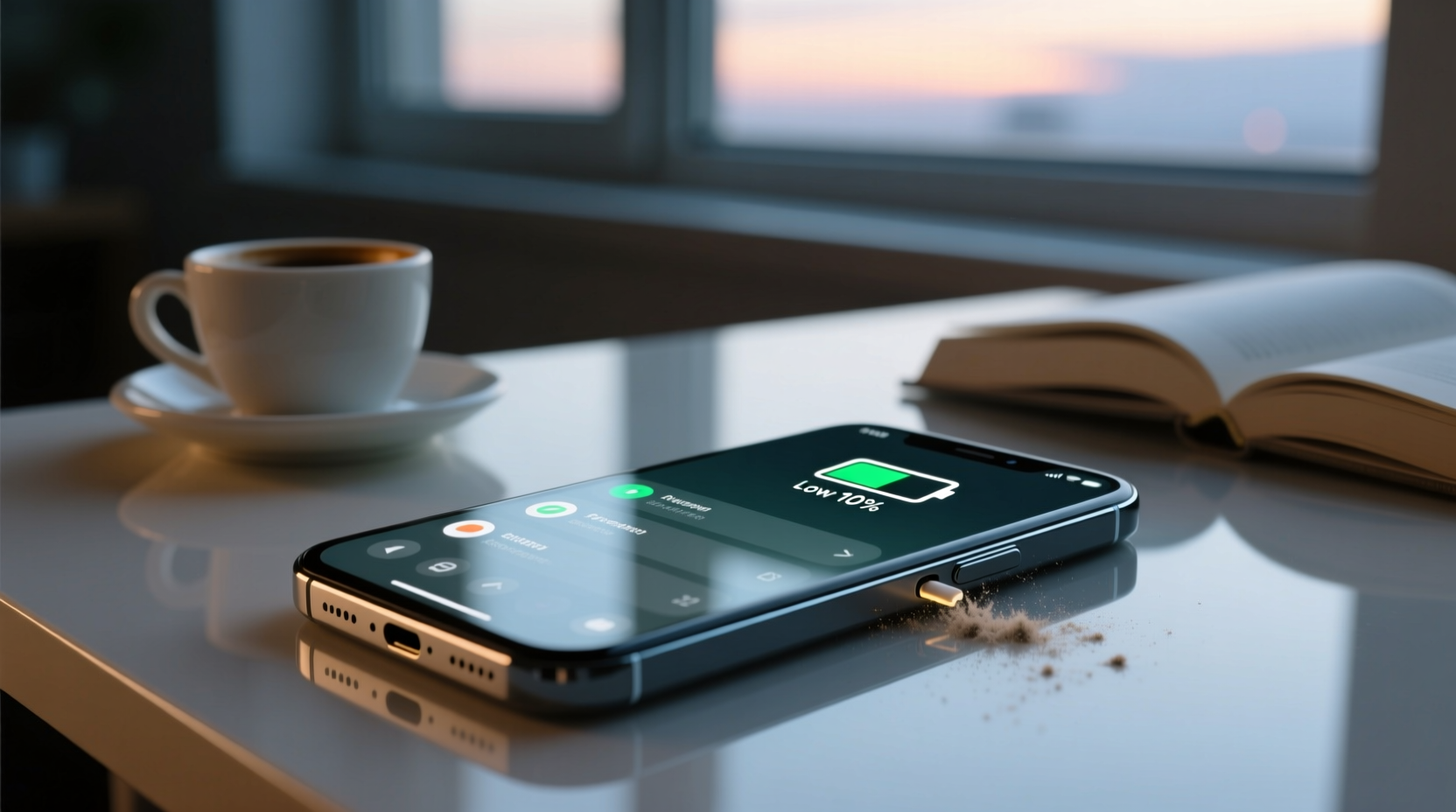
Even when your phone appears inactive, numerous apps and services continue running in the background. These include email syncs, location tracking, push notifications, cloud backups, and automatic updates. Each consumes small amounts of power, but collectively, they can account for significant battery drain.
For example, social media apps like Facebook, Instagram, or Twitter often refresh content in the background to deliver instant updates. Similarly, navigation apps may keep GPS active if location permissions are set to “always allow.” Weather widgets, fitness trackers, and messaging platforms also contribute by periodically checking for new data.
Modern operating systems attempt to manage these processes efficiently, but poorly optimized apps or misconfigured settings can bypass these safeguards. On both iOS and Android, you can view battery usage statistics to identify which apps consume the most power—even when not actively used.
How to Identify High-Consumption Apps
- On iPhone: Go to Settings > Battery and review app usage under \"Battery Usage By App.\"
- On Android: Navigate to Settings > Battery > Battery Usage to see a detailed breakdown.
- Look for apps with high percentages despite minimal user interaction.
- Check whether usage occurred during screen-on or screen-off time.
If an app shows high screen-off usage, it's likely responsible for idle drain. Consider restricting its background activity or uninstalling it altogether.
Poor Network Conditions and Signal Hunting
One of the most overlooked causes of rapid battery drain is poor cellular or Wi-Fi connectivity. When your phone struggles to maintain a stable signal, it increases transmission power to stay connected. This process, known as “signal hunting,” forces the radio module to work harder, consuming far more energy than usual.
This issue is especially prevalent in basements, rural areas, or buildings with thick walls. Even when you’re not actively browsing, your phone constantly communicates with cell towers and Wi-Fi routers. In weak signal zones, this communication becomes inefficient and energy-intensive.
A related problem occurs when your phone toggles between networks—switching from 5G to LTE, or jumping between Wi-Fi and mobile data. Each transition requires recalibration and re-authentication, further taxing the battery.
| Network Condition | Battery Impact | Solution |
|---|---|---|
| Weak Cellular Signal | High drain due to constant tower searching | Use Airplane Mode or switch to Wi-Fi |
| Frequent Wi-Fi Drops | Drain from reconnecting repeatedly | Forget unstable networks or disable auto-join |
| 5G in Low-Coverage Area | Excessive power use trying to maintain connection | Switch to LTE/4G in settings |
“Phones in low-signal environments can consume up to 40% more battery just maintaining connectivity.” — Dr. Alan Zhou, Mobile Power Systems Researcher, MIT Energy Initiative
Aging Battery Health and Capacity Loss
All lithium-ion batteries degrade over time. After about 500 full charge cycles, most smartphone batteries retain only 80% of their original capacity. As the battery ages, its ability to hold a charge diminishes, leading to faster depletion—even with reduced usage.
An older battery may show 100% charge but drop sharply after just minutes of use. During idle periods, internal resistance increases, causing self-discharge at a higher rate than when new. This means your phone could lose several percentage points overnight simply due to chemical inefficiency within the battery itself.
You can check your battery health on newer devices:
- iOS: Settings > Battery > Battery Health & Charging. Look for “Maximum Capacity” (e.g., 82%). Below 80%, consider replacement.
- Android: Varies by manufacturer. Some brands (like Samsung) offer built-in diagnostics under Settings > Device Care > Battery.
If your battery health is below 80%, replacing it—even if no other issues exist—can dramatically improve standby performance.
Software Glitches and System Bugs
Operating system bugs or poorly coded apps can cause abnormal battery behavior. For instance, a bug might prevent the phone from entering deep sleep mode, keeping the CPU partially active all night. Similarly, a malfunctioning app could trigger endless background loops, pinging servers every few seconds.
These issues often emerge after software updates. While updates usually improve efficiency, occasional releases introduce unintended power management flaws. Apple and Google frequently release patches for such bugs, so staying updated is critical—but so is monitoring performance post-update.
One real-world example involved a 2023 Android security patch that inadvertently disabled Doze mode optimizations on select devices. Users reported overnight battery drops from 100% to 30% with zero usage. The issue was resolved weeks later with a follow-up update, but not before many replaced batteries unnecessarily.
Mini Case Study: Sarah’s Mysterious Drain
Sarah, a freelance designer in Portland, noticed her iPhone 13 dropped from 95% to 50% overnight. She wasn’t using it, and no apps seemed suspicious. After reviewing battery usage, she found “System Services” consuming 40% overnight. Further investigation revealed that “Frequent Locations” in Location Services was constantly updating—a feature meant to predict travel patterns. Disabling it under Privacy > Location Services > System Services cut her idle drain by 70%. A simple setting change solved what felt like a hardware failure.
Environmental and Charging Habits
Temperature plays a crucial role in battery performance. Lithium-ion batteries operate best between 20°C and 25°C (68°F–77°F). Exposure to extreme heat or cold accelerates degradation and increases self-discharge rates.
Leaving your phone in a hot car, near a radiator, or under a pillow while charging raises internal temperatures, damaging the battery over time. Conversely, cold environments temporarily reduce battery efficiency, making it appear dead even when it’s not.
Charging habits also matter. Frequently charging to 100% or letting the battery drop to 0% stresses the cells. Modern phones have safeguards, but long-term exposure to full charge states (especially overnight) contributes to faster aging.
“Keeping your battery between 20% and 80% most of the time can extend its effective lifespan by up to two years.” — Lena Park, Senior Engineer at Battery University
Step-by-Step Guide to Reduce Idle Battery Drain
- Review Battery Usage: Check which apps or services consume power during screen-off periods.
- Limit Background App Refresh: Disable this feature for non-essential apps (iOS: Settings > General > Background App Refresh; Android: Settings > Apps > [App Name] > Battery).
- Optimize Location Services: Set apps to “While Using” instead of “Always.” Disable geolocation for apps that don’t need it.
- Enable Battery Saver Mode: Activate automatically at 20% or manually during low-usage periods.
- Turn Off Unnecessary Connectivity: Disable Bluetooth, Wi-Fi, NFC, and hotspot when not in use.
- Update Software: Install the latest OS and app updates to benefit from power optimizations.
- Restart Weekly: Clears memory leaks and stops rogue background processes.
- Check Battery Health: Replace if capacity is below 80%.
Do’s and Don’ts for Battery Longevity
| Do | Don't |
|---|---|
| Charge between 20% and 80% | Leave phone plugged in overnight regularly |
| Use official or certified chargers | Use cheap, unbranded charging cables |
| Store phone in cool, dry places | Expose phone to direct sunlight or heat sources |
| Disable push email; fetch manually | Allow all apps to send push notifications |
| Enable auto-brightness | Keep brightness at maximum indoors |
FAQ
Why does my phone battery drain overnight even in airplane mode?
If your battery still drains significantly in airplane mode, the issue may be hardware-related—such as a failing battery or a defective component. However, some background processes (like alarms or local backups) may still run. Try restarting the phone before enabling airplane mode to rule out software glitches.
Can dark mode save battery when the phone is idle?
Dark mode primarily saves power when the screen is on, especially on OLED displays. When idle, the screen is off, so dark mode has no impact on battery drain during those periods. Its benefits are limited to active usage.
Is it bad to charge my phone every night?
Modern phones regulate charging to prevent overcharging, so nightly charging isn’t inherently harmful. However, keeping the battery at 100% for extended periods (e.g., 8+ hours) can accelerate long-term degradation. Use features like “Optimized Battery Charging” (iOS) or “Adaptive Charging” (Android) to mitigate this.
Conclusion: Take Control of Your Phone’s Battery Life
Your phone shouldn’t lose half its charge overnight without cause. Rapid battery drain during inactivity is a warning sign—not an inevitable fact of ownership. By understanding the roles of background apps, network conditions, battery age, software bugs, and environmental factors, you can diagnose and resolve the root causes.
Implementing small changes—like adjusting location settings, disabling unnecessary background refresh, or monitoring signal strength—can yield dramatic improvements. In many cases, users restore near-normal standby performance without spending a dime. When hardware is the culprit, knowing when to replace the battery empowers you to act decisively.




 浙公网安备
33010002000092号
浙公网安备
33010002000092号 浙B2-20120091-4
Comments
No comments yet. Why don't you start the discussion?