
It’s a common frustration: you charge your phone overnight, only to find it significantly depleted by morning—even though you barely touched it. If your phone battery drains rapidly despite minimal usage, you're not imagining things. Modern smartphones are designed to stay connected 24/7, but that constant connectivity comes at a cost. Background processes, poor signal conditions, and hidden software behaviors can silently sap your battery, even when the screen is off.
Understanding why this happens—and what you can do about it—is essential for maintaining both device longevity and daily usability. This guide breaks down the most frequent culprits behind idle battery drain and offers practical, tested solutions to reclaim your battery life.
What Causes Battery Drain When the Phone Isn’t in Use?
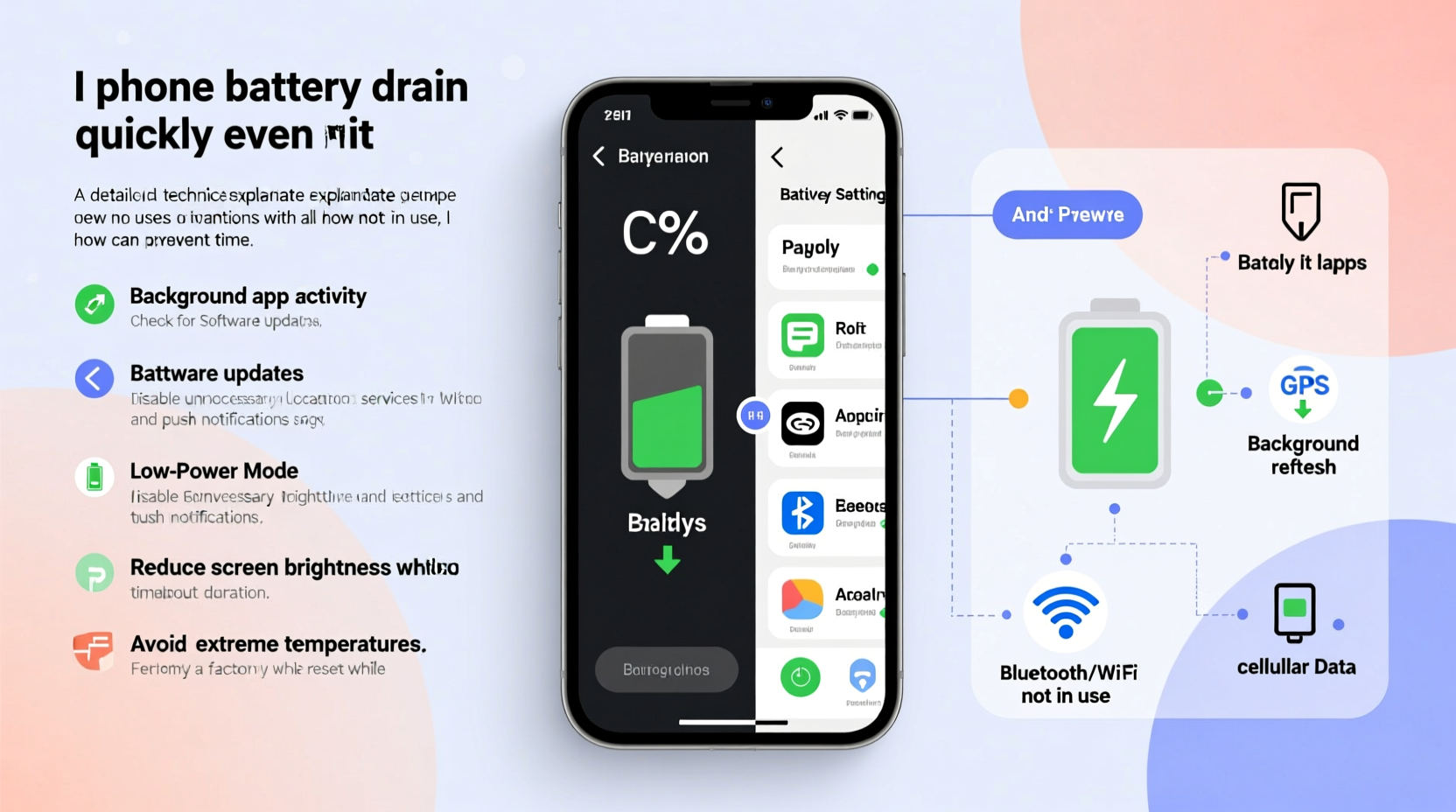
Battery drain during periods of inactivity doesn't mean your phone is truly “off.” Even when idle, smartphones perform dozens of background operations: syncing data, checking for messages, updating apps, tracking location, and maintaining network connections. While individually minor, these processes accumulate and consume significant power over time.
The following factors are among the most common reasons for excessive battery consumption when the device appears unused:
- Background app refresh: Apps continue running or checking for updates in the background.
- Poor cellular or Wi-Fi signal: Weak signals force the phone to work harder to maintain connection.
- Location services: GPS and location tracking run continuously unless restricted.
- Push notifications: Constant alerts from social media, email, and messaging apps keep radios active.
- Software bugs or outdated OS: Glitches in apps or operating systems can cause abnormal battery use.
- Aging battery health: Lithium-ion batteries degrade over time, reducing capacity and efficiency.
How to Diagnose Excessive Idle Drain
Before applying fixes, confirm whether the drain is abnormal. A small drop (5–10%) overnight may be normal due to background sync. But if your phone loses 30% or more while untouched, intervention is needed.
- Monitor overnight drain: Charge to 100%, disable unnecessary features (like Bluetooth), and leave it unused for 8 hours. Note the remaining percentage.
- Review battery usage stats: On iOS, go to Settings > Battery. On Android, go to Settings > Battery > Battery Usage. Look for apps with high “background” usage.
- Check signal strength: Poor reception increases radio output. If you're frequently in basements, rural areas, or concrete buildings, this could be a key factor.
- Test in Airplane Mode: Enable Airplane Mode overnight. If battery loss drops dramatically, wireless connectivity was the culprit.
Real Example: The Case of the Overactive Weather App
Sarah noticed her iPhone dropped from 90% to 55% overnight, despite being on her nightstand. She wasn’t using it. After checking her battery breakdown, she found a weather app accounted for 38% of total usage—mostly in the background. The app refreshed every 15 minutes, used location services constantly, and sent multiple notifications. After disabling background refresh and location access for the app, overnight drain fell to just 7%. The fix took less than five minutes but made a dramatic difference.
“Many users don’t realize how aggressively some apps operate in the background. A single misbehaving app can drain more power than active browsing.” — Dr. Lena Torres, Mobile Systems Analyst at TechInsight Labs
Step-by-Step Guide to Reduce Idle Battery Drain
Follow this structured approach to systematically reduce unnecessary battery consumption:
Step 1: Restrict Background App Refresh
Apps like Facebook, Instagram, and news aggregators constantly update content in the background. Disable this feature selectively.
- iOS: Settings > General > Background App Refresh. Turn off for non-essential apps.
- Android: Settings > Apps > [App Name] > Battery > Background restriction.
Step 2: Optimize Location Services
GPS is one of the most power-intensive features. Limit access to only essential apps.
- Set location access to “While Using” instead of “Always.”
- Disable location for apps like games, browsers, or social media unless necessary.
- Use “Battery Saver” mode for location on Android (Settings > Location > Mode).
Step 3: Manage Push Notifications
Every notification wakes the CPU and screen briefly. Reduce frequency and sources.
- Turn off non-urgent alerts (e.g., likes, comments, promotional emails).
- Use scheduled “Do Not Disturb” or Focus modes during sleep hours.
- On Android, enable “Adaptive Notifications”; on iOS, use Notification Summary.
Step 4: Improve Network Efficiency
Weak signals cause your phone to boost transmission power, draining the battery quickly.
- Enable Airplane Mode in low-signal areas (e.g., basements, elevators, remote zones).
- Switch to Wi-Fi calling if cellular signal is weak but Wi-Fi is stable.
- Disable 5G if not needed; LTE often uses less power in marginal coverage areas.
Step 5: Update Software and Apps
Outdated software often contains bugs that lead to memory leaks or inefficient processes.
- Install the latest OS updates—they frequently include battery optimizations.
- Update all apps through the App Store or Google Play.
- Remove unused or rarely updated third-party apps that may run hidden services.
Do’s and Don’ts: Battery Optimization Table
| Action | Do | Don't |
|---|---|---|
| Background Activity | Allow only for messaging, navigation, and music apps | Let social media apps refresh constantly |
| Location Access | Grant “While Using” access where possible | Allow “Always” tracking for non-critical apps |
| Overnight Charging | Use optimized charging features (iOS/Android) | Leave phone plugged in for 12+ hours daily |
| Signal Management | Enable Airplane Mode in dead zones | Force phone to search for signal indefinitely |
| Battery Health | Replace battery if capacity is below 80% | Ignore swelling, overheating, or rapid depletion |
When Hardware Is the Problem
Even perfect software settings won’t help if your battery is physically degraded. All lithium-ion batteries lose capacity after 300–500 charge cycles. Signs of hardware-related drain include:
- Rapid drop from 60% to 20% in under an hour with no usage.
- Phone shutting down unexpectedly at 10–20%.
- Excessive heat during idle periods.
To check battery health:
- iOS: Settings > Battery > Battery Health & Charging. Look for “Maximum Capacity.” Below 80% indicates replacement is advisable.
- Android: Dial
*#*#4636#*#*to access testing menu (on most devices) and view battery info. Alternatively, use apps like AccuBattery for long-term monitoring.
Frequently Asked Questions
Does turning off my phone completely save battery life?
Yes. Powering down eliminates all background activity and prevents any drain. However, you’ll miss calls, messages, and updates. For short periods (e.g., during flights or meetings), turning it off is effective. For nightly use, consider enabling Sleep Mode or Do Not Disturb instead.
Is dark mode better for battery life?
It depends on your screen type. On OLED or AMOLED displays (used in most premium Android phones and iPhones), dark mode significantly reduces power because black pixels are turned off. On LCD screens, the savings are negligible. If you have an OLED device, using dark mode—especially at night—can extend battery life by up to 30% in some cases.
Can malware cause battery drain?
Rarely on official platforms, but possible. Malicious apps disguised as utilities or games may run hidden mining scripts or ad loops. Stick to official app stores, review permissions carefully, and uninstall apps behaving oddly. On Android, Google Play Protect scans apps automatically. For added security, run periodic checks with trusted antivirus tools.
Final Checklist: Stop Idle Battery Drain Now
Apply this checklist weekly to maintain optimal battery performance:
- Review battery usage statistics in settings.
- Disable background refresh for non-essential apps.
- Limit location access to “While Using” for most apps.
- Turn off Bluetooth, Wi-Fi, and hotspot when not needed.
- Enable automatic brightness and adaptive battery (Android) or Optimized Battery Charging (iOS).
- Restart your phone once a week to clear memory leaks.
- Keep your OS and apps updated.
- Replace the battery if health is below 80% or if swelling occurs.
Take Control of Your Battery Life
Your phone doesn’t have to be a power hog. With a few strategic adjustments, you can dramatically reduce idle battery drain and enjoy longer, more reliable performance. The key is awareness: knowing which apps and settings are working against you, and taking deliberate steps to minimize waste. Most fixes require only minutes and no technical expertise.
Battery life isn’t just about convenience—it affects how you interact with your device throughout the day. Regaining control means fewer charging stops, less anxiety about sudden shutdowns, and a longer lifespan for your phone. Start implementing these changes today. Small habits compound into big results.




 浙公网安备
33010002000092号
浙公网安备
33010002000092号 浙B2-20120091-4
Comments
No comments yet. Why don't you start the discussion?