
It’s a frustrating but familiar experience: you wake up, plug in your phone overnight, install the latest software update with excitement, only to find that by midday, your battery is already gasping for power. You haven’t changed your habits, yet your device seems to be dying twice as fast. This isn’t just in your head—many users report rapid battery drain following system updates on both Android and iOS devices. While updates are designed to improve performance and security, they can sometimes introduce inefficiencies that impact battery life. The good news is that most of these issues are temporary or fixable.
This article dives into the technical and behavioral reasons behind post-update battery drain, explains what happens during an update that affects power consumption, and provides actionable solutions to reclaim your battery longevity. Whether you're using an iPhone or an Android flagship, these insights apply across platforms and models.
Why Software Updates Affect Battery Performance
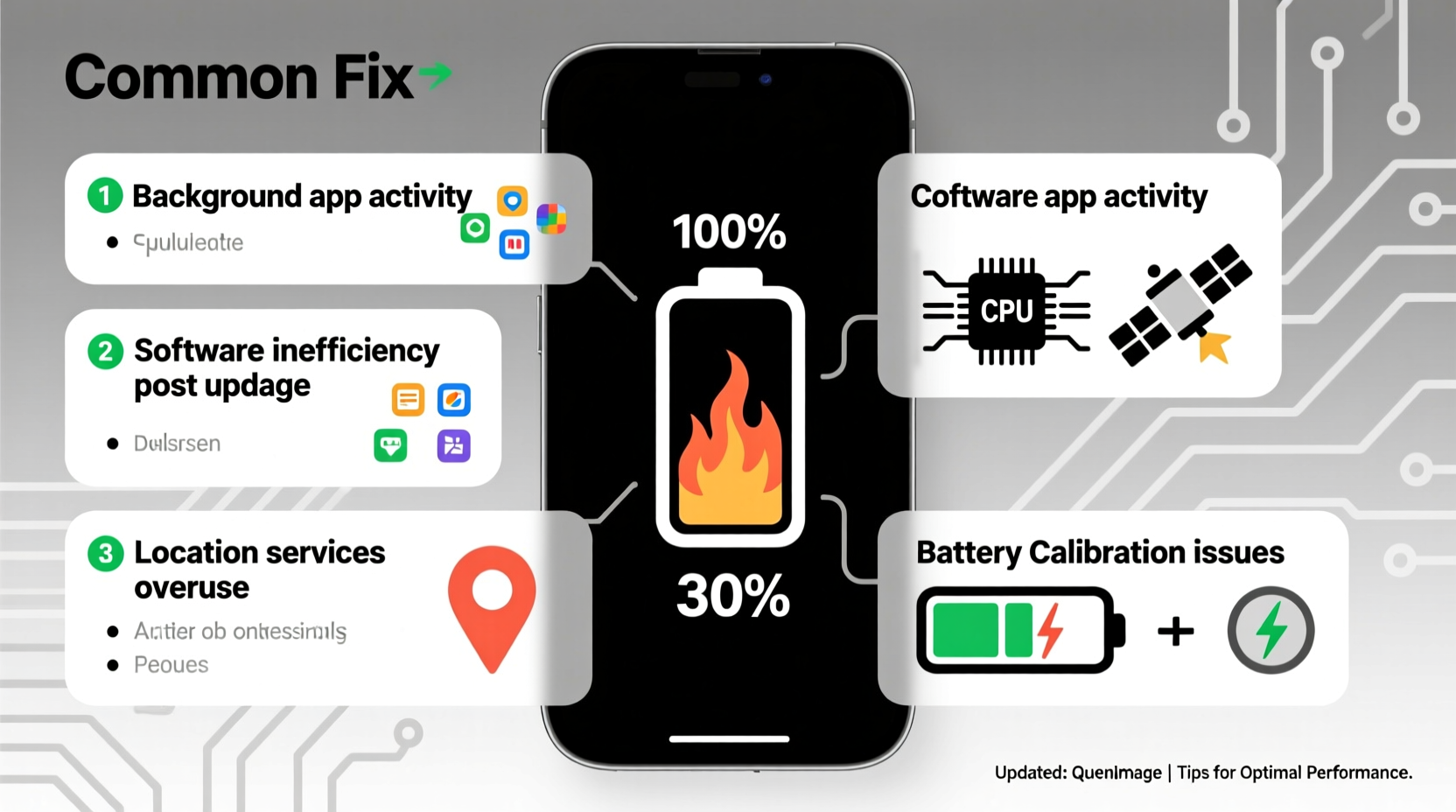
When a new operating system update rolls out—be it iOS 17, Android 14, or a manufacturer-specific patch—it often includes major changes under the hood. These aren't just cosmetic tweaks; they involve restructured background processes, updated algorithms for AI features, enhanced security protocols, and redesigned user interfaces. All of these components require processing power, and if not optimized immediately, they can create excessive battery load.
One of the primary culprits is indexing. After an update, your phone must re-index apps, messages, photos, contacts, and settings to align with the new system architecture. This process runs in the background and can last anywhere from a few hours to several days, depending on how much data your device holds. During this time, CPU usage spikes, GPS may activate intermittently, and network activity increases—all contributing to accelerated battery drain.
Additionally, app developers may not have released compatible versions for the new OS at the time of your update. As a result, older apps run less efficiently, causing crashes, restarts, and higher energy consumption. Over time, as apps update, this strain typically diminishes.
Common Causes of Post-Update Battery Drain
Understanding the root cause is essential to applying the right fix. Below are the most frequent technical and functional reasons why your phone's battery life deteriorates after an update.
- Background App Refresh & Re-indexing: The system rebuilds search indexes, syncs cloud data, and refreshes cached content, leading to high CPU and network use.
- Incompatible or Outdated Apps: Third-party apps not optimized for the new OS version may malfunction or consume excess power.
- New Features with High Power Demand: Updates often introduce resource-heavy features like live wallpapers, always-on displays, or advanced AI assistants.
- Location Services Misbehavior: Some apps may request location access more frequently post-update due to bugs or permission resets.
- Bug-Ridden Firmware: Occasionally, updates ship with undiscovered bugs that cause memory leaks or infinite loops in system processes.
- Adaptive Battery Learning Reset: On Android, the Adaptive Battery feature “forgets” your usage patterns after an update and needs time to relearn them.
- Push Email and Notifications Surge: Email clients and messaging apps may re-sync all accounts, triggering constant background fetch cycles.
“Software updates are like moving into a new house—you spend the first few days unpacking and rearranging. Your phone does the same internally, which temporarily increases energy use.” — Dr. Lena Patel, Mobile Systems Analyst at TechInsight Labs
Step-by-Step Fixes to Restore Battery Life
If your battery is draining abnormally fast after an update, don’t panic. Follow this structured troubleshooting sequence to identify and resolve the issue efficiently.
- Wait 24–48 Hours: Let the system complete indexing and background syncing. Avoid heavy usage during this period to allow stabilization.
- Restart Your Phone: A simple reboot clears temporary glitches and stops runaway background processes.
- Check Battery Usage Stats: Go to Settings > Battery and review which apps or services are consuming the most power. Look for anomalies.
- Update All Apps: Open your app store and ensure every app is updated to its latest version, especially social media, email, and cloud storage apps.
- Reset Location & Privacy Permissions: Revoke unnecessary location access and disable background location tracking for non-essential apps.
- Turn Off Background App Refresh (iOS) or Background Restrictions (Android): Limit which apps can run in the background.
- Disable Unnecessary Widgets & Live Features: Animated widgets, live activities, and always-on displays can significantly reduce battery life.
- Reduce Screen Brightness & Timeout: Lower brightness manually and set screen timeout to 30 seconds or less.
- Enable Battery Saver Mode Temporarily: This restricts background activity and reduces performance to conserve power while diagnosing.
- Reset All Settings (if needed): If problems persist, go to Settings > General > Reset > Reset All Settings. This won’t erase data but will clear network, display, and privacy configurations.
Do’s and Don’ts: Managing Battery Health After an Update
| Do’s | Don’ts |
|---|---|
| ✅ Wait 1–2 days before taking drastic action | ❌ Immediately factory reset your phone |
| ✅ Update all third-party apps promptly | ❌ Ignore app notifications about compatibility |
| ✅ Monitor battery usage daily for patterns | ❌ Leave Bluetooth, Wi-Fi, and GPS on unnecessarily |
| ✅ Use Low Power Mode or Battery Saver when needed | ❌ Install unknown \"battery booster\" apps from app stores |
| ✅ Restart your device regularly post-update | ❌ Disable critical security features to save battery |
Real-World Example: Sarah’s iPhone 14 Battery Crisis
Sarah, a freelance designer in Portland, updated her iPhone 14 to iOS 17.2 one evening. The next day, she noticed her battery dropped from 100% to 35% by noon—even though she was mostly answering emails and browsing design inspiration. Alarmed, she checked her battery usage and found that Safari, Photos, and “System Services” were consuming disproportionate power.
She followed the step-by-step guide above: restarted her phone, waited another 12 hours, and updated all apps via the App Store. She also disabled Background App Refresh for Instagram and Pinterest, which she rarely used during work hours. By the third day, her battery lasted nearly as long as before the update. The culprit? A combination of re-indexing in Photos and outdated plugins in Safari that were fixed after app updates.
Sarah’s case highlights a common pattern: initial panic over battery loss, followed by resolution through methodical troubleshooting rather than extreme measures.
When It Might Be More Than Just a Glitch
While most post-update battery issues resolve within a couple of days, some situations indicate deeper problems:
- The battery drains rapidly even when the phone is idle.
- Your device becomes unusually hot during normal use.
- Battery percentage drops in large jumps (e.g., from 60% to 30% in minutes).
- The problem persists beyond five days despite all fixes.
In such cases, the update may have exposed underlying hardware degradation. Lithium-ion batteries degrade over time, and a software change can make this decline more apparent. If your phone is over two years old, consider having the battery health checked. On iPhones, go to Settings > Battery > Battery Health. On Android, check manufacturer tools like Samsung’s Device Care or use diagnostic codes (*#*#4636#*#*).
If maximum capacity is below 80%, replacement may be necessary. Ironically, a new OS update demands more from aging hardware, accelerating perceived drain.
Frequently Asked Questions
Will uninstalling the update fix battery drain?
Generally, no—and it’s often impossible. Most manufacturers don’t allow downgrading operating systems for security reasons. Instead, focus on optimizing settings and waiting for follow-up patches. Apple and Google typically release minor updates (e.g., iOS 17.2.1) within weeks to address widespread battery complaints.
Can a factory reset help if my battery still drains?
Potentially, but it should be a last resort. A factory reset eliminates software clutter and misconfigurations, but you must back up everything first. After resetting, observe battery behavior *before* restoring apps. If the drain stops, the issue likely lies in corrupted app data or backup conflicts.
How do I know if the update itself is flawed?
Check official forums (Apple Support Communities, Google Pixel Help, XDA Developers) and tech news sites. If thousands of users report identical battery issues shortly after an update, it’s likely a systemic bug. In such cases, a patch is usually on the way.
Final Checklist: Regain Control of Your Battery Life
Use this concise checklist to systematically address post-update battery drain:
- ☑️ Wait 24–48 hours for system stabilization
- ☑️ Restart your phone after the update
- ☑️ Check battery usage stats in Settings
- ☑️ Update all installed apps
- ☑️ Disable Background App Refresh for non-critical apps
- ☑️ Turn off unnecessary location services
- ☑️ Reduce screen brightness and timeout duration
- ☑️ Enable Low Power or Battery Saver mode temporarily
- ☑️ Reset settings if issues persist (Settings > General > Reset)
- ☑️ Contact support if drain continues beyond five days
Conclusion: Take Charge of Your Device’s Performance
Experiencing faster battery drain after a software update is more common than you might think—and usually temporary. Modern smartphones are complex ecosystems where software changes can ripple through performance metrics in unexpected ways. But with a calm, structured approach, most battery issues can be resolved without sacrificing functionality or resorting to extreme measures.
Remember, updates are meant to enhance your experience, not hinder it. By understanding the behind-the-scenes processes like indexing, app adaptation, and system optimization, you’re better equipped to manage your device’s health. Apply the fixes outlined here, monitor your usage, and give your phone time to adapt. Chances are, within a few days, your battery life will stabilize and return to normal—or even improve.




 浙公网安备
33010002000092号
浙公网安备
33010002000092号 浙B2-20120091-4
Comments
No comments yet. Why don't you start the discussion?