
It’s a familiar frustration: you eagerly install the latest iOS update, only to notice your iPhone’s battery life nosedives within hours. What was once a full-day charge now barely lasts until lunchtime. While Apple's updates often bring new features and security improvements, they can also introduce performance hiccups—especially when it comes to battery efficiency. The issue isn’t always in your head. Many users report accelerated battery drain following major iOS releases, from iOS 15 through iOS 17. Understanding why this happens—and how to fix it—is essential for maintaining your device’s usability and longevity.
Why Battery Drain Happens After iOS Updates
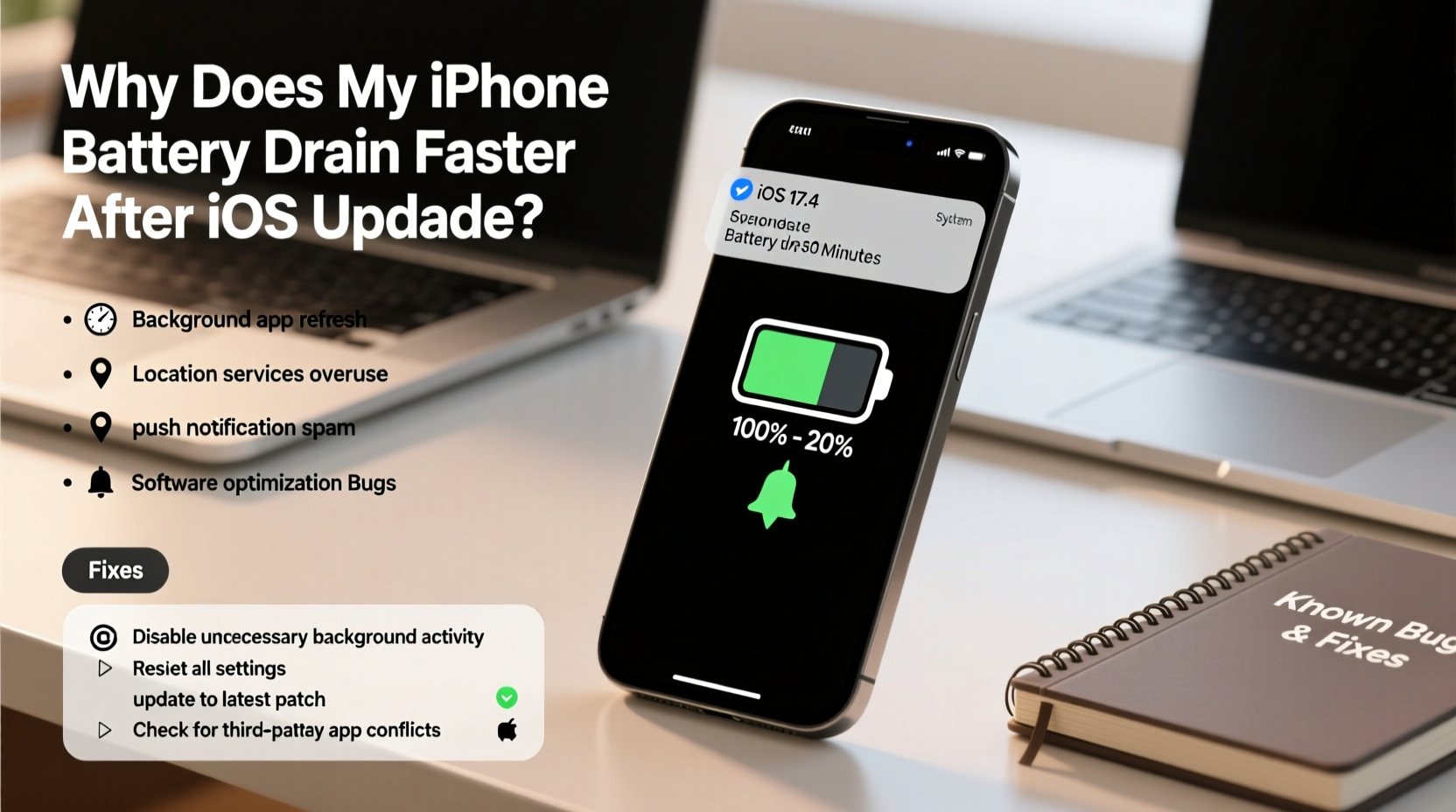
When Apple rolls out a new iOS version, your iPhone undergoes significant system-level changes. These include updated background processes, refreshed apps, reindexed data, and recalibrated battery algorithms. During the first few days after installation, your phone is essentially “learning” how to operate under the new software environment. This adaptation phase consumes extra power.
One of the primary reasons for increased battery usage is indexing. After an update, iOS rebuilds search indexes for messages, photos, emails, and Siri suggestions. This process runs in the background and can last up to 48 hours, depending on how much data is stored on your device. Similarly, location services may reset, prompting apps to re-request permissions and re-establish tracking patterns, which leads to higher GPS and sensor activity.
Additionally, new features introduced in updates—such as enhanced privacy tracking, live text detection, or improved photo analysis—can be resource-intensive. Even if you don’t actively use them, some of these systems run continuously in the background, silently draining your battery.
Known iOS Update Bugs That Impact Battery Life
Not all post-update battery issues are temporary. Some stem from genuine software bugs that Apple later patches. Over recent years, several iOS versions have been linked to excessive battery drain due to specific flaws.
iOS 16.4 (2023): Shortly after release, users reported rapid battery depletion, particularly on older iPhone models like the iPhone XR and iPhone 11. The issue was traced to aggressive background app refresh behavior and malfunctioning push notification services. Apple acknowledged the problem and released iOS 16.5 with optimizations targeting battery performance.
iOS 15.0–15.1 (2021): Early adopters of iOS 15 experienced severe battery drain, especially when using Wi-Fi calling or Bluetooth devices. A bug caused the cellular radio to remain active even when not in use, leading to overheating and fast discharge. The issue was partially mitigated in iOS 15.2 but took multiple iterations to fully resolve.
iOS 17.1 (2023): Users noticed their iPhones losing charge overnight despite minimal usage. Investigation revealed a flaw in the Background App Refresh and Push Services framework, where certain apps would wake the device repeatedly during sleep cycles. Apple addressed this in iOS 17.2 with stricter background task scheduling.
“Major OS updates can destabilize existing power management protocols. It’s not uncommon for battery algorithms to need recalibration after a firmware shift.” — Dr. Alan Reyes, Mobile Systems Engineer at Stanford University
Step-by-Step Guide to Fix Post-Update Battery Drain
If your iPhone is struggling to hold a charge after an update, follow this systematic troubleshooting process. Most issues can be resolved without restoring your device.
- Wait 24–48 Hours: Let your iPhone settle into the new OS. Indexing and background syncing often normalize within two days.
- Check Battery Usage by App: Go to Settings > Battery and review which apps are consuming the most power. Look for unusual spikes in background activity.
- Disable Background App Refresh for Non-Essential Apps: Navigate to Settings > General > Background App Refresh. Turn it off globally or selectively for apps like social media or games.
- Reset Location & Privacy Settings: After an update, apps may constantly request location access. Go to Settings > Privacy > Location Services and adjust permissions. Consider setting most apps to “While Using” instead of “Always.”
- Turn Off Push Mail: In Settings > Mail > Accounts > Fetch New Data, switch from “Push” to “Fetch” and set intervals to hourly or manually. Push constantly checks for mail, increasing network activity.
- Reduce Motion and Transparency Effects: Under Settings > Accessibility > Motion, enable “Reduce Motion.” Also, turn on “Reduce Transparency” in Settings > Accessibility > Display & Text Size to lower GPU load.
- Update All Apps: Outdated third-party apps may not be optimized for the new iOS version. Visit the App Store and update every app to ensure compatibility.
- Restart Your iPhone: A simple reboot clears cached processes and resets misbehaving services. Hold the side button and volume button, then slide to power off.
- Check for Carrier and Minor iOS Updates: Sometimes, Apple releases small patches (e.g., iOS 17.0.3) that address battery bugs. Ensure you’re on the latest sub-version.
- Calibrate the Battery (Last Resort): Fully drain your iPhone to 0%, charge it uninterrupted to 100%, then restart. This helps the system recalibrate battery percentage accuracy.
Do’s and Don’ts: Managing Battery Health After an Update
| Do’s | Don’ts |
|---|---|
| Monitor battery usage daily for the first week | Ignore sudden drops in standby time |
| Keep iOS updated to the latest patch | Install beta versions on your main device |
| Use Low Power Mode temporarily | Leave Bluetooth/Wi-Fi on unnecessarily |
| Enable Optimized Battery Charging | Charge overnight regularly on non-certified chargers |
| Review app permissions post-update | Assume hardware failure immediately |
Real-World Example: How Sarah Fixed Her iPhone 13’s Battery Issue
Sarah, a freelance photographer based in Portland, upgraded her iPhone 13 to iOS 17.0 upon release. Within a day, she noticed her battery dropping from 100% to 40% overnight—despite not using the phone. Alarmed, she checked Settings > Battery and discovered that “System Services” and “Photos” were consuming disproportionate energy.
She followed a methodical approach: first, she disabled Background App Refresh for non-critical apps. Then, she reviewed Location Services and found that a weather app was using “Always” tracking. She changed it to “While Using.” Next, she turned off iCloud Photos optimization temporarily, as the app was re-syncing thumbnails after the update.
After restarting her phone, Sarah observed immediate improvement. Overnight drain dropped from 60% to under 10%. By the third day, her battery behavior returned to normal. Her experience highlights how a combination of settings adjustments and patience can resolve most post-update issues without technical support.
Expert-Backed Tips to Prevent Future Battery Issues
While you can’t control when Apple releases updates, you can minimize their impact on battery life. Experts recommend proactive habits that reduce strain on your device during transitions.
- Delay Major Updates by 1–2 Weeks: Wait for user feedback and early bug reports before installing. Patches often follow within days.
- Backup Before Updating: Use iCloud or iTunes to create a backup. If battery issues persist, you can restore and wait for a more stable version.
- Use Low Power Mode Immediately After Update: Enable it during the first 48 hours to limit background activity while the system stabilizes.
- Avoid Installing Beta Software on Primary Devices: Public beta versions are inherently unstable and frequently cause battery anomalies.
- Monitor Temperature: Excessive heat accelerates battery degradation. Avoid using your phone in direct sunlight or hot environments during and after updates.
Frequently Asked Questions
Is it normal for my iPhone battery to drain faster after an iOS update?
Yes, mild battery drain in the first 24–48 hours is normal due to system indexing, app updates, and background recalibration. However, persistent drain beyond two days indicates a configuration issue or bug.
Can a software update permanently damage my battery?
No, iOS updates do not physically damage the battery. However, prolonged exposure to high temperatures caused by software inefficiencies can accelerate long-term degradation. Keeping your device cool and well-maintained preserves lifespan.
Should I downgrade iOS if my battery life is terrible after an update?
Downgrading is possible only during a short window after a new iOS release, and it requires a computer and IPSW file. It’s generally not recommended unless the update renders your phone unusable. Most battery issues are resolved in subsequent patches.
Conclusion: Take Control of Your iPhone’s Battery Performance
An iOS update shouldn’t come at the cost of your phone’s reliability. While temporary battery fluctuations are expected, understanding the underlying causes empowers you to respond effectively. From adjusting background settings to monitoring app behavior, the tools to fix battery drain are already on your device. Most issues are software-related and solvable without visiting a service center.
Stay informed, act promptly, and don’t hesitate to tweak settings that align with your usage patterns. With the right approach, you can enjoy the benefits of new iOS features without sacrificing battery life. Keep your iPhone running smoothly—because your device should work for you, not against you.




 浙公网安备
33010002000092号
浙公网安备
33010002000092号 浙B2-20120091-4
Comments
No comments yet. Why don't you start the discussion?