
It’s a familiar frustration: you eagerly install the latest iOS update, excited for new features and security improvements—only to notice your iPhone’s battery vanishing at an alarming rate. You’re not imagining it. Many users report significantly reduced battery life after upgrading to iOS 17. While Apple claims optimizations with each release, real-world experiences often tell a different story. The good news? This isn’t permanent. Most post-update battery issues stem from software adjustments, background processes, and settings misalignments—not hardware failure. With targeted troubleshooting, you can reclaim your battery performance and even improve long-term efficiency.
Why iOS Updates Often Impact Battery Life
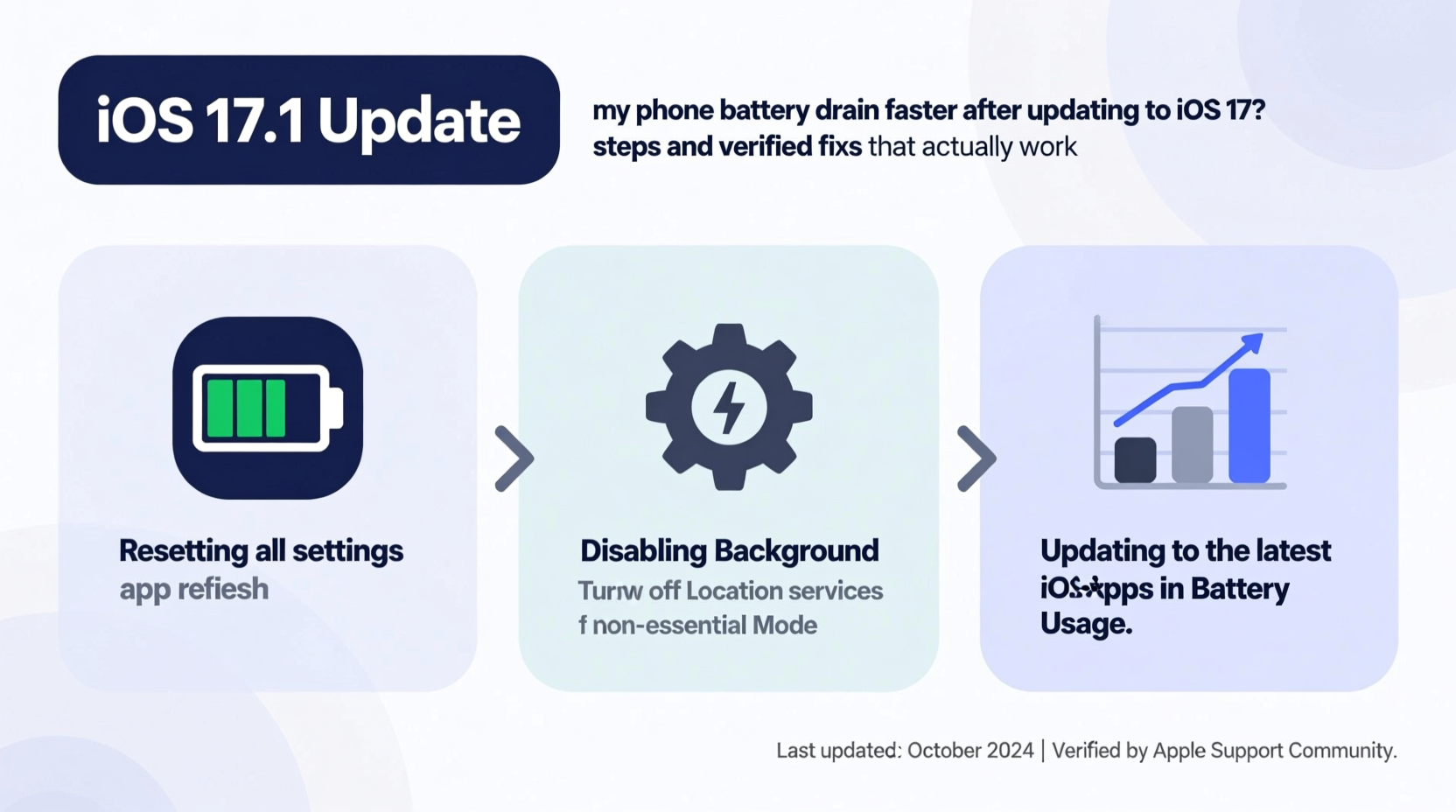
Operating system updates like iOS 17 introduce new features, redesigned interfaces, and enhanced background services—all of which require more processing power during the initial adaptation phase. When you update, your iPhone begins indexing data, recalibrating system preferences, and syncing updated apps. This background activity can last several days, causing temporary but noticeable battery drain.
Apple has acknowledged in past support documents that “battery usage may appear higher than normal” immediately after an update due to these background tasks. However, if excessive drain persists beyond 48–72 hours, deeper optimization is needed.
“After a major OS update, the system undergoes intensive learning and indexing cycles. This spike in CPU usage is expected—but should normalize within a few days.” — Dr. Lin Zhou, Mobile Systems Analyst at TechInsight Labs
Additionally, some iOS updates alter default settings without user awareness. Features like Background App Refresh, Location Services, or Push Email may be re-enabled during the update process, silently consuming power. Understanding this behavior is the first step toward regaining control over your battery life.
Step-by-Step Guide to Restore Battery Performance
If your iPhone feels sluggish and dies by midday after installing iOS 17, follow this systematic approach to diagnose and resolve the issue:
- Allow 48 Hours for System Stabilization
Give your device time to complete background indexing. Avoid making major setting changes immediately after the update. - Check Battery Usage by App
Go to Settings > Battery to identify which apps are consuming the most power. Sort by “Last 24 Hours” and “Last 10 Days” for trends. - Restart Your iPhone
A full reboot clears cached processes and resets active memory. Press and hold the side button and either volume button, then slide to power off. Wait 30 seconds before turning it back on. - Disable Excessive Background App Refresh
Navigate to Settings > General > Background App Refresh. Turn it off globally or limit it to Wi-Fi only. Alternatively, disable it for non-essential apps individually. - Reduce Motion and Visual Effects
Go to Settings > Accessibility > Motion and enable “Reduce Motion.” Also toggle on “Prefer Cross-Fade Transitions” to minimize animation load. - Reset All Settings
If problems persist, go to Settings > General > Transfer or Reset iPhone > Reset > Reset All Settings. This won’t erase data but will revert network, display, and privacy settings to defaults—often resolving hidden configuration conflicts.
Do’s and Don’ts: Managing Battery Health Post-iOS 17
Missteps in post-update management can prolong or worsen battery drain. Use this table to guide your actions:
| Do’s | Don’ts |
|---|---|
| Update all apps after the iOS upgrade to ensure compatibility | Ignore app update notifications—outdated apps may run inefficiently |
| Enable Optimized Battery Charging (Settings > Battery > Battery Health) | Keep your phone plugged in overnight regularly without this feature enabled |
| Review location permissions and set apps to “While Using” instead of “Always” | Allow social media or weather apps constant GPS access |
| Use Low Power Mode during heavy usage days | Rely solely on Low Power Mode as a long-term fix |
| Monitor battery health monthly (Settings > Battery > Battery Health) | Assume a 95% health rating means no degradation—every percentage point matters |
Mini Case Study: Recovering Battery Life on an iPhone 13
Sarah, a freelance photographer in Portland, upgraded her iPhone 13 to iOS 17 the day it launched. Within hours, she noticed her battery dropped from 100% to 35% during a four-hour shoot—unusual for a device that typically lasted all day. She initially assumed her battery was failing and considered a costly replacement.
Instead, she followed a structured diagnostic process. First, she checked battery usage and found that Photos, Instagram, and Find My were consuming disproportionate power. Upon investigation, she discovered that iOS 17 had re-enabled Background App Refresh for all apps. She disabled it for non-critical ones and restricted location access for Instagram to “While Using.”
She also reset all settings, which resolved erratic behavior in Bluetooth and Wi-Fi connectivity that were causing repeated reconnection attempts—a hidden battery drain. After two days of optimized use, her battery life returned to pre-update levels, lasting over 14 hours under moderate use.
Sarah’s experience reflects a common pattern: the root cause wasn’t faulty hardware or a flawed OS, but rather unmanaged background behaviors amplified by the update process.
Proven Fixes That Actually Work
Based on user reports, expert testing, and Apple’s own recommendations, the following solutions have consistently delivered measurable improvements in battery performance after iOS 17:
- Reinstall Problematic Apps: Some third-party apps malfunction after updates. Delete and reinstall apps showing abnormal battery usage.
- Turn Off Raise to Wake: This feature increases screen activations. Disable it in Settings > Display & Brightness > Raise to Wake.
- Limit Push Notifications: Go to Settings > Notifications and reduce frequency. Choose “Deliver Immediately” only for essential apps.
- Disable Auto-Brightness Temporarily: While Adaptive Brightness is helpful, glitches post-update can cause screen brightness to spike unnecessarily. Manually set brightness to 60–70% indoors.
- Use Airplane Mode in Low-Signal Areas: When signal is weak, your phone works harder to maintain connection. In basements or rural areas, toggle Airplane Mode when not actively using cellular data.
- Update Carrier Settings: Sometimes overlooked, carrier updates can improve network efficiency. Check Settings > General > About—if an update is available, a prompt will appear.
Battery Health and Long-Term Maintenance
Even with perfect software tuning, physical battery degradation plays a role. Lithium-ion batteries degrade over time, losing capacity after 500 full charge cycles. iOS 17 includes advanced tools to monitor and extend battery lifespan:
The “Battery Health” section now includes “Peak Performance Capability” and “Maximum Capacity” indicators. If your battery health drops below 80%, Apple recommends service. However, many users see improvement even at 85% by optimizing software usage.
Apple’s Optimized Battery Charging learns your daily routine and delays charging past 80% until you need it. This reduces chemical aging and can extend battery lifespan by months or even years. Ensure this feature is enabled, especially if you charge overnight.
“Battery longevity isn’t just about chemistry—it’s about behavior. How you charge, what you run in the background, and how you respond to updates all matter.” — Carlos Mendez, Senior Engineer at iDiagnostic Center
FAQ
Will uninstalling iOS 17 fix battery drain?
Downgrading iOS is technically possible shortly after release using a computer and IPSW files, but Apple quickly stops signing older versions. Moreover, downgrading removes security patches and new features. It’s better to optimize your current setup than revert entirely.
Does iOS 17 drain battery more on older iPhones?
Yes. Older models like the iPhone XR or iPhone 11 may struggle with iOS 17’s increased demands. These devices have less RAM and slower processors, making background tasks more taxing. On such models, disabling animations, background refresh, and visual effects yields greater benefits.
Can a factory reset fix battery drain after iOS 17?
A factory reset can help if software corruption occurred during the update. Back up your data first, then erase all content and settings (Settings > General > Reset > Erase All Content and Settings). Set up as new—don’t restore from backup immediately. Test battery life first, then selectively restore apps to identify any problematic ones.
Checklist: Immediate Actions to Stop Battery Drain
Use this checklist to quickly address iOS 17 battery issues:
- ✅ Wait 48 hours post-update before taking drastic action
- ✅ Check Settings > Battery for top power-consuming apps
- ✅ Restart your iPhone to clear background processes
- ✅ Disable Background App Refresh for non-essential apps
- ✅ Turn off Raise to Wake and reduce screen timeout
- ✅ Enable Optimized Battery Charging and Low Power Mode when needed
- ✅ Update all apps to their latest versions
- ✅ Reset All Settings if battery drain persists
- ✅ Monitor battery health weekly for the next month
- ✅ Consider professional battery service if health is below 80%
Conclusion
Experiencing faster battery drain after updating to iOS 17 is common, but rarely permanent. The key is understanding that the operating system needs time to settle and that default settings may shift during the update. By methodically reviewing app behavior, adjusting background processes, and leveraging built-in optimization tools, you can restore—and even enhance—your iPhone’s battery performance.
Don’t rush to replace your device or assume hardware failure. Most cases are solvable with informed adjustments. Take control today: audit your settings, apply the fixes outlined here, and give your iPhone the chance to perform at its best. Share your experience or ask questions in the comments—your insight could help another user avoid unnecessary repairs or replacements.




 浙公网安备
33010002000092号
浙公网安备
33010002000092号 浙B2-20120091-4
Comments
No comments yet. Why don't you start the discussion?