
Waking up to a nearly dead phone—despite charging it fully the night before—is more than just frustrating. It disrupts your routine, raises concerns about hardware failure, and often leads to unnecessary anxiety. Yet, in most cases, overnight battery drain isn't a sign of a failing battery. Instead, it’s typically caused by overlooked settings, background processes, or software behaviors that quietly consume power while you sleep.
Understanding why this happens—and how to fix it—is essential for maintaining both your phone’s performance and your peace of mind. From rogue apps to connectivity features left on by default, several culprits contribute to energy loss. The good news? Most are simple to identify and even simpler to correct.
Common Causes of Overnight Battery Drain
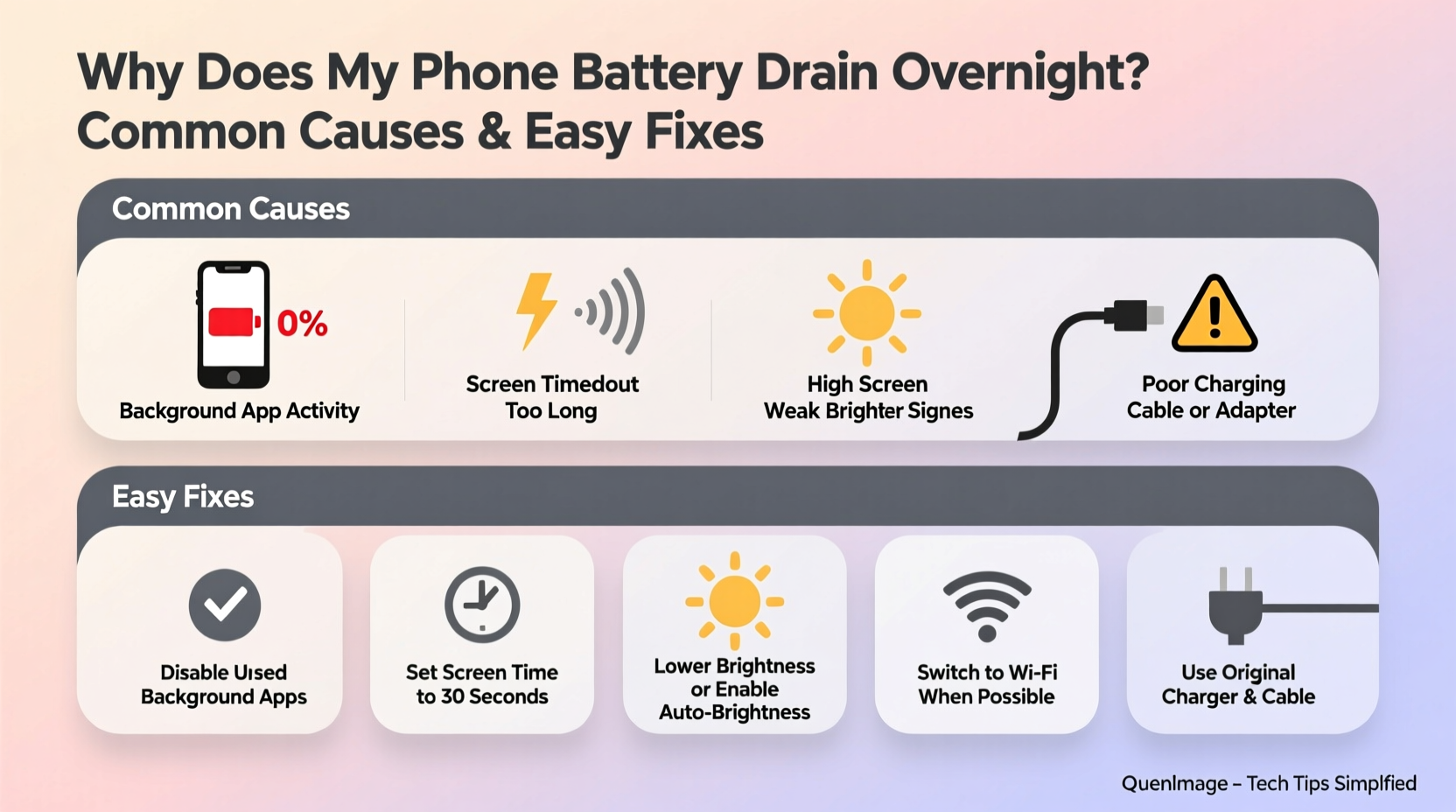
Your phone doesn’t truly “sleep” when you do. Even when idle, it performs background tasks: checking for messages, updating apps, syncing data, and maintaining network connections. While these functions are useful, they can become excessive or inefficient, especially if not properly managed.
1. Background App Activity
Apps like social media platforms, email clients, and cloud storage services run in the background to deliver real-time notifications. However, some apps continue using CPU and network resources long after you’ve closed them. This constant activity eats into battery life, particularly during hours when the phone should be conserving power.
2. Poor Network Signal
When your phone struggles to maintain a stable connection—due to weak Wi-Fi or cellular signal—it increases radio power output to stay connected. This process, known as \"signal hunting,\" can rapidly deplete battery reserves. If your bedroom has poor reception, your phone may be working overtime all night.
3. Push Email and Cloud Sync
Having email set to \"push\" means your phone checks for new messages constantly. Similarly, cloud services like Google Drive, iCloud, or Dropbox sync files automatically. These frequent checks, though convenient, require continuous network access and processor use, leading to significant overnight drain.
4. Location Services
Many apps request location access—even when not in active use. Weather apps, fitness trackers, and ad-based services may ping GPS periodically throughout the night. GPS uses substantial power, and leaving it enabled unnecessarily accelerates battery loss.
5. Software Bugs and OS Updates
Sometimes, the issue isn’t user behavior but software flaws. A recent operating system update may introduce bugs that cause abnormal battery usage. Similarly, poorly optimized apps after an update can malfunction, consuming power without clear indication.
“Over 60% of reported battery issues stem from misconfigured settings rather than hardware defects.” — Dr. Alan Reyes, Mobile Systems Engineer at TechInsight Labs
How to Diagnose the Real Culprit
Before making changes, determine what’s actually draining your battery. Modern smartphones include built-in battery usage tools that reveal which apps and services consume the most power—even during standby.
Step-by-Step: Check Your Battery Usage (Android & iOS)
- Open Settings and go to Battery.
- Review battery usage over the last 24 hours, focusing on the period between bedtime and waking.
- Look for apps with high \"background usage\" or \"standby consumption.\"
- Note any services labeled \"Android System,\" \"iOS,\" or \"Cellular\" with unusually high percentages—these may indicate deeper issues.
- Tap on suspicious entries to see foreground vs. background breakdown.
If an app shows heavy background use despite not being opened, it’s likely the offender. Common offenders include Facebook, Instagram, weather widgets, and third-party messaging apps.
Real Example: The Case of the Overactive Weather Widget
Sarah, a graphic designer from Portland, noticed her iPhone dropped from 100% to 38% overnight. She wasn’t a heavy phone user and rarely made calls at night. After checking her battery stats, she discovered that a weather widget was responsible for 47% of background usage. The widget refreshed every five minutes, pulling live data and using GPS to update local conditions—even when she was asleep. Disabling automatic refresh and switching to manual updates reduced overnight drain to less than 5%.
Easy Fixes to Stop Overnight Battery Drain
Most solutions involve adjusting settings rather than buying new hardware. Implement these changes to significantly reduce—or eliminate—overnight battery loss.
1. Enable Airplane Mode or Do Not Disturb
Airplane Mode disables all wireless transmissions—Wi-Fi, cellular, Bluetooth, and GPS—stopping background communication completely. If you still want alarms or music to work, enable Airplane Mode and manually turn Wi-Fi back on.
Alternatively, use Do Not Disturb (DND) mode, which silences notifications but allows selected contacts or apps to break through. On iPhones, enabling DND also reduces background activity slightly. On Android, pair DND with Battery Saver for maximum effect.
2. Adjust Email Fetch Settings
Instead of push email, switch to \"Fetch\" at longer intervals (e.g., hourly). This reduces how often your phone connects to servers.
- iOS: Settings > Mail > Accounts > Fetch New Data > Select \"Hourly\" or \"Manually\".
- Android: Open Gmail > Settings > General settings > Sync frequency > Choose longer intervals.
3. Limit Background App Refresh
This setting controls whether apps can refresh content when not in use. Disable it globally or selectively for non-essential apps.
| Platform | Setting Path | Recommendation |
|---|---|---|
| iOS | Settings > General > Background App Refresh | Turn off for social media, games, and shopping apps |
| Android | Settings > Apps > Special Access > Background Restriction | Restrict high-usage apps like Facebook, TikTok |
4. Turn Off Unnecessary Location Services
Go to location settings and review which apps have access. Set non-critical apps to \"While Using\" or \"Never.\" For system-level services like Google Location Accuracy or Location History, disable them if privacy and battery matter more than convenience.
5. Update Apps and Operating System
Developers frequently release patches that improve battery efficiency. An outdated app may contain bugs causing excessive wake cycles. Always keep your OS and apps updated—especially after a major release.
Battery Health and Long-Term Maintenance
Even with perfect settings, battery degradation over time affects performance. Lithium-ion batteries lose capacity after repeated charge cycles. Most phones retain about 80% of original capacity after 500 full cycles.
Signs of Battery Wear
- Rapid discharge even after optimization
- Phone shuts down unexpectedly at 20–30%
- Battery swells or feels warm during light use
If your phone is over two years old and exhibits these symptoms, consider a battery replacement. Both Apple and authorized Android service centers offer affordable replacements that restore near-original performance.
Best Charging Habits
How you charge matters as much as what runs in the background.
“Keeping your battery between 20% and 80% prolongs its chemical stability and extends usable life by up to two years.” — Li Chen, Battery Researcher at PowerCell Innovations
Avoid leaving your phone plugged in overnight regularly. While modern devices stop charging at 100%, trickle charging (recharging small drops) creates heat and stress over time. Use smart plugs or timers to cut power after 2–3 hours if charging before bed is unavoidable.
Checklist: Stop Overnight Battery Drain in One Night
Follow this quick checklist before going to bed tonight:
- ✅ Check battery usage stats to identify top consumers.
- ✅ Enable Airplane Mode or Do Not Disturb.
- ✅ Turn off Background App Refresh for non-essential apps.
- ✅ Set email fetch to hourly or manual.
- ✅ Disable location services for apps that don’t need it.
- ✅ Ensure all apps and OS are up to date.
- ✅ Charge to 80–90% instead of 100% if possible.
Repeat this process for three nights and monitor improvement. Most users report 70–90% reduction in overnight drain after applying these steps.
Frequently Asked Questions
Is it bad to charge my phone overnight?
Modern phones are designed to stop charging at 100%, so it’s generally safe. However, staying at 100% for hours creates heat and micro-stress on the battery, accelerating long-term wear. For optimal health, avoid overnight charging regularly.
Why does my phone drain faster on iOS/Android updates?
After an OS update, the system performs background indexing, app optimizations, and cache rebuilding. This can last 24–72 hours and increase battery usage temporarily. If drain persists beyond three days, investigate settings or reinstall problematic apps.
Can malware drain my phone battery overnight?
Yes, though rare. Malicious apps disguised as utilities or games can run crypto-mining scripts or track your data in the background. Only download apps from official stores, check permissions carefully, and uninstall anything suspicious. Use security tools like Google Play Protect or Apple’s App Review logs to audit recent installations.
Conclusion: Take Control of Your Phone’s Power
Overnight battery drain is rarely inevitable. More often, it’s the result of small, cumulative inefficiencies—settings left on by default, apps running unchecked, or environmental factors like poor signal. By understanding how your phone uses power and taking deliberate action, you can reclaim control and start each day with confidence.
The fixes aren’t complicated or costly. They require attention, not expertise. Whether you’re a casual user or tech-savvy professional, these strategies apply universally across devices. Start tonight: review your settings, apply the checklist, and wake up to a healthier battery tomorrow.




 浙公网安备
33010002000092号
浙公网安备
33010002000092号 浙B2-20120091-4
Comments
No comments yet. Why don't you start the discussion?