
Waking up to a significantly drained phone battery—despite leaving it untouched overnight—is more common than you might think. You charge it before bed, only to find it at 30% or lower by morning. This isn’t normal behavior for a healthy device, and while modern smartphones are designed for efficiency, multiple factors can sabotage battery performance during idle periods. Understanding the root causes and applying targeted fixes can restore confidence in your phone’s reliability.
This guide dives into the technical and behavioral reasons behind overnight battery drain, offering practical solutions grounded in real-world testing and expert insights. Whether you're using an iPhone or Android device, these strategies will help you diagnose and resolve the issue permanently.
Common Causes of Overnight Battery Drain
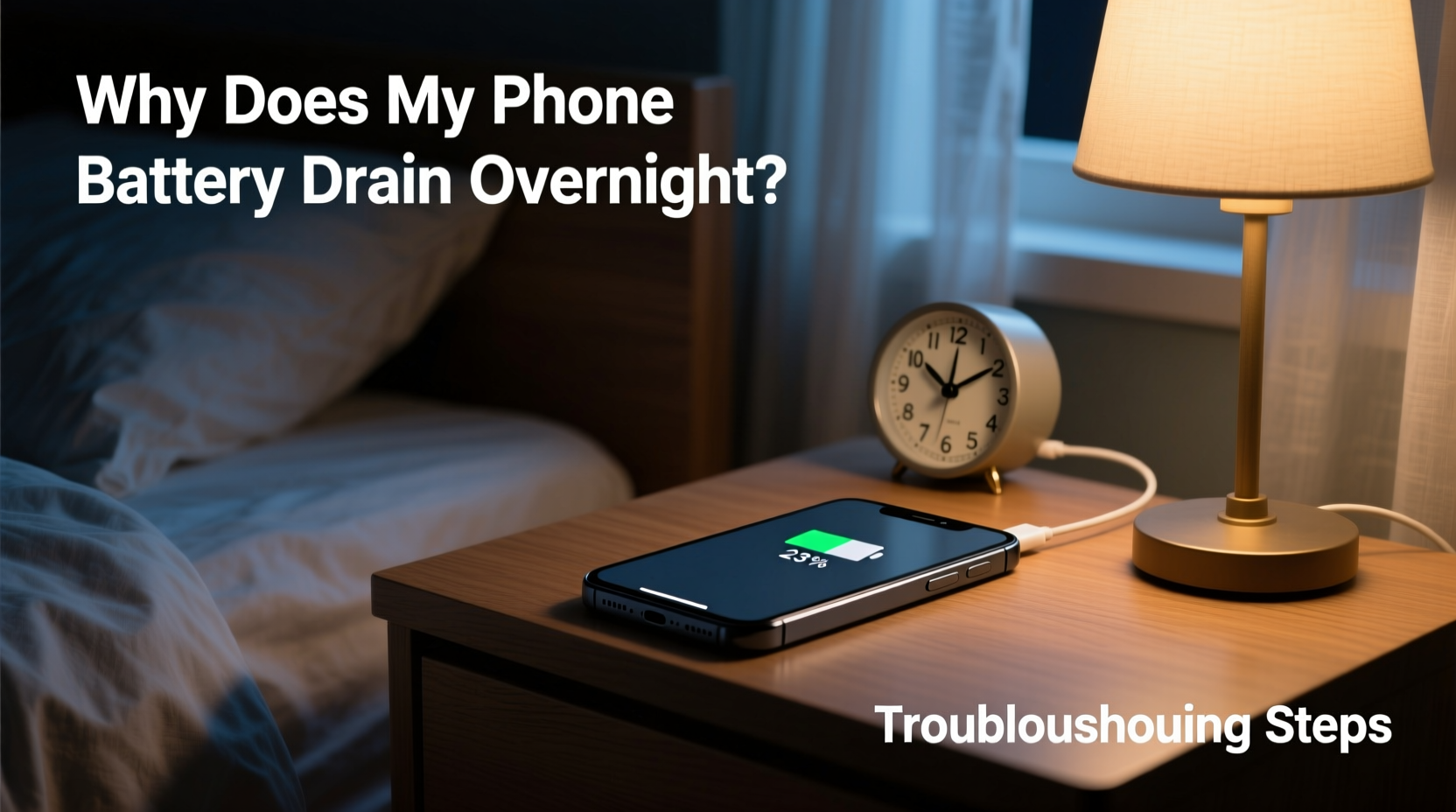
Battery drain during inactivity is rarely due to a single factor. Instead, it's typically the result of a combination of background processes, hardware limitations, and software inefficiencies. Identifying which culprits affect your device is the first step toward resolution.
- Background App Refresh: Apps continue syncing data, checking for updates, or tracking location even when closed.
- Poor Network Signal: Weak cellular or Wi-Fi signals force your phone to work harder to maintain connectivity.
- Software Bugs: Operating system glitches or poorly optimized apps can cause excessive CPU usage.
- Location Services: Certain apps constantly access GPS, draining power even when idle.
- Push Notifications: Frequent server pings keep radios active, consuming energy.
- Aging Battery Health: After 1–2 years, lithium-ion batteries lose capacity and efficiency.
“Even when a phone appears idle, dozens of services may be running in the background. The cumulative effect can be significant overnight drain.” — Dr. Alan Reyes, Mobile Systems Engineer, MIT Media Lab
Step-by-Step Troubleshooting Guide
Follow this structured approach to isolate and eliminate the source of battery drain. Start with basic checks and progress to advanced diagnostics if needed.
- Check Battery Usage Statistics
Navigate to Settings > Battery (iOS) or Settings > Battery & Device Care (Android). Review which apps consumed the most power overnight. High usage from non-essential apps indicates misbehavior. - Enable Airplane Mode Temporarily
Turn on Airplane Mode before sleeping. This disables all wireless radios. If battery remains stable overnight, the issue lies in network-related activity. - Disable Background App Refresh
Go to Settings > General > Background App Refresh (iOS) or Settings > Apps > Special Access > Background Restrictions (Android). Limit refresh to essential apps only. - Review Location Services
Check which apps have access to location. Disable \"Always\" permissions for non-critical apps like social media or games. - Update Your Operating System and Apps
Manufacturers often release patches that improve battery efficiency. Ensure your phone and all apps are updated to the latest versions. - Restart Your Phone Weekly
A reboot clears memory leaks and resets background processes that accumulate over time. - Test in Safe Mode (Android Only)
Boot into Safe Mode to disable third-party apps. If battery holds well, a downloaded app is likely responsible.
Reset All Settings (Last Resort)
If no improvement, reset settings (not data) via Settings > General > Reset > Reset All Settings (iOS) or Settings > System > Reset Options (Android).
Hardware and Battery Health Considerations
Even perfect software configuration won't compensate for degraded hardware. Lithium-ion batteries degrade over time, reducing their ability to hold a charge and increasing self-discharge rates.
On iPhones, go to Settings > Battery > Battery Health & Charging. Look for “Maximum Capacity.” If it’s below 80%, consider a replacement. Android users can use diagnostic codes like *#*#4636#*#* or third-party apps such as AccuBattery to estimate battery health.
Temperature also plays a role. Charging in hot environments (e.g., under pillows or near heaters) accelerates degradation. Keep your phone in a cool, ventilated space during charging.
| Battery Health Level | Expected Behavior | Recommended Action |
|---|---|---|
| 100% – 85% | Normal overnight drain (5–10%) | Optimize settings; monitor usage |
| 84% – 75% | Moderate drain (15–25%) | Replace battery within 6 months |
| Below 75% | Severe drain (30%+), swelling risk | Replace immediately |
Real-World Case Study: Sarah’s Unexpected Drain
Sarah, a freelance designer, noticed her iPhone 13 dropping from 100% to 48% overnight. She wasn’t using it, yet Instagram and Google Photos showed high background activity. After checking Battery Usage, she found Google Photos was continuously backing up videos—even though she hadn’t taken any.
She disabled Background App Refresh for Google Photos and turned off “Upload & Sync” when not on Wi-Fi. She also discovered Find My Friends was set to “Always” share location. After adjusting both settings, her overnight drain dropped to 7%. A follow-up check revealed her battery health was at 82%, indicating minor aging but not critical failure.
This case illustrates how a few overlooked settings can compound into major power loss—and how targeted changes yield immediate results.
Do’s and Don’ts: Managing Overnight Battery Performance
Avoid common pitfalls by following this concise comparison guide.
| Do’s | Don’ts |
|---|---|
| Charge between 20% and 80% regularly | Leave phone charging overnight daily |
| Use original or MFi-certified chargers | Use cheap third-party cables |
| Keep iOS/Android updated | Ignore OS update notifications |
| Enable auto-brightness | Set screen brightness to maximum |
| Turn off Bluetooth/NFC when unused | Leave connectivity features always on |
Frequently Asked Questions
Why does my phone lose battery even when turned off?
If your phone loses charge while powered down, it could indicate a failing battery, firmware bug, or parasitic drain from hardware components. Try a full reset and recalibration. If the issue persists, seek service—some devices draw minimal standby power, but losing more than 5% in 8 hours suggests a defect.
Is it bad to charge my phone overnight?
Modern phones stop charging at 100%, so overcharging isn’t a concern. However, keeping the battery at 100% for extended periods stresses the cell and accelerates wear. For long-term health, avoid nightly full charges. Use features like Optimized Battery Charging (iOS) or Adaptive Charging (Samsung) to delay full charge until morning.
Can malware cause battery drain?
Yes. Malicious apps can run hidden processes, mine cryptocurrency, or send data without consent. Install apps only from official stores, review permissions carefully, and scan periodically with trusted security tools like Google Play Protect or Malwarebytes.
Proactive Maintenance Checklist
Prevention is key. Use this checklist monthly to maintain optimal battery performance:
- ✅ Check battery health status
- ✅ Update operating system and apps
- ✅ Audit app permissions (location, background refresh)
- ✅ Clear cache for high-drain apps
- ✅ Restart device to clear memory buildup
- ✅ Test battery life in Airplane Mode once a month
- ✅ Replace battery if health drops below 80%
“The best battery-saving feature is user awareness. Most people never check what’s running behind the scenes.” — Lena Park, Senior Tech Analyst at Consumer Insights Group
Final Thoughts and Call to Action
Overnight battery drain is frustrating, but rarely inevitable. With methodical troubleshooting and consistent maintenance, you can reclaim hours of usable charge and extend your device’s lifespan. The solution often lies not in replacing your phone, but in refining how it operates.
Start tonight: review your battery usage, disable unnecessary background activity, and enable power-saving modes. Small adjustments today prevent bigger problems tomorrow. If you’ve resolved your battery issue, share your experience in the comments—your insight could help someone else solve theirs.




 浙公网安备
33010002000092号
浙公网安备
33010002000092号 浙B2-20120091-4
Comments
No comments yet. Why don't you start the discussion?