
After updating to iOS 17, many iPhone users have reported a sudden and dramatic drop in battery performance. What once lasted a full day now struggles to make it through the afternoon. While Apple promises improvements with each new OS release, real-world experiences often tell a different story—especially during the initial rollout phase. The truth is, iOS updates can introduce background inefficiencies, reset settings, and trigger power-hungry processes that weren’t active before. But there’s good news: most of these issues are temporary and fixable.
This guide breaks down the technical and behavioral causes behind rapid battery drain post-iOS 17 and provides actionable, step-by-step solutions backed by user reports and expert insights. Whether you're using an iPhone 12 or the latest model, these strategies will help stabilize battery consumption and get your device back to reliable all-day use.
Understanding Why iOS 17 Affects Battery Life
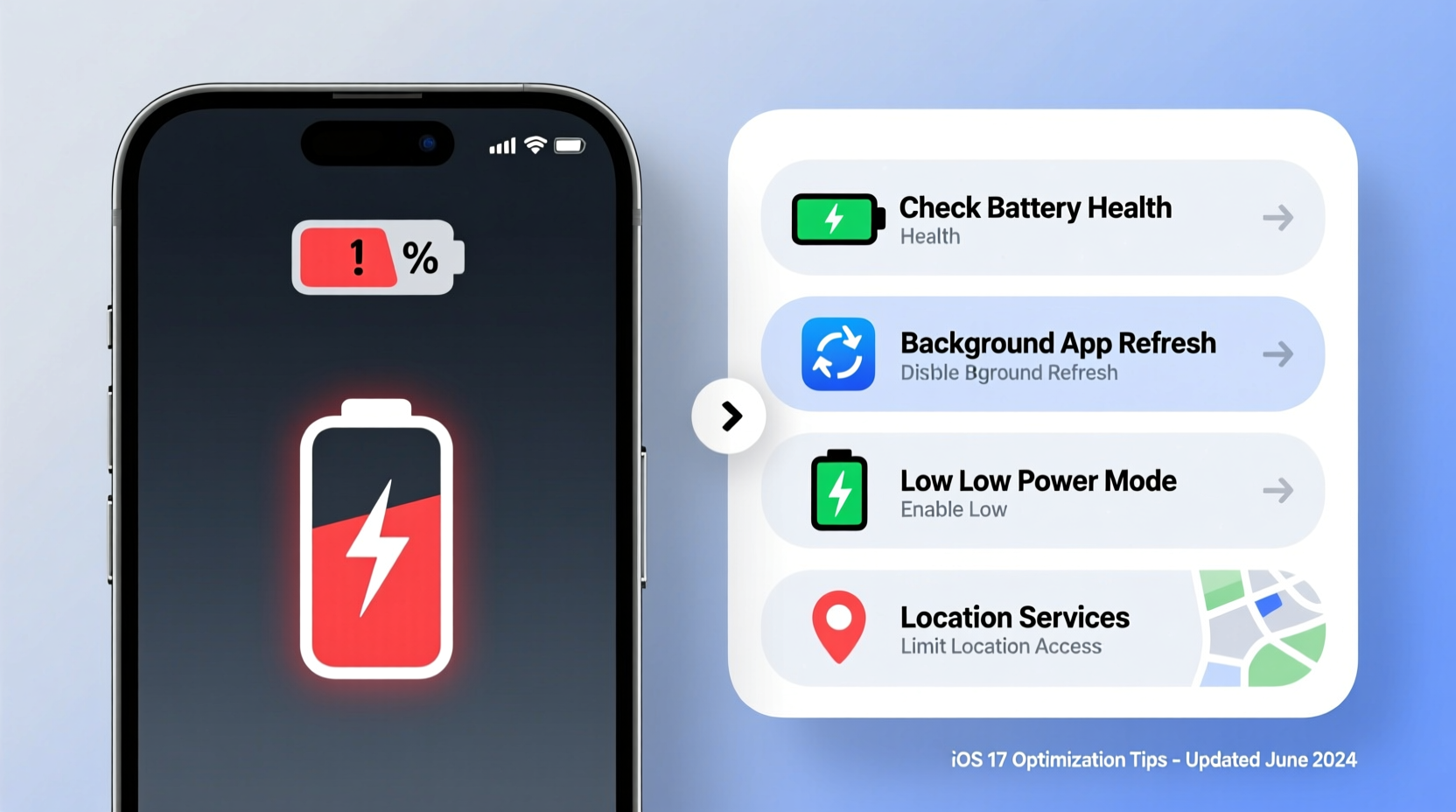
Operating system updates like iOS 17 involve significant changes under the hood—not just new features, but revised background services, indexing routines, and security protocols. When you install the update, your iPhone begins recalibrating its usage patterns, which can lead to increased CPU activity and higher energy draw.
Apple typically warns users that battery life may be suboptimal for the first 48 hours after an update. This is because:
- App Reindexing: Spotlight search, Siri suggestions, and app optimization require heavy background processing immediately after installation.
- Location Services Reset: Privacy permissions are re-evaluated, causing apps to request location access repeatedly, increasing GPS usage.
- Background App Refresh Resumes: After an update, this feature is often re-enabled by default, allowing apps to fetch data in the background.
- New Features Activated: iOS 17 introduces features like StandBy mode, Live Voicemail, and enhanced iMessage effects—all of which consume additional power if left enabled.
“Every major iOS update temporarily stresses the system as it rebuilds caches and adjusts to new frameworks. Users should expect some battery fluctuation initially.” — Dr. Lin Zhao, Mobile Systems Analyst at TechInsight Group
Step-by-Step Guide to Fix Battery Drain After iOS 17
If your battery continues to deplete rapidly beyond the first couple of days, follow this structured troubleshooting process. Each step targets a specific cause of excessive power consumption.
- Check Battery Usage by App
Go to Settings > Battery and review which apps are consuming the most power. Focus on those with high \"Background Activity\" percentages. Safari, Facebook, and YouTube are common culprits due to autoplay videos and constant refresh cycles. - Disable Background App Refresh for Non-Essential Apps
Navigate to Settings > General > Background App Refresh. Turn it off globally or selectively disable it for apps that don’t need real-time updates (e.g., games, shopping apps). - Reduce Motion and Visual Effects
Excessive animations contribute more than you think. Go to Settings > Accessibility > Motion and enable “Reduce Motion.” Also toggle on “Prefer Cross-Fade Transitions” to minimize screen redraws. - Turn Off Location Services for Unnecessary Apps
In Settings > Privacy & Security > Location Services, set non-critical apps (like weather widgets or social media) to “While Using” or “Never.” Avoid giving continuous access unless required. - Limit Push Email and Fetch Frequency
If you use email accounts, go to Settings > Mail > Accounts > Fetch New Data. Change from “Push” to “Fetch” and set intervals to “Hourly” instead of “Every 15 Minutes.” - Disable StandBy Mode
Introduced in iOS 17, StandBy turns your iPhone into a smart display when charging and lying flat. While convenient, it keeps the screen active longer. Disable it via Settings > StandBy. - Reset All Settings
As a last resort, go to Settings > General > Transfer or Reset iPhone > Reset > Reset All Settings. This clears network, display, and privacy configurations without deleting personal data. It often resolves hidden glitches affecting battery efficiency.
Common Mistakes That Worsen Post-Update Drain
Even with the right intentions, users unknowingly engage in behaviors that amplify battery strain after an update. Recognizing these pitfalls can prevent further degradation.
| Mistake | Why It Hurts Battery | Better Alternative |
|---|---|---|
| Leaving Bluetooth/Wi-Fi On Always | Constant scanning drains power even when not connected | Use Airplane Mode at night or turn off when unused |
| Keeping Brightness at Maximum | Screen is the biggest power consumer; max brightness doubles energy use | Enable Auto-Brightness and reduce manually when possible |
| Running Old or Outdated Apps | Incompatible apps run inefficiently on new OS versions | Update all apps or uninstall ones no longer maintained |
| Ignoring Software Bugs | Some bugs cause infinite loops or memory leaks | Install minor patches (e.g., iOS 17.1, 17.2) as soon as available |
Mini Case Study: Sarah’s iPhone 14 Pro Recovery
Sarah, a freelance photographer in Portland, updated her iPhone 14 Pro to iOS 17 the day it launched. Within hours, she noticed her battery dropping from 100% to 30% in just five hours of moderate use—unacceptable for someone who relies on her phone for client communication and navigation.
She checked battery usage and found that Photos and Instagram were topping the list. Further investigation revealed that iCloud Photos was re-syncing her entire library after the update, a process that ran continuously in the background. Additionally, Instagram had re-enabled push notifications and background refresh.
She took the following steps:
- Paused iCloud sync temporarily until Wi-Fi was stable.
- Disabled Background App Refresh for Instagram.
- Turned off Push Notifications and switched to manual fetching.
- Lowered screen brightness and disabled Raise to Wake.
Within two days, her battery life stabilized. Her average screen-on time returned to 6 hours, and she could complete a full workday without needing a mid-afternoon charge.
Expert-Backed Checklist to Restore Battery Health
To ensure you’ve covered all bases, follow this comprehensive checklist verified by mobile performance specialists:
- ✅ Wait 24–48 hours post-update before taking drastic action
- ✅ Check battery usage stats in Settings
- ✅ Disable Background App Refresh for non-critical apps
- ✅ Limit location access to “While Using” or “Never” where appropriate
- ✅ Turn off StandBy mode if not actively used
- ✅ Reduce motion and visual effects in Accessibility settings
- ✅ Update all apps to their latest compatible versions
- ✅ Install the latest iOS patch (e.g., iOS 17.1 or later)
- ✅ Calibrate battery by fully draining and recharging once
- ✅ Consider resetting all settings if issues persist
“The best way to judge true battery health after an update is consistency over three full charge cycles. One bad day doesn’t mean permanent damage.” — Mark Tran, Senior iOS Support Engineer
Frequently Asked Questions
Is iOS 17 really worse for battery life?
Not inherently. iOS 17 includes optimizations for newer devices and introduces energy-efficient APIs. However, initial builds often contain inefficiencies that are patched in subsequent updates. User behavior and third-party app compatibility play a larger role than the OS itself in most cases.
Should I downgrade to iOS 16 if my battery is terrible?
Downgrading is not recommended and often impossible after Apple stops signing the previous version. Instead, focus on optimizing settings and wait for iOS 17.1 or later, which usually include battery-related bug fixes. Only consider extreme measures if the issue persists beyond a month.
Does turning off 5G save battery on iOS 17?
Yes. 5G consumes significantly more power than LTE, especially in areas with weak signal. To conserve energy, go to Settings > Cellular > Cellular Data Options > Voice & Data and switch to “LTE.” You’ll still get fast speeds with better endurance.
Conclusion: Take Control of Your iPhone’s Performance
Rapid battery drain after the iOS 17 update is a widespread but largely manageable issue. While some slowdowns are normal during system adaptation, persistent problems point to adjustable settings, outdated apps, or overlooked features sapping your power. By methodically reviewing background activity, disabling unnecessary services, and applying targeted fixes, you can reclaim your iPhone’s battery life and enjoy the benefits of the new OS without compromise.
Don’t accept poor performance as inevitable. Modern iPhones are designed to last all day—even under iOS 17. With a few strategic adjustments, yours can too. Start with one setting today, track your usage tomorrow, and within days, you’ll see meaningful improvement.




 浙公网安备
33010002000092号
浙公网安备
33010002000092号 浙B2-20120091-4
Comments
No comments yet. Why don't you start the discussion?