
After updating to iOS 17, many iPhone users have reported a noticeable drop in battery life. What once lasted a full day now struggles to make it to bedtime. While software updates often bring new features and security improvements, they can also introduce unexpected power consumption issues. The good news is that most of these problems are fixable with the right approach. This guide breaks down why iOS 17 might be draining your battery faster and provides actionable, tested strategies to regain control over your device’s energy efficiency.
Why iOS 17 Might Be Draining Your Battery Faster
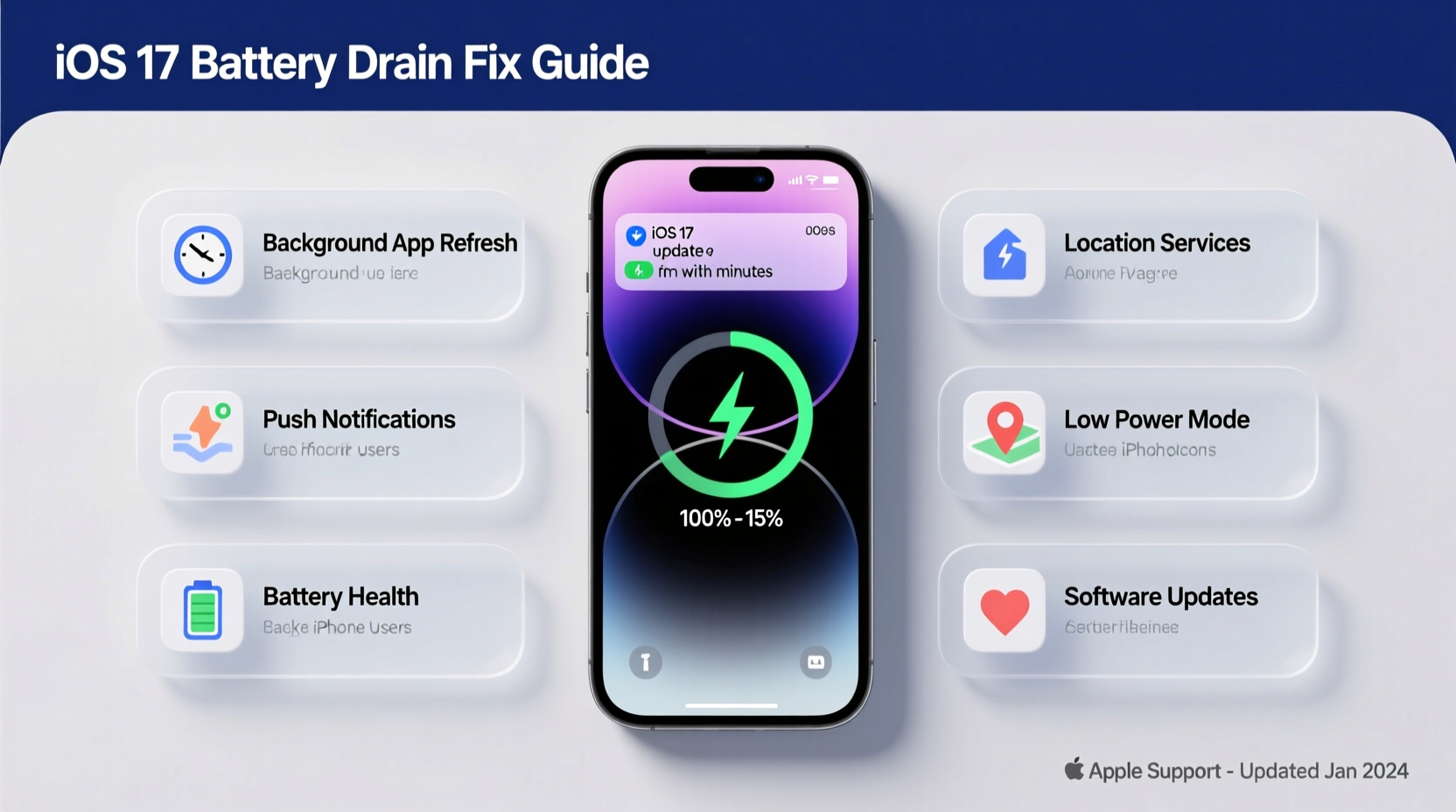
iOS updates are complex system-wide changes. When Apple rolls out a major release like iOS 17, background processes such as indexing, syncing, and recalibrating settings run intensively for the first few days. These tasks are normal but can temporarily increase power usage. However, if poor battery life persists beyond the initial adjustment period, deeper factors may be at play.
One key reason is increased background activity. iOS 17 introduced enhanced personalization features—Live Voicemail, StandBy mode, improved Focus filters, and tighter iCloud integration—all of which rely on constant data processing. Apps adapting to new APIs may also run inefficiently until updated by developers.
Additionally, older iPhone models (such as the iPhone XR, XS, or even iPhone 11) may struggle with the heavier computational load of newer operating systems. Even though Apple supports these devices, hardware limitations mean they work harder to deliver the same performance, leading to faster battery depletion.
“Major OS updates often push older hardware beyond its optimized thresholds. It’s not just about compatibility—it’s about efficiency.” — Dr. Lin Zhao, Mobile Systems Analyst at TechInsight Labs
Step-by-Step Guide to Fix Battery Drain After iOS 17
If your iPhone battery dies hours earlier than before, follow this systematic troubleshooting process. Each step targets a common cause of excessive power use post-update.
- Wait 48–72 Hours Post-Update: Allow time for background indexing and sync operations to complete. Initial battery drain is often temporary.
- Check Battery Usage Stats: Go to Settings > Battery and review app-specific usage. Identify apps consuming disproportionate power.
- Restart Your iPhone: A simple reboot clears cached processes and resets misbehaving services.
- Disable Background App Refresh for Non-Essential Apps: Navigate to Settings > General > Background App Refresh and limit it to Wi-Fi only—or disable it entirely for apps you don’t need constantly updated.
- Turn Off Location Services for Unnecessary Apps: In Settings > Privacy & Security > Location Services, set non-critical apps to “Never” or “While Using.”
- Reduce Motion and Visual Effects: Disable “Raise to Wake,” reduce transparency (Settings > Accessibility > Reduce Transparency), and turn off auto-brightness if not needed.
- Reset All Settings: If issues persist, go to Settings > General > Transfer or Reset iPhone > Reset > Reset All Settings. This won't erase data but will revert network, display, and privacy configurations to defaults.
Optimize Settings That Impact Battery Life in iOS 17
Certain iOS 17 features, while convenient, come at a cost to battery longevity. Tweak these settings to balance functionality and efficiency.
Manage StandBy Mode
StandBy mode turns your iPhone into a smart display when charging and lying horizontally. While useful, it keeps the screen active longer. To disable or modify it:
- Go to Settings > StandBy
- Toggle off “StandBy” or adjust “Display Duration” to “After 15 Seconds”
- Limit widgets shown to reduce refresh frequency
Review Push Email and Fetch Settings
Email apps checking too frequently can sap power. Change from “Push” to “Fetch” manually or every hour:
- Settings > Mail > Accounts > Fetch New Data
- Select “Manually” or “Hourly” instead of “Push”
Limit Background App Activity
Many apps continue running tasks after you leave them. Control this behavior:
- Settings > General > Background App Refresh
- Disable for social media, streaming, or rarely used apps
Disable Always-On Display (iPhone 14 Pro and later)
The Always-On Display feature shows time, widgets, and notifications even when the screen appears off. It uses OLED pixels continuously, increasing power draw.
- Settings > Display & Brightness > Always-On Display → Off
Consider enabling it only during daytime hours via Automation in the Shortcuts app.
Do’s and Don’ts: Battery Optimization Table
| Do’s | Don’ts |
|---|---|
| Enable Low Power Mode during long days or travel | Leave Bluetooth and Wi-Fi on when not in use |
| Update all apps to versions compatible with iOS 17 | Ignore battery health warnings in Settings |
| Use Dark Mode, especially on OLED screens | Run GPS-intensive apps (like navigation) in background unnecessarily |
| Turn off Raise to Wake if you check your phone frequently | Keep multiple browser tabs open across Safari sessions |
| Reduce motion effects under Accessibility settings | Install beta versions unless absolutely necessary |
Real Example: How Sarah Regained 6 Hours of Battery Life
Sarah, a freelance photographer using an iPhone 12, noticed her battery dropping from 100% to 20% by mid-afternoon after updating to iOS 17. She previously relied on her phone for client calls, photo editing, and navigation—none of which she wanted to compromise.
She began by checking Settings > Battery and discovered that Instagram, Google Maps, and Safari were consuming over 40% combined—even when not actively used. Instagram was refreshing in the background; Google Maps had location access set to “Always”; and Safari had dozens of open tabs syncing across devices.
Over two evenings, Sarah disabled Background App Refresh for both Instagram and Safari, changed Google Maps to “While Using” location access, turned off Raise to Wake, and reset her settings. She also enabled Low Power Mode automatically at 80% battery.
The result? Her average screen-on time increased from 4 hours to nearly 6.5 hours. The phone now lasts through her full workday without needing a mid-afternoon charge.
“Fixing battery drain isn’t about one magic switch. It’s about identifying hidden energy leaks and closing them systematically.” — Miguel Torres, Senior iOS Support Technician
Checklist: 10 Actions to Stop Excessive Battery Drain
Use this checklist to quickly audit and improve your iPhone’s battery performance after iOS 17:
- ✅ Wait 72 hours after update before concluding there’s a problem
- ✅ Check battery usage per app in Settings
- ✅ Restart your iPhone once
- ✅ Disable Background App Refresh for non-essential apps
- ✅ Set email fetch to “Hourly” or “Manual”
- ✅ Turn off Always-On Display (if applicable)
- ✅ Limit location access to “While Using”
- ✅ Enable Low Power Mode on a schedule
- ✅ Update all apps to their latest versions
- ✅ Reset all settings if no improvement
Frequently Asked Questions
Will resetting my iPhone fix battery drain?
A full factory reset can resolve deep software conflicts, but it should be a last resort. Try resetting settings first (Settings > General > Reset > Reset All Settings). This preserves your data while clearing problematic configurations.
Can iOS 17 damage my battery permanently?
No. Software cannot physically degrade your battery. However, excessive heat caused by prolonged high-performance usage (e.g., gaming or video rendering under iOS 17) can accelerate long-term wear. Keep your device cool and avoid leaving it in direct sunlight while charging.
Is it safe to downgrade back to iOS 16?
Apple typically stops signing older iOS versions within days of a new release. Once iOS 17 is installed and verified, downgrading is usually not possible unless you have saved SHSH blobs (advanced user procedure). Focus instead on optimizing iOS 17 rather than reverting.
Conclusion: Take Control of Your iPhone’s Battery Life
Battery drain after an iOS update is frustrating but rarely permanent. With iOS 17, Apple delivered meaningful enhancements—but those come with trade-offs, especially for older devices. By understanding how background processes, visual features, and app behaviors affect energy use, you can reclaim hours of battery life without sacrificing usability.
The key is proactive management: monitor usage, disable unnecessary features, and fine-tune settings based on your actual needs. Most users see significant improvements within a week of applying targeted fixes. Don’t accept poor battery life as inevitable—your iPhone is designed to last all day, and with the right adjustments, it still can.




 浙公网安备
33010002000092号
浙公网安备
33010002000092号 浙B2-20120091-4
Comments
No comments yet. Why don't you start the discussion?