
Many iPhone users have reported a sudden drop in battery life shortly after installing iOS 18. What once lasted a full day now struggles to make it through the afternoon. This isn’t just anecdotal—Apple forums, Reddit threads, and support channels are flooded with complaints about rapid battery depletion post-update. While iOS 18 brings exciting new features like enhanced AI capabilities, redesigned widgets, and improved privacy controls, it also introduces background processes that can strain older hardware and inefficiently manage power.
The truth is, major iOS updates often cause temporary battery issues. The system recalibrates settings, indexes new features, and runs background tasks that consume extra energy. However, for some users, these problems persist beyond the first few days. If your iPhone feels hotter than usual, dies unexpectedly, or shows inconsistent battery percentages, you're not alone—and more importantly, there are practical steps you can take to regain control.
Why iOS 18 Might Be Draining Your Battery
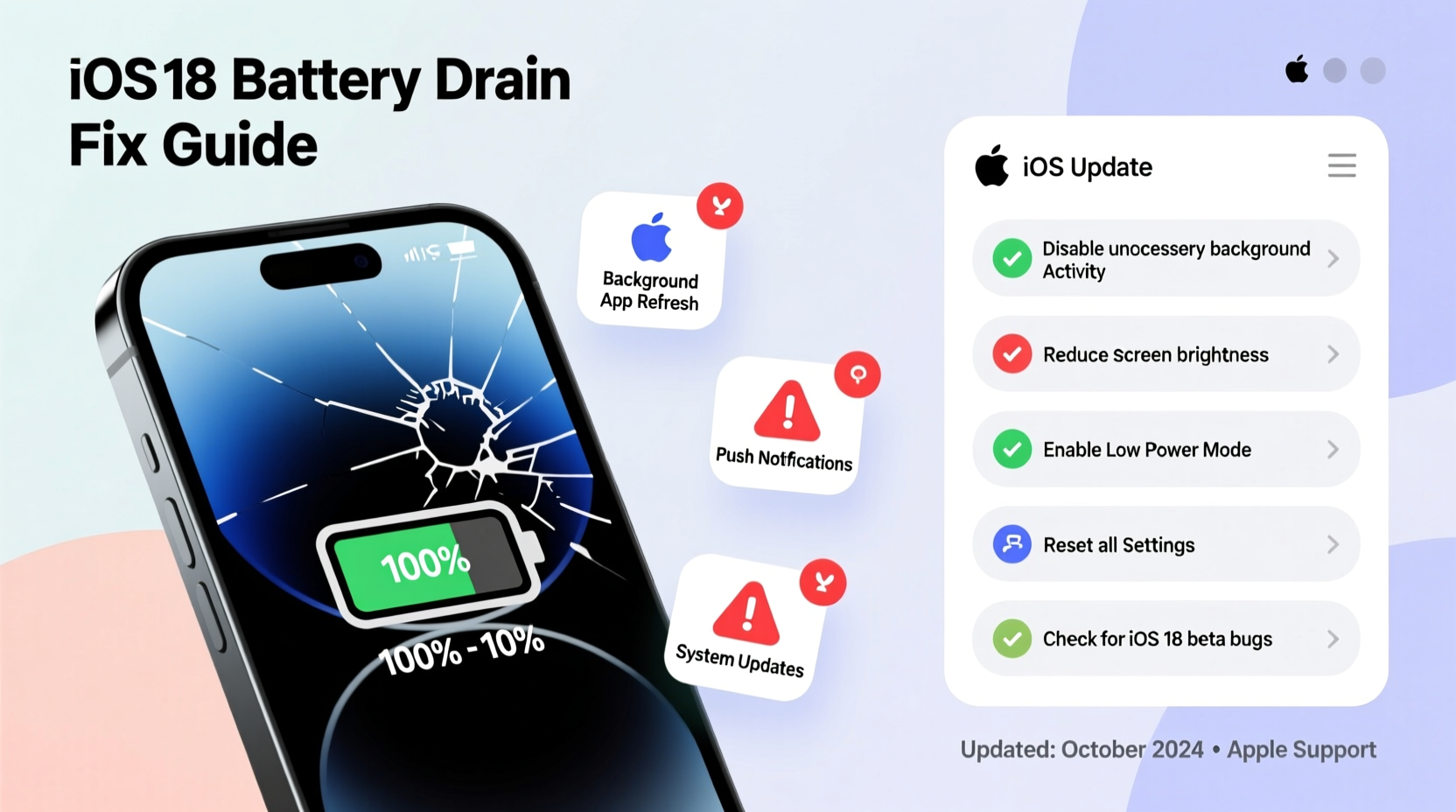
When Apple rolls out a major operating system update, it's not just a simple patch. iOS 18 includes architectural changes that affect how apps interact with the processor, camera, sensors, and network connections. These changes, while beneficial long-term, can create short-term inefficiencies—especially on devices released before 2022.
One of the biggest culprits behind accelerated battery drain is background app refresh and indexing. After an update, iOS rebuilds its Spotlight search index, re-syncs iCloud data, and re-enables location services across apps. This surge in activity can last up to 72 hours but may continue if certain apps misbehave or fail to optimize for the new OS.
Additionally, iOS 18 introduces more aggressive use of machine learning for features like on-device Siri processing, photo categorization, and predictive text. These functions require sustained CPU usage, which increases power consumption—particularly noticeable during initial setup or heavy multitasking.
“Major OS updates often trigger background recalibration cycles that can last several days. During this time, battery usage will appear abnormally high—even on well-maintained devices.” — Dr. Lin Chen, Mobile Systems Analyst at TechInsight Group
New Features That Impact Battery Life
- On-device AI processing: Siri and visual intelligence tools now run locally, increasing CPU load.
- Dynamic Island enhancements: Expanded functionality keeps the display active longer.
- Always-On Display (on supported models): Constant screen illumination uses significantly more power.
- Improved Location Services: More precise tracking for Maps, Find My, and third-party apps leads to higher GPS usage.
- Background App Refresh revamp: Apps now sync more frequently by default to support real-time updates.
Step-by-Step Guide to Fix iOS 18 Battery Drain
If excessive battery consumption continues past the initial adjustment period, follow this structured troubleshooting process. Each step targets a specific potential cause, starting with the most common and least invasive solutions.
- Restart Your iPhone
A simple reboot clears cached processes and stops any rogue background tasks caused by the update. Press and hold the side button and volume button until the slider appears, then slide to power off. Wait 30 seconds and turn it back on. - Check Battery Usage by App
Go to Settings > Battery and review which apps are consuming the most power. Pay attention to \"Background Activity.\" If an app like Facebook, Instagram, or Google Maps is using disproportionate energy, consider limiting its permissions or uninstalling it temporarily. - Disable Background App Refresh for Non-Essential Apps
Navigate to Settings > General > Background App Refresh. Turn it off globally or selectively disable it for apps that don’t need real-time updates (e.g., games, shopping apps). - Reduce Motion and Visual Effects
Excessive animations contribute to GPU load. Go to Settings > Accessibility > Motion and enable “Reduce Motion.” Also toggle on “Prefer Cross-Fade Transitions” for smoother, less taxing screen switches. - Turn Off Location Services for Unnecessary Apps
In Settings > Privacy & Security > Location Services, set non-critical apps to “Never” or “While Using.” Avoid letting social media or utility apps track your location constantly. - Disable Push Email and Fetch Less Frequently
Push email constantly checks servers, draining the battery. Change to fetch manually or every hour: Settings > Mail > Accounts > Fetch New Data. - Lower Screen Brightness and Timeout
OLED screens consume more power at higher brightness. Reduce brightness to 50% or below and set auto-lock to 30 seconds under Settings > Display & Brightness > Auto-Lock. - Turn Off Bluetooth and Wi-Fi When Not in Use
Even when not connected, these radios search for signals and consume power. Use Control Center to disable them during sleep or offline periods. - Reset All Settings
If nothing works, reset settings without losing data: Settings > General > Transfer or Reset iPhone > Reset > Reset All Settings. This restores network, display, and privacy configurations to defaults, often resolving hidden bugs from the update.
Do’s and Don’ts After Updating to iOS 18
| Do | Don't |
|---|---|
| Wait 2–3 days before troubleshooting—let the system stabilize. | Panic and assume your battery is defective immediately. |
| Update all apps to their latest versions for iOS 18 compatibility. | Keep outdated apps that may conflict with new system processes. |
| Enable Optimized Battery Charging to reduce wear over time. | Charge overnight daily without protection; heat buildup accelerates degradation. |
| Use Low Power Mode during critical times to extend remaining charge. | Run graphics-heavy games or video streaming apps on low battery. |
| Monitor temperature—avoid using the phone in direct sunlight or hot cars. | Ignore overheating warnings; thermal throttling damages both battery and performance. |
Real User Case: How Sarah Regained 4 Hours of Battery Life
Sarah, a freelance photographer using an iPhone 14 Pro, noticed her battery dropped from 100% to 30% within five hours after updating to iOS 18. She relied heavily on her phone for client communication, editing previews, and navigation—all of which seemed slower and hotter than before.
After checking her battery stats, she discovered that the Photos app was using 40% of her battery in the background. Confused, she realized iOS 18 had triggered a full re-analysis of her photo library for new AI-powered search tags like “dog,” “mountain,” or “birthday.” This process ran continuously, even when the app wasn’t open.
She followed the step-by-step guide above: restarted her phone, disabled background refresh for non-essential apps, reduced motion effects, and turned off location services for social media. Most importantly, she waited two days for the indexing to complete. By day three, her battery life returned to normal, and the phone cooled down significantly.
“I almost took it to the Apple Store,” Sarah said. “But I decided to research first. Turns out, patience and a few smart tweaks made all the difference.”
Checklist: Quick Fixes for Immediate Battery Improvement
Action Plan – Apply These Today:
- ✅ Restart your iPhone
- ✅ Check battery usage in Settings
- ✅ Disable Background App Refresh for top offenders
- ✅ Turn off Always-On Display (if applicable)
- ✅ Lower screen brightness and timeout
- ✅ Disable location services for non-critical apps
- ✅ Enable Low Power Mode during extended use
- ✅ Update all apps to iOS 18-compatible versions
- ✅ Avoid extreme temperatures while charging
- ✅ Consider resetting settings if issues persist
Frequently Asked Questions
Will iOS 18 permanently damage my battery?
No, iOS 18 itself does not damage your battery. However, prolonged high temperatures due to excessive background activity can accelerate long-term degradation. Keeping your device cool and managing settings properly minimizes risk.
Does Apple know about these battery issues?
Yes. Apple monitors user feedback through diagnostic reports and typically releases point updates (like iOS 18.1 or 18.2) to address performance and battery concerns. Many users report significant improvements after installing these patches.
Should I downgrade back to iOS 17?
Downgrading is no longer officially supported once a new major version has been publicly released for more than a few weeks. Instead, focus on optimizing iOS 18 settings. Future updates will likely improve efficiency, especially as developers optimize their apps for the new OS.
When to Seek Hardware Repair
If, after following all software fixes, your battery still drains abnormally fast—or if it drops from 80% to 20% in under an hour—it may be time to evaluate the physical condition of your battery.
Go to Settings > Battery > Battery Health & Charging. Look for the “Maximum Capacity” percentage. If it reads below 80%, your battery is degraded and should be replaced. Even with perfect software optimization, an aging battery cannot hold charge effectively.
Apple offers battery service for eligible models, either through retail stores or authorized providers. Third-party options exist but may void warranty or lack integration with iOS health monitoring.
“A software update can expose underlying hardware limitations. If your iPhone is over two years old, the battery may simply be reaching end-of-life—regardless of the OS.” — Mark Rivera, Senior Technician at iFixMobile Labs
Conclusion: Take Control of Your iPhone’s Performance
The frustration of rapid battery drain after an iOS update is real, but rarely permanent. iOS 18 pushes the boundaries of what iPhones can do, and with innovation comes temporary instability. By understanding the root causes—from background indexing to new AI workloads—you can make informed decisions about how your phone operates.
Most battery issues resolve themselves within a few days. For persistent problems, targeted adjustments to settings, app behavior, and usage habits can restore nearly all lost performance. And if hardware is the culprit, modern diagnostics make it easier than ever to identify and replace failing components.




 浙公网安备
33010002000092号
浙公网安备
33010002000092号 浙B2-20120091-4
Comments
No comments yet. Why don't you start the discussion?