
It’s a familiar frustration: you wake up, excited to install the latest iOS update, only to find your iPhone running out of power by midday. What was once a full-day battery now struggles to last six hours. You’re not alone. Thousands of users report rapid battery drain following iOS updates—especially major releases like iOS 16 or 17. While Apple insists these updates improve efficiency, real-world usage often tells a different story. The truth is, post-update battery drain is usually temporary but can be minimized with the right steps. This guide breaks down the technical causes, offers practical fixes, and reveals long-term strategies to stabilize your iPhone’s battery health.
Why iOS Updates Trigger Battery Drain
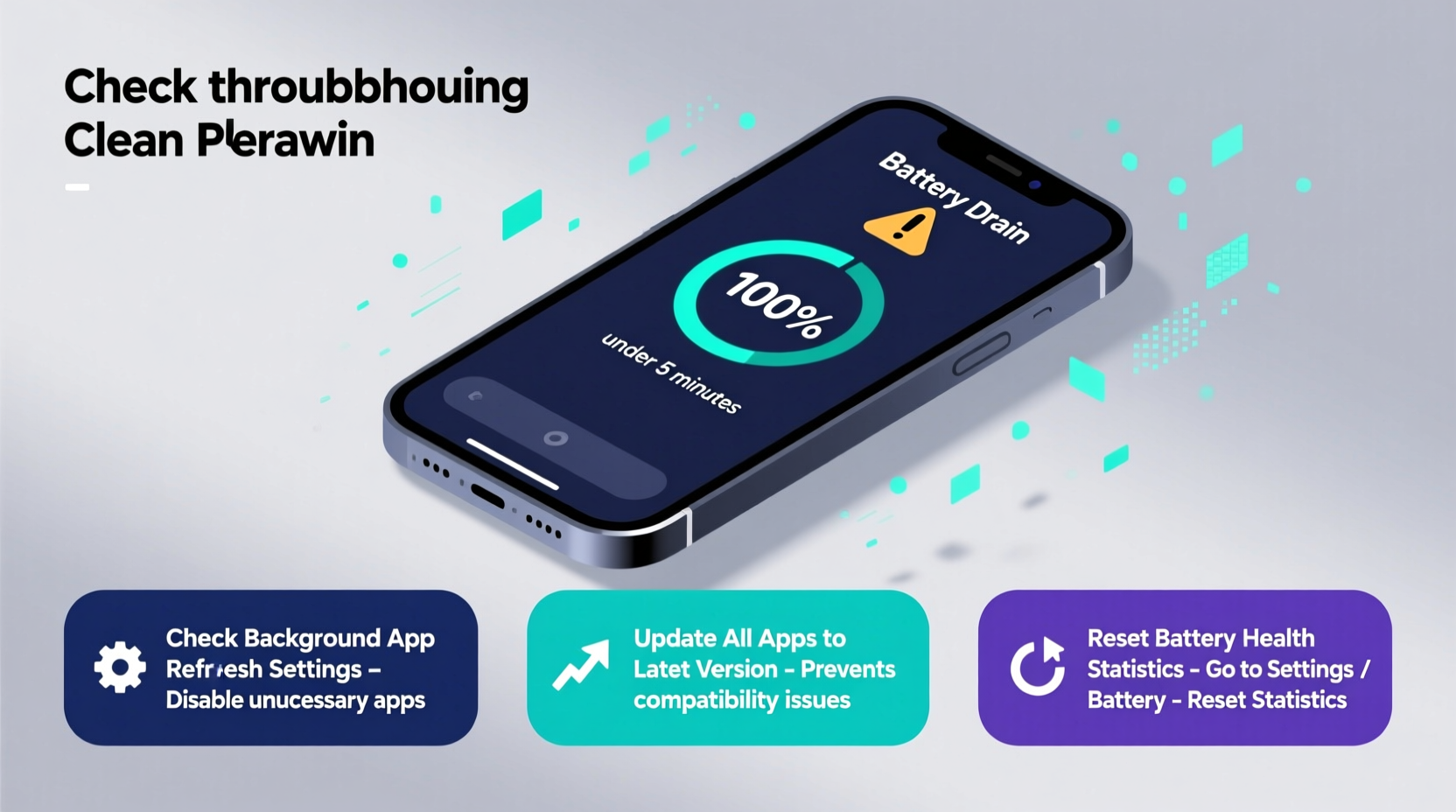
When Apple rolls out a new iOS version, it doesn’t just add features—it restructures background processes, recalibrates system services, and adjusts how apps interact with hardware. These changes require your iPhone to perform intensive tasks behind the scenes, especially in the first 48–72 hours after installation.
One primary reason for sudden battery depletion is indexing. After an update, iOS rebuilds its search index, reanalyzes photos using on-device machine learning, and re-syncs data across iCloud, Messages, Photos, and Mail. This process consumes significant CPU and GPU resources, leading to higher-than-normal power consumption.
Additionally, apps that haven’t been updated to optimize for the new OS may run inefficiently, causing excessive background activity. Push notifications, location tracking, and background app refresh can all spike during this transition period, further accelerating battery drain.
“After a major iOS update, the system undergoes a recalibration phase. It's normal for battery usage to spike temporarily as the device relearns user behavior and optimizes resource allocation.” — Dr. Alan Reyes, Mobile Systems Engineer at Stanford University
Step-by-Step Guide to Restore Battery Performance
If your iPhone is dying too soon after an update, follow this structured approach to diagnose and fix the issue. Each step targets a specific cause of battery drain and can be completed in under an hour.
- Restart Your iPhone – A simple reboot clears cached processes and stops any rogue background tasks caused by incomplete update integration.
- Check Battery Usage Stats – Go to Settings > Battery and review which apps are consuming the most power. Focus on those with unusually high background activity.
- Disable Background App Refresh for Non-Essential Apps – Navigate to Settings > General > Background App Refresh and turn it off for apps like social media, games, or news platforms that don’t need constant updates.
- Reduce Location Services Usage – In Settings > Privacy & Security > Location Services, set non-critical apps (e.g., weather, shopping) to “While Using” instead of “Always.”
- Turn Off Raise to Wake and Always-On Display (if applicable) – These features increase screen-on time significantly. Disable them in Display & Brightness settings.
- Reset All Settings – If issues persist, go to Settings > General > Transfer or Reset iPhone > Reset > Reset All Settings. This won’t erase data but will clear network, display, and privacy configurations that may conflict with the new OS.
This sequence addresses both software inefficiencies and user-configurable settings that contribute to unnecessary power draw.
Common Culprits Behind Post-Update Battery Drain
Certain apps and settings are notorious for draining battery after an iOS update. Identifying them early prevents prolonged issues.
- Email Fetching Too Frequently – By default, iPhones fetch new emails every 15 minutes. Change this to “Hourly” or “Manually” in Settings > Mail > Accounts > Fetch New Data.
- iCloud Photo Syncing – Large photo libraries may re-upload or reprocess images after an update. Monitor progress in Settings > [Your Name] > iCloud > Photos. Wait until syncing completes before judging battery life.
- System Services Overuse – Features like Analytics & Improvements, Motion Calibration, and Frequent Locations consume location data continuously. Limit these in Settings > Privacy & Security > Location Services > System Services.
- Poor Cellular Signal – Weak signal forces your phone to work harder to maintain connection. Use Wi-Fi whenever possible, or enable Airplane Mode in low-signal areas when not expecting calls.
Mini Case Study: Sarah’s iPhone 13 Battery Recovery
Sarah, a freelance designer in Austin, noticed her iPhone 13 dropped from 100% to 30% in four hours after updating to iOS 17. Alarmed, she checked her battery usage and found Safari and Instagram each accounted for over 40% of background activity—despite minimal use.
She followed the step-by-step guide: restarted her phone, disabled Background App Refresh for both apps, reduced email fetch frequency, and turned off Motion Calibration. Within 24 hours, her battery life returned to normal. The culprit? Instagram’s outdated background processes clashing with iOS 17’s new permission model. Updating the app resolved the conflict permanently.
Battery Optimization Checklist
Use this checklist to systematically reduce battery strain after an iOS update:
- ✅ Restart iPhone after update
- ✅ Wait 24–72 hours for system stabilization
- ✅ Check Battery Usage stats daily
- ✅ Update all apps via App Store
- ✅ Disable Background App Refresh for non-essential apps
- ✅ Adjust email fetch to “Hourly” or “Manual”
- ✅ Limit Location Services to “While Using”
- ✅ Turn off Raise to Wake and Always-On Display
- ✅ Enable Low Power Mode temporarily
- ✅ Reset All Settings if problems persist
Do’s and Don’ts: Managing Battery Health After iOS Updates
| Do’s | Don’ts |
|---|---|
| Do keep your iPhone charged between 20% and 80% during the first few days post-update to avoid stress on the battery. | Don’t leave your phone charging overnight immediately after an update—heat buildup can accelerate chemical aging. |
| Do update third-party apps promptly. Developers often release patches within days to fix compatibility issues. | Don’t assume the update ruined your battery. Temporary drain is common and usually resolves. |
| Do enable Optimized Battery Charging (Settings > Battery > Battery Health) to reduce wear over time. | Don’t disable critical security features like Find My or iCloud Backup to save power—they’re optimized for low impact. |
| Do monitor battery health monthly in Settings > Battery > Battery Health & Charging. | Don’t use third-party “battery saver” apps. They often run hidden scripts that worsen performance. |
When to Consider Hardware or Support Intervention
If battery drain persists beyond five days despite applying all fixes, the issue may not be software-related. Older iPhones (typically two years or more) may have degraded lithium-ion batteries that struggle to handle the demands of newer operating systems.
Check your battery health: Go to Settings > Battery > Battery Health & Charging. Look for two key metrics:
- Maximum Capacity: If below 80%, the battery is nearing end-of-life and should be replaced.
- Peak Performance Capability: If your phone shows “Performance Management Applied,” iOS is throttling speed to prevent shutdowns due to weak battery output.
In such cases, replacing the battery—even if still functional—can dramatically improve post-update battery life. Apple offers official battery service starting at $69, or you can visit an authorized provider. Many users report regaining 2–3 hours of usage after a replacement.
“Aging batteries can’t deliver the peak current modern iOS versions demand during multitasking or AI processing. Replacing a worn battery often restores pre-update performance levels.” — Lisa Tran, Senior Technician at iFixit
Frequently Asked Questions
Will uninstalling the iOS update fix battery drain?
No. Apple does not allow users to downgrade iOS versions unless a public beta is active. Instead, focus on optimizing settings and waiting for the system to stabilize. Future minor updates (e.g., 17.1, 17.2) often include battery performance improvements.
Can a factory reset help with battery issues?
Only as a last resort. A factory reset erases all data and reinstalls iOS cleanly, which can eliminate deep-seated software conflicts. However, back up your data first, and remember that you’ll need to reconfigure everything. Most battery issues are resolved without going this far.
Does turning off Bluetooth and Wi-Fi help?
Yes, but selectively. If you’re not using wireless devices, disabling Bluetooth saves minor power. Wi-Fi uses less energy than cellular data, so keep it on when available. Use Control Center toggles to manage these quickly based on context.
Conclusion: Take Control of Your iPhone’s Battery Life
Rapid battery drain after an iOS update is unsettling, but rarely permanent. Understanding the underlying causes—system indexing, app inefficiencies, misconfigured settings—empowers you to act decisively. By following the troubleshooting steps, applying the optimization checklist, and monitoring battery health, you can restore reliable performance in most cases.
Remember, technology evolves, and so must our habits. An iOS update isn’t just a feature drop; it’s a recalibration of your device’s entire ecosystem. Treat the first few days as a transition period, not a failure. With informed care, your iPhone can adapt—and thrive—under the new software.




 浙公网安备
33010002000092号
浙公网安备
33010002000092号 浙B2-20120091-4
Comments
No comments yet. Why don't you start the discussion?