
It’s a familiar frustration: you wake up, unlock your phone, and notice something's wrong—your battery is already at 40%, despite charging it overnight. You didn’t use it much yesterday. Then it hits you: you installed the latest system update last night. Coincidence? Probably not. Millions of users report sudden battery drain following OS updates from Apple, Google, Samsung, and others. But why does this happen, and more importantly, what can you do about it?
Software updates are meant to improve performance, patch security flaws, and introduce new features. Yet sometimes, they come with unintended consequences—especially when it comes to power consumption. The truth is, battery drain after an update isn't random. It's often the result of background recalibrations, inefficient code, or poorly optimized features that kick in during the transition phase.
This article dives deep into the technical and practical reasons behind post-update battery drain, explains how modern operating systems behave after changes, and gives you actionable steps to regain control over your device’s power life.
How Software Updates Affect Battery Performance
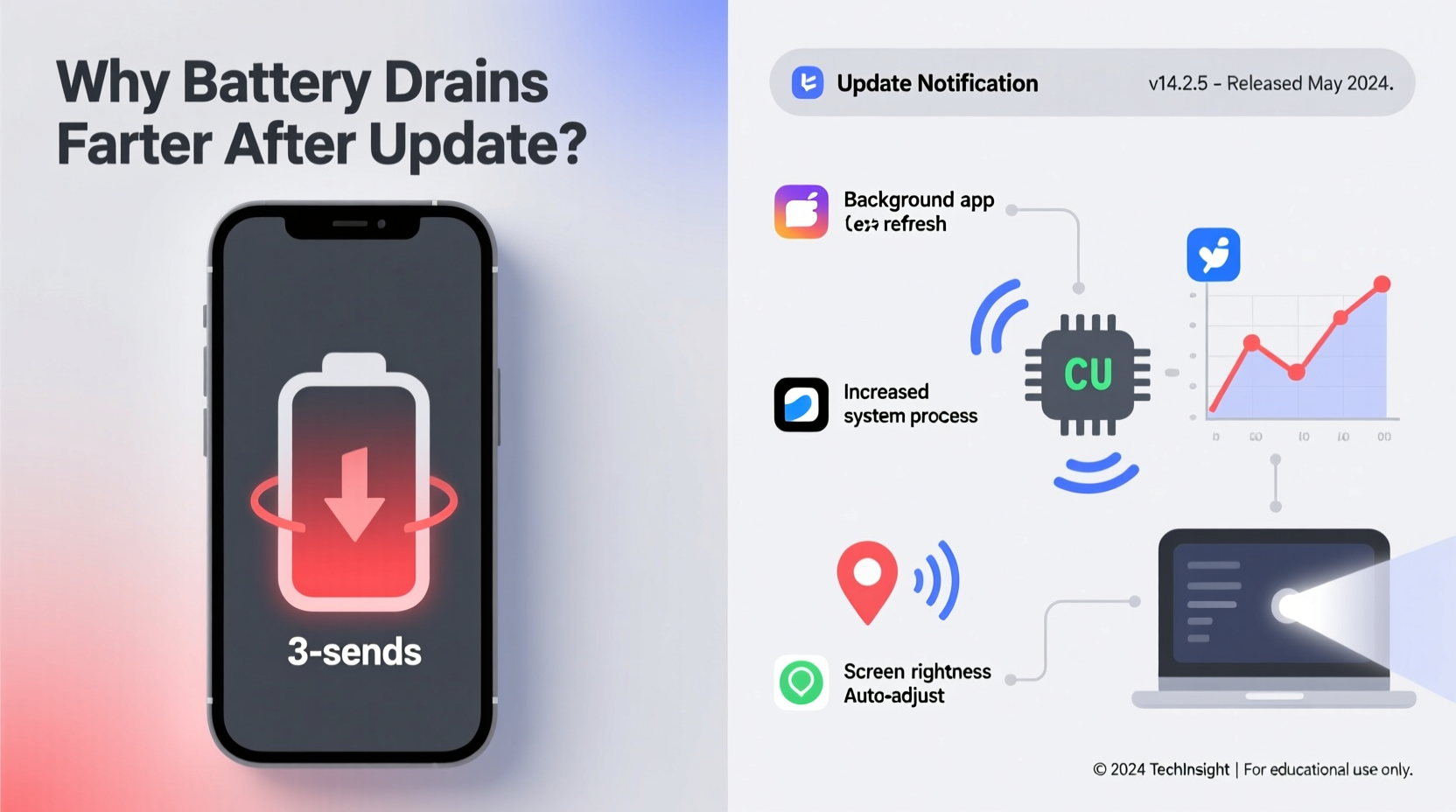
When your phone receives a major OS update—like iOS 17 or Android 14—it doesn’t just install new icons or settings. It restructures core system processes, migrates data, and reindexes files. This process can take hours or even days, all while running in the background and consuming significant CPU resources.
For example, after an update, services like Spotlight Search (iOS) or Google App indexing (Android) may re-scan your entire photo library, messages, emails, and app data to rebuild search functionality. Similarly, location services might temporarily run more frequently as apps re-authenticate permissions or adapt to new privacy frameworks.
These background activities spike CPU usage, which directly impacts battery life. Even if your screen is off, the processor is working hard, draining power faster than usual.
“After a major OS update, expect elevated background activity for 24–72 hours. This is normal, but persistent drain beyond that window indicates optimization issues.” — Dr. Lin Zhao, Mobile Systems Researcher, MIT Media Lab
Common Technical Causes of Post-Update Battery Drain
Battery drain isn’t always about one single culprit. More often, it’s a combination of factors amplified by the update. Here are the most frequent technical causes:
- Background App Refresh Reinitialization: Apps restart their syncing routines, leading to repeated cloud fetches and data processing.
- Location Services Glitches: Some apps fail to respect new permission models and continuously poll GPS.
- Push Notification Flood: Updated apps may resend notifications stored during downtime, triggering constant screen wakes.
- Display Calibration Reset: Brightness algorithms reset, causing the screen to run brighter than before until adaptive learning resumes.
- Kernel-Level Inefficiencies: New drivers or firmware may not be fully optimized for your hardware yet.
Real-World Example: Sarah’s iPhone 13 After iOS 17.5
Sarah, a freelance designer in Portland, updated her iPhone 13 to iOS 17.5 the day it launched. By the next morning, she noticed her battery had dropped from 100% to 58% overnight—with zero usage. She wasn’t alarmed at first, assuming it was part of the setup process. But two days later, her phone was dying by 3 PM daily.
She visited an Apple Store, where a technician pulled up her battery analytics. The diagnostics showed that Photos and Google Drive were consuming 42% and 28% of battery respectively—both were reindexing files after the update. The fix? Restarting the phone and manually pausing cloud syncs for large folders. Within 24 hours, her battery life returned to normal.
Sarah’s case isn’t unique. It illustrates how seemingly minor background processes can have massive power implications when scaled across millions of devices.
Step-by-Step: How to Fix Battery Drain After an Update
If your phone is draining faster than usual after an update, don’t panic. Follow this sequence to diagnose and resolve the issue:
- Wait 48 Hours: Allow time for indexing and background tasks to complete. Many issues resolve themselves within two days.
- Restart Your Device: A simple reboot clears temporary glitches and resets misbehaving services.
- Check Battery Usage: Go to Settings > Battery and review which apps or system functions are consuming the most power.
- Disable Non-Essential Background Activity: Turn off Background App Refresh for apps you don’t need constantly updated.
- Reset Location & Privacy Settings: Sometimes, apps get stuck in “always-on” location mode. Reset permissions via Settings > Privacy > Location Services.
- Update All Apps: Ensure third-party apps are updated—they may have compatibility patches for the new OS.
- Toggle Optimization Features: On Android, enable Adaptive Battery; on iOS, ensure Low Power Mode activates automatically.
- Factory Reset (Last Resort): If problems persist, back up your data and perform a clean install. Often, this eliminates corrupted caches from the update process.
Do’s and Don’ts After a System Update
| Do | Don’t |
|---|---|
| Wait 2–3 days before concluding battery issues are permanent | Immediately uninstall the update out of frustration |
| Monitor battery usage patterns using built-in tools | Assume hardware failure without checking software logs |
| Keep Wi-Fi and Bluetooth on during initial setup—helps calibration | Leave multiple benchmarking or diagnostic apps running |
| Install app updates promptly to avoid compatibility bugs | Ignore system warnings about storage or overheating |
When the Update Itself Is the Problem
Sometimes, the issue isn’t user behavior or app conflicts—it’s the update. Major companies occasionally release flawed builds. For example, Android 12L faced widespread complaints about poor battery optimization on Pixel devices, particularly due to excessive wake locks in system UI. Apple issued emergency patches for iOS 13.1.3 after reports of abnormal battery drain linked to Mail app syncing.
In such cases, the solution is patience. Vendors typically monitor telemetry data and release point updates (e.g., iOS 17.5.1) within weeks to address critical bugs. Until then, mitigating damage through manual optimizations is key.
Preventive Checklist: What to Do Before Installing an Update
Being proactive can save you from post-update headaches. Use this checklist every time a new OS version appears:
- ✅ Charge your phone to at least 80% before starting the update
- ✅ Connect to stable Wi-Fi to prevent download corruption
- ✅ Back up your data (iCloud, Google Drive, or computer)
- ✅ Disable unnecessary widgets or live wallpapers that increase GPU load
- ✅ Close all open apps to reduce memory strain during installation
- ✅ Wait 3–7 days after release to let early adopters uncover bugs
- ✅ Review changelogs for known issues related to battery or performance
FAQ: Common Questions About Post-Update Battery Drain
Is it safe to downgrade after a bad update?
Generally, no. Apple and Google sign only the latest (or latest two) firmware versions, meaning you can’t revert unless you have saved SHSH blobs (iOS) or are using developer previews. Attempting downgrades via unofficial tools risks bricking your device.
Can a software update permanently damage my battery?
No. Software cannot physically degrade lithium-ion cells. However, excessive heat caused by prolonged high CPU usage can accelerate long-term wear. Keep your phone cool and avoid intensive tasks during the first 48 hours post-update.
Why does my Android phone drain faster than my friend’s after the same update?
Differences in usage patterns, installed apps, and device age play a role. Older batteries hold less charge and struggle with new, resource-heavy OS features. Additionally, manufacturer skins (like Samsung One UI or Xiaomi MIUI) add layers that may not be as efficiently optimized as stock Android.
Conclusion: Regain Control Over Your Phone’s Battery Life
An unexpected battery drain after a software update is frustrating, but rarely irreversible. Most cases stem from temporary system recalibration, not hardware failure or deliberate design choices. By understanding the underlying causes—background indexing, app re-syncing, and permission resets—you can take targeted actions to stabilize performance.
The key is balance: allow necessary processes time to complete, while actively managing settings that contribute to excess consumption. With the right approach, your phone can return to—or even exceed—its previous battery efficiency.
Technology evolves fast, and updates are part of that progress. Instead of resisting them, learn to navigate their side effects wisely. Your phone’s battery life depends not just on its chemistry, but on how intelligently you manage the software that runs on it.




 浙公网安备
33010002000092号
浙公网安备
33010002000092号 浙B2-20120091-4
Comments
No comments yet. Why don't you start the discussion?