
Smartphones are essential to daily life, but few frustrations match watching your battery drop from 70% to 20% in under an hour. While aging hardware is often blamed, many factors that accelerate battery drain are within your control. The good news? You don’t need a new phone to reclaim hours of usage. By understanding what’s consuming power and making strategic adjustments, you can significantly improve your device’s battery performance—often with just a few settings changes.
Understanding Modern Phone Battery Behavior
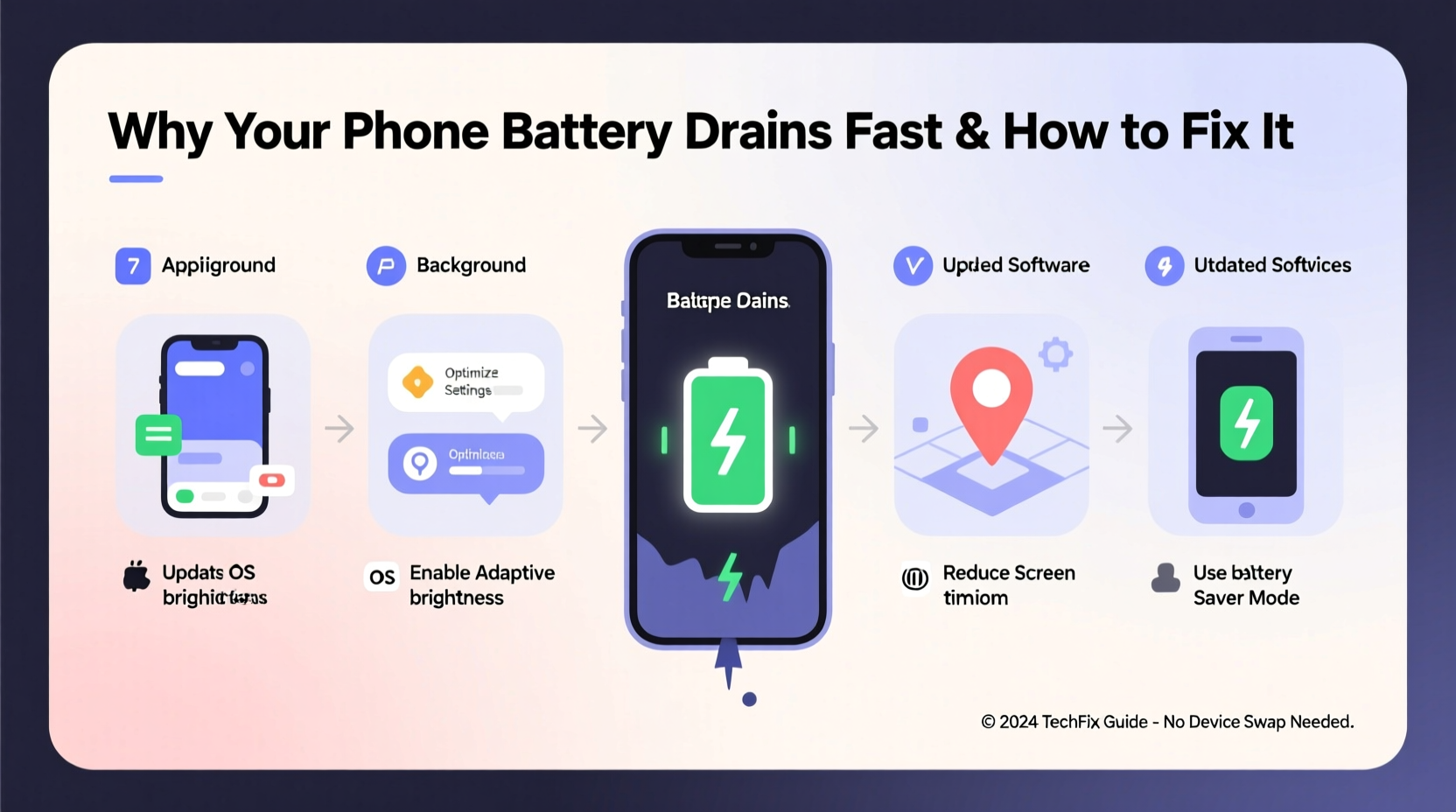
Lithium-ion batteries, used in nearly all smartphones today, degrade naturally over time. However, their rate of decline depends heavily on usage patterns and environmental conditions. A phone that loses charge rapidly may not have a failing battery—it could simply be working too hard due to inefficient software, background processes, or poor user habits.
Battery drain isn't always linear. Some apps consume more energy when running in the background than during active use. Others trigger location services, push notifications, or high screen brightness without clear indication. These hidden drains accumulate silently, leading to premature shutdowns even when the phone feels cool and responsive.
“Battery health is less about age and more about behavior. How you use your phone matters far more than how long you’ve had it.” — Dr. Lena Patel, Mobile Energy Systems Researcher, Stanford University
Common Causes of Rapid Battery Drain
Before applying fixes, identify the culprits. Most battery issues stem from one or more of these sources:
- Background App Activity: Apps like social media, email, and navigation tools often run processes in the background, syncing data or tracking location.
- Screen Settings: High brightness, long auto-lock delays, and always-on displays consume substantial power.
- Poor Network Conditions: Weak Wi-Fi or cellular signals force your phone to work harder to maintain connectivity.
- Outdated Software: Older operating systems and apps may lack optimizations for efficient battery use.
- Push Notifications & Syncing: Constant alerts and real-time updates keep radios active, draining energy.
- Location Services Overuse: Apps continuously accessing GPS—even when unnecessary—can halve battery life.
- Extreme Temperatures: Exposure to heat or cold damages battery chemistry and reduces efficiency.
Step-by-Step Guide to Extend Battery Life
Improving battery performance doesn’t require technical expertise. Follow this structured approach to reduce drain and maximize longevity.
- Review Battery Usage by App
Navigate to Settings > Battery and examine which apps appear at the top of the list. If non-essential apps (e.g., games, social media) dominate, restrict their background activity. - Limit Background App Refresh
Disable background refresh for apps that don’t need constant updates.
iOS: Settings > General > Background App Refresh
Android: Settings > Apps > Special Access > Background Restrictions - Adjust Screen Brightness and Timeout
Reduce brightness to 50% or lower and set auto-lock to 30 seconds.
Enable adaptive brightness if available—it adjusts based on ambient light. - Turn Off Unnecessary Location Services
Set location access to “While Using” instead of “Always.” Disable GPS for apps like weather or shopping unless actively needed. - Disable Push Email and Reduce Sync Frequency
Switch from push to fetch every 15–30 minutes. This prevents constant server polling.
iOS: Settings > Mail > Accounts > Fetch New Data
Android: Gmail app > Settings > Sync Schedule - Reduce Notification Load
Turn off notifications for low-priority apps. Each alert wakes the screen and uses power. - Use Wi-Fi Instead of Cellular Data When Possible
Wi-Fi is generally more energy-efficient than LTE/5G, especially in areas with weak signal. - Enable Battery Saver Mode Proactively
Don’t wait until 20%. Activate battery saver at 40–50% to limit background tasks and dim the screen automatically.
Do’s and Don’ts: Battery Optimization Table
| Do | Don’t |
|---|---|
| Charge between 20% and 80% regularly | Leave phone charging overnight frequently |
| Use dark mode on OLED screens | Keep bright wallpapers on AMOLED displays |
| Update OS and apps monthly | Ignore software updates for months |
| Restart your phone weekly | Go weeks without rebooting |
| Store phone in cool, dry places | Leave phone in hot cars or direct sunlight |
Real-World Example: Recovering 6 Hours of Battery Life
Sophie, a freelance photographer in Portland, noticed her iPhone 12 was dying by mid-afternoon despite only moderate use. She wasn’t gaming or streaming heavily, yet her battery dropped 1% every two minutes after 5 PM.
After checking her battery usage, she discovered that Instagram and Google Maps were consuming 38% and 29% of her battery respectively—even though she only opened them a few times a day. Further investigation revealed both apps were using “Always” for location services and had background refresh enabled.
She disabled background refresh for both, changed location access to “While Using,” and reduced notification frequency. She also lowered screen brightness and turned on Low Power Mode at 50%. The next day, her battery lasted until 9:30 PM—a gain of over six hours—without changing her usage habits.
This case illustrates how invisible background processes, not heavy usage, often cause rapid drain.
Advanced Tips for Long-Term Battery Health
Beyond immediate fixes, adopt habits that preserve battery capacity over time:
- Avoid Full Discharges: Lithium-ion batteries last longer when kept between 20% and 80%. Try not to let your phone die completely.
- Use Original Chargers: Third-party chargers may deliver inconsistent voltage, stressing the battery.
- Minimize Fast Charging: While convenient, frequent use of fast charging generates heat, accelerating degradation.
- Turn Off Bluetooth and NFC When Not in Use: These radios constantly search for devices, using small but cumulative power.
- Delete Unused Apps: Many apps run background services even when never opened. Remove those you no longer need.
Checklist: 10 Actions to Fix Fast Battery Drain
Apply this checklist today to start seeing improvements:
- Open battery usage settings and identify top-consuming apps.
- Disable background refresh for non-critical apps.
- Set screen timeout to 30 seconds.
- Lower screen brightness or enable auto-brightness.
- Switch location access from “Always” to “While Using.”
- Change email sync from “Push” to “Fetch every 15 minutes.”
- Turn off vibrations and haptic feedback where possible.
- Enable Dark Mode, especially on OLED phones.
- Activate Battery Saver Mode early in the day.
- Restart your phone once a week to clear memory leaks.
Frequently Asked Questions
Why does my battery drain overnight when I’m not using the phone?
Even when idle, apps may perform background tasks like syncing emails, updating widgets, or checking location. Poor signal strength can also cause the phone to repeatedly search for networks. To fix this, enable Airplane Mode or Do Not Disturb with connectivity off during sleep.
Does closing apps manually save battery?
No. On modern iOS and Android systems, swiping away apps doesn’t stop processes or save power. In fact, it can use more energy because reopening apps requires reloading them entirely. The system manages background apps efficiently—trust it.
Is it bad to charge my phone to 100%?
Occasional full charges are fine, but keeping your battery at 100% for extended periods increases stress on the cells. For best longevity, aim to keep it between 30% and 80% during regular use.
Conclusion: Take Control Without Upgrading
Your phone doesn’t need to be replaced just because the battery dies early. Most rapid drain issues stem from misconfigured settings, outdated software, or unnoticed background activity—all of which are fixable. With a few deliberate adjustments, you can restore reliable all-day performance and delay battery replacement by months or even years.
The key is consistency: monitor usage, refine settings, and build sustainable charging habits. Small changes compound into significant gains. Your current device is capable of much more than you think—give it the chance to prove it.




 浙公网安备
33010002000092号
浙公网安备
33010002000092号 浙B2-20120091-4
Comments
No comments yet. Why don't you start the discussion?