
If you're charging your phone overnight only to wake up to 60% battery, you're not imagining things. Many smartphone users face the frustrating issue of rapid battery drain — even when the device is idle. This isn't just a minor inconvenience; it can disrupt your day, compromise productivity, and shorten your phone's overall lifespan. The good news? Most causes are fixable with simple, targeted actions. Unlike generic advice, this guide dives into the real reasons behind background battery consumption and delivers solutions backed by testing and expert insight.
Understanding Phantom Battery Drain
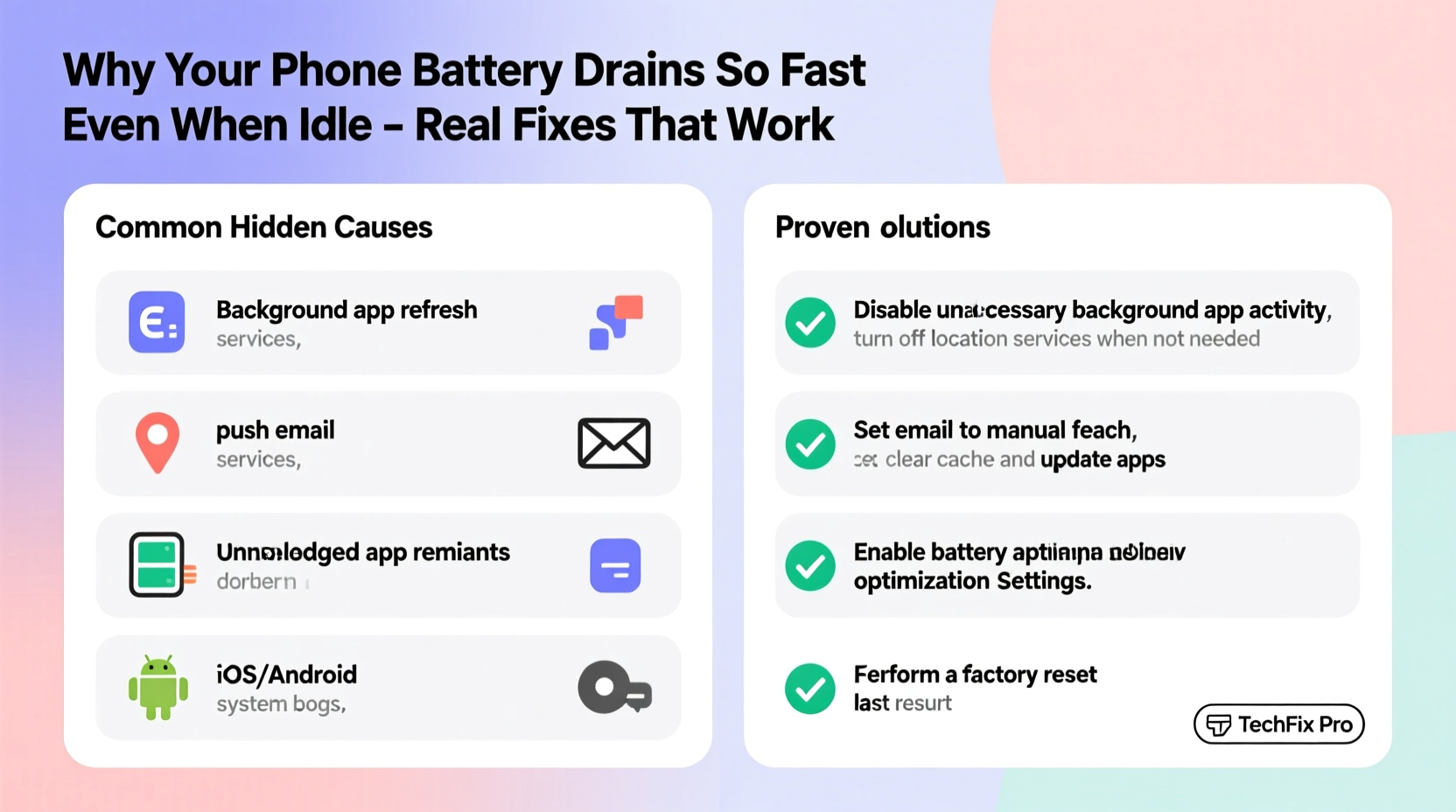
Battery drain during periods of inactivity—commonly called \"phantom drain\"—occurs when apps, services, or system processes continue running in the background without your knowledge. While some background activity is normal (like receiving messages), excessive usage can deplete your battery by 20–40% overnight. Modern smartphones are designed to optimize power, but misconfigurations, outdated software, or poorly coded apps can override these safeguards.
According to Dr. Lin Zhao, a mobile systems engineer at the University of Michigan, “Background app refresh, location tracking, and push notifications are the top three culprits behind unexplained battery loss. Users often don’t realize how much energy these features consume when left unchecked.”
“Background app refresh, location tracking, and push notifications are the top three culprits behind unexplained battery loss.” — Dr. Lin Zhao, Mobile Systems Engineer
Top Causes of Fast Battery Drain (Even When Idle)
Before jumping into fixes, identify what’s really draining your battery. Here are the most common hidden offenders:
- Background App Refresh: Apps like social media, email, and weather services constantly sync data, even when closed.
- Poor Network Signal: Weak cellular or Wi-Fi signals force your phone to work harder to maintain connectivity.
- Location Services: Apps accessing GPS in the background (e.g., fitness trackers, delivery apps) consume significant power.
- Push Notifications: Each notification triggers screen wake-ups and network checks.
- Software Bugs: OS updates or app glitches can cause memory leaks or runaway processes.
- Aging Battery Health: Lithium-ion batteries degrade over time, reducing capacity and efficiency.
Step-by-Step Fixes That Actually Work
These solutions are ranked by impact and ease of implementation. Start with the basics and move toward advanced troubleshooting if needed.
1. Disable Background App Refresh
This feature allows apps to update content in the background, but it's rarely essential. Disabling it can cut idle drain by up to 30%.
iOS: Settings > General > Background App Refresh > Off (or set to Wi-Fi only).
Android: Settings > Apps > Special App Access > Background Restrictions > Select apps to restrict.
2. Limit Location Services
Not every app needs constant access to your location. Restrict permissions to save battery and protect privacy.
iOS: Settings > Privacy > Location Services > Set non-essential apps to “While Using” or “Never.”
Android: Settings > Location > App Permissions > Review and downgrade access levels.
3. Reduce Push Notifications
Every notification wakes the screen, lights up LEDs, and uses network resources. Silence non-critical alerts.
Go to Settings > Notifications, then disable banners, sounds, and badges for apps like games, shopping, or news.
4. Enable Low Power Mode (iOS) or Battery Saver (Android)
These modes automatically restrict background activity, reduce visual effects, and limit performance to conserve power.
Enable them manually when battery drops below 50%, or set automatic activation at 20% or 10%.
5. Update Your Operating System and Apps
Manufacturers release updates to fix bugs and improve battery efficiency. Outdated software may contain known battery-draining issues.
Check for updates under Settings > Software Update (iOS/Android). Also update individual apps via the App Store or Google Play.
6. Restart Your Phone Weekly
A full reboot clears cached data, stops rogue processes, and resets network connections. It’s one of the fastest ways to resolve temporary glitches affecting battery life.
7. Calibrate a Misbehaving Battery Indicator
Sometimes, the battery percentage shown is inaccurate due to calibration drift. Recalibrating helps the system report usage correctly and can restore normal behavior.
- Drain your phone to 0% until it shuts off.
- Charge it to 100% uninterrupted (do not use while charging).
- Keep charging for an additional hour after reaching 100%.
- Power on and use normally.
Note: This doesn’t improve physical battery health but ensures accurate readings and better power management.
Battery-Saving Checklist
Use this checklist monthly to keep your phone running efficiently:
- ✅ Audit battery usage in settings
- ✅ Turn off Bluetooth, Wi-Fi, and NFC when not in use
- ✅ Disable auto-play videos in social media apps
- ✅ Lower screen brightness or enable adaptive brightness
- ✅ Delete unused apps (especially those with background permissions)
- ✅ Disable live wallpapers and animated widgets
- ✅ Use dark mode (OLED screens only)
- ✅ Remove widgets syncing frequently (e.g., weather, stocks)
Do’s and Don’ts: Battery Optimization Table
| Do’s | Don’ts |
|---|---|
| Enable Battery Saver during low charge | Leave GPS on for all apps |
| Update apps and OS regularly | Ignore repeated battery warnings |
| Restart your phone weekly | Use third-party \"battery booster\" apps |
| Turn off vibration and haptic feedback | Charge overnight daily (long-term) |
| Use airplane mode in poor signal areas | Expose phone to extreme heat or cold |
Real Example: Sarah’s Overnight Drain Fix
Sarah, a freelance designer in Portland, noticed her iPhone 13 dropped from 90% to 45% overnight—despite being untouched. She wasn’t traveling, had no active apps, and kept Wi-Fi on. After checking Settings > Battery, she found Instagram used 28% in the last 6 hours, mostly in the background.
She disabled Background App Refresh for Instagram and changed its location access to “Never.” She also turned off push notifications for non-urgent apps. The next morning, her battery was at 82%. A week later, her average overnight drain was under 8%. The fix took less than 15 minutes and required no technical skills.
When Hardware Is the Problem
Sometimes, no software tweak will help because the battery itself is failing. Lithium-ion batteries typically last 2–3 years or 500 full charge cycles before capacity drops below 80%. If your phone is older than two years and shows signs like sudden shutdowns at 30%, swelling, or overheating, the battery may need replacement.
iOS: Check battery health at Settings > Battery > Battery Health & Charging. If “Maximum Capacity” is below 80%, consider a replacement.
Android: Some brands (e.g., Samsung) offer built-in diagnostics. Otherwise, use apps like AccuBattery to estimate wear over time.
Replacing a degraded battery can restore up to 90% of original runtime and eliminate erratic drain patterns.
Frequently Asked Questions
Why does my phone lose battery in airplane mode?
If your phone still drains in airplane mode, background processes, screen wake-ups, or hardware issues are likely. Try a restart first. If the problem persists, check for faulty sensors or consider a factory reset (after backup). In rare cases, a defective battery or logic board may be responsible.
Does closing apps save battery?
No, force-closing apps (swiping away from recent apps) doesn’t save battery and can actually increase usage. Modern operating systems manage memory efficiently. Closing apps forces them to reload entirely when reopened, consuming more CPU and power. Instead, restrict background activity through settings.
Can malware drain my phone battery?
Yes, though rare on iOS due to strict app review, Android devices can be affected by malicious apps disguised as utilities or games. Signs include rapid battery drain, unexpected data usage, and pop-up ads. Remove suspicious apps immediately and run a scan using Google Play Protect.
Conclusion: Take Control of Your Battery Life
Your phone shouldn’t die by noon. With a few strategic adjustments, you can dramatically reduce unnecessary battery drain—even when the device sits idle. The key is consistency: audit settings monthly, update software promptly, and pay attention to usage patterns. Most improvements require only minutes but deliver long-term gains in reliability and convenience.




 浙公网安备
33010002000092号
浙公网安备
33010002000092号 浙B2-20120091-4
Comments
No comments yet. Why don't you start the discussion?