
Waking up to a nearly dead phone after leaving it charging or believing it was idle all night is more than frustrating—it disrupts your day before it even begins. You’re not alone. Millions of smartphone users experience unexplained battery loss overnight, often losing 20%, 30%, or even 50% of their charge with no apparent reason. While some background activity is normal, excessive overnight drainage points to specific underlying issues. The good news? Most are fixable with simple adjustments. This guide breaks down the real causes behind rapid battery drain and delivers actionable solutions that work—no tech expertise required.
Common Causes of Overnight Battery Drain
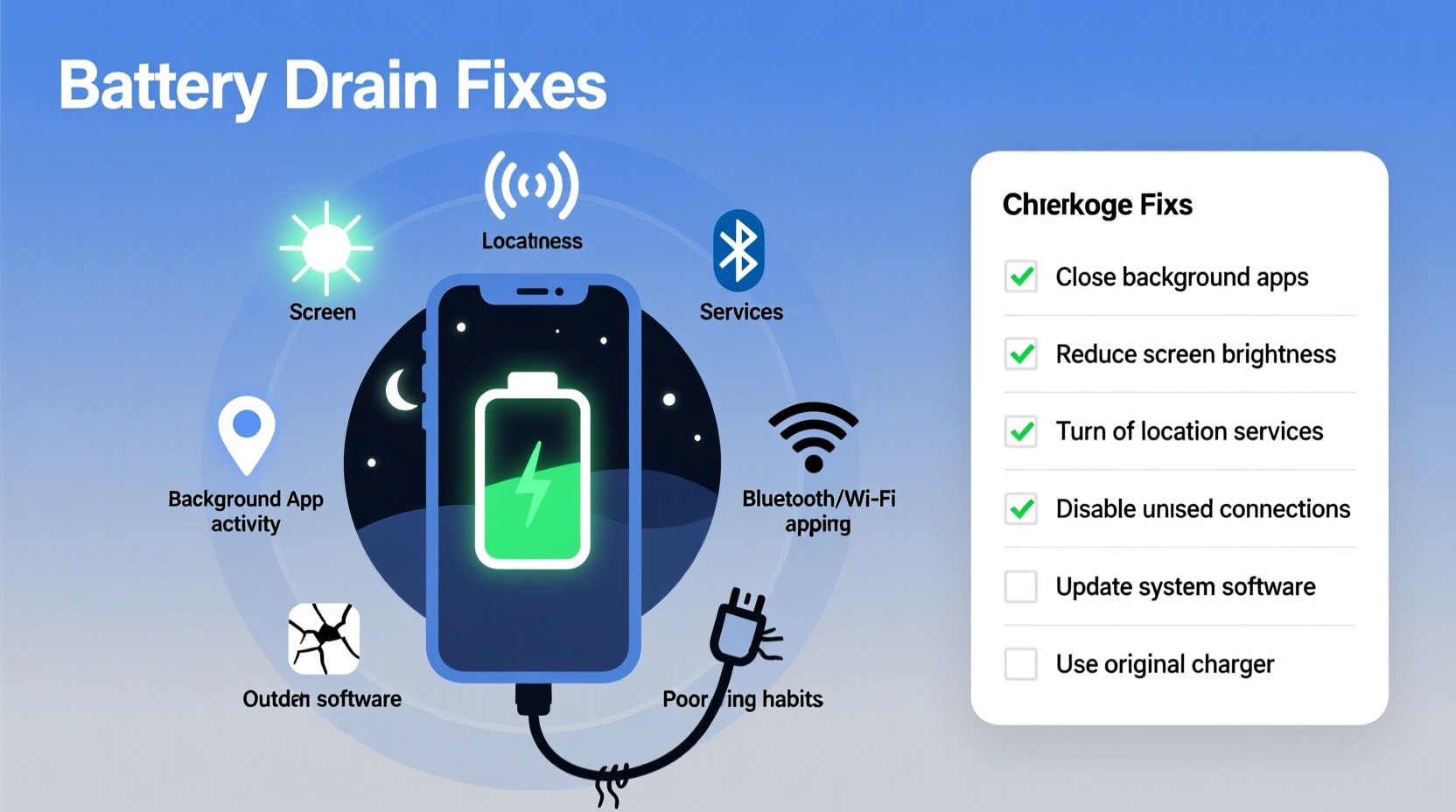
Modern smartphones run dozens of processes in the background, many of which continue even when the screen is off. Some energy use is expected, but certain behaviors and settings can turn minor power consumption into a full-blown battery crisis by morning.
- Background App Refresh: Apps like social media, email, and weather services constantly sync data, even when unused.
- Poor Network Signal: When your phone struggles to maintain a Wi-Fi or cellular connection, it increases radio power output, draining the battery faster.
- Location Services: Apps tracking your location in the background (e.g., fitness trackers, delivery apps) consume significant power.
- Battery-Draining Widgets: Live widgets on your home screen refresh frequently, especially those showing news, stocks, or weather.
- Outdated Software: Older operating systems or apps may have inefficient code or bugs that increase power usage.
- Dark Mode Not Enabled (on OLED screens): On AMOLED displays, bright white backgrounds use more power than dark ones.
- Push Email & Notifications: Constant alerts from multiple apps keep the processor active throughout the night.
Step-by-Step Guide to Diagnose Battery Drain
Before applying fixes, identify what’s actually consuming your battery. Follow this timeline each night for two nights to gather accurate data.
- Evening Check (8 PM): Charge your phone to 100%. Ensure Wi-Fi is connected and do not use it heavily for the next hour.
- Night Prep (9 PM): Enable Airplane Mode, then manually re-enable Wi-Fi if you need to receive messages or updates overnight.
- Morning Review (7 AM): Note the remaining battery percentage. If it dropped less than 5%, background apps or connectivity were likely the culprits.
- Second Night Test: Repeat without Airplane Mode but disable Background App Refresh and Location Services for non-critical apps.
- Compare Results: A significant difference between the two nights confirms software or network-related drain.
This method isolates variables and helps pinpoint whether hardware, network, or app behavior is responsible.
Top Fixes to Stop Overnight Battery Drain
1. Optimize Background App Activity
Many apps run silently in the background, updating content, syncing data, or tracking location. On iOS, go to Settings > General > Background App Refresh and disable it for non-essential apps. On Android, navigate to Settings > Apps > Special Access > Background Restrictions and limit high-drain apps.
2. Use Airplane Mode Strategically
Activating Airplane Mode disables cellular, Bluetooth, and Wi-Fi radios—the biggest overnight power consumers. If you still want Wi-Fi (for alarms or messaging), enable Airplane Mode first, then manually turn Wi-Fi back on. This prevents constant signal searching while allowing internet access.
3. Limit Location Services
Go to Settings > Privacy > Location Services (iOS) or Location (Android). Set most apps to “While Using” instead of “Always.” Pay special attention to ride-sharing, weather, and social media apps—they often run location checks hourly.
4. Turn Off Push Notifications
Instead of receiving instant alerts, set email and messaging apps to fetch data manually or every hour. On iOS: Settings > Mail > Accounts > Fetch New Data. On Android: Adjust sync frequency in each app’s settings. This reduces processor wake-ups.
5. Update Your Operating System and Apps
Manufacturers regularly release updates that improve battery efficiency and patch memory leaks. Outdated software can cause apps to run inefficiently or crash repeatedly, increasing power draw. Enable automatic updates where possible.
6. Disable Unnecessary Widgets and Live Wallpapers
Live widgets refresh content periodically, keeping the CPU active. Replace them with static icons. Similarly, animated wallpapers or always-on displays (AOD) on Android can contribute to overnight drain—especially on OLED panels.
7. Check for Rogue Apps
Use built-in battery usage tools: On iPhone, go to Settings > Battery; on Android, visit Settings > Battery > Battery Usage. Look for apps consuming disproportionate power while \"in background.\" Uninstall or restrict these.
“Over 60% of unexpected battery drain cases I see stem from just three apps running unchecked in the background.” — Dr. Lena Torres, Mobile Systems Engineer at TechInsight Labs
Do’s and Don’ts: Battery Optimization Table
| Do | Don’t |
|---|---|
| Enable Airplane Mode overnight if you don’t need calls | Leave Bluetooth and GPS on all night unnecessarily |
| Update your phone’s OS and apps monthly | Ignore system update notifications for weeks |
| Use battery usage reports weekly | Assume all battery drain is normal |
| Restrict background data for social media apps | Allow all apps unrestricted background refresh |
| Charge between 20%–80% for long-term health | Leave your phone plugged in at 100% overnight regularly |
Real Example: How Sarah Fixed Her 40% Overnight Drain
Sarah, a freelance designer from Portland, noticed her iPhone dropped from 90% to 50% overnight—even when not used. She wasn’t alarmed at first, assuming it was normal. But when it worsened to 40% loss, she decided to investigate.
Using the battery breakdown in Settings, she discovered that Instagram and Facebook were responsible for over 30% of her background activity. Both had Location Services set to “Always” and Background App Refresh enabled. She also had a live weather widget refreshing every 15 minutes.
She turned off background refresh for both apps, changed location access to “While Using,” and removed the widget. The next night, her battery only dropped by 8%. A month later, she reported consistent overnight losses under 5%, significantly extending her usable daytime battery life.
Sarah’s case isn’t unique. Small settings add up to big power savings when addressed together.
Frequently Asked Questions
Is it bad to leave my phone charging overnight?
Modern smartphones stop charging at 100%, so they won’t overcharge. However, staying at 100% for hours stresses the lithium-ion battery and accelerates long-term degradation. For optimal battery health, avoid nightly full charges. Use features like “Optimized Battery Charging” (iOS) or “Adaptive Charging” (Android) to delay full charge until morning.
Why does my battery drain even when the phone is off?
If your phone is truly powered off, battery drain should be minimal—less than 1–2% per night. If it’s losing more, the device may not be fully shutting down (due to a software glitch), or there could be a hardware defect. Try a forced restart and reset settings. If the issue persists, contact support.
Can malware cause overnight battery drain?
Yes, though rare. Malicious apps or adware can run hidden processes that consume CPU and network resources. Signs include excessive heat, pop-up ads, or unfamiliar apps. Install apps only from official stores, review app permissions, and use security scanners if suspicious behavior occurs.
Checklist: Overnight Battery Fix Plan
Apply this checklist tonight to reduce or eliminate overnight battery drain:
- ✅ Check battery usage stats to identify top background consumers
- ✅ Disable Background App Refresh for non-essential apps
- ✅ Set Location Services to “While Using” or “Never” for most apps
- ✅ Enable Airplane Mode at night (re-enable Wi-Fi if needed)
- ✅ Remove live widgets and animated wallpapers
- ✅ Turn off push email; set fetch interval to hourly
- ✅ Update your phone’s OS and all apps
- ✅ Enable Optimized/Adaptive Charging to protect long-term health
- ✅ Run a test night with Airplane Mode to measure baseline drain
- ✅ Re-evaluate battery performance after 48 hours
Conclusion: Take Control of Your Phone’s Battery Life
Overnight battery drain isn’t something you have to accept. It’s a signal—often from multiple small inefficiencies—that your phone is working harder than it should. By understanding the root causes and applying targeted fixes, you can reclaim hours of battery life and start each day with a fully charged device. These changes take minutes but deliver lasting results. Don’t wait for your battery health to degrade further. Implement the checklist tonight and experience the difference by tomorrow morning.




 浙公网安备
33010002000092号
浙公网安备
33010002000092号 浙B2-20120091-4
Comments
No comments yet. Why don't you start the discussion?