
Waking up to a nearly dead phone—even after charging it fully the night before—is more than frustrating. It disrupts your morning routine, limits productivity, and raises concerns about your device’s health. While some battery drop overnight is normal, losing 20%, 30%, or even 50% while idle suggests a deeper issue. The good news: most causes are fixable with simple adjustments. This guide breaks down the real reasons behind rapid overnight battery drain and provides practical, tested solutions you can apply immediately.
Common Causes of Overnight Battery Drain
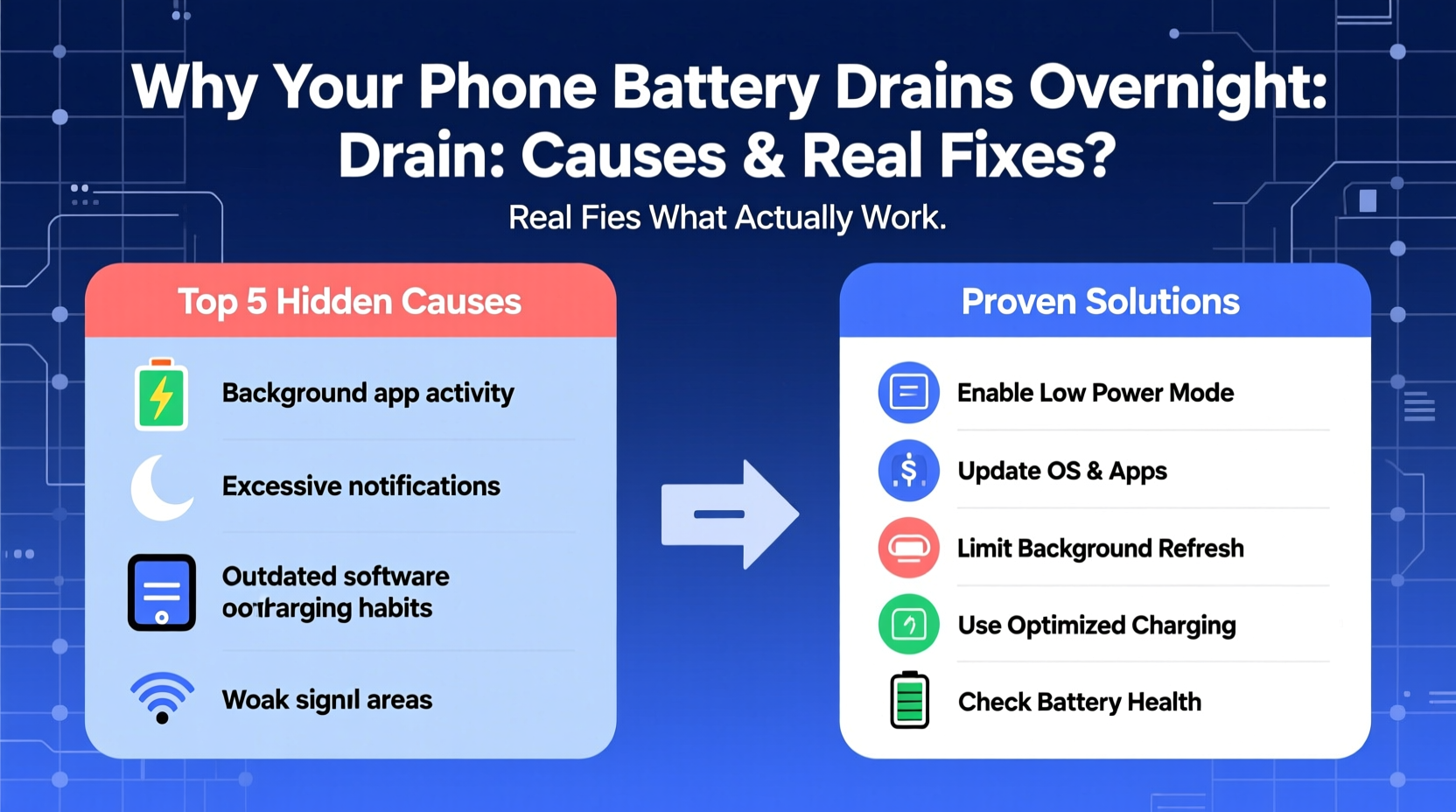
Your phone doesn’t truly \"sleep\" when you turn off the screen. Background processes, network signals, and system updates keep parts of the device active. But excessive power consumption during inactivity usually stems from specific culprits:
- Background app activity: Apps continue syncing data, refreshing content, or tracking location even when not in use.
- Poor signal strength: When your phone struggles to maintain a cellular or Wi-Fi connection, it boosts radio power—draining the battery significantly.
- Software bugs or updates: Recent OS updates or poorly optimized apps may introduce memory leaks or unintended background tasks.
- Push notifications and email sync: Frequent checks for new messages or alerts force the phone to wake up repeatedly.
- Location services: Apps constantly accessing GPS—even subtly—consume substantial energy.
- Aging battery: Lithium-ion batteries degrade over time, reducing capacity and increasing discharge rates.
How to Diagnose the Real Culprit
Before applying fixes, identify what’s actually consuming power. Both Android and iOS provide detailed battery usage reports that reveal which apps and functions are responsible.
On iPhone (iOS)
- Go to Settings > Battery.
- Check “Battery Usage by App” over the last 24 hours.
- Look at “Background Activity” percentages—high values indicate unnecessary work.
- Note any apps using significant power between 10 PM and 7 AM.
On Android
- Navigate to Settings > Battery > Battery Usage.
- Review the list sorted by “Used” or “Background usage.”
- Tap on individual apps to see foreground vs. background consumption.
- Enable “Adaptive Battery” if available to limit background behavior.
If no single app stands out but overall background usage is high, the issue may lie in system settings, connectivity, or hardware degradation.
“Most overnight drain cases we see stem from misconfigured sync settings or rogue location-tracking apps. A quick audit solves 80% of them.” — David Lin, Senior Mobile Support Technician at TechCare Solutions
Step-by-Step Fixes to Stop Overnight Drain
Follow this sequence of targeted actions to systematically eliminate common causes. Start with software and settings before considering hardware repairs.
1. Enable Airplane Mode (or Do Not Disturb + Connectivity Off)
Eliminate wireless radios as a source of drain by disabling all connections:
- Turn on Airplane Mode before bed.
- Manually re-enable Wi-Fi if needed for alarms or smart home devices.
- Alternatively, use Do Not Disturb and disable Bluetooth, Cellular Data, and Location.
This simple test helps determine if signal hunting or network activity is the primary cause.
2. Restrict Background App Refresh
Many apps refresh content unnecessarily, waking your phone throughout the night.
| Platform | Setting Path | Action |
|---|---|---|
| iOS | Settings > General > Background App Refresh | Turn off globally or disable for non-essential apps (e.g., social media). |
| Android | Settings > Apps > [App Name] > Battery > Background Restrictions | Set to “Restricted” for apps like Facebook, Instagram, or weather tools. |
3. Adjust Email Fetching Frequency
Instead of constant push notifications, set email to fetch manually or less frequently:
- iOS: Settings > Mail > Accounts > Fetch New Data → Change from “Push” to “Fetch” every hour or manually.
- Android: In Gmail app, go to Settings > General Settings > Auto-sync mail → Set sync frequency to manual or delayed.
4. Limit Location Services
Some apps request constant location access, even when not in use.
- Disable “Always” permissions. Use “While Using” instead.
- Review location usage weekly: Settings > Privacy > Location Services (iOS) or Location > App Permissions (Android).
- Turn off System Services like “Frequent Locations” or “Location History” if not essential.
5. Update Software and Apps
Bug fixes in OS updates often resolve abnormal battery drain caused by glitches.
- Install the latest OS version via Settings > General > Software Update (iOS) or System > System Update (Android).
- Update all apps through the App Store or Google Play Store.
- Check app reviews post-update—if multiple users report battery issues, consider temporary uninstall.
6. Calibrate a Misbehaving Battery Gauge
Sometimes, the battery percentage display becomes inaccurate due to calibration drift.
- Drain the phone completely until it shuts off.
- Charge it uninterrupted to 100% (keep it plugged in for an extra hour).
- Restart the device to reset battery statistics.
This won’t fix actual battery wear but ensures accurate reporting.
When Hardware Is the Problem
If software fixes don’t improve overnight performance, the issue may be physical. Lithium-ion batteries have a finite lifespan—typically 300–500 full charge cycles before capacity drops below 80%.
Signs of a failing battery include:
- Rapid discharge even with minimal use.
- Phone shutting down at 20% or higher.
- Swelling or overheating during charging.
To check battery health:
- iOS: Settings > Battery > Battery Health & Charging → Look at “Maximum Capacity.” Below 80%? Replacement is recommended.
- Android: Dial
*#*#4636#*#*to access hidden test menu (if supported), then “Battery Information.” Or use third-party apps like AccuBattery.
Replacing an old battery can restore near-original performance. Apple offers official replacements, and many third-party repair shops provide affordable options for both iOS and Android devices.
Mini Case Study: Sarah’s 40% Overnight Drain Fixed
Sarah, a marketing professional, noticed her iPhone 13 dropping from 100% to 60% each night despite being untouched. She wasn’t using any alarms or smart home features requiring connectivity.
After checking her battery usage, she found that Facebook and Instagram were consuming 35% combined in the background. Both had “Background App Refresh” enabled and accessed location “Always.”
She disabled background refresh for both apps and changed location access to “Never.” The next night, her battery dropped only 8%. A follow-up iOS update further reduced drain to 5%—a dramatic improvement achieved without replacing hardware.
Prevention Checklist: Keep Your Battery Healthy Long-Term
Use this checklist weekly or monthly to maintain optimal battery performance:
- ✅ Audit battery usage in settings once a week.
- ✅ Disable background refresh for non-critical apps.
- ✅ Set email fetch to manual or hourly—not push.
- ✅ Review location permissions monthly.
- ✅ Keep your phone cool; avoid direct sun or hot cars.
- ✅ Charge between 20% and 80% when possible—avoid full 0–100% cycles daily.
- ✅ Install OS and app updates promptly.
- ✅ Replace battery when health drops below 80%.
Frequently Asked Questions
Is it bad to leave my phone charging overnight?
Modern smartphones stop charging at 100%, so leaving them plugged in isn't harmful in terms of overcharging. However, keeping the battery at 100% for extended periods generates heat and stresses the cell, accelerating long-term wear. For best longevity, unplug once charged or use a smart plug timer.
Why does my battery drain faster in cold weather?
Lithium-ion batteries rely on chemical reactions that slow down in cold temperatures. Even brief exposure to freezing conditions can cause temporary capacity loss and sudden shutdowns. Warm the device gradually (don’t use direct heat) to restore function. Prolonged cold exposure shortens overall battery life.
Can a factory reset fix battery drain?
Yes, but only if the issue is software-related—such as corrupted settings, malware-like behavior from apps, or conflicting configurations. A factory reset removes all apps and settings, giving you a clean start. Back up your data first, and only reinstall essential apps one by one to monitor impact.
Final Thoughts: Take Control of Your Phone’s Battery Life
Overnight battery drain isn’t inevitable. With a methodical approach, you can identify whether the cause is behavioral, configurational, or hardware-based—and take precise action. Most fixes require no technical skill, just awareness and consistency. Regular maintenance prevents small inefficiencies from turning into major frustrations.
Start tonight: review your battery usage, disable one unnecessary background app, and consider enabling Airplane Mode while you sleep. Small changes compound into lasting improvements. Your phone should serve you—not disappoint you first thing in the morning.




 浙公网安备
33010002000092号
浙公网安备
33010002000092号 浙B2-20120091-4
Comments
No comments yet. Why don't you start the discussion?