
You charge your phone fully before bed, only to wake up to a significantly depleted battery—sometimes even below 50%. No calls, no streaming, barely any screen time. So why is this happening? The culprit isn’t always obvious. While aging batteries and extreme temperatures play a role, one of the most common causes of overnight battery drain is hidden apps running in the background. These silent energy hogs can consume power without your knowledge, especially when poorly optimized or malfunctioning.
Understanding how modern smartphones manage power—and where they fall short—is essential for preserving battery health. This article dives into the technical and behavioral reasons behind rapid battery loss at night, identifies which apps are most likely to be responsible, and provides actionable solutions to regain control over your device’s efficiency.
How Smartphones Use Power When Idle
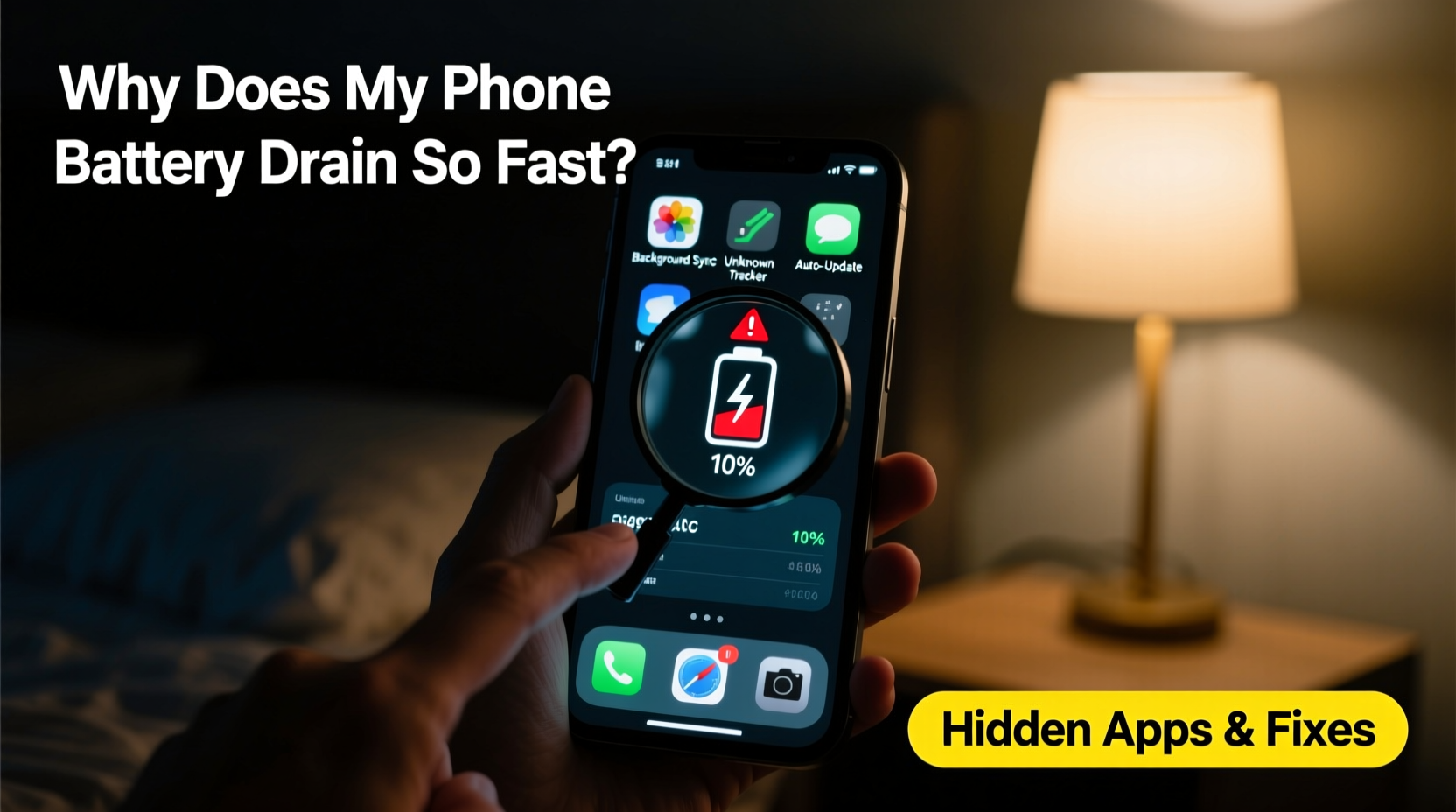
Even when your phone is locked and not in active use, it continues to perform numerous background tasks. These include syncing emails, updating apps, checking location services, receiving push notifications, and maintaining network connections. Most of these functions are necessary for usability, but some become excessive or redundant, especially when poorly coded apps don’t follow best practices for resource management.
Modern operating systems like Android and iOS have built-in mechanisms to limit background activity during idle periods. For example, iOS uses “Background App Refresh” restrictions, while Android employs Doze mode and App Standby to reduce power consumption. However, these safeguards aren’t foolproof. Apps with persistent permissions—especially those granted access to location, sensors, or background data—can bypass some of these limits.
A study by Purdue University found that up to 70% of smartphone battery drain comes from app inefficiencies rather than actual user interaction. Background processes such as ad networks, analytics trackers, and cloud syncs often run unnecessarily, draining power even when you’re not using the phone.
Hidden Apps That Drain Battery Overnight
Not all apps behave the same way when your phone is idle. Some are designed to stay active for functionality (e.g., fitness trackers), while others operate inefficiently due to poor optimization or aggressive advertising integrations. Below are common categories of apps known to cause overnight battery drain:
- Social media apps: Facebook, Instagram, TikTok, and Twitter frequently poll servers for updates, refresh feeds, and preload content—even when unused.
- Email clients: Apps like Gmail or Outlook may sync every few minutes, especially if set to \"push\" mode.
- Weather and news apps: Constantly update forecasts and headlines in the background.
- Navigation and maps: Google Maps and similar services may continue tracking location if recent usage suggests ongoing trips.
- Ad-supported free apps: Many free games and utilities embed third-party ad networks that run background scripts to serve targeted ads.
- Fitness and health monitors: Step counters or sleep trackers may keep sensors active all night.
In some cases, malware or rogue apps disguised as legitimate tools can also run undetected processes. These apps may mine data, display intrusive ads, or send information to remote servers—all consuming battery in the process.
“Many users assume their phone is ‘just old,’ but the real issue is often uncontrolled background app behavior. A single misbehaving app can drain more power than the entire system UI.” — Dr. Lin Zhao, Mobile Systems Researcher at MIT
Step-by-Step Guide to Diagnose and Fix Overnight Drain
Follow this structured approach to identify and eliminate the root causes of battery depletion while you sleep.
- Check battery usage statistics: Go to Settings > Battery and review which apps consumed the most power in the last 24 hours. Pay attention to apps that used significant energy while the screen was off.
- Identify background activity: On Android, look under “Battery Usage” for “Awake Time” or “Device Sleep” metrics. If your phone stays awake for long periods despite being idle, background apps are likely preventing deep sleep states.
- Review location and sensor access: Navigate to Settings > Location (or Privacy) and see which apps have permission to access your location “Always.” Disable this for non-critical apps.
- Disable Background App Refresh: On iPhone: Settings > General > Background App Refresh. On Android: Settings > Apps > Special App Access > Background Restrictions. Turn it off globally or per app.
- Turn off push email: Switch from “Push” to “Fetch” manually or hourly in Mail settings to reduce constant syncing.
- Clear cache and data: For problematic apps, go to App Info and clear cached data. This can stop runaway processes caused by corrupted temporary files.
- Update or uninstall problematic apps: Outdated apps may contain bugs causing excessive battery use. Update them via the Play Store or App Store. If issues persist, consider removing them.
- Enable battery saver mode: Activate low-power mode overnight. This restricts background activity, visual effects, and automatic downloads.
Do’s and Don’ts: Managing Background App Behavior
| Action | Do | Don't |
|---|---|---|
| Location Permissions | Allow only for navigation or safety apps when needed | Grant “Always” access to social media or utility apps |
| Background Refresh | Keep enabled only for messaging or calendar apps | Leave it on for all apps, including games and browsers |
| Battery Monitoring | Review battery stats weekly | Ignore sudden drops in standby time |
| App Updates | Keep apps updated to benefit from efficiency fixes | Delay updates indefinitely; outdated versions often leak resources |
| Wi-Fi & Bluetooth | Turn off if not needed overnight | Leave both on just in case |
Real-World Example: Sarah’s Mystery Drain Solved
Sarah, a freelance designer, noticed her iPhone dropped from 100% to 38% overnight—without being touched. She wasn’t concerned initially, assuming it was normal. But when the pattern repeated for five nights, she decided to investigate.
She opened Settings > Battery and discovered that “Fitness Tracker Pro,” an app she installed two weeks prior, had consumed 42% of her battery while the screen was off. Curious, she checked its permissions and found it had “Always” access to location and motion sensors. Even though she hadn’t opened the app in days, it was still logging movement and syncing data every 15 minutes.
After revoking location permissions and disabling Background App Refresh, her overnight drain dropped to less than 8%. She later uninstalled the app entirely after finding a better alternative with transparent privacy controls.
This case highlights how easily a single app can disrupt battery performance—and how simple diagnostics can lead to dramatic improvements.
Advanced Fixes for Persistent Battery Drain
If basic troubleshooting doesn’t resolve the issue, consider deeper system-level adjustments:
- Reset battery statistics: Clear historical data so your phone recalibrates usage patterns. On iOS, this happens automatically after a full charge cycle. On Android, some manufacturers offer a “Reset battery stats” option in developer settings.
- Boot in Safe Mode (Android): Restart your phone in Safe Mode to disable all third-party apps temporarily. If battery drain stops, the issue lies with a downloaded app.
- Check for malware: Install trusted security apps like Malwarebytes or Lookout to scan for malicious software masquerading as legitimate tools.
- Factory reset (last resort): Back up your data and erase the device. After restoring selectively, monitor battery behavior. If the drain disappears, the problem was software-related, likely due to app clutter or configuration errors.
Also, ensure your operating system is up to date. Both Apple and Google regularly release patches that improve power management and fix known bugs affecting battery life.
FAQ
Why does my phone battery drop 20% overnight even when I don’t use it?
This level of drain is higher than normal. It typically indicates an app running intensive background processes—such as location tracking, frequent syncing, or ad loading. Check your battery usage breakdown and disable background permissions for suspicious apps.
Can a factory reset fix battery drain issues?
Yes, in many cases. A factory reset eliminates accumulated software clutter, rogue configurations, and potentially harmful apps. However, if the battery itself is degraded (common after 2+ years), the improvement may be temporary.
Is it bad to leave my phone charging overnight?
Modern phones stop charging once they reach 100%, so occasional overnight charging is safe. However, consistently keeping the battery at 100% can accelerate long-term degradation. For optimal longevity, aim to keep charge between 20% and 80% when possible.
Conclusion: Take Control of Your Phone’s Battery Life
Overnight battery drain isn’t inevitable. While hardware aging plays a role over time, the majority of premature discharge stems from controllable software behaviors—especially hidden apps exploiting background permissions. By auditing app activity, adjusting settings, and adopting smarter usage habits, you can dramatically extend your phone’s standby time.
The key is vigilance. Just because an app is installed doesn’t mean it should have unrestricted access to your phone’s resources. Treat background permissions like subscriptions: review them regularly, cancel what you don’t need, and demand transparency from developers.




 浙公网安备
33010002000092号
浙公网安备
33010002000092号 浙B2-20120091-4
Comments
No comments yet. Why don't you start the discussion?