
Waking up to a nearly dead phone—even after charging it fully before bed—is frustrating and increasingly common. You didn’t use it all night, yet somehow, 30%, 50%, or even 80% of the battery is gone. This isn’t normal wear and tear. It’s a sign something is wrong with how your device manages power while idle. The good news: most causes are fixable, often without technical expertise. Understanding what’s consuming energy in the background allows you to take control and extend your battery life significantly.
Modern smartphones are designed to be efficient, but software updates, app behavior, network settings, and hardware issues can turn them into silent power vampires. This guide breaks down the real reasons behind overnight battery drain and delivers actionable solutions that actually work—many of which take less than five minutes to implement.
Common Causes of Overnight Battery Drain
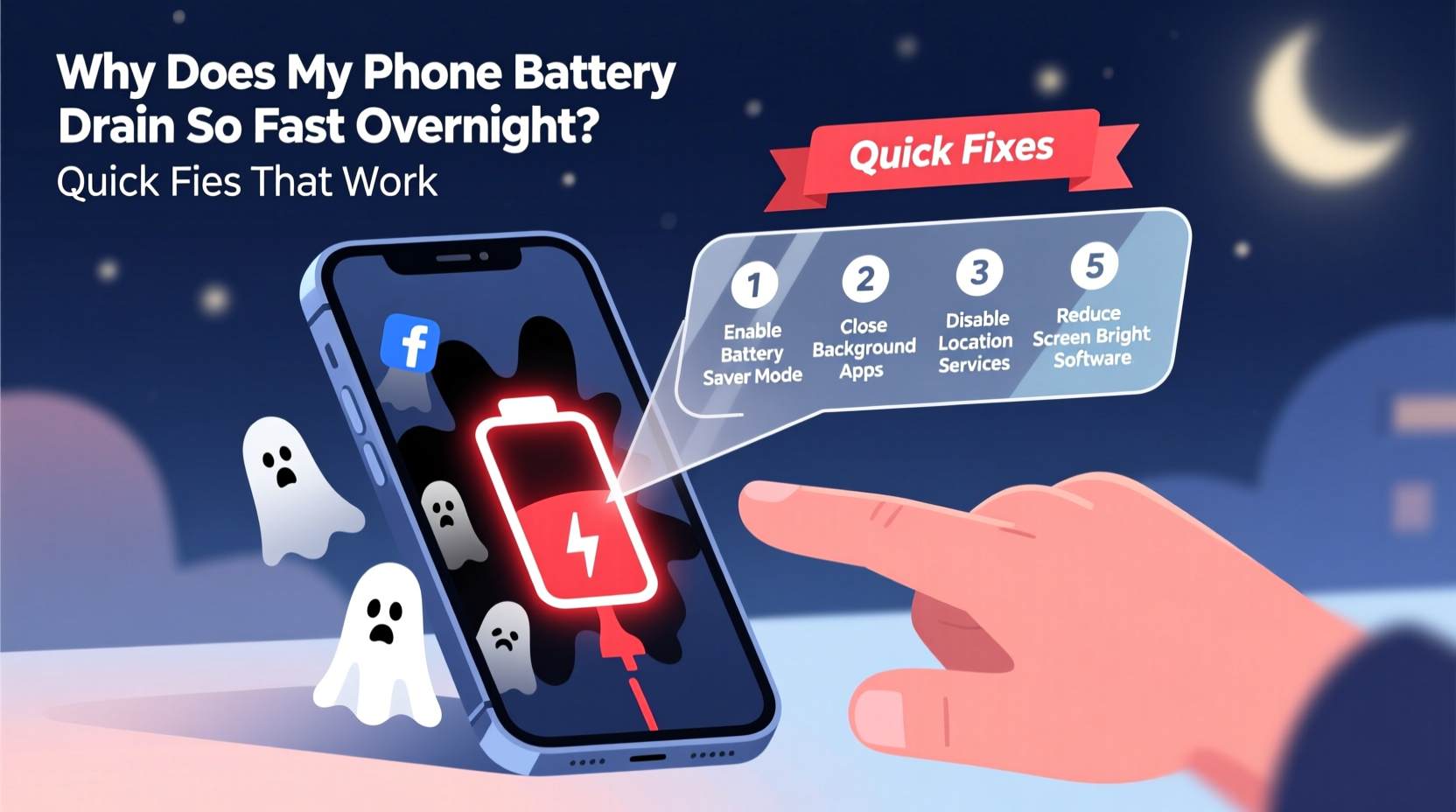
Battery drain during sleep mode usually stems from apps and services running in the background. Even when your screen is off, certain processes continue using CPU, GPS, Wi-Fi, or cellular data. Over hours, this adds up. Below are the top culprits:
- Background App Refresh: Apps like social media, email, and weather services constantly check for new content, even at night.
- Poor Network Signal: When your phone struggles to maintain a connection, it boosts its radio output, consuming more power.
- Location Services: Some apps track your location continuously, draining the battery even when unused.
- Push Notifications: Frequent alerts trigger wake-ups, lighting the screen and activating components.
- Software Bugs or Glitches: After OS updates, some phones experience bugs that cause abnormal battery usage.
- Old or Degraded Battery: Lithium-ion batteries lose capacity over time, especially after 2+ years of use.
Step-by-Step Fixes That Work Immediately
Before assuming hardware failure, try these practical steps. Most users see improvement within one night.
- Enable Airplane Mode While Sleeping
This disables all wireless signals—cellular, Wi-Fi, Bluetooth—which are major energy consumers. If you still want alarms or music, enable Airplane Mode and manually re-enable Wi-Fi if needed. This alone can reduce overnight drain by 70–90%. - Turn Off Background App Refresh
On iPhone: Settings > General > Background App Refresh > Set to “Off” or “Wi-Fi Only.”
On Android: Settings > Apps > Special Access > Background Restrictions > Enable for non-essential apps.
Focus on social media, news, and shopping apps—they’re the worst offenders. - Limit Location Services
Go to Settings > Privacy > Location Services (iOS) or Settings > Location (Android). For each app, set location access to “While Using” instead of “Always.” Disable location entirely for apps like games or calculators. - Disable Push Email
Instead of having your phone check email every few minutes, set it to fetch manually or every hour. On iOS: Settings > Mail > Accounts > Fetch New Data > Change to “Hourly” or “Manually.” On Android: Adjust sync frequency in your email app settings. - Update Your Operating System and Apps
Software updates often include battery optimization patches. Outdated apps may contain bugs causing excessive background activity. Check the App Store or Google Play regularly.
Do’s and Don’ts: Managing Battery Health
| Do | Don't |
|---|---|
| Charge between 20% and 80% for daily use | Leave your phone plugged in overnight regularly |
| Use Low Power Mode (iOS) or Battery Saver (Android) | Run intensive apps before bedtime (e.g., video editing, gaming) |
| Restart your phone weekly to clear memory leaks | Ignore sudden drops in battery health |
| Keep your phone cool—avoid hot cars or direct sunlight | Use third-party fast chargers not certified by the manufacturer |
| Check battery health monthly | Assume all battery drain is normal |
Real-World Example: How Sarah Fixed Her iPhone’s Drain in One Night
Sarah, a freelance designer, noticed her iPhone 13 dropped from 100% to 38% overnight—despite not touching it. She checked Settings > Battery and saw “System Services” and “Instagram” were top consumers. Instagram was using location and background refresh unnecessarily. She turned off Background App Refresh for Instagram and changed its location access to “While Using.” She also enabled Airplane Mode at night and kept Wi-Fi on manually. The next morning, her battery was at 94%. A week later, she no longer needed to charge before bed.
This case highlights how a single misconfigured app can sabotage battery life—and how simple adjustments deliver dramatic results.
Expert Insight: What Engineers Say About Battery Drain
“Overnight battery drain is rarely about the battery itself. It’s almost always inefficient software behavior. Users should treat their phone like a computer—close unused apps, disable unnecessary services, and update regularly.” — Dr. Alan Zhou, Mobile Systems Engineer at Stanford University
“Battery degradation accelerates when devices are exposed to heat and full charge cycles. Keeping your phone at 100% all night, especially under a pillow, creates thermal stress that shortens battery lifespan.” — Lisa Park, Senior Hardware Analyst at TechInsight Labs
Battery Health Check: Is It Time for a Replacement?
If your phone is more than two years old, the battery may be degraded. Both iOS and Android provide battery health metrics:
- iOS: Settings > Battery > Battery Health & Charging. Look for “Maximum Capacity.” If it’s below 80%, consider a replacement.
- Android: Varies by brand. Samsung users: Settings > Battery > Battery Health. Others may need third-party apps like AccuBattery to estimate wear level.
A degraded battery won’t hold charge well, even with perfect settings. Apple and authorized repair centers offer battery replacements starting around $69. For Android, prices vary but typically range from $50–$120. Replacing an old battery can restore 90%+ of original performance.
Quick Checklist: Stop Overnight Drain Tonight
Follow this checklist before going to bed. Most steps take under three minutes.
- ✅ Check battery usage for unusual app activity
- ✅ Turn off Background App Refresh for non-essential apps
- ✅ Disable “Always” location access for social/media apps
- ✅ Switch to Airplane Mode (keep Wi-Fi on if needed)
- ✅ Ensure your OS and apps are up to date
- ✅ Restart your phone to clear temporary glitches
- ✅ Keep your phone in a cool, open area (not under pillows)
- ✅ Enable Low Power Mode or Battery Saver
Frequently Asked Questions
Why does my phone battery drain even when I’m not using it?
Even idle phones run background processes—apps syncing data, checking location, receiving notifications, or maintaining network connections. Poor signal strength forces the phone to work harder, increasing power use. Additionally, outdated software or failing batteries contribute to passive drain.
Is it bad to charge my phone overnight?
Modern phones stop charging at 100%, but staying at full charge for hours generates heat and stresses the battery chemistry. Over time, this accelerates degradation. While not dangerous, it’s better to unplug at 80–90% or use scheduled charging (available on iPhone and many Android models).
Can malware cause battery drain?
Yes, though rare. Malicious apps or adware can run hidden processes, mine cryptocurrency, or send data in the background. Stick to official app stores, review app permissions, and uninstall anything suspicious. Use built-in security tools: Google Play Protect (Android) or Apple’s App Review system (iOS).
Conclusion: Take Control of Your Phone’s Battery Life
Overnight battery drain isn’t inevitable—it’s a solvable problem. By understanding what runs in the background and adjusting a few key settings, you can reclaim hours of battery life and avoid the morning panic of a dying phone. Start with Airplane Mode and background app restrictions. Monitor your battery health monthly. Replace the battery if it’s degraded. Small changes compound into long-term gains.
Your phone should serve you, not frustrate you. With these fixes, you’ll wake up to a device ready for the day—not scrambling for a charger. Implement one tip tonight and feel the difference tomorrow.




 浙公网安备
33010002000092号
浙公网安备
33010002000092号 浙B2-20120091-4
Comments
No comments yet. Why don't you start the discussion?