
It’s a frustrating experience: you charge your phone overnight, only to wake up and find the battery has dropped by 15%, 20%, or even more—despite not touching it. If your phone seems to be losing power while sitting idle, you’re not imagining things. Modern smartphones are designed to be always-on, always-connected devices, but that convenience comes at a cost. Behind the scenes, numerous processes and settings silently consume energy, even when the screen is off. The real question isn’t whether your battery should last overnight—it’s why it’s draining faster than expected.
This article dives deep into the often-overlooked reasons behind battery drain during periods of non-use. From background app activity to network signals and system-level inefficiencies, we’ll uncover the hidden culprits and provide actionable solutions to extend your battery life—starting tonight.
Background Apps and Silent Processes
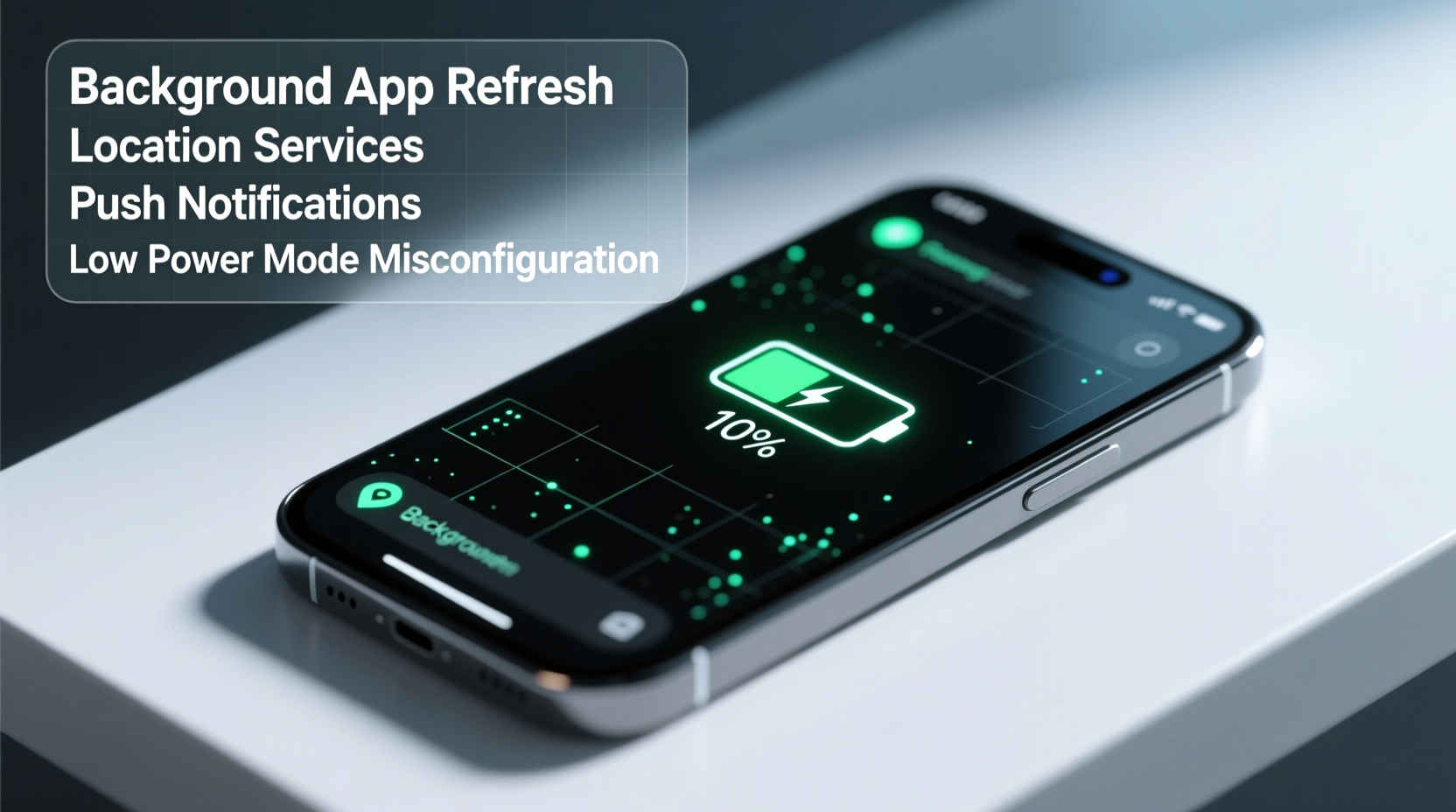
One of the most common causes of battery drain when your phone is idle is background app activity. Even when you’re not actively using an app, many continue to run services in the background. These include location tracking, push notifications, data syncing, and cloud backups. While some of these functions are useful—like receiving messages or updating weather—they can add up quickly in terms of energy consumption.
For example, social media apps like Facebook or Instagram may refresh content periodically, while fitness trackers could be constantly monitoring your location or step count. Email clients might check for new messages every few minutes, and music streaming apps could preload playlists—even if you haven’t opened them.
On Android, go to Settings > Apps & notifications > Special app access > Battery optimization to see which apps are consuming power. On iOS, navigate to Settings > Battery and scroll down to view “Battery Usage by App” over the last 24 hours or 10 days. Pay close attention to apps with high background usage percentages.
Poor Network Signal and Connectivity Issues
Your phone’s radio systems—Wi-Fi, cellular, Bluetooth, and GPS—are among the biggest energy hogs. When signal strength is weak, your device works harder to maintain a stable connection, significantly increasing power draw. This is especially true in areas with spotty coverage, basements, elevators, or rural zones where the phone continuously searches for a tower.
Even when idle, a phone struggling to connect to a network can drain 5–10% of its battery per hour. Similarly, leaving Wi-Fi on in areas with no available networks forces your phone to scan repeatedly, wasting energy. The same applies to Bluetooth and GPS, both of which can remain active if location services are enabled globally.
“Signal hunting is one of the top contributors to passive battery drain. A phone in poor reception can use more power staying connected than during active browsing.” — Dr. Lena Patel, Mobile Systems Engineer at TechInsight Labs
To minimize this issue, consider enabling Airplane Mode in low-signal areas or overnight. Alternatively, disable individual radios (cellular data, Wi-Fi, Bluetooth) when not needed. Smartphones with dual SIMs or 5G connectivity may be even more prone to this due to increased antenna activity.
Software Glitches and System Bugs
Not all battery drain is caused by user behavior. Sometimes, the culprit lies within the operating system itself. Software bugs, particularly after OS updates, can lead to abnormal battery consumption. For instance, a bug in Android’s Location Services or iOS’s Background App Refresh has been known to cause excessive wake cycles, where the phone briefly wakes from sleep mode hundreds of times per night.
In 2023, Apple acknowledged a bug affecting certain iPhone models where background tasks consumed disproportionate power after updating to iOS 16.4. Similarly, Samsung users reported rapid battery drain post-One UI 5.1 update due to a misbehaving system process called “One UI Home.”
These issues aren’t always widespread, but they can severely impact individual devices. The best defense is keeping your software updated—but also being aware of community reports. Forums like Reddit’s r/Android or Apple Support Communities often highlight emerging battery issues before official patches are released.
Mini Case Study: The Phantom Drain on a Pixel 6
Mark, a software developer in Chicago, noticed his Google Pixel 6 was losing 30% battery overnight despite being plugged in occasionally and having minimal app usage. He disabled all non-essential apps, turned off location services, and still saw significant drain. After checking Battery Usage, he found that “Android System” and “Location” were consuming over 40% combined—while the phone was idle.
Upon further investigation, he discovered that a recent security update had introduced a bug causing the geofencing service to run continuously. By resetting app preferences and disabling location for system services temporarily, Mark reduced overnight drain to under 5%. Google later released a patch confirming the fix in the July 2023 update.
Push Notifications and Cloud Syncing
Every time your phone receives a push notification—from news alerts to social media pings—it wakes up slightly to process the data. While each event uses negligible power individually, the cumulative effect of dozens or hundreds per day adds up. Worse, some apps send multiple notifications for the same event or trigger background downloads.
Cloud syncing services like iCloud, Google Drive, or Dropbox also contribute. These platforms often sync photos, documents, or app data automatically in the background. If you’ve just taken several photos or modified files, your phone may spend hours uploading them—even when idle.
| Feature | Typical Power Impact (Idle) | Recommended Action |
|---|---|---|
| Push Notifications (High Frequency) | Moderate to High | Disable for non-essential apps |
| Photo Auto-Upload (Wi-Fi Only) | Low to Moderate | Schedule uploads or batch manually |
| Email Fetch Interval (Every 15 mins) | Moderate | Change to “Manually” or “Hourly” |
| App Background Refresh | High (if unrestricted) | Limit to Wi-Fi only or disable |
Adjusting these settings can yield immediate improvements. On iOS, go to Settings > Notifications and toggle off apps that don’t require instant alerts. On Android, use Settings > Apps > [App Name] > Notifications to manage per-app alerts. For syncing, consider delaying automatic uploads until charging or connecting to Wi-Fi.
Step-by-Step Guide to Diagnose and Fix Idle Battery Drain
If you’re experiencing unexplained battery loss, follow this structured approach to identify and resolve the issue:
- Check Battery Usage Statistics: Go to Settings > Battery and review which apps or system services are consuming power. Focus on background usage.
- Restart Your Phone: A simple reboot clears temporary glitches and stops rogue processes.
- Disable Non-Essential Background Activity: Turn off Background App Refresh (iOS) or restrict battery usage for high-drain apps (Android).
- Turn Off Unneeded Radios: Disable Bluetooth, Wi-Fi, and Location Services if not in use. Use Airplane Mode overnight if feasible.
- Update Your Operating System and Apps: Ensure all software is current. Developers frequently release fixes for battery-related bugs.
- Reset Battery Calibration (Optional): Drain the battery to 0%, charge to 100% uninterrupted, then recalibrate by restarting. Helps if battery percentage seems inaccurate.
- Test in Safe Mode (Android): Boot into Safe Mode to disable third-party apps. If drain stops, a downloaded app is likely the culprit.
Do’s and Don’ts of Battery Preservation
| Do’s | Don’ts |
|---|---|
| Enable Low Power Mode or Battery Saver when possible | Leave location services on for all apps |
| Use scheduled dark mode and auto-brightness | Ignore recurring battery drain after updates |
| Keep your phone between 20% and 80% charge | Charge overnight regularly (can degrade long-term health) |
| Review app permissions monthly | Install apps from untrusted sources that may run hidden services |
Frequently Asked Questions
Is it normal for my phone to lose 5–10% battery overnight?
A small amount of drain (around 5%) is normal due to system maintenance, security checks, and occasional background syncs. However, anything above 10% suggests an underlying issue such as poor signal, buggy software, or aggressive app behavior.
Can malware cause battery drain when the phone isn’t in use?
Yes. Malicious apps or adware can run hidden processes, mine cryptocurrency, or track your location without consent. Signs include sudden overheating, unexpected data usage, or rapid battery drop. Always install apps from official stores and monitor battery usage closely after new installations.
Does turning off my phone every night help battery life?
Occasionally powering down your phone can clear memory leaks and stop background tasks, potentially improving performance and battery efficiency. However, daily shutdowns aren’t necessary. Once a week is sufficient for most users.
Conclusion: Take Control of Your Battery Health
Your phone doesn’t have to be a battery vampire. With a little awareness and proactive management, you can eliminate the mystery behind overnight drain and reclaim hours of usable life. The key is understanding that “not in use” doesn’t mean “doing nothing.” Modern smartphones are constantly communicating, syncing, and preparing for your next interaction—and that activity comes at an energy cost.
Start by auditing your current settings, identifying high-consumption apps, and optimizing connectivity features. Small changes—like disabling background refresh, managing notifications, or enabling airplane mode at night—can make a dramatic difference. Over time, these habits not only preserve battery life but also extend the overall lifespan of your device.




 浙公网安备
33010002000092号
浙公网安备
33010002000092号 浙B2-20120091-4
Comments
No comments yet. Why don't you start the discussion?