
If you go to bed with a fully charged phone only to wake up to a significantly depleted battery, you're not imagining things—and it's likely not just age or faulty hardware. A growing number of smartphone users report unexplained battery drain during periods of inactivity, particularly overnight. The culprit? Phantom app usage: apps running in the background, consuming power without your knowledge or consent. This silent energy leak can shorten your device’s usable life, increase charging frequency, and even impact performance over time.
Phantom app usage occurs when applications continue to perform tasks—syncing data, tracking location, sending notifications, or updating content—even when you’re not actively using them. While some background activity is necessary for functionality (like receiving messages), excessive or poorly optimized behavior from certain apps can lead to significant battery loss. Understanding how and why this happens is the first step toward regaining control over your device’s power efficiency.
How Background Apps Consume Battery Power
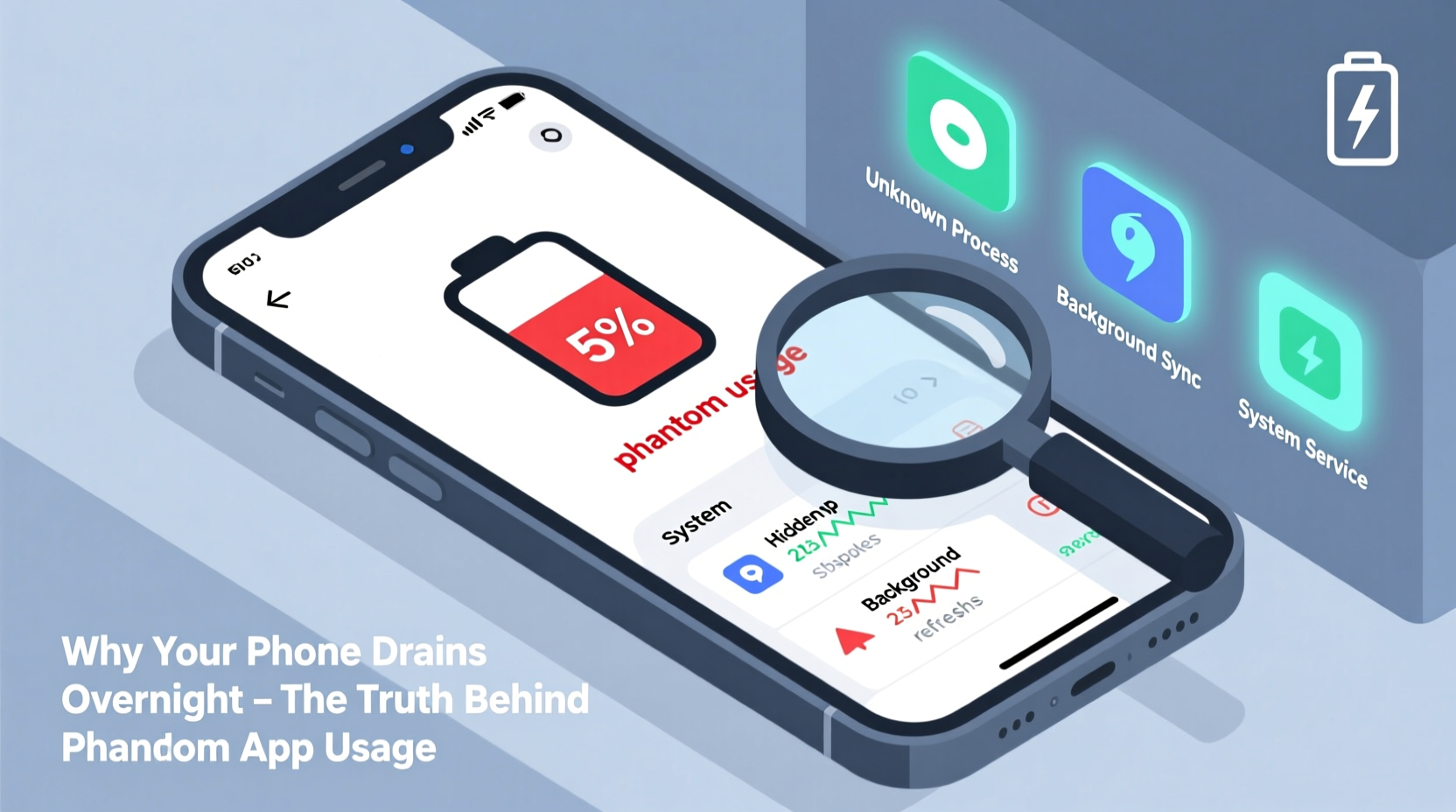
Modern smartphones are designed to multitask. Even when your screen is off, apps may remain active to deliver timely updates. However, not all background processes are created equal. Some are efficient; others are resource hogs. The key lies in understanding what types of activities consume power:
- Location tracking: Apps like weather services, fitness trackers, or social media platforms often request constant access to GPS, which is one of the most power-intensive features on any phone.
- Data syncing: Email clients, cloud storage apps, and messaging platforms frequently check servers for new content, even every few minutes, leading to repeated network usage.
- Push notifications: While convenient, these require persistent connections to remote servers, keeping radios and processors partially awake.
- Background refresh: iOS and Android allow apps to “refresh” their content in the background so they appear up-to-date when opened—but many do so inefficiently.
- Auto-updates and downloads: App stores sometimes initiate automatic updates at night, especially if connected to Wi-Fi and charging.
These behaviors may seem minor individually, but collectively, they form a continuous drain on your battery. Over eight hours of sleep, an app checking for updates every five minutes performs nearly 100 network requests. Multiply that by several apps, and the toll becomes substantial.
Identifying the Worst Offenders
Not all apps behave the same way. Some are notorious for excessive background activity. Common culprits include social media apps (Facebook, Instagram, TikTok), navigation tools (Google Maps), and third-party launchers or widget providers. To identify which apps are draining your battery overnight, follow these steps:
- Check your phone’s built-in battery usage statistics (Settings > Battery).
- Look at usage over the past 24 hours, focusing on activity between 10 PM and 7 AM.
- Note any apps showing high percentages despite no user interaction.
- Pay attention to “screen off” vs. “screen on” usage ratios—high screen-off consumption indicates phantom drain.
On Android, use the Battery Usage screen to see wake locks and background service duration. On iPhone, review Background Activity under Battery settings. If an app like Facebook shows 40% battery usage while the screen was off for most of that time, it’s clearly operating aggressively behind the scenes.
“Many free apps monetize through constant data collection and real-time engagement, which inherently requires more background processing—directly impacting battery life.” — Dr. Lena Torres, Mobile Systems Researcher at MIT Media Lab
Do’s and Don’ts: Managing Phantom App Usage
| Do | Don’t |
|---|---|
| Review battery usage weekly | Ignore sudden drops in overnight charge retention |
| Limit location permissions to “While Using” | Grant “Always” location access unless absolutely necessary |
| Disable background refresh for non-critical apps | Allow all apps to refresh in the background by default |
| Use built-in digital wellbeing tools (e.g., Digital Wellbeing, Screen Time) | Rely solely on manufacturer claims about battery optimization |
| Manually close unused apps occasionally | Assume closing apps hurts performance (modern OS handle this well) |
Step-by-Step Guide to Reduce Overnight Drain
Follow this practical sequence to minimize phantom app usage and improve overnight battery retention:
- Access Battery Settings: Open Settings > Battery on your device. Review the list of apps ranked by battery consumption.
- Spot High Screen-Off Users: Identify apps with disproportionately high usage when the screen was off. Flag them for adjustment.
- Restrict Background Refresh:
- iOS: Settings > General > Background App Refresh > Turn off globally or per app.
- Android: Settings > Apps > [App Name] > Battery > Background restriction > Enable.
- Adjust Location Permissions: Go to Privacy settings and set location access to “While Using” for apps that don’t need constant tracking (e.g., food delivery, social media).
- Disable Push Notifications: For low-priority apps, turn off notifications entirely or switch to fetch-only updates.
- Turn Off Auto-Updates: Prevent app stores from downloading updates overnight. Instead, schedule updates manually during the day.
- Enable Battery Saver Mode: Activate adaptive or scheduled battery saver modes to limit background activity automatically at night.
- Restart Weekly: A full reboot clears cached processes and stops rogue background services.
This routine takes less than 15 minutes but can extend your morning battery level by 15–30%, depending on previous app behavior.
Real-World Example: Recovering 40% Overnight Loss
Sarah, a freelance designer in Portland, noticed her iPhone dropped from 100% to 58% overnight—even though she didn’t use it after bedtime. She wasn’t running any obvious tasks, yet the drain persisted for days. After checking her battery usage, she found that Facebook, Spotify, and a weather widget were collectively responsible for over 60% of screen-off consumption.
She took action: disabled background refresh for Facebook and Spotify, removed the weather widget (which updated every two minutes), and changed location access for both apps to “While Using.” The next morning, her battery was at 89%. A week later, after fine-tuning other settings, she consistently woke up to 92–94% battery remaining.
Sarah’s case isn’t unique. Many users experience similar results once they audit and adjust their app permissions. The fix isn’t technical wizardry—it’s awareness and deliberate configuration.
Advanced Tactics for Power Users
For those seeking deeper control, consider these advanced strategies:
- Use Android’s Adaptive Battery: Available on Pixel and newer Samsung devices, this AI-driven feature learns your habits and restricts background activity for rarely used apps.
- Install Firewall Tools (Android): Apps like NetGuard let you block internet access for specific apps when the screen is off, effectively stopping background syncing.
- Monitor with AccuBattery (Android):strong>
- Reset Analytics Data Monthly: Both iOS and Android accumulate battery diagnostics over time. Resetting this data (Settings > Privacy > Analytics & Improvements) can improve accuracy in reporting.
- Factory Reset as Last Resort: If phantom drain persists despite all optimizations, back up your data and reset the phone. Reinstall apps selectively, monitoring battery impact as each is added back.
Be cautious with third-party tools promising “battery boost” or “cleaner” functions. Many are ineffective or introduce ads and bloatware. Stick to system-level controls and reputable utilities.
Frequently Asked Questions
Can malware cause overnight battery drain?
Yes, though rare. Malicious apps disguised as legitimate tools can run hidden processes, mine cryptocurrency, or track your behavior continuously. Only download apps from official stores, check reviews, and monitor unusual battery patterns after installing new software.
Is it normal for my phone to lose 10–15% overnight?
A small amount of drain (5–10%) is typical due to essential system functions like network pinging and notification delivery. Anything above 15% suggests inefficient apps or misconfigured settings. Investigate if losses exceed 20% regularly.
Does turning off Wi-Fi or cellular data help?
Temporarily, yes. Without network access, most background syncing halts. However, this defeats the purpose of having a connected device. A better solution is managing which apps can use data in the background rather than cutting connectivity entirely.
Conclusion: Take Control of Your Phone’s Power Use
Overnight battery drain caused by phantom app usage is a widespread but solvable issue. It stems not from hardware failure but from the cumulative effect of poorly managed software behaviors. By auditing your apps, adjusting permissions, and applying smart restrictions, you can reclaim lost battery life and reduce unnecessary wear on your device.
The convenience of always-on connectivity comes at a cost—one that doesn’t have to be paid in dwindling charge. With a few deliberate changes, your phone can last longer each day and serve you more reliably. Don’t accept poor battery performance as inevitable. Diagnose, optimize, and take back control.




 浙公网安备
33010002000092号
浙公网安备
33010002000092号 浙B2-20120091-4
Comments
No comments yet. Why don't you start the discussion?