
It’s a familiar experience: you’re in the middle of an important call, and suddenly your smartphone starts to feel uncomfortably warm—sometimes even too hot to hold against your ear. While some warmth is normal during use, excessive heat can signal underlying issues and may impact performance, battery health, or long-term durability. Understanding why phones overheat during calls—and how to prevent it—is essential for maintaining both comfort and device longevity.
Modern smartphones are powerful mini-computers, capable of handling complex tasks like video streaming, gaming, and multitasking. But this power comes at a cost: energy consumption and heat generation. During phone calls, multiple systems activate simultaneously—cellular radios, microphones, speakers, proximity sensors, and background processes—all contributing to thermal output. When combined with environmental factors or hardware inefficiencies, this can lead to noticeable heating.
Common Causes of Phone Heating During Calls
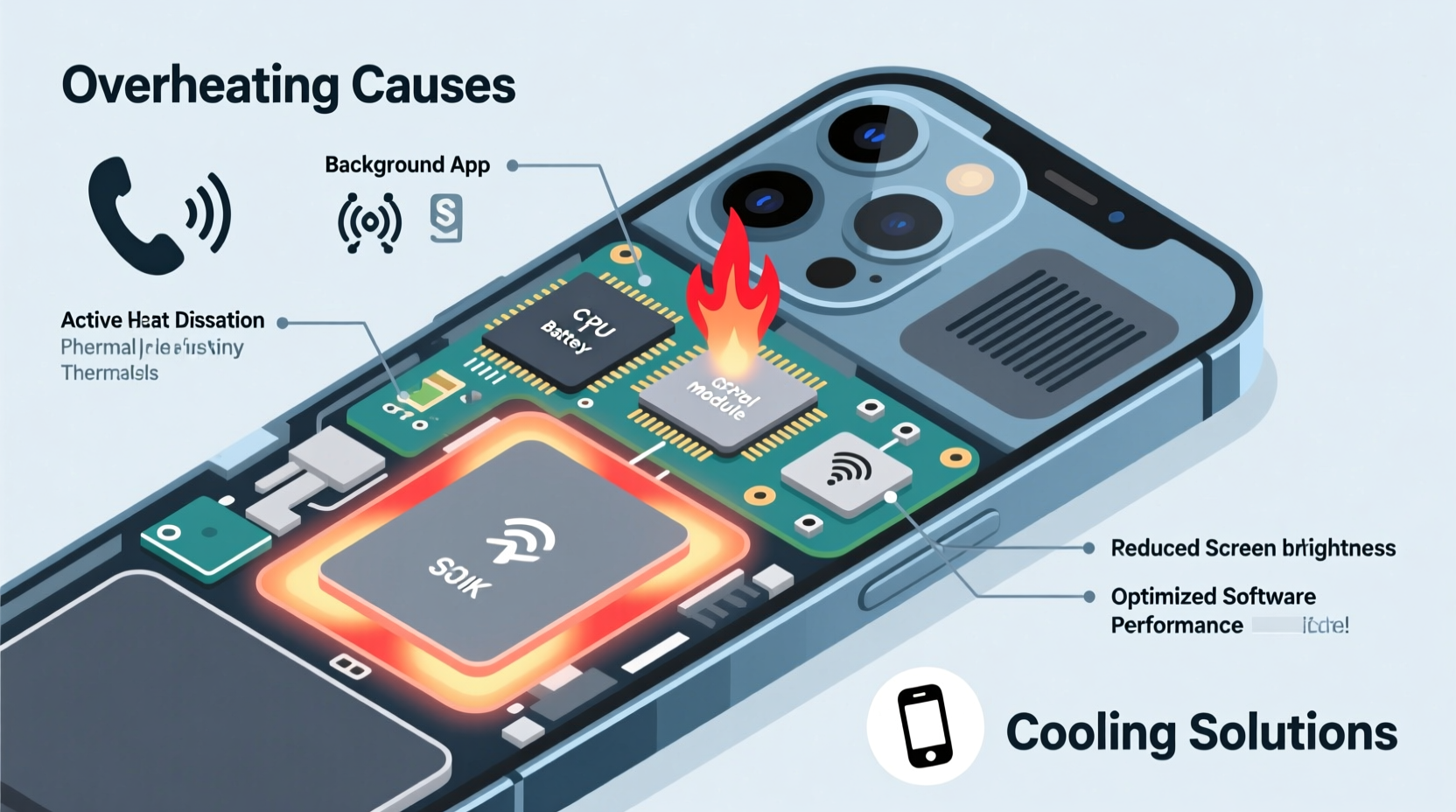
Several interrelated factors contribute to your phone getting hot during calls. Some are inherent to design and usage patterns, while others stem from avoidable habits or technical faults.
- Signal Strength: Weak cellular reception forces your phone to boost its radio output to maintain a stable connection. This increased transmission power generates significant heat, especially in basements, elevators, or rural areas.
- Background App Activity: Apps running in the background—especially those using GPS, syncing data, or streaming media—consume CPU resources and generate additional heat, compounding the thermal load during calls.
- Poor Ventilation: Holding the phone tightly against your face or placing it on soft surfaces (like beds or couches) traps heat and reduces airflow, preventing natural cooling.
- Aging Battery: As lithium-ion batteries degrade over time, their internal resistance increases, causing them to heat up more easily—even under moderate loads like voice calls.
- Software Bugs or OS Updates: Inefficient code, memory leaks, or poorly optimized updates can cause apps or system services to run continuously, increasing processor workload and temperature.
- Direct Sunlight or Hot Environments: Using your phone outdoors on a sunny day or leaving it in a hot car raises ambient temperature, making it harder for the device to dissipate heat.
How Phone Components Contribute to Heat Generation
To understand overheating, it helps to examine which internal components are most responsible for generating heat during calls.
| Component | Role During Call | Heat Contribution |
|---|---|---|
| Cellular Modem | Transmits and receives voice data via radio waves | High – especially in weak signal areas |
| Processor (CPU) | Handles call processing, audio encoding, app management | Moderate to High – depends on background load |
| Battery | Supplies power to all active components | Moderate – increases with age or high discharge rate |
| Display | Remains on during call (unless proximity sensor works) | Low to Moderate – screen brightness affects this |
| Microphone & Speaker | Converts sound to electrical signals and vice versa | Low – but contributes cumulatively |
The cellular modem is often the biggest culprit. Unlike Wi-Fi, which operates at lower transmit power, cellular networks require higher energy to communicate with distant towers. This becomes especially problematic when the phone “searches” for a signal or switches between bands (e.g., 4G to 5G). The constant adjustment increases power draw and thermal output.
“Phones aren’t designed to run at maximum radio output for extended periods. Prolonged high-power transmission due to poor signal is one of the top reasons we see overheating complaints.” — Dr. Lena Torres, Mobile Hardware Engineer at TechInsight Labs
Effective Cooling Solutions and Preventive Measures
While you can't eliminate heat entirely, you can significantly reduce it through smart usage habits and simple interventions.
Step-by-Step Guide to Reduce Phone Heat During Calls
- Use Wi-Fi Calling When Possible: Enable Wi-Fi calling in your phone settings. It uses less power than cellular transmission and produces less heat, especially indoors where Wi-Fi signals are strong.
- Close Background Apps: Before starting a long call, swipe away unused apps from the recent apps menu. This frees up RAM and reduces CPU strain.
- Enable Airplane Mode Temporarily (then re-enable Wi-Fi): If you're in a known dead zone, turn on Airplane Mode, then manually enable Wi-Fi. This disables the struggling cellular radio while allowing internet-based calls via apps like WhatsApp or FaceTime.
- Keep the Phone Uncovered: Remove thick cases during long calls. Rubber or silicone cases insulate heat, slowing down dissipation.
- Hold the Phone Loosely: Allow space between your hand and the phone body. Don’t cover the bottom or sides where heat vents are typically located.
- Take Breaks During Long Conversations: Pause every 15–20 minutes to let the device cool down. Use speakerphone or headphones during breaks.
- Update Your Operating System: Manufacturers often release patches that improve thermal management and fix inefficient background processes.
Hardware and Environmental Adjustments
Environmental control plays a major role. Even the best-designed phone will overheat in extreme conditions. Consider these adjustments:
- Avoid using the phone directly under sunlight or near heat sources (radiators, ovens).
- Don’t charge the phone while on a call—this doubles the thermal load from both charging circuits and communication systems.
- Store your phone in shaded pockets or bags when outdoors.
- Use wired or Bluetooth headsets for extended conversations, keeping the phone away from your body and allowing better airflow.
Mini Case Study: Sarah’s Overheating iPhone
Sarah, a remote sales consultant, noticed her iPhone 12 was becoming too hot to hold during daily client calls. She often worked from her basement home office, where cellular signal was weak. Initially, she assumed it was normal, but after two months, the phone began shutting down mid-call.
She visited an Apple technician who diagnosed the issue: the phone was operating at maximum cellular transmit power for hours each day, causing sustained thermal stress. The battery had also degraded to 78% capacity, exacerbating the problem. The solution?
- She enabled Wi-Fi calling and connected to her router instead of relying on cellular.
- Installed a mesh Wi-Fi system to boost coverage in the basement.
- Replaced the battery under Apple’s service program.
- Started using Bluetooth earbuds for calls longer than 10 minutes.
Within a week, her phone no longer overheated, call quality improved, and battery life stabilized. This real-world case underscores how environment, usage patterns, and maintenance intersect in managing device temperature.
When to Worry: Warning Signs of Serious Overheating
Not all heat is dangerous, but certain symptoms indicate deeper problems requiring immediate attention:
- Automatic shutdowns during calls – Phones have built-in thermal protection; repeated shutdowns mean critical temperatures are being reached.
- Visible warping or bulging of the case – Often caused by a swelling battery, which can be hazardous.
- Reduced call volume or audio distortion – Heat can interfere with speaker and microphone performance.
- Sluggish performance immediately after calls – Thermal throttling slows the processor to cool down, degrading user experience.
If your phone displays any of these signs, discontinue prolonged calling and have it inspected by a certified technician. Continuing to use an overheating device risks permanent hardware damage or safety hazards.
Do’s and Don’ts: Quick Reference Table
| Do’s | Don’ts |
|---|---|
| Use Wi-Fi calling in low-signal areas | Leave the phone in direct sunlight during calls |
| Remove thick cases when overheating occurs | Charge the phone while on long calls |
| Use headphones or speaker mode for extended conversations | Ignore repeated overheating warnings |
| Keep software updated for efficiency fixes | Block ventilation areas with hands or fabric |
| Monitor battery health monthly | Continue using a phone with a swollen battery |
Frequently Asked Questions
Is it normal for my phone to get warm during calls?
Yes, mild warmth is normal due to active components like the processor and cellular radio. However, if the phone becomes too hot to touch, shuts down, or triggers overheating alerts, it’s not normal and should be addressed.
Can a virus make my phone overheat during calls?
While true malware is rare on iOS and tightly controlled Android devices, malicious or poorly coded apps can run hidden processes that increase CPU usage and heat. If your phone heats up without apparent reason, review recently installed apps and check battery usage in settings.
Does 5G cause more overheating than 4G during calls?
Yes, in some cases. 5G modems, especially mmWave variants, consume more power and generate more heat than 4G, particularly when switching between networks or in areas with spotty 5G coverage. Many users report faster heating when 5G is enabled unnecessarily.
Conclusion: Take Control of Your Phone’s Temperature
Your phone getting hot during calls isn’t something you should just accept. With awareness and small changes in how you use your device, you can prevent excessive heating, protect battery health, and ensure smoother performance. From leveraging Wi-Fi calling to monitoring background activity and upgrading aging hardware, proactive steps go a long way.
Smartphones are tools meant to enhance your life—not burn your ear. By understanding the causes and applying practical solutions, you extend not only the lifespan of your device but also your comfort and productivity.




 浙公网安备
33010002000092号
浙公网安备
33010002000092号 浙B2-20120091-4
Comments
No comments yet. Why don't you start the discussion?