
It’s a familiar scenario: you’re in the middle of an important call, and suddenly your phone starts warming up—sometimes uncomfortably so. While a slight temperature increase is normal during extended use, excessive heat during calls can signal deeper issues. Overheating not only makes your device uncomfortable to hold but can also degrade battery life, slow performance, and even cause long-term hardware damage. Understanding why your phone heats up during calls—and how to fix it—is essential for maintaining both comfort and longevity.
How Phones Generate Heat During Calls
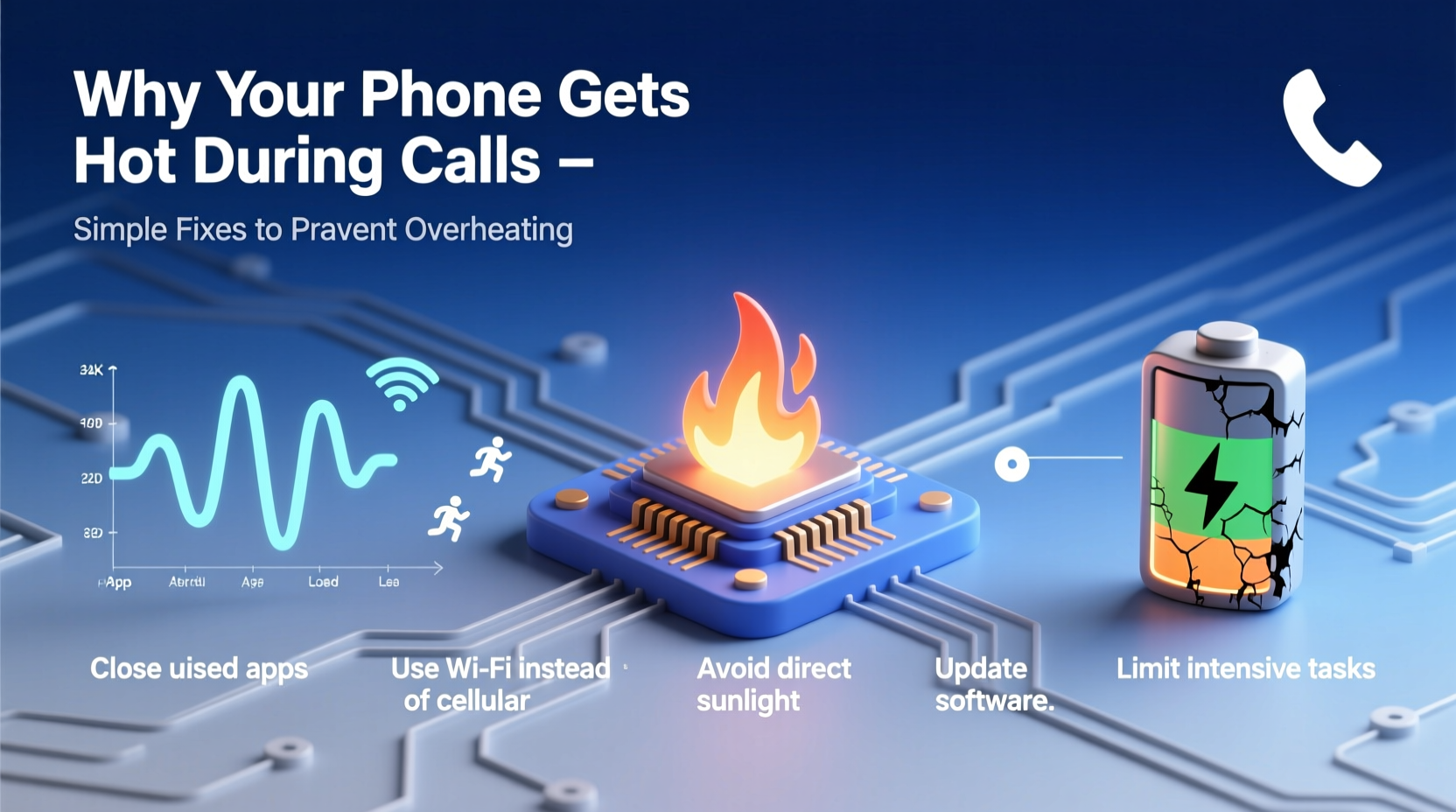
Every smartphone relies on multiple components working together during a phone call: the processor, cellular radio, microphone, speaker, and sometimes GPS or Wi-Fi if you're using VoIP services like WhatsApp or FaceTime. These systems draw power from the battery, and whenever electricity flows through circuits, heat is produced as a byproduct.
The primary sources of heat during calls include:
- Cellular Signal Processing: When signal strength is weak, your phone boosts its transmission power to maintain connection, increasing energy consumption and heat output.
- Processor Load: Voice processing, noise cancellation, and background app activity all require CPU resources, which generate heat when active.
- Battery Chemistry: Lithium-ion batteries naturally warm during discharge and recharge cycles, especially under load.
- Enclosure Design: Modern phones are sealed with metal and glass, materials that conduct heat well but don’t dissipate it quickly without airflow.
In ideal conditions, this heat remains manageable. But when combined with environmental stressors or software inefficiencies, temperatures can spike.
Common Causes of Excessive Heating During Calls
While some warmth is expected, persistent or intense heat indicates one or more underlying problems. Here are the most frequent culprits:
1. Poor Network Signal
When your phone struggles to maintain a stable connection—due to distance from towers, thick walls, or interference—it increases transmission power. This \"searching\" mode consumes significantly more energy, leading to rapid heating.
2. Background App Activity
Many apps continue running in the background while you’re on a call—syncing data, updating locations, or streaming content. These processes tax the CPU and contribute to thermal buildup.
3. Outdated or Buggy Software
Firmware bugs or outdated operating systems may fail to manage resources efficiently. For example, a glitch in the modem driver could cause the radio module to work harder than necessary.
4. Physical Obstruction or Case Use
Thick protective cases, especially those made of silicone or leather, trap heat. Holding the phone tightly against your ear or covering the back with your hand further insulates it, preventing natural cooling.
5. High Screen Brightness or Active Display
Even during calls, many users keep their screens on (e.g., checking contacts, taking notes). A bright display adds substantial thermal load, particularly on OLED panels.
6. Battery Degradation
As batteries age, internal resistance increases, making them less efficient and more prone to heating—even under moderate loads like voice calls.
“Phones are designed to handle temporary heat spikes, but consistent overheating during basic tasks like calling suggests poor thermal management or system inefficiency.” — Dr. Alan Zhou, Mobile Hardware Engineer at TechInsight Labs
Step-by-Step Guide to Diagnose and Fix Overheating Issues
If your phone consistently becomes too hot during calls, follow this diagnostic and corrective process:
- Monitor Conditions: Note when overheating occurs—only during long calls, in specific locations, or after certain activities. This helps isolate variables.
- Check Signal Strength: Look at your signal bars or enable field test mode (on iPhones: *3001#12345#*) to see dBm values. Below -100 dBm indicates poor reception.
- Close Background Apps: Swipe away unused apps before making calls. On Android, go to Settings > Apps > See All Apps > [App Name] > Force Stop.
- Disable Unnecessary Features: Turn off Bluetooth, GPS, and Wi-Fi if not needed. These radios consume power even when idle.
- Remove Protective Case: Test a call without the case to see if heat dissipation improves.
- Lower Screen Brightness: Reduce brightness manually or enable auto-brightness to minimize extra load.
- Update Your OS and Carrier Settings: Install pending updates, which often include modem optimizations and thermal fixes.
- Restart Your Phone Regularly: A daily reboot clears memory leaks and resets network modules.
- Test in Airplane Mode + Wi-Fi Calling: Enable airplane mode, then turn Wi-Fi back on and make a call via WhatsApp, FaceTime, or carrier Wi-Fi calling. If no heat occurs, the issue is likely related to cellular signal strain.
- Observe Battery Health: On iPhone: Settings > Battery > Battery Health. On Android: Dial
*#*#4636#*#*or use a third-party app like AccuBattery. Replace the battery if health is below 80%.
Do’s and Don’ts: Managing Phone Temperature During Calls
| Do’s | Don’ts |
|---|---|
| Use speakerphone or wired headphones to reduce direct contact and allow airflow | Hold the phone tightly against your ear for long durations |
| Keep your phone updated with the latest OS and security patches | Ignore repeated overheating warnings from the system |
| Make calls in areas with strong network coverage | Use thick, non-breathable cases during long conversations |
| Enable Wi-Fi calling in low-signal zones | Run GPS navigation or video streaming simultaneously |
| Let the phone cool down between long calls | Place a hot phone directly into a cold environment (risk of condensation) |
Real-World Example: Sarah’s Commute Problem
Sarah, a sales representative in Chicago, noticed her iPhone 13 would become nearly too hot to hold during her 30-minute train commute calls. She initially assumed it was due to the phone’s age (18 months), but after reading about signal-related heating, she tested a theory.
During her next ride, she turned on Wi-Fi calling and connected to the train’s public network. The difference was immediate—the phone remained near room temperature throughout the call. Further testing revealed that underground tunnels caused her phone to drop to one bar, forcing maximum transmit power. By relying on Wi-Fi instead, she eliminated the strain on the cellular radio.
This small change not only solved the overheating but also improved call clarity and extended her battery life by over 25% during transit.
Preventive Maintenance Checklist
To keep your phone cool and functioning optimally during calls, adopt these habits regularly:
- ✅ Restart your phone at least once every 48 hours
- ✅ Update your operating system and apps monthly
- ✅ Clean app cache weekly (Android: Settings > Storage > Clear Cache)
- ✅ Disable location services for non-essential apps
- ✅ Use Wi-Fi calling in basements, elevators, or rural areas
- ✅ Remove case during long calls or in hot environments
- ✅ Monitor battery health every 3–6 months
- ✅ Avoid direct sunlight exposure during use
- ✅ Limit multitasking during voice calls
- ✅ Replace swollen or degraded batteries promptly
Frequently Asked Questions
Is it dangerous if my phone gets hot during calls?
Moderate warmth is normal, but if the phone feels uncomfortably hot, shuts down unexpectedly, or displays a temperature warning, it’s a sign of excessive stress. Prolonged overheating can damage the battery, reduce performance, and in rare cases, pose a safety risk. Immediate action—like ending the call and letting the device cool—is recommended.
Can malware cause my phone to overheat during calls?
Yes. Malicious apps can run hidden processes that overload the CPU or constantly access the network. Signs include rapid battery drain, unexpected data usage, or pop-ups. To protect yourself, install apps only from official stores, review permissions carefully, and run periodic scans using trusted antivirus tools.
Does using 5G make my phone hotter during calls?
Yes, especially in early-generation 5G devices. 5G modems consume more power than 4G, particularly when switching between bands or operating in mmWave zones. Newer chipsets (like Snapdragon 8 Gen 2 and Apple’s A17) have improved thermal efficiency, but 5G still generates more heat under load. Switching to LTE in settings can help reduce temperature during long calls.
Long-Term Solutions for Sustained Performance
For users who rely heavily on their phones for business or personal communication, proactive measures can prevent recurring issues:
- Upgrade Strategically: Choose models known for good thermal design, such as those with graphite cooling layers or vapor chambers.
- Use VoIP Services: Apps like Google Voice, Skype, or WhatsApp often run more efficiently than native dialers, especially over Wi-Fi.
- Invest in Accessories: Headsets with noise-canceling mics improve call quality while reducing the need for high speaker volume and prolonged contact.
- Monitor Device Logs: Advanced users can check CPU usage and temperature logs using developer options (Android) or Shortcuts automation (iOS).
Manufacturers are increasingly aware of thermal challenges. Recent innovations include dynamic clock speed throttling, AI-based workload distribution, and adaptive network switching—all aimed at balancing performance and temperature.
Conclusion: Take Control of Your Phone’s Temperature
Your phone heating up during calls isn’t something you should simply accept. While minor warmth is part of normal operation, persistent overheating reflects inefficient resource use, environmental strain, or aging components. By understanding the root causes—poor signal, background activity, outdated software, or hardware wear—you can take targeted steps to resolve the issue.
Start with simple changes: remove your case, update your system, switch to Wi-Fi calling, and close unnecessary apps. Track improvements over a few days. If problems persist, investigate battery health or consult a repair technician. Small adjustments today can prevent costly replacements tomorrow.




 浙公网安备
33010002000092号
浙公网安备
33010002000092号 浙B2-20120091-4
Comments
No comments yet. Why don't you start the discussion?