
It’s a common experience: you’re in the middle of an important call, and suddenly your phone feels uncomfortably warm—sometimes even too hot to hold against your ear. While some warmth is normal, excessive heat can signal underlying issues that affect battery life, performance, and long-term device health. Understanding why this happens and knowing how to respond can prevent damage and improve your daily mobile experience.
Phones generate heat through various processes, especially during voice calls when multiple components are active simultaneously. The processor, radio transmitters, screen, and battery all contribute to thermal output. When these systems work harder than usual—due to poor signal, background apps, or environmental factors—the temperature can rise significantly. Left unchecked, persistent overheating may lead to throttled performance, unexpected shutdowns, or accelerated battery degradation.
This guide breaks down the science behind phone heating during calls, identifies key triggers, and provides actionable, tested solutions to keep your device cool and functioning optimally.
Understanding Why Phones Heat Up During Calls
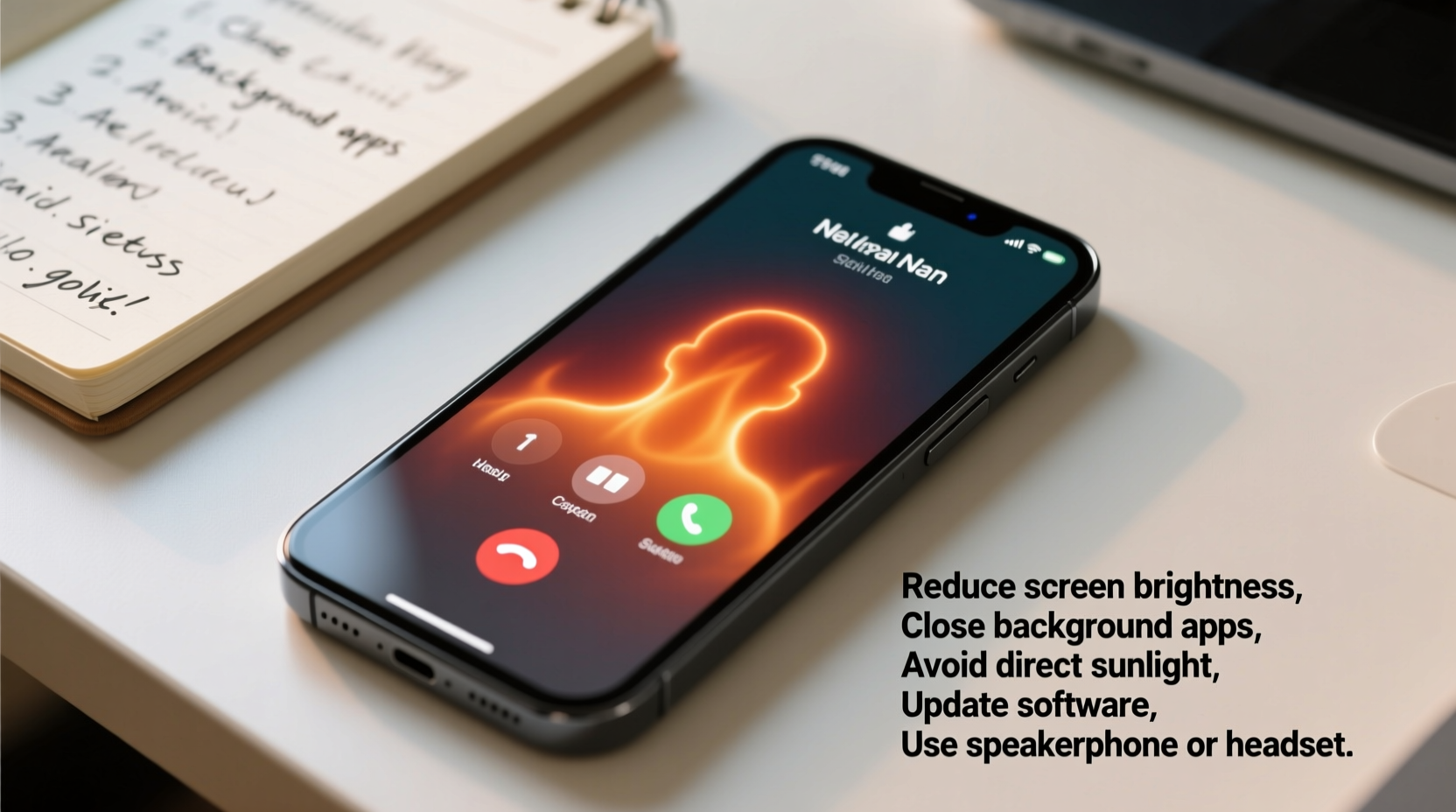
When you make or receive a call, your phone activates several subsystems at once:
- Cellular Radio: Constantly communicates with cell towers to maintain voice connection.
- Processor (CPU): Handles audio encoding/decoding, noise cancellation, and network management.
- Display: Stays on during the call if you're using speakerphone or video calling.
- Battery: Supplies power to all active components, generating internal resistance heat.
- Microphones & Speakers: Operate continuously, drawing additional power.
In ideal conditions, modern phones manage this heat efficiently through passive cooling (metal frames, thermal pads) and software regulation. However, certain conditions force the system to work harder, increasing thermal output beyond safe thresholds.
“Even modest increases in operating temperature can reduce lithium-ion battery cycle life by up to 20% over time.” — Dr. Alan Zhou, Battery Systems Engineer, MIT Energy Initiative
Common Causes of Excessive Heating During Calls
Not all heat is problematic. A slightly warm phone after a long call in direct sunlight isn’t unusual. But consistent overheating points to one or more root causes:
Poor Network Signal
Weak cellular reception forces your phone to boost its transmitter power to stay connected. This dramatically increases energy consumption and heat generation. In areas with spotty coverage—like basements, rural zones, or concrete-heavy buildings—your phone may operate at maximum radio output for extended periods.
Background App Activity
Many apps continue running in the background while you're on a call. Social media refreshes, location tracking, music streaming, or cloud syncs place extra load on the CPU and battery. Even if the screen is off, these processes compound thermal stress.
Using Phone While Talking
Scrolling through messages, browsing the web, or watching videos during a call multiplies resource usage. The combination of screen-on time, data transfer, and voice processing creates peak thermal conditions.
Aged or Damaged Battery
Lithium-ion batteries degrade over time. As internal resistance increases, they produce more heat during charge/discharge cycles—even under moderate loads like voice calls. Swollen or physically damaged batteries are especially prone to overheating.
Environmental Factors
High ambient temperatures—such as leaving your phone in a car on a sunny day—reduce the device’s ability to dissipate heat. Enclosed spaces like pockets or thick cases trap warmth, accelerating temperature rise.
Troubleshooting Steps to Reduce Overheating
If your phone consistently gets too hot during calls, follow this structured approach to diagnose and resolve the issue.
Step 1: Monitor Ambient Conditions
First, rule out environmental contributors. Ensure you're not using the phone in extreme heat or enclosed spaces. Remove bulky cases temporarily to test whether improved airflow reduces temperature.
Step 2: Check Signal Strength
Observe your signal bars during calls. If they frequently drop below two bars, consider switching to Wi-Fi calling (if supported). Wi-Fi typically requires less transmission power than weak cellular signals.
Step 3: Close Background Apps
Before initiating a call, swipe away unused apps from the recent apps menu. On iOS, double-click the home button or swipe up and hold; on Android, use the square or recent apps button. This minimizes unnecessary CPU load.
Step 4: Disable Non-Essential Features
Turn off Bluetooth, GPS, and hotspot functionality when not needed. These services run in tandem with cellular radios and increase thermal output.
Step 5: Test in Safe Mode (Android) or Clean Boot (iOS)
Boot into Safe Mode to determine if third-party apps are causing excessive background activity:
- Android: Press and hold the power button > Long-press “Power off” > Tap “Safe Mode.” Make a test call and monitor temperature.
- iOS: Restart the device normally but avoid launching apps afterward. Use only the Phone app for testing.
If the phone stays cool in Safe Mode, a downloaded app is likely responsible. Uninstall recently added apps one by one to isolate the culprit.
Step 6: Update Software
Manufacturers release OS updates that optimize thermal management and fix bugs related to radio power control. Go to Settings > System > Software Update (Android) or Settings > General > Software Update (iOS) and install any pending patches.
Step 7: Reset Network Settings
Corrupted network configurations can cause erratic radio behavior. Resetting them forces the phone to re-establish clean connections:
- Android: Settings > System > Reset Options > Reset Wi-Fi, mobile & Bluetooth
- iOS: Settings > General > Transfer or Reset iPhone > Reset > Reset Network Settings
Note: You’ll need to reconnect to Wi-Fi networks afterward.
Do’s and Don’ts: Managing Phone Temperature
| Do’s | Don’ts |
|---|---|
| Use Wi-Fi calling in low-signal areas | Leave the phone in direct sunlight during calls |
| Remove protective case during long calls | Run GPS navigation or games while on a call |
| Keep the phone updated with the latest OS version | Ignore repeated overheating warnings |
| Charge the phone before long conversations | Place a hot phone on flammable surfaces (e.g., beds, sofas) |
| Enable airplane mode when not expecting calls | Continue using a swollen or leaking battery |
Real-World Example: Maria’s Overheating Issue
Maria, a sales representative, noticed her Android phone becoming too hot to hold after just 10 minutes on client calls. She worked remotely from a basement office with poor LTE reception. Initially, she assumed it was normal until the phone began shutting down mid-call.
She followed basic troubleshooting: closed background apps, removed her silicone case, and confirmed no rogue apps were running. The problem persisted. Then, she enabled Wi-Fi calling through her router. Immediately, the phone stayed significantly cooler during calls—even those lasting over 30 minutes.
The root cause was clear: her phone was transmitting at full power due to weak signal. By switching to Wi-Fi calling, she reduced radio strain and eliminated overheating. She also upgraded her router’s placement for stronger coverage, further improving reliability.
Maria’s case illustrates how environment and network choice directly impact thermal performance—often more than hardware condition.
When to Seek Professional Help
Sometimes, overheating indicates hardware failure. Watch for these red flags:
- Frequent automatic shutdowns during calls
- Visible swelling of the battery or screen lifting
- Unusual smells (burning plastic or chemicals)
- Charging issues alongside overheating
If you observe any of these symptoms, stop using the device immediately. A degraded battery can pose safety risks, including leakage or combustion.
Visit an authorized service center for diagnostics. Technicians can measure battery health, check for short circuits, and inspect thermal paste or shielding integrity. Replacing an aging battery often resolves chronic overheating—even if the phone otherwise performs well.
“Over 60% of overheating complaints we see stem from battery degradation rather than software issues.” — Lena Park, Senior Technician at MobileFix Labs
Preventive Maintenance Checklist
To minimize future overheating, adopt these habits regularly:
- ✅ Enable Wi-Fi calling in low-signal zones
- ✅ Keep your phone’s operating system updated
- ✅ Remove thick cases during prolonged use
- ✅ Avoid charging while on long calls
- ✅ Restart your phone weekly to clear memory leaks
- ✅ Monitor battery health monthly (Settings > Battery)
- ✅ Store the phone in a cool, dry place when not in use
- ✅ Replace the battery if capacity drops below 80%
Frequently Asked Questions
Is it normal for my phone to get warm during calls?
Yes, mild warmth is expected due to active cellular transmission and processor use. However, if the phone becomes too hot to touch, shuts down, or emits odd odors, it’s a sign of abnormal heating requiring attention.
Can overheating damage my phone permanently?
Yes. Prolonged exposure to high temperatures accelerates battery wear, degrades internal components, and may cause solder joints to weaken over time. Chronic overheating reduces overall lifespan and reliability.
Does using speakerphone reduce heating?
Not significantly. Speakerphone itself doesn’t reduce heat, but holding the phone away from your face improves airflow. More impactful is reducing screen-on time—if you don’t need the display, turn it off manually during the call.
Conclusion: Take Control of Your Phone’s Temperature
Your phone’s tendency to overheat during calls isn’t something to ignore. With the right knowledge, most causes are manageable through simple behavioral changes or minor settings adjustments. From optimizing signal usage to maintaining battery health, proactive care ensures reliable performance and extends your device’s usable life.
Start applying these strategies today. Monitor your phone’s response, eliminate environmental stressors, and address warning signs early. Small habits—like removing a case before a long conversation or enabling Wi-Fi calling—can make a big difference.




 浙公网安备
33010002000092号
浙公网安备
33010002000092号 浙B2-20120091-4
Comments
No comments yet. Why don't you start the discussion?