
It’s a familiar scenario: you’re in the middle of an important call, and suddenly your phone starts to feel uncomfortably warm—sometimes even too hot to hold. While a slight temperature increase is normal during prolonged use, excessive heat during calls can signal underlying issues that affect performance, battery life, and long-term hardware health. Understanding why this happens and knowing what to check right away can prevent permanent damage and ensure your device remains reliable.
Smartphones are complex systems where multiple components work simultaneously. During a call, not just the processor but also the antenna, microphone, speaker, and cellular radio engage heavily. If any part of this system is overworked or malfunctioning, heat builds up rapidly. The good news is that most overheating issues can be diagnosed and resolved quickly with the right approach.
Common Causes of Phone Heating During Calls
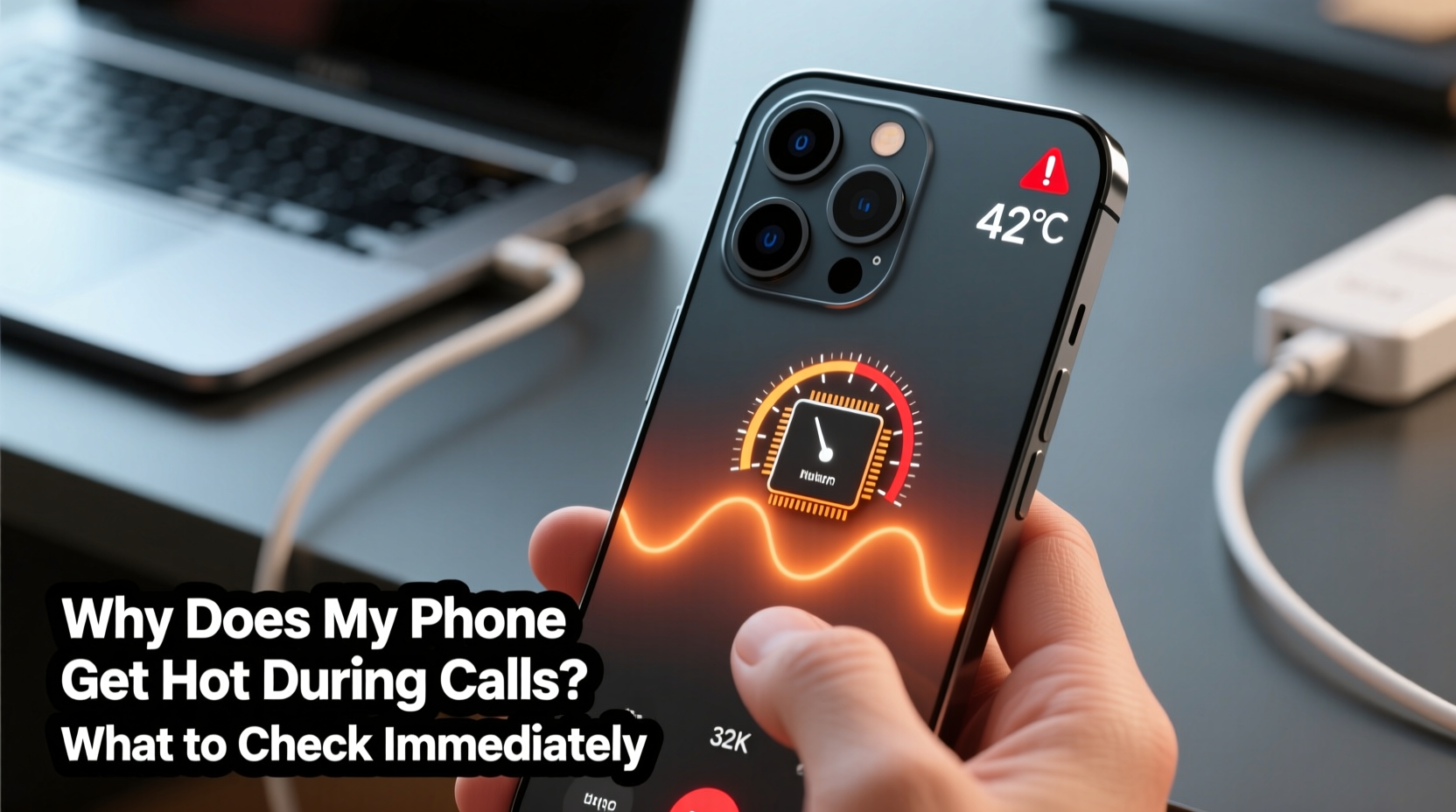
Heat generation in smartphones is a natural byproduct of energy consumption. However, excessive heating during calls typically stems from one or more specific triggers. Identifying these early helps narrow down troubleshooting steps.
- Poor Signal Strength: When your phone struggles to maintain a stable connection, the cellular radio increases power output to stay connected. This extra effort generates significant heat, especially in basements, elevators, or rural areas.
- Background Apps Consuming Resources: Even during a call, apps running in the background may use CPU cycles, GPS, or network data, compounding thermal load.
- Defective or Swollen Battery: A failing lithium-ion battery can generate excess heat, particularly under load like voice transmission.
- Direct Sunlight or Hot Environments: Using your phone outdoors on a hot day or leaving it near a heater can push internal temperatures beyond safe limits.
- Faulty Charging Habits: Charging while on a call—especially with fast chargers or third-party cables—can overload circuits and cause rapid heating.
- Software Glitches or Buggy Updates: Operating system bugs or poorly optimized apps can cause processes to run inefficiently, leading to high CPU usage and heat.
Immediate Checks You Should Perform
If your phone consistently heats up during calls, don’t wait for symptoms to worsen. Conduct these checks immediately to assess and mitigate the issue.
- Check Signal Strength: Look at your signal bars. If they’re low, try moving closer to a window or switching to Wi-Fi calling if available. Poor signal forces your phone to “shout” to reach the tower, increasing power draw and heat.
- Monitor Background Activity: Open your phone’s Settings > Battery Usage and review which apps are consuming power. Close unnecessary apps, especially those using location services or syncing in real time.
- Inspect for Physical Damage: Examine the phone for signs of impact, water exposure (check moisture indicators), or a bulging battery. Any of these can impair thermal regulation.
- Remove the Case Temporarily: Some thick or non-breathable cases trap heat. Take it off during long calls to allow better airflow.
- Turn Off Unnecessary Features: Disable Bluetooth, GPS, and hotspot functionality when not in use. These radios contribute to overall thermal load.
- Check Charging Status: If the phone is charging during the call, unplug it. Simultaneous charging and voice transmission stress the power management system.
Step-by-Step Diagnostic Timeline
Follow this timeline to isolate the source of overheating within minutes:
| Time | Action | Purpose |
|---|---|---|
| 0–2 min | End current call and let phone cool | Prevent further heat buildup |
| 2–5 min | Check battery temperature in Settings (if supported) or use a diagnostic app | Detect abnormal heat levels |
| 5–10 min | Restart the phone | Clear stuck processes and reset radio modules |
| 10–15 min | Make a test call without accessories or background apps | Observe if heating recurs under controlled conditions |
| 15–20 min | Repeat test on Wi-Fi calling vs. cellular network | Determine if cellular radio is the culprit |
Do’s and Don’ts When Your Phone Heats Up
How you respond to an overheating phone matters. Certain actions can make things worse or even void warranties.
| Do’s | Don’ts |
|---|---|
| Let the phone cool naturally in a shaded area | Put it in the freezer or refrigerator (condensation damages internals) |
| Use airplane mode briefly to stop all transmissions | Continue using it until it cools down |
| Update software to patch known bugs | Ignore repeated overheating warnings |
| Switch to speakerphone or headphones to reduce earpiece load | Place it on synthetic surfaces like car dashboards that retain heat |
| Contact manufacturer support if problem persists | Open the device yourself unless qualified |
Expert Insight on Thermal Management
Modern smartphones are designed with thermal throttling mechanisms that reduce performance when temperatures rise. However, frequent triggering of these safeguards can shorten component lifespan.
“Repeated overheating, even if temporary, accelerates battery degradation and can weaken solder joints on the motherboard over time.” — Dr. Alan Reyes, Mobile Hardware Engineer at TechInsight Labs
He emphasizes that users often overlook environmental factors. “A phone operating at 35°C in a pocket while walking outside on a summer day is already halfway to its thermal limit before a single app opens,” he explains. “Add a 30-minute call with weak signal, and you’ve created a perfect storm for overheating.”
Real-World Example: Overheating in a Commuter’s Phone
Consider the case of Maria, a daily commuter in Chicago. She noticed her Android phone would become too hot to hold during morning calls with clients. Initially dismissing it as normal, she later experienced sudden shutdowns mid-call.
Upon inspection, she found several contributing factors: her phone had a bulky silicone case, she was making calls in the subway (where signal fluctuated between 1–2 bars), and a fitness app was continuously tracking her location in the background. After removing the case, disabling location services for non-essential apps, and switching to Wi-Fi calling at home before departure, her phone’s temperature dropped significantly. No further overheating occurred.
This example illustrates how multiple small issues can compound into a serious thermal problem—and how simple adjustments can restore stability.
When to Suspect Hardware Failure
Sometimes, overheating isn’t about usage habits—it’s a sign of deteriorating hardware. Be alert to these red flags:
- The phone gets hot even when idle or not in use.
- Battery drains unusually fast, especially during standby.
- You notice a visible bulge in the screen or back panel—this indicates a swollen battery.
- The device shuts down unexpectedly despite having charge.
- Charging becomes erratic or stops prematurely.
A swollen battery is not only a performance issue but a safety hazard. Lithium-ion cells release gas when damaged, creating pressure inside the sealed chassis. Continuing to use such a device risks fire or chemical leakage.
If you observe any of these symptoms, stop using the phone immediately and visit an authorized service center. Do not attempt to replace the battery yourself unless trained and equipped.
Preventive Checklist: What to Do Now
Stay ahead of overheating with this actionable checklist. Perform these steps regularly to keep your phone running cool and efficiently.
- ✅ Enable Wi-Fi calling in strong signal zones to reduce cellular strain.
- ✅ Close unused apps before starting long calls.
- ✅ Remove thick or insulated cases during extended use.
- ✅ Keep your OS and carrier settings updated.
- ✅ Avoid using the phone in direct sunlight or hot vehicles.
- ✅ Never charge and talk simultaneously with fast chargers.
- ✅ Monitor battery health monthly (available on iPhone and some Android models).
- ✅ Reset network settings if signal issues persist (Settings > General > Reset > Reset Network Settings).
Frequently Asked Questions
Is it dangerous if my phone gets hot during a call?
Mild warmth is normal, but excessive heat—hot enough to cause discomfort or trigger warning messages—is a concern. Prolonged overheating can degrade the battery, slow performance, and in extreme cases, pose a fire risk, especially with damaged batteries. Stop using the device and let it cool down if it becomes too hot.
Can a virus make my phone overheat during calls?
While true malware is rare on modern smartphones, malicious or poorly coded apps can run hidden processes that consume CPU and network resources. These background activities increase power usage and heat. Install apps only from official stores, review permissions, and uninstall anything suspicious.
Does using headphones help reduce phone heat during calls?
Yes. Using wired or Bluetooth headphones reduces the workload on the earpiece speaker and allows the phone to operate farther from your body, improving airflow. Additionally, holding the phone away from your head minimizes insulation and helps dissipate heat.
Conclusion: Act Now to Protect Your Device
Your smartphone is a powerful tool, but it’s not immune to stress. Heat during calls is more than just uncomfortable—it’s a warning sign that something is off. Whether it’s poor signal, background apps, or aging hardware, identifying the cause early prevents long-term damage.
Start today by performing the immediate checks outlined here. Adjust your habits, optimize settings, and monitor your device’s behavior. Small changes can have a big impact on longevity and reliability.




 浙公网安备
33010002000092号
浙公网安备
33010002000092号 浙B2-20120091-4
Comments
No comments yet. Why don't you start the discussion?