
Video calls have become a daily necessity—whether for work meetings, catching up with family, or attending virtual classes. But if your phone heats up dramatically during these sessions, it’s more than just uncomfortable; it can signal underlying performance issues. While some warmth is normal, excessive heat can degrade battery life, slow down processing, and even trigger automatic shutdowns. Most users assume this is inevitable, but the truth is, several hidden factors contribute to overheating—and many are fixable.
Understanding what drives your phone’s temperature spike during video calls allows you to take control. From background processes to hardware limitations, the culprits aren’t always obvious. This guide dives into the science behind phone heating, reveals lesser-known triggers, and provides actionable solutions to keep your device cool and performing at its best.
The Science Behind Phone Heating During Video Calls
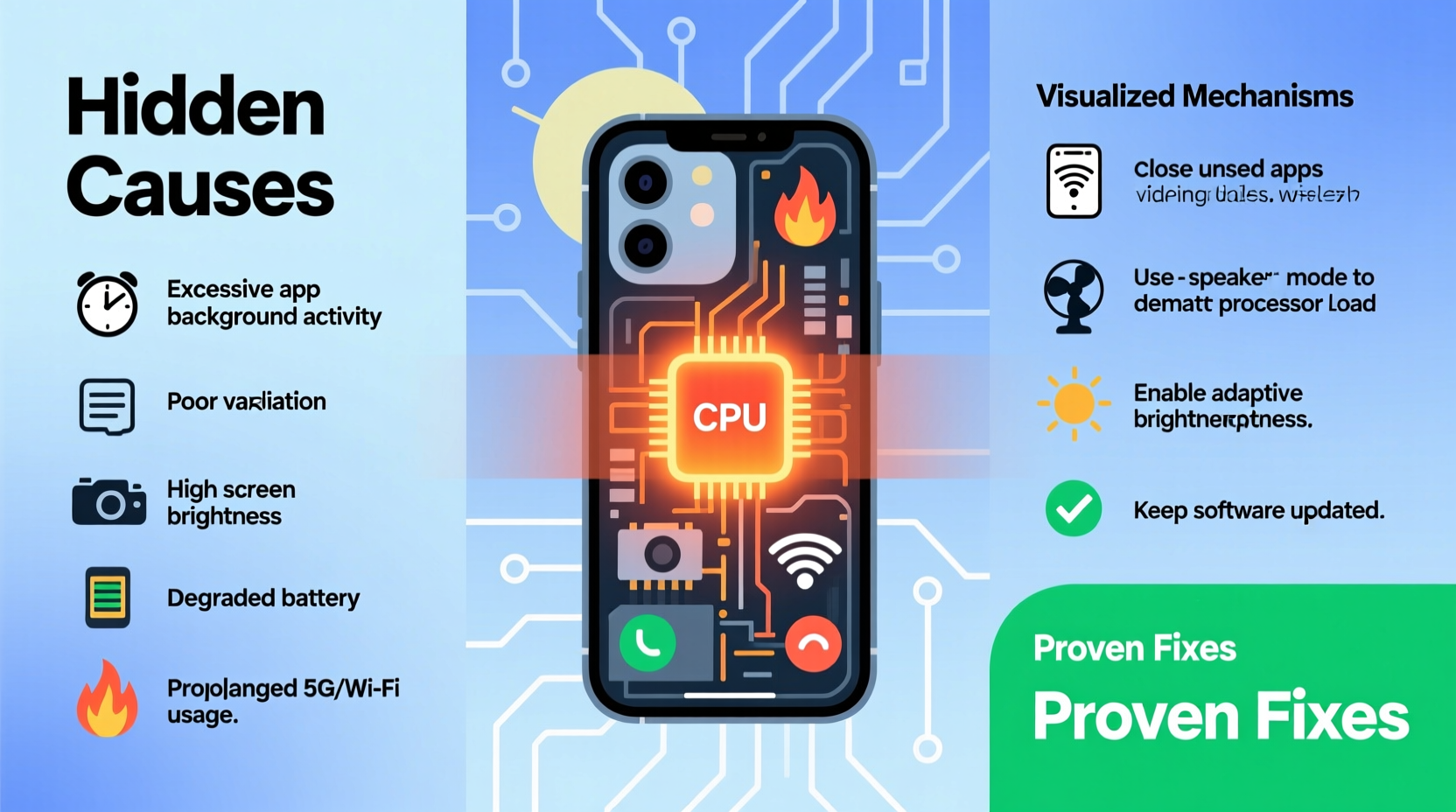
When you initiate a video call, your phone activates multiple high-demand systems simultaneously: the front or rear camera, microphone, speaker, internet connection (Wi-Fi or cellular), screen brightness, and real-time data encoding/decoding. Each component draws power from the battery, and as electrical current flows through circuits, energy is lost as heat—a phenomenon known as resistive heating.
Modern smartphones use powerful processors to handle these tasks efficiently. However, during prolonged video calls, the CPU and GPU operate at near-maximum capacity, generating significant thermal output. The compact design of phones limits airflow, making heat dissipation difficult. Without proper ventilation, temperatures rise quickly.
According to Dr. Alan Zhou, electronics thermal dynamics researcher at MIT, “Smartphones are engineered with thermal throttling systems, but continuous high-load operations like video conferencing push devices beyond optimal thermal thresholds, especially in poorly ventilated environments.”
“Even a 10°C increase above baseline operating temperature can reduce lithium-ion battery lifespan by up to 20% over time.” — Dr. Alan Zhou, Electronics Thermal Dynamics Researcher, MIT
Hidden Causes of Overheating Beyond Normal Use
While processor load and screen usage explain part of the heating, several less obvious factors amplify the issue:
- Background app activity: Apps syncing data, updating location, or running ads continue consuming CPU cycles even when minimized. During a video call, this adds invisible strain.
- Poor network conditions: Weak Wi-Fi or spotty cellular signals force your phone to boost transmission power, increasing radio module heat output significantly.
- Case insulation: Thick silicone or leather cases trap heat instead of allowing it to escape, turning your phone into a mini oven.
- High-resolution settings: Apps defaulting to 1080p or higher video resolution demand more processing power and generate more heat than necessary for most calls.
- Battery degradation: Older batteries with reduced efficiency produce more internal resistance, leading to excess heat during charging or heavy use.
- Software bugs: Some app updates introduce memory leaks or inefficient code that cause sustained CPU spikes even after the call ends.
Step-by-Step Guide to Cool Down Your Phone During and After Calls
If your phone frequently overheats during video calls, follow this practical sequence to identify, reduce, and prevent excessive temperatures:
- Pause and assess: If your phone feels hot, end the call temporarily. Let it rest for 5–10 minutes in a cool, shaded area—never in direct sunlight or on warm surfaces like laps or car dashboards.
- Remove the case: Take off any protective cover to allow immediate heat dissipation. Reapply only once the device has cooled to room temperature.
- Check active apps: Open Settings > Battery Usage to see which apps are consuming the most power. Force-stop any non-essential apps using excessive resources.
- Lower screen brightness: Reduce brightness manually or enable auto-brightness to minimize display-related heat.
- Switch to audio-only mode: When appropriate, turn off your camera during long calls. Video processing is one of the largest contributors to heat generation.
- Use headphones: This reduces speaker strain and keeps the phone away from your face, improving airflow.
- Restart the device: A reboot clears cached processes and resets thermal management systems, often restoring normal operation.
Implementing these steps mid-call can prevent permanent thermal throttling or shutdowns. For lasting improvement, combine them with preventive measures outlined below.
Preventive Fixes to Stop Overheating Before It Starts
Proactive habits make a major difference in maintaining optimal phone temperature. Consider these long-term strategies:
| Fix | How It Helps | Frequency |
|---|---|---|
| Update OS and apps | Patches fix inefficient code and improve thermal management | Monthly or as available |
| Clear cache regularly | Reduces background app lag and CPU overuse | Every 2 weeks |
| Disable unnecessary sensors | Turn off GPS, Bluetooth, and NFC when not in use | Daily |
| Use Wi-Fi over cellular | Wi-Fi consumes less power and generates less heat than 5G/LTE | Always when possible |
| Enable Dark Mode | OLED screens use less power with dark pixels, reducing heat | Continuous |
In addition to technical adjustments, environmental choices matter. Avoid placing your phone on soft surfaces like beds or couches during calls—they block vents and insulate heat. Instead, place it on a hard, flat surface or use a stand to promote airflow.
Mini Case Study: Sarah’s Work-from-Home Overheating Issue
Sarah, a remote project manager, noticed her Android phone shutting down during back-to-back Zoom calls. Initially, she blamed the app, but after monitoring battery usage, she discovered her fitness tracker and social media apps were syncing continuously in the background. She also used a thick rubber case and often placed the phone on her blanket-covered desk.
After removing the case, closing unused apps, switching to Wi-Fi, and lowering her video quality to 720p, her phone’s peak temperature dropped from 48°C to 39°C during a 90-minute meeting. No further shutdowns occurred over the next month. Her experience highlights how small changes can yield dramatic results.
Do’s and Don’ts: Managing Heat During Video Calls
To reinforce best practices, here’s a clear comparison of recommended versus harmful behaviors:
| Do’s | Don’ts |
|---|---|
| Use Wi-Fi instead of cellular data | Stream HD video while on a call |
| Keep the phone uncovered during long calls | Leave the phone in direct sunlight |
| Close background apps before calling | Charge the phone during a video call |
| Take short breaks between long calls | Ignore repeated overheating warnings |
| Use wired or Bluetooth headphones | Block vents with hands or surfaces |
Frequently Asked Questions
Is it dangerous if my phone gets hot during video calls?
Mild warmth is normal, but if the phone becomes too hot to hold comfortably or displays an overheating warning, it poses risks. Prolonged exposure to high temperatures can permanently damage the battery, reduce performance, and in rare cases, create safety hazards. Immediate action should be taken to cool it down.
Can a software update really reduce overheating?
Yes. Manufacturers regularly release firmware and app updates that optimize resource usage, patch memory leaks, and improve thermal regulation. For example, Google rolled out a Pixel optimization in 2023 that reduced video call heat output by 12% through better encoder efficiency. Always keep your system and communication apps updated.
Does screen size affect how much heat is generated?
Indirectly. Larger screens require more backlight power and touch-processing resources, contributing to overall thermal load. However, the primary heat sources remain the processor, camera, and wireless modules. That said, bigger phones often have slightly better internal heat distribution due to larger chassis.
Conclusion: Take Control of Your Phone’s Temperature
Your phone shouldn’t turn into a hotplate every time you join a video call. By understanding the hidden causes—background apps, poor connectivity, inefficient settings, and physical barriers—you can implement targeted fixes that restore stability and prolong device life. Simple actions like removing your case, switching to Wi-Fi, or disabling unused features add up to meaningful improvements.
Thermal stress is cumulative. What starts as mild discomfort can lead to degraded battery health and sluggish performance over months. The good news? Most overheating issues are preventable with awareness and consistent habits. Start applying these strategies today—not just to stay comfortable during your next meeting, but to protect your investment in the long run.




 浙公网安备
33010002000092号
浙公网安备
33010002000092号 浙B2-20120091-4
Comments
No comments yet. Why don't you start the discussion?