
It’s common to notice your phone warming up during a Zoom call—especially if the meeting lasts more than 20 minutes. While some heat is normal, persistent or extreme warmth can signal deeper issues. Understanding the science behind thermal behavior in smartphones helps users distinguish between routine operation and potential danger. This article explores the technical reasons phones overheat during video conferencing, identifies warning signs, and offers actionable strategies to keep your device running safely and efficiently.
How Smartphones Generate Heat During Video Calls
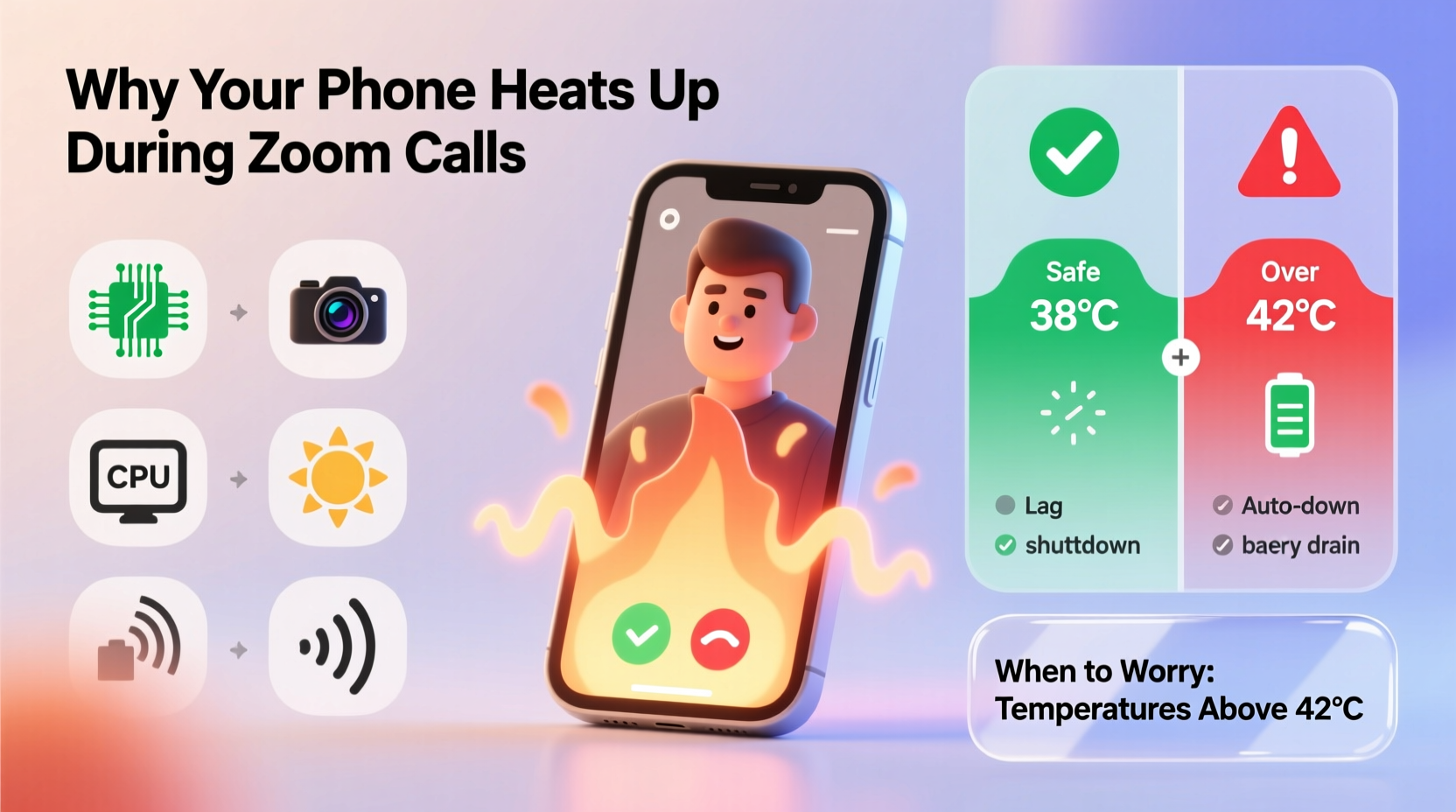
Smartphones are compact computers packed with powerful components. When you launch a Zoom call, multiple hardware systems activate simultaneously: the camera, microphone, speaker, cellular or Wi-Fi radio, display, and processor. Each contributes to energy consumption—and thus, heat generation.
The primary source of heat is the **system-on-a-chip (SoC)**, which handles data processing for apps like Zoom. During a video call, the SoC must encode and decode high-resolution video streams in real time, manage audio synchronization, and maintain network connectivity. This sustained workload increases CPU and GPU usage, pushing the chip to operate at higher frequencies and draw more power—resulting in thermal output.
In addition:
- Camera sensors generate heat when capturing continuous HD footage.
- Display brightness at high levels adds to power draw, especially on OLED screens.
- Wi-Fi or 5G radios work harder in low-signal areas, increasing energy use.
- Background apps continue running, consuming resources alongside Zoom.
Because smartphones have limited space for cooling mechanisms—unlike laptops with fans—they rely on passive dissipation through the chassis. In prolonged use, heat builds faster than it can escape.
When Heating Is Normal vs. When It’s a Red Flag
Not all warmth indicates a problem. A slightly warm phone after a 30-minute call is typically within safe operating limits. However, excessive heat—particularly if it causes discomfort to touch or triggers performance throttling—is worth investigating.
| Heat Level | Description | Is It Concerning? |
|---|---|---|
| Slight warmth | Phone feels warm but not hot; no slowdowns | No – typical under load |
| Moderate heat | Noticeably hot; may slow down briefly | Potentially – monitor frequency |
| Excessive heat | Too hot to hold; app crashes; auto-shutdown | Yes – immediate action needed |
| Burning sensation | Physical discomfort or smell of burning | Emergency – stop use immediately |
Manufacturers design phones to withstand temperatures up to around 35°C (95°F) internally under normal conditions. But during intensive tasks like video conferencing, internal temps can exceed 45°C (113°F). Most devices include thermal sensors that trigger protective measures—such as lowering screen brightness, reducing frame rates, or terminating apps—when thresholds are breached.
“Modern phones are engineered to handle temporary heat spikes, but chronic overheating accelerates battery degradation and risks permanent component damage.” — Dr. Lin Zhao, Mobile Hardware Engineer at UC Berkeley
Common Causes of Excessive Overheating
While Zoom itself isn’t inherently flawed, several factors amplify thermal stress:
1. Poor Signal Strength
If your Wi-Fi or cellular signal is weak, your phone boosts transmission power to maintain connection stability. This dramatically increases energy consumption and heat output.
2. Outdated Software or App Bugs
Older versions of Zoom or iOS/Android may lack optimization for current hardware. Similarly, bugs in background processes can cause infinite loops or memory leaks, forcing the CPU to run continuously.
3. Case Insulation
Thick silicone or leather cases trap heat instead of allowing it to dissipate. Using a phone inside a tightly sealed case during long calls worsens thermal buildup.
4. Direct Sunlight or Hot Environments
Operating a phone in direct sunlight or a parked car raises ambient temperature, reducing the device’s ability to cool itself. Even idle phones can overheat in such conditions.
5. Aging Battery
Lithium-ion batteries lose efficiency over time. An older battery works harder to supply power, generating additional heat and reducing overall system stability.
Step-by-Step Guide to Prevent Overheating
To minimize heat accumulation and extend your phone’s lifespan, follow this practical sequence before and during Zoom calls:
- Update Zoom and OS: Ensure both the Zoom app and your phone’s operating system are updated to the latest version for optimal performance and bug fixes.
- Close Background Apps: Swipe away unnecessary apps from multitasking view to free up RAM and reduce CPU load.
- Lower Screen Brightness: Set brightness to 50% or lower, or enable auto-brightness to adapt to lighting conditions.
- Switch to Speakerphone or Headphones: Holding the phone against your ear traps heat near the earpiece and forces proximity sensors to stay active.
- Use Wi-Fi Instead of Cellular Data: Wi-Fi generally consumes less power than 5G/LTE, especially with strong signal strength.
- Aim for Stable Connectivity: Position yourself near your router or use a Wi-Fi extender to avoid signal drops.
- Take Breaks Between Long Meetings: Pause for 5–10 minutes every hour to let the device cool down.
- Keep the Phone on a Hard Surface: Avoid soft materials like beds or couches that block heat vents (usually along edges).
Advanced Tip: Limit Video Quality
In Zoom settings, consider disabling HD video unless necessary. Lower resolution reduces encoding demands on the processor. On iPhone, go to Settings > Zoom > Video and toggle off “HD Video.” Android users can find similar options under “Meeting Settings.”
Mini Case Study: Remote Worker Overheating Crisis
Sophie, a freelance project manager based in Phoenix, began experiencing frequent phone shutdowns during midday Zoom calls. Her iPhone 13 would become too hot to touch by the second meeting of the day, sometimes crashing entirely.
After consulting a technician, she discovered three contributing factors: her phone was running an outdated iOS version, she used a thick rubber case, and she often took calls near a sunlit window. The combination caused internal temperatures to spike beyond 50°C.
She implemented the following changes:
- Removed the case during meetings
- Updated to iOS 17.5
- Moved to a shaded desk area
- Used Bluetooth headphones instead of holding the phone
Within days, her phone remained comfortably warm even during back-to-back calls. No further crashes occurred, and battery life improved due to reduced thermal throttling.
Checklist: Keep Your Phone Cool During Video Calls
Use this checklist before starting any important Zoom session:
- ✅ Update Zoom and phone OS
- ✅ Close all unused apps
- ✅ Remove insulating phone case
- ✅ Connect to stable Wi-Fi (not hotspot)
- ✅ Reduce screen brightness
- ✅ Use wired or wireless headphones
- ✅ Avoid direct sunlight or hot rooms
- ✅ Place phone on a cool, flat surface
- ✅ Disable HD video if not essential
- ✅ Take short breaks between long calls
Frequently Asked Questions
Can overheating damage my phone permanently?
Yes. Prolonged exposure to high temperatures can degrade the battery capacity, weaken solder joints on internal chips, and shorten the lifespan of storage components. Apple recommends avoiding sustained use above 35°C (95°F) for best longevity.
Why does my phone heat up even on short Zoom calls?
If your phone gets hot quickly, it may indicate underlying issues such as a failing battery, software glitches, or poor ventilation due to dust buildup in charging ports. Try restarting the device or checking battery health in settings. For iPhones: Settings > Battery > Battery Health. On Android: check manufacturer-specific diagnostics tools.
Does using dark mode help reduce heat?
On OLED or AMOLED screens, dark mode can slightly reduce power consumption because black pixels are turned off. While the effect is minor, every bit helps during extended video calls. Pairing dark mode with lower brightness provides measurable thermal relief.
Conclusion: Stay Cool, Stay Connected
Your phone heating up during Zoom calls is usually a sign of hard work, not failure. But ignoring persistent overheating risks long-term damage and degraded performance. By understanding what drives thermal stress and applying simple, consistent habits, you can protect your device and ensure smoother virtual interactions.
Start today: remove that bulky case, update your apps, and position your phone wisely. Small adjustments make a big difference in maintaining peak performance—especially in our increasingly video-driven world.




 浙公网安备
33010002000092号
浙公网安备
33010002000092号 浙B2-20120091-4
Comments
No comments yet. Why don't you start the discussion?