
It’s common to notice your smartphone warming up after just a few minutes of navigation, especially during long drives or hikes. While some heat is normal, persistent or excessive warmth can be concerning. GPS usage is one of the most demanding tasks for a modern smartphone, combining multiple hardware systems that generate heat. Understanding why this happens—and knowing when it crosses the line from normal operation to potential danger—can help you use your device safely and extend its lifespan.
How GPS Usage Triggers Phone Heating
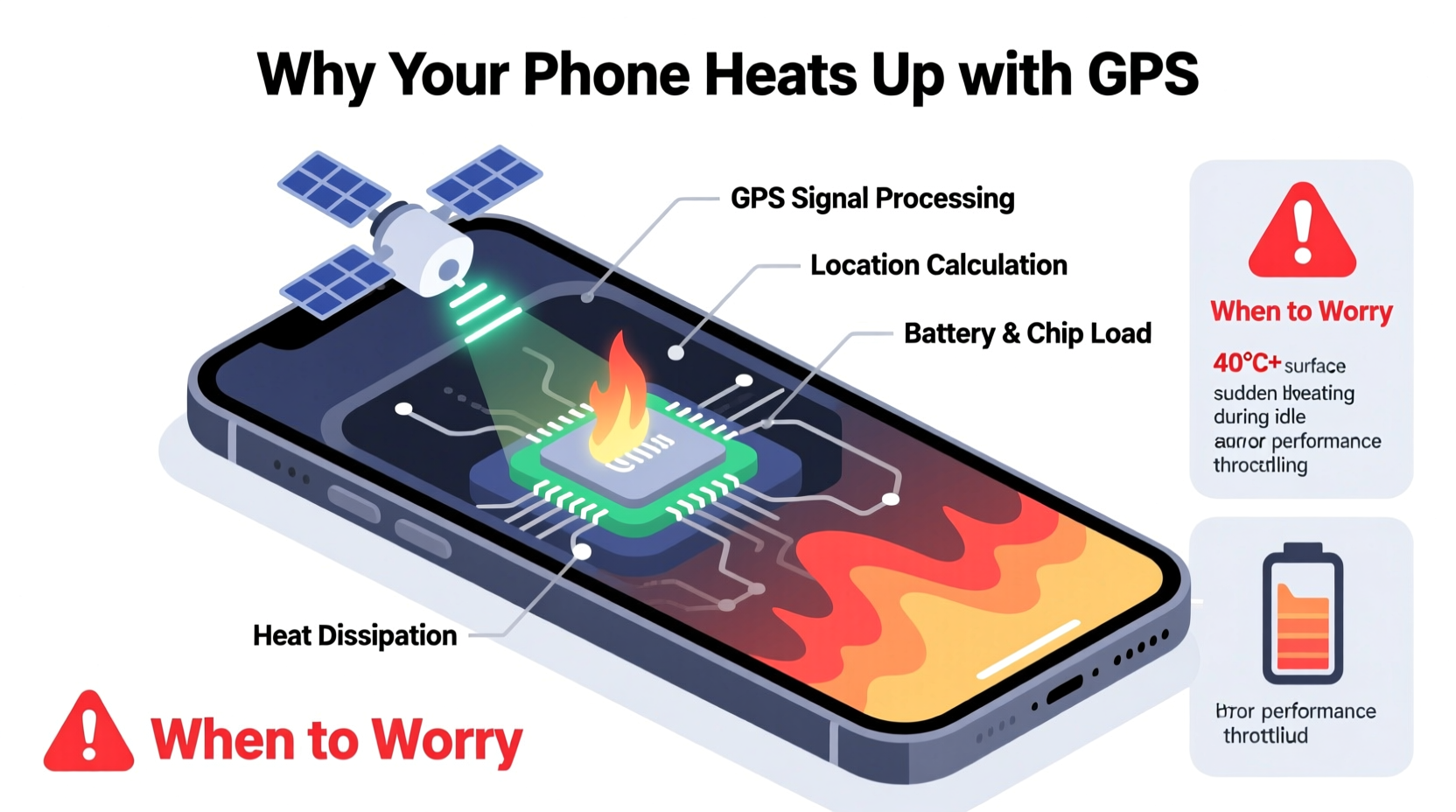
When you activate GPS on your phone, several components work simultaneously at high intensity. Unlike simple app usage, GPS relies on a complex interplay between satellite signals, cellular networks, Wi-Fi triangulation, and constant screen activity. Each of these functions consumes power and generates heat.
The Global Positioning System (GPS) receiver in your phone must continuously communicate with satellites orbiting Earth. This process requires sustained signal processing, which activates the phone’s radio frequency (RF) circuits. These circuits are energy-intensive and produce noticeable warmth, especially in weak signal areas where the phone boosts transmission strength to maintain accuracy.
Beyond the GPS chip itself, other systems ramp up:
- Processor (CPU/GPU): Mapping apps like Google Maps or Waze render real-time graphics, calculate routes, and update traffic conditions—all requiring heavy computation.
- Display: Bright screens, especially OLEDs set to high brightness, contribute significantly to thermal output.
- Cellular and Wi-Fi Radios: Constant data exchange for live traffic, street view, and location refinement keeps network modules active and hot.
- Vibration and Audio: Turn-by-turn alerts use speakers and haptic feedback motors, adding minor but cumulative heat.
In essence, GPS mode turns your phone into a mobile navigation computer. The longer the session, the more heat accumulates—particularly if ventilation is poor, such as when mounted inside a car dashboard or enclosed case.
Normal vs. Dangerous Heat: When Should You Be Concerned?
Not all heat is harmful. Smartphones are designed to operate within a safe temperature range—typically between 32°F (0°C) and 95°F (35°C) under normal conditions. However, extended GPS use can push internal temperatures beyond 113°F (45°C), which may trigger thermal throttling or warnings.
You should start worrying when:
- The phone becomes too hot to hold comfortably.
- The screen dims or displays a “Temperature Too High” warning.
- Apps crash, freeze, or shut down unexpectedly during navigation.
- The battery drains unusually fast even with moderate use.
- You notice swelling in the battery or warping of the chassis.
“Prolonged exposure to high temperatures degrades lithium-ion batteries faster than any other factor—including charging habits.” — Dr. Alan Reyes, Mobile Device Engineer at TechReliability Labs
Repeated overheating accelerates battery wear, reduces performance over time, and in extreme cases, poses fire hazards. Modern phones have built-in safeguards, but relying solely on them isn’t enough. Proactive management is essential.
Factors That Exacerbate GPS-Related Overheating
Certain environmental and usage conditions intensify heat generation during GPS use. Recognizing these can help you mitigate risk.
Poor Ventilation
Mounting your phone on a dashboard in direct sunlight traps heat. Car interiors can exceed 140°F (60°C) on sunny days, pushing your already-warm device past safe limits. Enclosed silicone or rubber cases also insulate heat, preventing dissipation.
Weak Signal Areas
In rural zones, tunnels, or urban canyons, GPS signals are inconsistent. Your phone compensates by increasing radio power and scanning across multiple bands (GPS, GLONASS, Galileo). This increased effort multiplies energy consumption and heat output.
Background App Activity
Streaming music, receiving calls, or syncing cloud photos while navigating forces the processor to multitask heavily. Each additional task adds strain and contributes to cumulative heating.
Older Devices
Phones older than three years often have degraded batteries that generate more heat during use. Their cooling efficiency also diminishes due to dust buildup and reduced thermal paste conductivity.
| Factor | Impact on Temperature | Solution |
|---|---|---|
| Direct Sunlight | High – Can add 20–30°F (10–15°C) | Use sunshades; park in shade |
| Dense Urban Environment | Moderate-High – Signal reflection increases workload | Download offline maps |
| Thick Protective Case | Moderate – Insulates heat | Remove case during long trips |
| Simultaneous Charging | Very High – Dual stress on battery | Avoid charging unless necessary |
| High Screen Brightness | Moderate – Especially on OLED | Set auto-brightness or lower manually |
Step-by-Step Guide to Prevent GPS Overheating
Follow this sequence before and during GPS navigation to keep your phone cool and functioning optimally.
- Pre-Cool the Device: If your phone has been sitting in the sun, let it cool down before starting navigation. Power it off for 5 minutes if necessary.
- Remove the Case: Take off thick or non-breathable cases to improve airflow and heat dispersion.
- Close Background Apps: Swipe away unused apps, particularly social media, video players, and games.
- Enable Battery Saver Mode: This reduces CPU speed, limits background processes, and lowers screen brightness—cutting heat at the source.
- Download Offline Maps: In Google Maps or Apple Maps, download regional maps ahead of time. This minimizes data fetching and server communication.
- Adjust Screen Settings: Lower brightness manually or enable adaptive brightness. Consider using dark mode, which reduces power draw on OLED screens.
- Use Airplane Mode Strategically: If you’re using offline maps, turn on airplane mode and only enable GPS. This disables cellular and Wi-Fi radios, drastically reducing heat.
- Position for Ventilation: Mount the phone where air circulates—near an AC vent or in a shaded area. Avoid placing it face-down on surfaces.
- Take Breaks on Long Trips: Every 60–90 minutes, pause navigation for 5–10 minutes to allow cooling. Use this time to check directions manually or stretch.
- Monitor Temperature Signs: Watch for sluggish performance or dimming screen—early signs of thermal throttling.
Real-World Example: A Commuter’s Experience
Jamal, a delivery driver in Phoenix, Arizona, uses his four-year-old Android phone for navigation throughout his 10-hour shifts. During summer, he frequently encountered overheating issues—his phone would shut down mid-route despite being plugged in.
After consulting a technician, he learned that running GPS with Bluetooth, music streaming, and constant charging created a \"thermal loop.\" The combination of desert heat, a leather-lined dashboard mount, and an old protective case trapped heat faster than it could escape.
He implemented changes: removed the case, downloaded offline maps, used a magnetic vent mount near the AC, and limited background apps. He also started taking 10-minute breaks every two hours. As a result, his phone no longer exceeded safe temperatures, and battery life improved by nearly 30%.
This case illustrates how small behavioral adjustments can prevent major hardware stress—even on aging devices in extreme environments.
Checklist: Prevent GPS Overheating in 7 Steps
Use this quick checklist before long navigation sessions:
- ✅ Download offline maps for your route
- ✅ Remove thick phone case
- ✅ Close unused background apps
- ✅ Lower screen brightness
- ✅ Enable Battery Saver mode
- ✅ Mount near airflow (e.g., AC vent)
- ✅ Avoid charging unless absolutely necessary
Frequently Asked Questions
Can GPS damage my phone permanently?
GPS itself doesn’t cause damage, but prolonged overheating during GPS use can degrade the battery, reduce processor lifespan, and weaken internal adhesives. Repeated exposure to temperatures above 113°F (45°C) accelerates wear and may void warranties.
Is it safe to use GPS while charging?
Using GPS while charging increases heat significantly because both activities stress the battery. It’s not inherently unsafe due to built-in protections, but doing so regularly shortens battery health. If possible, avoid simultaneous charging and navigation, especially in hot environments.
Why does my iPhone get hotter than my friend’s Android during GPS?
Heat perception varies by design. iPhones have tightly integrated hardware and limited ventilation, which can make them feel hotter despite similar internal temps. Conversely, some Android phones have larger surface areas or better thermal dissipation. Actual temperature differences depend on model, software optimization, and usage patterns.
Conclusion: Stay Aware, Stay Safe
Your phone getting warm during GPS use is expected—but letting it overheat repeatedly is not. By understanding the technical demands of location services and adopting smart usage habits, you can maintain peak performance and prolong your device’s life. Pay attention to warning signs, optimize settings proactively, and never ignore persistent heat issues.
Technology should serve you safely and reliably. Treat your smartphone with care during intensive tasks like navigation, and it will continue to guide you—without burning out.




 浙公网安备
33010002000092号
浙公网安备
33010002000092号 浙B2-20120091-4
Comments
No comments yet. Why don't you start the discussion?