
It’s a familiar scenario: you’re on a road trip, relying on your smartphone for turn-by-turn directions, when suddenly the device becomes uncomfortably warm—sometimes even warning you about overheating. This isn’t just an annoyance; excessive heat can degrade battery life, slow performance, and in extreme cases, cause permanent hardware damage. Understanding why your phone heats up during GPS navigation is the first step toward preventing it. The truth is, GPS use triggers a chain reaction of power-intensive processes that push your phone’s components to their limits.
The Global Positioning System (GPS) itself doesn’t generate much heat, but the ecosystem of technologies working in tandem with it does. From constant screen illumination to data transmission and background app activity, multiple systems are engaged simultaneously. When combined, these functions create thermal stress on your phone’s processor, battery, and radio modules. Let’s break down the science behind the heat and explore proven strategies to keep your device cool and functional—even on the longest journeys.
How GPS Navigation Triggers Phone Overheating
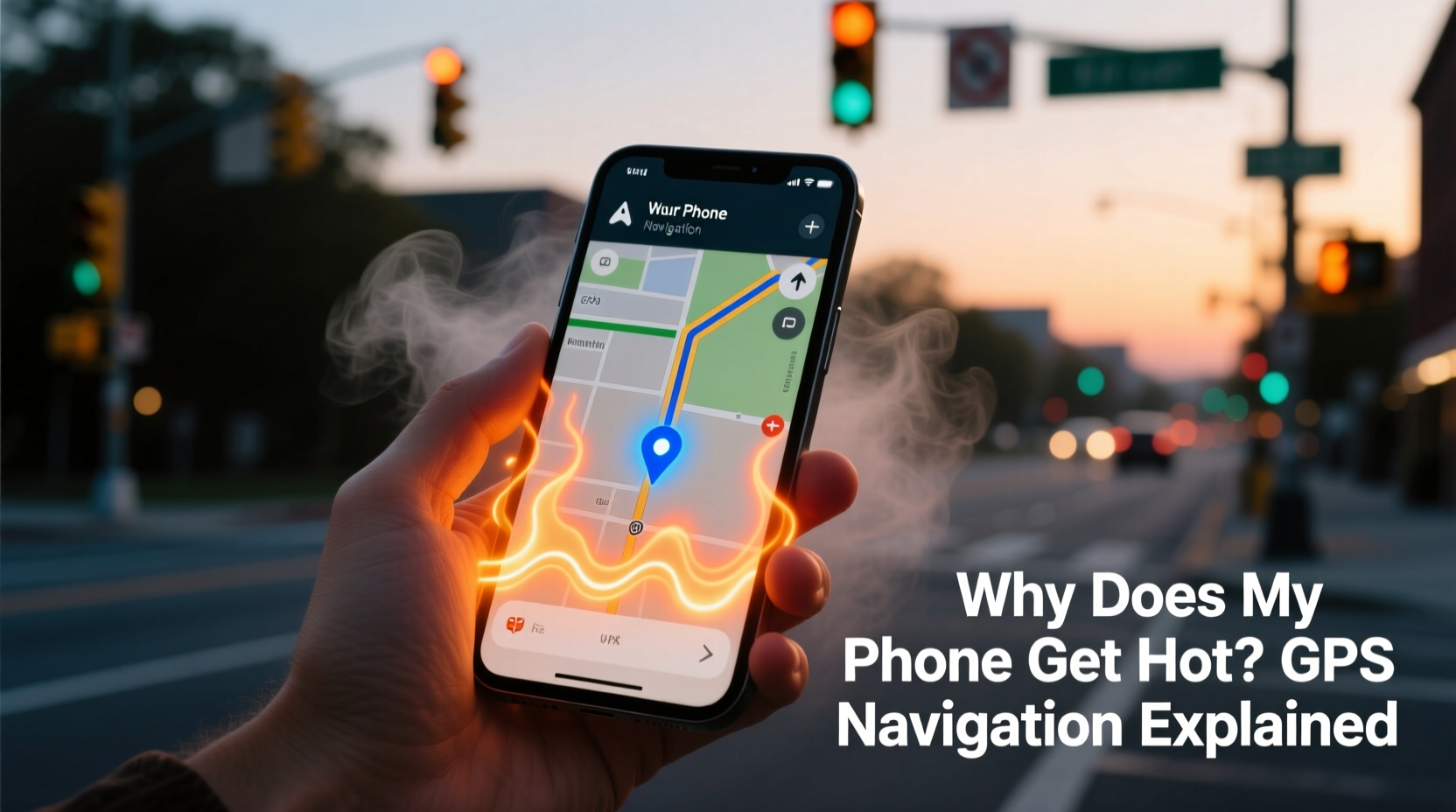
When you launch a navigation app like Google Maps or Waze, your phone activates several subsystems at once. GPS receivers determine location by calculating signals from multiple satellites, which requires continuous signal processing. But GPS alone isn’t enough for real-time navigation—you also need cellular data or Wi-Fi to download maps, traffic updates, and route recalculations. These data transfers rely on your phone’s modem, one of the most power-hungry components.
Simultaneously, the screen remains fully lit, often at maximum brightness for visibility in sunlight. The CPU works overtime to render 3D maps, process voice guidance, and manage background tasks like music playback or incoming notifications. All of this generates heat. Unlike laptops, smartphones lack active cooling systems like fans. Heat builds up quickly, especially if the phone is enclosed in a case or placed on a poorly ventilated car mount.
Additionally, poor signal strength exacerbates the issue. In rural areas or urban canyons, your phone boosts its radio output to maintain a connection, increasing power draw and heat generation. This phenomenon, known as “cellular throttling,” forces the antenna system to work harder, contributing significantly to thermal load.
Key Components Contributing to Heat Buildup
Understanding which parts of your phone generate heat helps in targeting effective cooling strategies. Here’s a breakdown of the main contributors during GPS use:
- Processor (CPU/GPU): Handles map rendering, route calculations, and app logic. Sustained high usage increases thermal output.
- Display: OLED and LCD screens consume significant power, especially at high brightness levels.
- Cellular Modem: Maintains data connection for live traffic, rerouting, and cloud-based features. Signal fluctuations increase energy consumption.
- Battery: Charging while navigating compounds heat production due to simultaneous input and output current.
- GPS Receiver: While low-power, it operates continuously and contributes to cumulative thermal load.
These components are tightly packed into a compact space with limited airflow. Without proper heat dissipation, temperatures can rise rapidly—especially in older devices where thermal paste degrades over time or dust clogs internal vents.
Common Misconceptions About Phone Heating
Many users assume that a hot phone means something is broken. While persistent overheating should be investigated, temporary warmth during intensive use is normal. However, several myths persist:
- “Only cheap phones overheat.” Even flagship models like the iPhone 15 Pro Max or Samsung Galaxy S24 Ultra can get hot under sustained navigation loads.
- “Closing apps stops overheating.” Background app refresh has minimal impact compared to active GPS and data usage.
- “Turning off Bluetooth reduces heat.” Unless actively streaming audio, Bluetooth contributes negligibly to thermal output.
- “The case is the main problem.” While thick cases trap heat, they aren’t the root cause—just an aggravating factor.
As Dr. Lena Torres, a mobile systems engineer at MIT’s Mobile Innovation Lab, explains:
“Modern smartphones are essentially pocket-sized supercomputers. When you run GPS navigation for hours, you're asking them to perform satellite triangulation, real-time data processing, and high-brightness display output—all without a fan. Some heat is inevitable, but smart usage habits can keep it within safe margins.” — Dr. Lena Torres, Mobile Systems Engineer
Step-by-Step Guide to Prevent GPS-Related Overheating
You don’t need to stop using GPS navigation to protect your phone. Instead, follow this practical sequence to minimize heat buildup:
- Pre-Cool Before Use: If your phone has been sitting in a hot car, let it cool down before starting navigation. Turn it on and allow idle stabilization for 5–10 minutes.
- Download Offline Maps: In Google Maps or Apple Maps, download regional maps ahead of time. This reduces reliance on continuous data fetching.
- Lower Screen Brightness: Set brightness manually to 50–60%. Disable auto-brightness, which may ramp up unnecessarily in sunlight.
- Use Airplane Mode Strategically: If you’ve downloaded offline maps, enable airplane mode and turn on Wi-Fi or Bluetooth separately. This disables the power-draining cellular modem.
- Stop Charging Mid-Navigation: Avoid charging unless necessary. If you must charge, use a low-wattage cable (e.g., 5W) to reduce heat from power conversion.
- Position for Ventilation: Mount your phone in a shaded area with airflow. Avoid direct contact with leather dashboards or metal surfaces that retain heat.
- Close Non-Essential Apps: Music players and messaging apps can stay open, but close social media or video apps consuming CPU cycles.
- Take Breaks on Long Trips: Every 60–90 minutes, pause navigation for a few minutes to let the phone cool. Use this time to stretch or refuel.
Do’s and Don’ts: Managing Heat During Navigation
| Do’s | Don’ts |
|---|---|
| Download maps offline | Rely solely on live data streaming |
| Use a ventilated car mount | Place phone on sun-exposed dashboard |
| Enable battery saver mode | Run graphics-heavy games in the background |
| Remove thick protective case | Keep insulating silicone or leather cases on |
| Use speakerphone or wired headphones | Stream audio through Bluetooth continuously |
Real-World Example: A Cross-State Road Trip
Consider Mark, a delivery driver who logs over 400 miles weekly. He noticed his Android phone frequently overheated, shutting down mid-route. After replacing two batteries in six months, he consulted a tech specialist. The diagnosis? Continuous GPS and 4G use, compounded by charging and a bulky rubber case, was pushing his device past 45°C (113°F)—well above the safe operating range.
He implemented changes: downloading state-wide offline maps, switching to a slim aluminum mount with passive cooling fins, lowering screen brightness, and disabling auto-sync. He also began stopping every hour to let the phone rest. Result? Internal temperatures dropped by an average of 8°C, battery degradation slowed, and unexpected shutdowns ceased. His phone now lasts the full shift without thermal throttling.
Checklist: Keep Your Phone Cool While Navigating
- ☐ Download offline maps before departure
- ☐ Remove thick or insulated phone case
- ☐ Reduce screen brightness manually
- ☐ Disable unnecessary background apps
- ☐ Use a well-ventilated, shaded mounting position
- ☐ Avoid charging unless essential
- ☐ Enable Battery Saver or Low Power Mode
- ☐ Take 5-minute breaks every 60–90 minutes
- ☐ Monitor temperature via built-in settings or third-party tools
- ☐ Replace old or swollen batteries promptly
Frequently Asked Questions
Can GPS overheating damage my phone permanently?
Yes, prolonged exposure to high temperatures (above 35°C/95°F) can degrade lithium-ion batteries, reduce lifespan, and weaken adhesive seals. Repeated thermal cycling may also cause micro-cracks in solder joints, leading to long-term reliability issues.
Is it safe to use GPS while charging?
It’s not recommended for extended periods. Charging generates heat, and combining it with GPS navigation multiplies thermal stress. If you must charge, use a low-power cable and ensure the phone is in a cool, ventilated spot.
Why does my phone heat up even with good signal strength?
Even with strong signal, continuous data polling, screen use, and processor load contribute to heating. GPS apps constantly update your position, check traffic, and recalculate routes—each action consumes power and generates heat, regardless of network quality.
Conclusion: Smart Habits for Cooler, Longer-Lasting Devices
Your phone doesn’t have to become a miniature heater every time you use GPS. The heat is a symptom of intense computational and connectivity demands—not a flaw. By understanding the underlying causes and adopting smarter usage patterns, you can maintain optimal performance and extend your device’s lifespan. Simple changes like downloading offline maps, managing screen brightness, and ensuring proper ventilation go a long way.
Technology should serve you reliably, especially when you’re counting on it most. Don’t wait for a shutdown warning or battery drain to take action. Implement these strategies today and transform your navigation experience into a cooler, more efficient journey—literally.




 浙公网安备
33010002000092号
浙公网安备
33010002000092号 浙B2-20120091-4
Comments
No comments yet. Why don't you start the discussion?