
It’s a familiar frustration: you eagerly install the latest software update on your smartphone, expecting better security, new features, and smoother performance—only to find that your phone has become sluggish, apps take longer to open, and even basic tasks like scrolling or typing feel delayed. You're not imagining it. Many users report noticeable slowdowns after updates, especially major ones from Android or iOS. But why does this happen, and more importantly, what can you do about it?
The truth is, software updates aren’t always optimized for every device equally. While manufacturers and developers aim to improve functionality, older hardware often struggles with the increased demands of newer operating systems. This article breaks down the technical and practical reasons behind post-update lag and offers actionable solutions to reclaim your phone’s speed.
Why Phones Slow Down After Software Updates
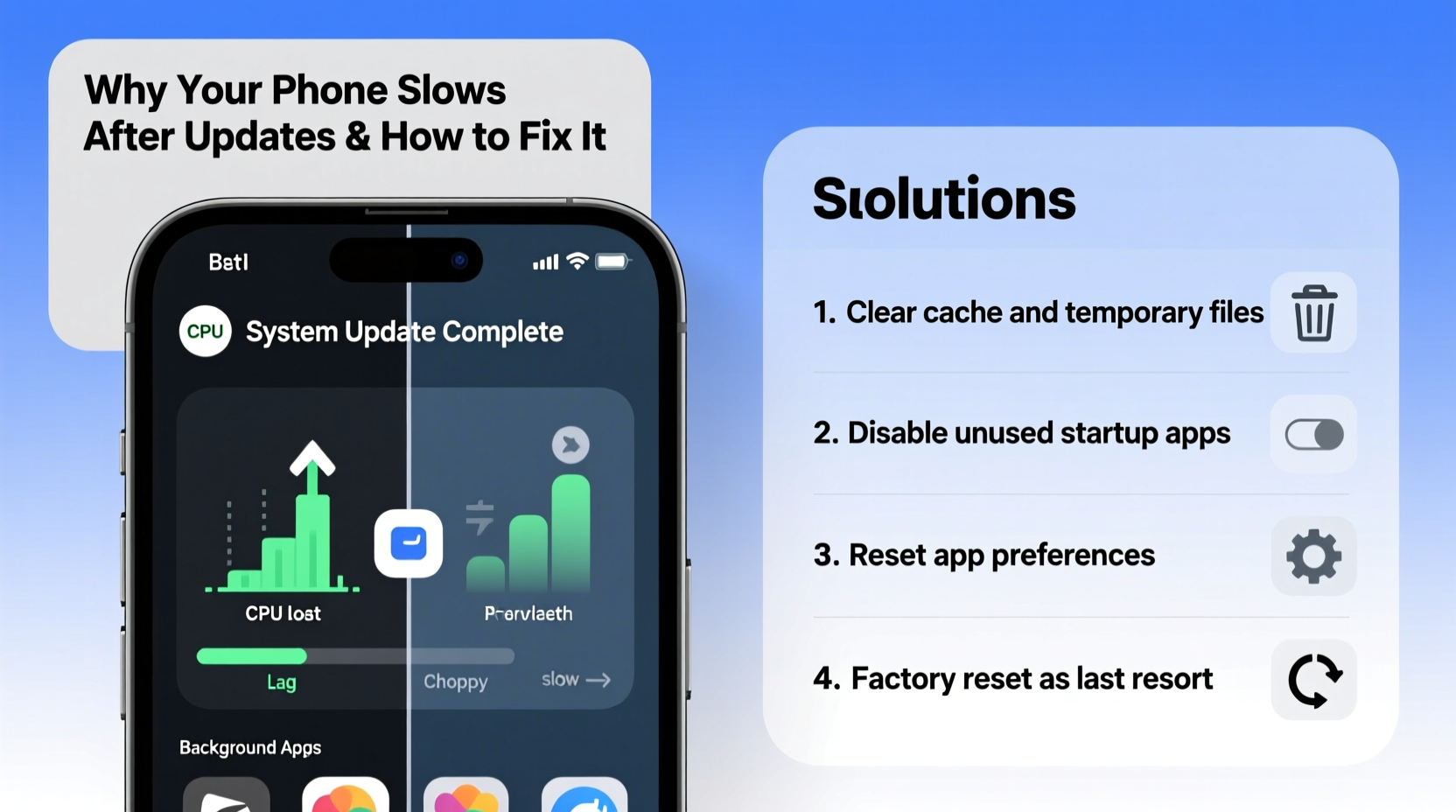
Software updates introduce new code, features, background services, and system-level changes. While beneficial in the long run, these additions can strain older or lower-end devices. Here are the most common technical causes:
- Increased system overhead: New OS versions often require more RAM and CPU power to run animations, security protocols, and background processes.
- Bloatware and forced services: Manufacturers sometimes bundle additional apps or services that auto-start and consume resources.
- App compatibility delays: Third-party apps may not be immediately optimized for the new OS, leading to crashes and sluggish behavior.
- File system reorganization: During an update, the system rebuilds caches and indexes, which can cause temporary lag until optimization completes.
- Storage fragmentation (especially on Android): Older phones with eMMC storage suffer performance drops when handling larger system files.
“Modern OS updates are designed for flagship devices first. Mid-range and older models often bear the brunt of performance trade-offs.” — Dr. Lin Zhou, Mobile Systems Researcher at TechInsight Labs
How Long Does the Slowness Last?
In many cases, the slowdown is temporary. After an update, your phone undergoes a “settling-in” period where the system optimizes apps, rebuilds search indexes, and adjusts background processes. This phase can last anywhere from a few hours to two days, depending on your device and usage.
If your phone remains slow after 48–72 hours, the issue is likely not temporary. At that point, deeper intervention is needed.
Step-by-Step Guide to Restore Phone Speed After an Update
Follow this structured process to diagnose and resolve performance issues caused by a recent software update.
- Restart Your Phone
A simple reboot clears temporary glitches and forces the system to reload cleanly. Hold the power button, select restart, and wait 30 seconds before using it again. - Clear System Cache (Android Only)
On Android devices, boot into recovery mode and clear the cache partition. This removes corrupted or outdated temporary data without deleting personal files.
To access: Power off → Hold Volume Up + Power → Use volume keys to navigate to “Wipe Cache Partition” → Confirm. - Update All Apps
Open your app store (Google Play or App Store) and ensure all apps are updated. Developers often release patches shortly after OS updates to fix compatibility issues. - Disable or Uninstall Bloatware
Identify pre-installed apps that run in the background unnecessarily. Disable them via Settings > Apps > [App Name] > Disable. Avoid uninstalling system-critical apps. - Turn Off Animations (Android)
Reducing or disabling transition animations can make your phone feel significantly faster.
Go to: Developer Options > Window Animation Scale, Transition Animation Scale, Animator Duration Scale → Set all to 0.5x or Off.
Note: Enable Developer Options by going to Settings > About Phone > Tap Build Number 7 times. - Reset All Settings (iOS & Android)
This restores default system settings (like network, display, and privacy) without erasing data. It can resolve conflicts introduced by the update.
iOS: Settings > General > Transfer or Reset iPhone > Reset > Reset All Settings
Android: Settings > System > Reset Options > Reset Wi-Fi, mobile & Bluetooth - Factory Reset as Last Resort
If nothing else works, back up your data and perform a factory reset. Then restore selectively—avoid restoring full backups immediately, as they can reintroduce bloat.
Checklist: Regain Performance After a Software Update
Action Checklist:
- ✅ Restart the device after the update
- ✅ Wait 24–48 hours for system optimization
- ✅ Update all third-party apps
- ✅ Clear app caches (Settings > Storage > Clear Cache)
- ✅ Disable unused startup apps
- ✅ Reduce or disable animations (Android)
- ✅ Reset settings if performance doesn’t improve
- ✅ Consider factory reset if all else fails
Do’s and Don’ts: What to Avoid After an Update
| Do’s | Don’ts |
|---|---|
| Do monitor battery and heat levels post-update | Don’t immediately reinstall all old apps and settings |
| Do uninstall rarely used apps to free up space | Don’t ignore persistent overheating or rapid battery drain |
| Do enable automatic updates for app stability | Don’t root or jailbreak right after an update |
| Do use safe mode (Android) to test for app conflicts | Don’t skip future updates hoping to preserve speed |
Real Example: Sarah’s iPhone Lag After iOS 17
Sarah, a freelance photographer, upgraded her iPhone 12 to iOS 17 the day it launched. Within hours, she noticed her camera app took 3–4 seconds to open, and Lightroom Mobile froze frequently. Frustrated, she nearly reverted to iOS 16 using a computer backup.
Instead, she followed a methodical approach: she restarted the phone, updated all her creative apps, and disabled Background App Refresh for non-essential apps. She also turned off Motion Effects under Accessibility settings, which reduced UI strain. After two days, performance stabilized. By week three, her phone felt faster than before—thanks to improved photo indexing and background processing.
Sarah’s experience shows that patience and targeted tweaks often yield better results than panic-downgrading.
When Hardware Is the Real Problem
Sometimes, no amount of troubleshooting can overcome aging hardware. If your phone is more than three years old, consider these signs that it may be time for an upgrade:
- Persistent lag even after factory reset
- Apps fail to install or crash on launch
- Update fails repeatedly or gets stuck
- Storage is consistently below 1GB free
Newer operating systems are built with modern processors and increased memory in mind. For example, iOS 17 dropped support for the iPhone X, and Android 14 requires at least 6GB RAM for certified devices. If your phone barely meets minimum specs, it will struggle.
“Every two major OS updates, expect a noticeable drop in performance on devices over two years old. It’s not planned obsolescence—it’s physics.” — Marcus Reed, Senior Analyst at MobileTrend Report
FAQ: Common Questions After a Software Update
Can I downgrade to the previous software version?
Generally, no. Apple and Google stop signing older firmware shortly after a new update launches. Even if you have a backup, restoring an older version is usually blocked for security reasons. Your best option is to troubleshoot within the current OS.
Will clearing cache delete my photos or messages?
No. Clearing system or app cache only removes temporary files like thumbnails, login tokens, and downloaded fragments. Your personal data—photos, messages, contacts—remains intact. However, you may need to log back into some apps.
Is it safe to skip software updates?
Not recommended. Skipping updates leaves your phone vulnerable to security exploits and malware. While performance may seem better temporarily, the risks outweigh the benefits. Instead, delay non-critical updates by a few weeks to let others report bugs, then apply them after patches are available.
Conclusion: Take Control of Your Phone’s Performance
A software update shouldn’t mean sacrificing usability. While some slowdown is normal during the adaptation phase, prolonged lag is fixable with the right steps. From clearing caches and managing background apps to resetting settings and knowing when to upgrade hardware, you have multiple tools at your disposal.
Start with the simplest fixes—restarting and updating apps—before moving to advanced options. Most importantly, don’t assume your phone is doomed. With informed maintenance, even older devices can adapt to new software and deliver reliable performance.




 浙公网安备
33010002000092号
浙公网安备
33010002000092号 浙B2-20120091-4
Comments
No comments yet. Why don't you start the discussion?