
Software updates are essential for security, functionality, and access to new features. Yet many users dread them—not because of bugs or glitches, but because their once-smooth phone suddenly feels sluggish. If you’ve noticed your device lagging, freezing, or taking longer to open apps after an update, you’re not alone. This slowdown is common across both Android and iOS devices, especially as phones age. The good news? Most of these issues are fixable with the right approach. Understanding why updates affect performance and knowing what steps to take can restore your phone’s responsiveness—sometimes within minutes.
Why Phone Updates Cause Slowness
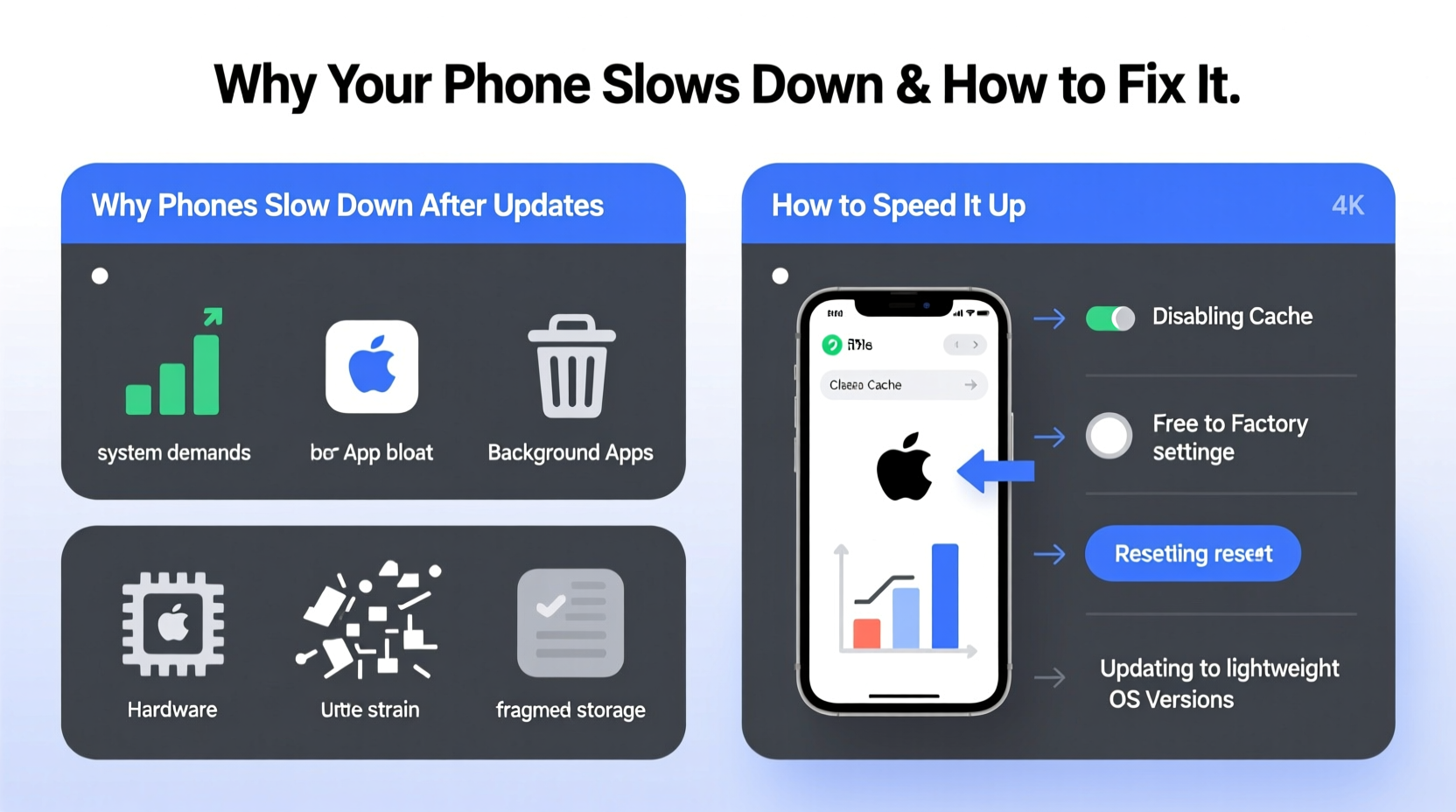
Updates are complex operations. They don’t just add features—they restructure system files, install background services, and sometimes introduce compatibility layers that weren’t needed before. While manufacturers and developers test extensively, real-world conditions vary widely from one user to another. Here’s what typically happens behind the scenes:
- New system overhead: Each update brings additional processes that run in the background, such as improved AI assistants, enhanced privacy controls, or cloud sync enhancements. These consume RAM and CPU even when you're not actively using them.
- App incompatibility: Some third-party apps haven’t been optimized for the latest OS version. When they run on updated firmware, they may crash, freeze, or operate inefficiently, dragging down overall performance.
- Storage strain: Updates require temporary space during installation and often increase the footprint of core system apps. On devices already low on storage, this can trigger throttling mechanisms that reduce processing speed.
- Bug-related inefficiencies: Despite testing, early versions of updates may contain memory leaks or inefficient code paths that cause excessive battery drain and poor responsiveness.
- Hardware limitations: Older devices simply lack the processing power or memory bandwidth to handle newer, more resource-intensive operating systems efficiently.
How Long Does the Slowdown Last?
Not all post-update slowness is permanent. In fact, much of it is temporary and part of a necessary optimization phase. After an update, your phone goes through a process called indexing—rebuilding search databases, recalibrating app permissions, optimizing storage layout, and pre-loading frequently used functions. This background activity can last anywhere from a few hours to several days, depending on your usage patterns and device specs.
During this period, you might notice:
- Higher-than-normal battery consumption
- Occasional app reloads instead of resuming
- Lag when switching between apps
- Increased heat generation
These symptoms usually resolve themselves once the system stabilizes. However, if sluggishness persists beyond five days—with no improvement in response time—it’s likely due to deeper issues requiring intervention.
Step-by-Step Guide to Speed Up Your Phone Post-Update
If your phone remains slow after the initial adaptation window, follow this structured plan to reclaim performance. These steps apply to both iPhones and Android devices, though exact menu names may vary slightly.
- Restart your device completely. A full reboot clears cached processes and resets active memory. Press and hold the power button, then select “Restart” (or turn off and back on manually).
- Clear cache partition (Android) or offload unused apps (iOS).
- On Android: Go to Settings > Storage > Internal Storage > Cached Data and tap “Clear Cache.”
- On iPhone: Settings > General > iPhone Storage > enable “Offload Unused Apps.”
- Update all apps. Open Google Play Store or App Store and ensure every app is updated. Developers often release patches shortly after major OS updates to fix compatibility issues.
- Disable or uninstall bloatware. Remove pre-installed apps you don’t use. On Android, long-press the app icon and select “Uninstall” or “Disable.” On iOS, swipe up to delete (if allowed).
- Reduce animations and visual effects.
- Android: Enable Developer Options (tap Build Number 7 times in About Phone), then set Window Animation Scale, Transition Animation Scale, and Animator Duration Scale to “Off” or 0.5x.
- iOS: Settings > Accessibility > Motion > Reduce Motion; also enable “Prefer Cross-Fade Transitions.”
- Check for secondary updates. Sometimes, a patch arrives within days of the main update. Check Settings > System Updates (Android) or Settings > General > Software Update (iOS) again.
- Reset settings (not data). As a last step before full reset, try resetting network settings, keyboard dictionary, and home screen layout. This often resolves hidden conflicts without losing personal files.
Mini Case Study: Recovering a Lagging Galaxy S10
Jamal upgraded his Samsung Galaxy S10 to One UI 6 (based on Android 14) and immediately noticed delays in opening messages and camera lag. After two days, performance hadn’t improved. He followed the above steps: restarted the phone, cleared cached data (freed 1.2 GB), updated WhatsApp and Instagram, and disabled three unused Samsung apps. He also reduced animation scales via Developer Options. Within 24 hours, his phone responded like it did before the update. The key was addressing both storage pressure and background load simultaneously.
Do’s and Don’ts After a Phone Update
| Do | Don't |
|---|---|
| Wait a few days before reporting major bugs—some issues self-resolve. | Immediately factory reset—this should be a last resort. |
| Keep at least 15% free storage space at all times. | Ignore app update notifications post-OS upgrade. |
| Monitor battery usage by app to spot misbehaving software. | Install third-party \"cleaner\" or \"booster\" apps—they often do more harm than good. |
| Use built-in tools like Digital Wellbeing (Android) or Screen Time (iOS) to manage resource-heavy apps. | Disable system services like Google Play Services or iCloud Sync unless absolutely necessary. |
| Back up your data before making major changes. | Apply beta updates on primary devices without backup. |
“Operating system updates are designed for the average user base, not individual hardware conditions. Performance drops often stem from mismatched expectations rather than flawed code.” — Dr. Lena Torres, Mobile Systems Researcher at TechInsight Labs
Tips to Prevent Future Slowdowns
While you can’t always avoid updates, you can minimize their impact with proactive habits:
- Maintain ample free storage. Aim for at least 2–3 GB of free space on devices with 64 GB or less, and 5+ GB on larger-capacity models. Full storage forces the system to work harder during read/write operations.
- Regularly review installed apps. Uninstall apps you haven’t used in over a month. Each app contributes to background activity, even if minimally.
- Limit widgets and live wallpapers. These constantly refresh data and graphics, consuming CPU cycles and battery life.
- Enable automatic app updates over Wi-Fi only. This ensures apps stay compatible without surprise data charges or interruptions.
- Consider delaying major version upgrades on older phones. For example, skip jumping from Android 12 to 14 on a 2019 model. Stick with stable, well-supported versions longer.
When Hardware Is the Real Problem
Sometimes, no amount of tweaking will restore original speed—and that’s okay. Smartphones have a natural lifecycle. Most flagship devices remain performant for about 3–4 years; budget models may start struggling after just 18–24 months.
Signs it's time to consider a replacement include:
- Apps consistently crashing after reinstall
- Frequent overheating during basic tasks
- Boot loops or spontaneous restarts
- No available OS updates despite manufacturer promises
- Noticeable camera shutter delay or focus hunting
In such cases, upgrading isn’t failure—it’s smart digital maintenance. Newer phones come with faster processors, more efficient memory management, and better thermal design, all of which contribute to smoother experiences under modern software loads.
FAQ: Common Questions About Post-Update Performance
Will clearing cache delete my photos or messages?
No. Clearing system or app cache only removes temporary files used to speed up loading times. Your personal data—photos, messages, contacts—remains intact. Always double-check that you're not deleting \"data\" or \"storage,\" which includes saved preferences and offline content.
Can I downgrade to a previous OS version to regain speed?
Generally, no. Both Apple and Google restrict downgrading for security reasons. Once you update, the old firmware signatures are invalidated. Attempting to flash older versions can brick your device or void warranties. Focus instead on optimization techniques within the current OS.
Do dark mode or battery saver modes help improve speed?
Indirectly, yes. Dark mode reduces power draw on OLED screens, which helps maintain consistent CPU performance by preventing thermal throttling. Battery Saver modes limit background processes, animation speeds, and sync frequency—all of which reduce system load and can make the phone feel snappier, even if raw performance hasn’t changed.
Conclusion: Take Control of Your Device’s Performance
Your phone doesn’t have to suffer after an update. While some slowdown is normal during the adaptation phase, persistent lag is fixable in most cases. By understanding the underlying causes—whether it’s bloated cache, outdated apps, or excessive background activity—you gain the power to respond effectively. Simple actions like restarting, clearing storage, and adjusting settings can yield dramatic improvements. And when hardware limits are truly reached, recognizing that moment empowers smarter decisions about upgrades.
Don’t accept sluggish performance as inevitable. With informed care, your smartphone can remain fast, reliable, and enjoyable long after the latest update rolls out.




 浙公网安备
33010002000092号
浙公网安备
33010002000092号 浙B2-20120091-4
Comments
No comments yet. Why don't you start the discussion?