
Mobile hotspots have become essential for staying connected on the go, whether you're working remotely, traveling, or simply away from Wi-Fi. But nothing is more frustrating than your hotspot cutting out unexpectedly—especially in the middle of an important video call or file download. While occasional hiccups are normal, frequent disconnections point to deeper issues that can be resolved with targeted troubleshooting. Understanding the root causes and applying proven fixes can restore stability and ensure your mobile tethering remains reliable.
Common Causes of Random Hotspot Disconnections
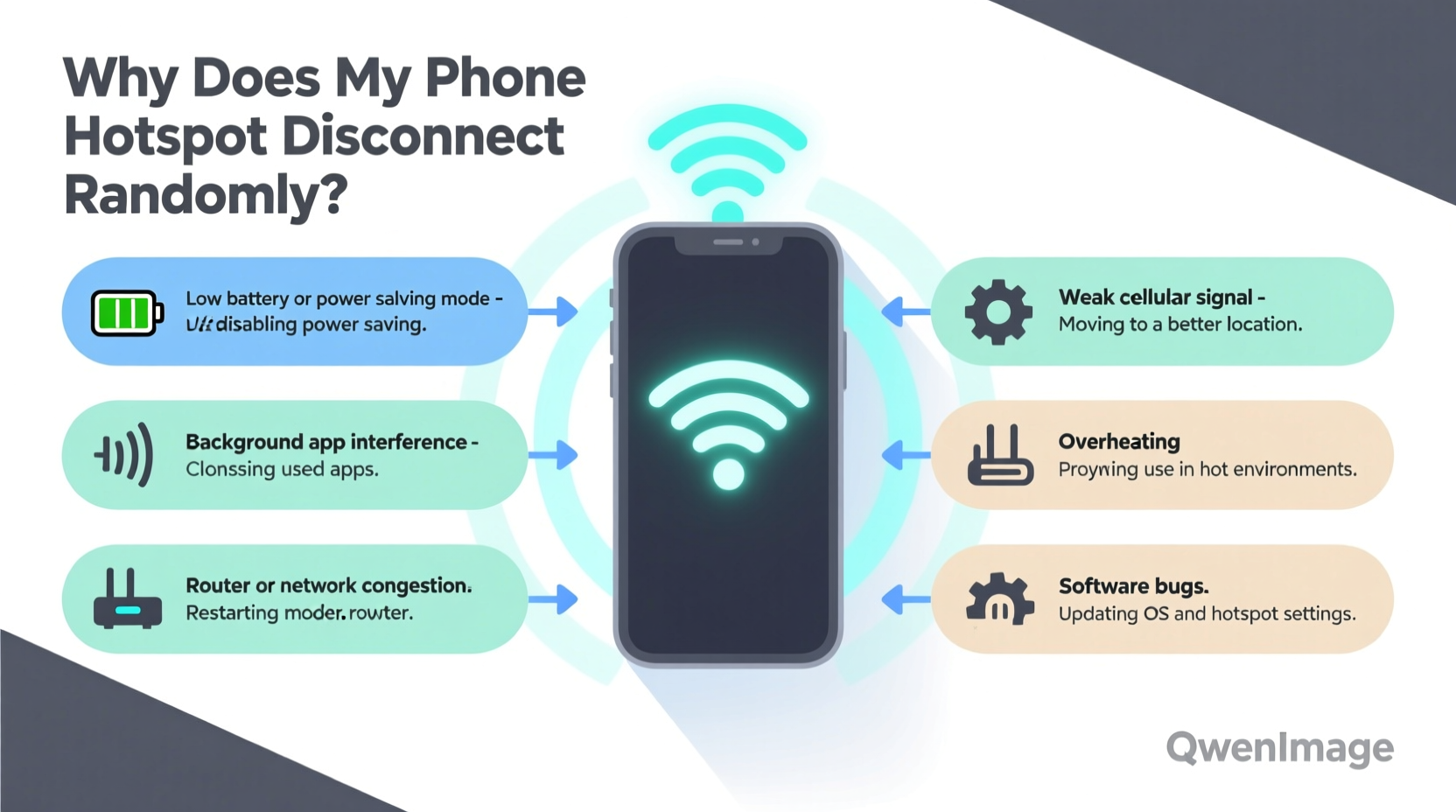
Before diving into solutions, it's crucial to identify what might be triggering the instability. Multiple factors—ranging from hardware limitations to network congestion—can disrupt your hotspot’s performance.
- Signal strength fluctuations: If your phone has weak cellular reception, the hotspot will struggle to maintain a consistent connection.
- Overheating: Prolonged hotspot use generates heat, which can trigger thermal throttling or automatic shutdowns to protect the device.
- Power-saving modes: Battery optimization settings may disable background data or turn off Wi-Fi tethering when the screen is off.
- Network congestion: Too many devices connected simultaneously can overwhelm the phone’s bandwidth allocation.
- Firmware or software bugs: Outdated operating systems or carrier-specific firmware glitches can interfere with hotspot functionality.
- Router interference (on client devices): Sometimes, the problem lies not with the phone but with how laptops or tablets manage wireless connections.
Step-by-Step Troubleshooting Guide
Follow this structured approach to diagnose and fix random disconnections systematically. Start with basic checks and progress to advanced configurations as needed.
- Restart your phone and connected device. A simple reboot clears temporary glitches in both the OS and network stack.
- Check signal strength. Move to a location with better reception or near a window if indoors. Avoid basements or metal-heavy environments.
- Limit the number of connected devices. Try connecting only one device at a time to isolate bandwidth issues.
- Disable battery saver mode. Go to Settings > Battery and ensure power-saving features aren’t restricting background processes.
- Forget and re-add the hotspot network on client devices. This resets saved credentials and forces a fresh handshake.
- Update your phone’s software. Install any pending OS updates or carrier patches that may include hotspot improvements.
- Reset network settings. This clears all saved Wi-Fi networks, Bluetooth pairings, and APN configurations—useful for resolving deep-seated connectivity conflicts.
Advanced Fixes for Persistent Issues
If standard steps don’t resolve the problem, consider these deeper interventions:
- Change the hotspot frequency band: Some phones allow switching between 2.4 GHz and 5 GHz bands. The 2.4 GHz band offers better range but lower speed; 5 GHz is faster but shorter-range. Interference from other devices (like microwaves) often affects 2.4 GHz. Test both options via hotspot settings.
- Modify APN settings: Incorrect Access Point Names can degrade data performance. Contact your carrier for recommended APN configurations or compare current settings with official specs online.
- Use USB or Bluetooth tethering as alternatives: If Wi-Fi hotspot continues failing, try connecting via USB cable or Bluetooth, which bypasses wireless instability altogether.
“Many users overlook thermal management when using prolonged hotspot sessions. Devices like iPhones and Android flagships reduce transmission power when overheating, directly impacting tethering reliability.” — Rajiv Mehta, Senior Network Engineer at MobileConnect Labs
Tips for Maintaining a Stable Hotspot Connection
Sustained performance requires proactive habits. Implement these best practices to minimize disruptions:
- Place the phone in a well-ventilated area to avoid overheating.
- Avoid placing the phone inside bags or under pillows while sharing internet.
- Close unused apps running in the background to free up RAM and processing power.
- Set the hotspot password to something secure to prevent unauthorized access that could consume bandwidth.
- Turn off the hotspot when not in use to conserve battery and reduce wear on components.
Optimal Device Placement for Signal Strength
Position matters. Even strong cellular signals can degrade due to physical obstructions. Elevate your phone, keep it upright, and avoid metal surfaces nearby. For indoor use, placing the phone near a window facing the nearest cell tower significantly improves throughput and stability.
Do’s and Don’ts: Hotspot Usage Best Practices
| Do’s | Don’ts |
|---|---|
| Keep your phone charged during long sessions | Run intensive downloads while using low battery |
| Use original charging cables for power delivery | Enclose the phone in thick cases that trap heat |
| Update your OS and carrier settings regularly | Ignore repeated disconnection warnings |
| Limit connected devices to 3–4 max | Stream 4K video across multiple devices simultaneously |
| Switch to airplane mode briefly and re-enable hotspot to refresh connection | Leave hotspot enabled overnight without supervision |
Real-World Example: Remote Worker Struggles with Midday Drops
Sarah, a freelance graphic designer based in Austin, relied on her Android phone’s hotspot to work from coffee shops and co-working spaces. She noticed her connection would drop every 20–30 minutes, especially after noon. Files failed to upload, and Zoom calls froze repeatedly. After testing various fixes, she discovered two key culprits: her phone was heating up inside a silicone case, and battery saver mode was intermittently disabling background data.
She removed the case, placed the phone next to a small fan, disabled battery optimization for the hotspot app, and switched to USB tethering using a cooling pad. These changes eliminated disconnections entirely. Her productivity improved, and she now schedules tethering sessions with thermal breaks built in.
Checklist: Quick Fix Protocol for Hotspot Stability
Use this checklist whenever your hotspot behaves erratically:
- ✅ Restart the phone and connected device
- ✅ Verify cellular signal strength (aim for 3+ bars)
- ✅ Disable battery saver or power optimization modes
- ✅ Ensure the phone isn’t overheating (touch test: should be warm, not hot)
- ✅ Forget and reconnect to the hotspot network on your laptop/tablet
- ✅ Limit active devices to one or two for testing
- ✅ Check for OS and carrier updates
- ✅ Reset network settings if problems persist
- ✅ Try alternative tethering methods (USB/Bluetooth)
- ✅ Contact carrier support if all else fails
Frequently Asked Questions
Why does my hotspot disconnect when my screen turns off?
This is typically caused by aggressive battery-saving settings. On Android, go to Settings > Apps & notifications > Advanced > Special app access > Battery optimization, and set your hotspot or tethering service to “Don’t optimize.” On iPhone, ensure Background App Refresh is enabled for key apps and avoid Low Power Mode during critical usage.
Can too many devices cause my hotspot to crash?
Yes. Most smartphones support up to 8–10 simultaneous connections, but performance degrades rapidly beyond 3–4 devices, especially if they’re streaming or downloading large files. Each additional device competes for bandwidth and increases CPU load, potentially leading to timeouts or crashes.
Is it bad to use my phone as a hotspot all day?
Extended use isn’t inherently harmful, but it accelerates battery wear, generates significant heat, and consumes data quickly. To minimize risk, use a high-quality cooling pad, keep the phone plugged into a reliable power source, monitor temperatures, and take periodic breaks to let the system cool down.
Conclusion: Take Control of Your Connectivity
Random hotspot disconnections are more than just annoying—they disrupt workflows, compromise communication, and undermine trust in mobile technology. But with the right knowledge and habits, these interruptions are largely preventable. From adjusting power settings to managing heat and updating software, each step brings you closer to seamless, uninterrupted connectivity.
Your phone is capable of being a reliable personal router, but it needs proper care and configuration. Apply the strategies outlined here, stay mindful of environmental and technical limits, and don’t hesitate to explore alternative tethering methods when Wi-Fi fails. A stable connection isn’t luck—it’s the result of smart maintenance and informed usage.




 浙公网安备
33010002000092号
浙公网安备
33010002000092号 浙B2-20120091-4
Comments
No comments yet. Why don't you start the discussion?