
Wi-Fi disconnections on smartphones are more than just an annoyance—they disrupt video calls, pause downloads, and interfere with smart home devices. While occasional signal hiccups happen, frequent dropouts suggest deeper issues. The causes range from network congestion and outdated firmware to hardware limitations and power-saving settings. Understanding the root of the problem is the first step toward a reliable fix. This guide breaks down the most common reasons for Wi-Fi instability and provides actionable solutions you can implement immediately.
Common Causes of Wi-Fi Disconnection on Smartphones
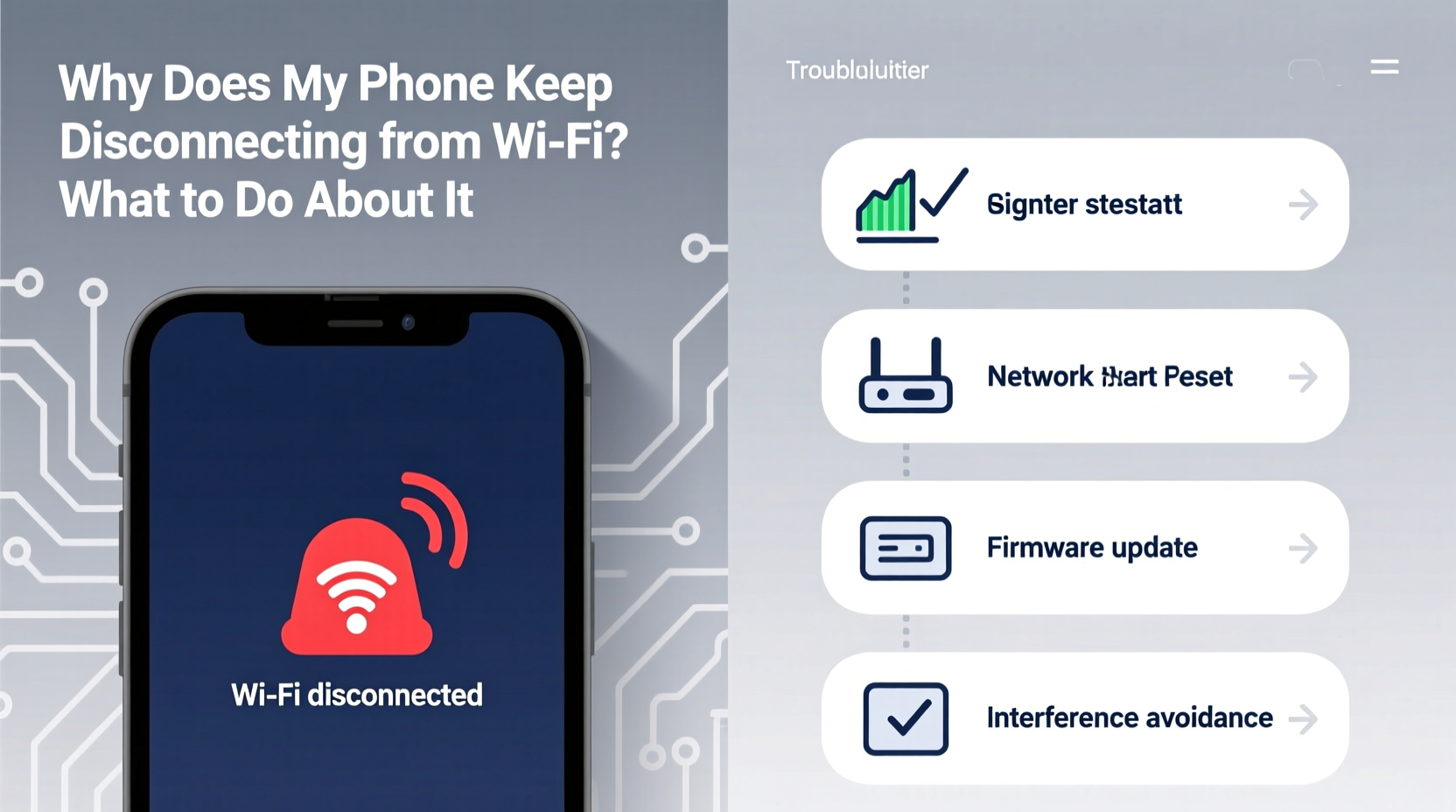
Phones disconnect from Wi-Fi for a variety of technical and environmental reasons. Identifying which factor applies to your situation is crucial before attempting fixes.
- Weak Signal Strength: Distance from the router or physical obstructions like walls and appliances can degrade signal quality.
- Network Congestion: Too many devices connected simultaneously can overwhelm your router’s bandwidth.
- Router Firmware Issues: Outdated firmware may cause compatibility problems with newer phones or security protocols.
- Phone Software Glitches: Temporary bugs in the operating system or Wi-Fi stack can interrupt connectivity.
- Power-Saving Modes: Aggressive battery optimization features may disable Wi-Fi when the screen is off.
- IP Address Conflicts: Duplicate IP assignments in the network lead to connection instability.
- DNS Problems: Incorrect or slow DNS servers can make it seem like Wi-Fi is disconnected even when the link is active.
- Hardware Defects: Damaged antennas or faulty Wi-Fi modules, though rare, can cause persistent issues.
Step-by-Step Troubleshooting Guide
Follow this structured approach to isolate and resolve the underlying cause of your Wi-Fi disconnections. Start with the simplest fixes before moving to advanced diagnostics.
- Restart Your Phone and Router: A reboot clears temporary glitches in both devices. Unplug your router for 30 seconds before powering it back on.
- Check for Software Updates: Install the latest OS update on your phone and check your router’s admin panel for firmware upgrades.
- Forget and Reconnect to the Network: Go to Wi-Fi settings, select your network, tap “Forget,” then reconnect by entering the password again.
- Disable Battery Optimization for Wi-Fi: On Android, go to Settings > Apps > [Your Device] > Battery > Unrestricted. On iPhone, ensure Background App Refresh is enabled.
- Switch Between 2.4 GHz and 5 GHz Bands: 2.4 GHz offers better range but slower speeds; 5 GHz is faster but shorter-range. Test both to see which is more stable.
- Change DNS Settings: Use Google DNS (8.8.8.8 and 8.8.4.4) or Cloudflare (1.1.1.1) instead of your ISP’s default.
- Reset Network Settings: As a last resort, reset network settings on your phone. Note: This erases saved Wi-Fi passwords and Bluetooth pairings.
When to Reset Your Router
If multiple devices experience disconnections, the problem likely lies with the router. Perform a factory reset only after backing up your configuration. Access the admin interface via a browser (typically 192.168.1.1), navigate to Administration > Factory Reset, and confirm. Reconfigure your network afterward with strong encryption (WPA3 if available).
Environmental and Usage Factors That Impact Connectivity
Your physical environment plays a significant role in Wi-Fi reliability. Materials like concrete, metal, and mirrors reflect or absorb signals. Appliances such as microwaves, cordless phones, and baby monitors emit interference on the 2.4 GHz band.
Additionally, how you use your phone affects connectivity. Holding the device in a way that covers the antenna area—often along the bottom edge—can weaken reception. Some users report improved stability simply by changing their grip during streaming or downloads.
| Factor | Impact on Wi-Fi | Solution |
|---|---|---|
| Thick Walls / Floors | Signal attenuation | Use Wi-Fi extenders or mesh systems |
| Microwave Oven Use | Interference on 2.4 GHz | Switch to 5 GHz during use |
| Crowded Neighborhood | Channel overlap | Change router channel manually |
| Phone Case with Metal | Blocks signal | Remove case or switch to non-metallic |
Real Example: Apartment Building Interference
In a downtown high-rise, Sarah noticed her phone dropped Wi-Fi every evening between 7–9 PM. After testing, she discovered over 20 nearby networks were using channel 6 on the 2.4 GHz band. Using her router’s app, she switched to channel 11, which was less congested. Her disconnections stopped entirely. This case highlights how neighborhood density impacts personal connectivity and why manual channel selection matters.
Expert Insights on Mobile Wi-Fi Stability
Industry professionals emphasize that modern Wi-Fi issues are often misdiagnosed as phone defects when they stem from network configuration or environmental factors.
“Most Wi-Fi problems aren’t with the phone itself. It’s usually the network setup, signal interference, or outdated equipment.” — Dr. Alan Reyes, Senior Network Engineer at NetSecure Labs
Dr. Reyes also notes that mobile operating systems now aggressively manage power, sometimes at the cost of connectivity. “Android and iOS will suspend Wi-Fi during deep sleep unless apps request background access. Users need to adjust these settings based on usage patterns.”
Do’s and Don’ts of Wi-Fi Management
| Do | Don't |
|---|---|
| Position your router centrally and elevated | Place the router near large metal objects |
| Update router firmware quarterly | Ignore firmware update notifications |
| Use WPA3 encryption for security | Share your Wi-Fi password publicly |
| Limit bandwidth-heavy devices during calls | Stream 4K video while on important video conferences |
Advanced Fixes for Persistent Disconnections
If basic troubleshooting fails, consider these deeper interventions.
Assign a Static IP Address
Dynamic IP assignment via DHCP can occasionally result in conflicts. Assigning a static IP to your phone ensures consistent network identification.
- Go to Wi-Fi settings and tap your connected network.
- Select “Modify Network” or “Advanced Options.”
- Change IP settings from DHCP to Static.
- Enter an IP address outside the router’s DHCP range (e.g., if DHCP uses 192.168.1.100–199, choose 192.168.1.50).
- Set Gateway and DNS fields to match your router (usually 192.168.1.1).
Enable Wi-Fi Keepalive Features
Some Android manufacturers include hidden developer options to control Wi-Fi behavior. Enable Developer Mode by tapping Build Number in Settings > About Phone seven times. Then go to Developer Options and set:
- Wi-Fi timer: Set to “Never sleep” or “Only during charging.”
- Mobile data always active: Disable to prevent network switching confusion.
iOS lacks direct developer controls, but enabling Low Data Mode (Settings > Wi-Fi > [Network] > Low Data Mode Off) can reduce throttling.
Checklist: Fix Wi-Fi Disconnections in Under 15 Minutes
Use this quick-reference checklist to diagnose and repair common Wi-Fi issues efficiently.
- ✅ Restart phone and router
- ✅ Move closer to the router to test signal strength
- ✅ Forget and rejoin the Wi-Fi network
- ✅ Disable battery saver or adaptive Wi-Fi modes
- ✅ Switch between 2.4 GHz and 5 GHz bands
- ✅ Change DNS to 8.8.8.8 or 1.1.1.1
- ✅ Check for OS and router firmware updates
- ✅ Test with another device to isolate the problem
- ✅ Reset network settings if all else fails
Frequently Asked Questions
Why does my phone disconnect from Wi-Fi when the screen turns off?
This is typically due to aggressive power-saving settings. Android devices may turn off Wi-Fi during sleep to conserve battery. To fix this, go to Settings > Network & Internet > Wi-Fi > Advanced > Keep Wi-Fi on during sleep and set it to “Always.” On iPhone, ensure Background App Refresh is enabled for critical apps.
Can a virus cause Wi-Fi disconnections?
While rare, malware that modifies network settings or floods the connection with background traffic can disrupt Wi-Fi. If your phone behaves erratically—unexpected pop-ups, rapid battery drain, unknown apps—run a scan with a trusted antivirus app. Also, check for unauthorized proxy settings in Wi-Fi configurations.
Will resetting my phone fix Wi-Fi issues?
A factory reset can resolve deep-seated software conflicts affecting Wi-Fi, but it should be a last resort. Back up your data first. If the problem returns after a reset, the issue is likely hardware-related or stems from the network environment, not the phone’s software.
Final Thoughts and Call to Action
Wi-Fi disconnections are frustrating, but they’re rarely unsolvable. Most cases stem from correctable settings, environmental interference, or outdated equipment—not permanent phone damage. By methodically testing each potential cause, you can restore a stable, seamless connection. The key is patience and precision: don’t jump to extreme measures like replacing hardware until simpler fixes have been exhausted.
Start today by walking through the troubleshooting steps. Adjust one variable at a time and observe the results. Share your findings with others facing similar issues—your solution might help someone else regain hours of lost productivity. Technology should serve you, not frustrate you. Take control of your connection and enjoy uninterrupted browsing, streaming, and communication.




 浙公网安备
33010002000092号
浙公网安备
33010002000092号 浙B2-20120091-4
Comments
No comments yet. Why don't you start the discussion?