
It’s a familiar frustration: you walk into the basement, bedroom, or hallway, and your phone suddenly drops from full bars to “No Service.” You’re not imagining it—certain rooms really do kill your signal. The reasons range from building materials to network congestion, but the good news is that many of these issues are fixable without expensive upgrades. Understanding the science behind poor reception empowers you to take practical steps that can dramatically improve connectivity.
Why Signal Weakens Indoors
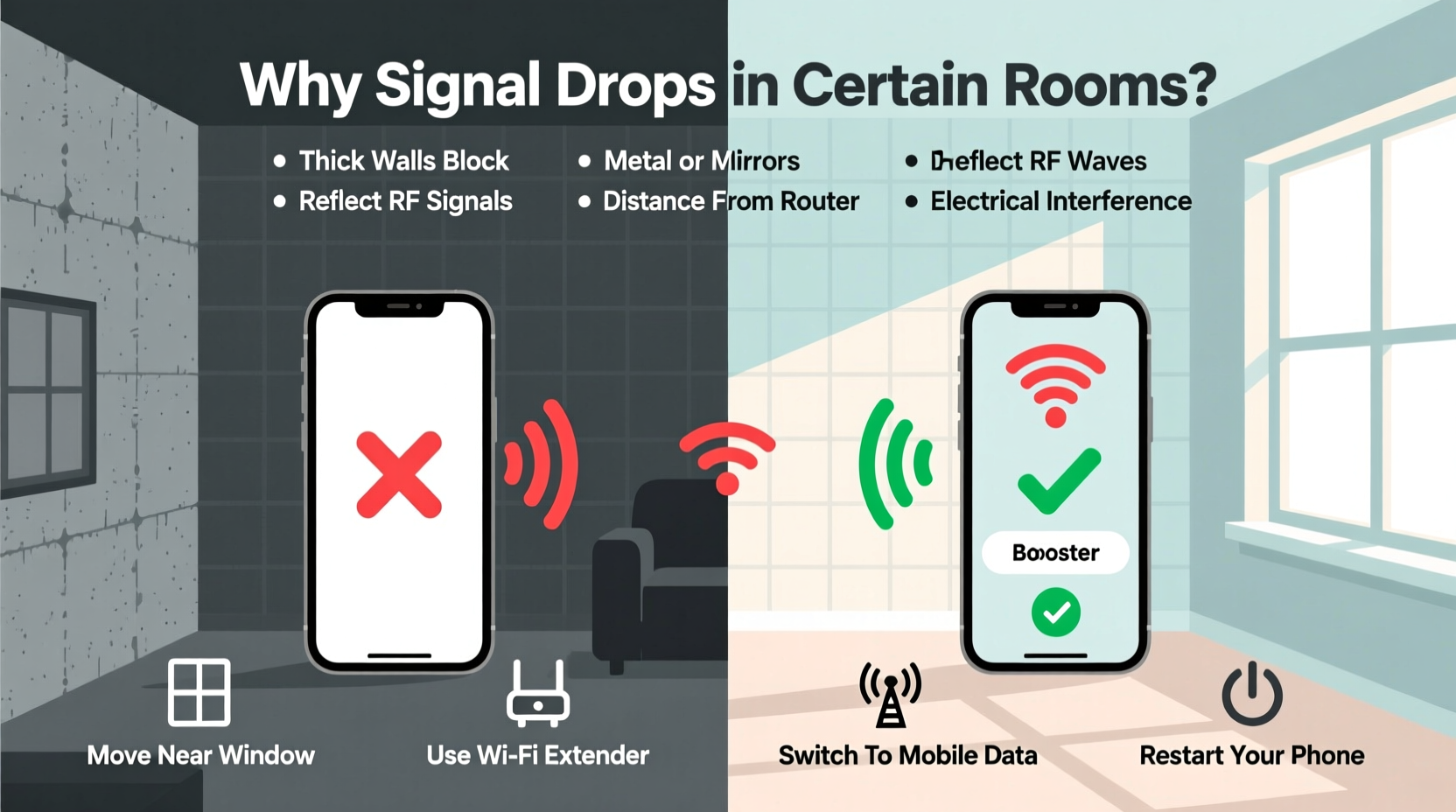
Your smartphone relies on radiofrequency (RF) signals transmitted from cell towers miles away. These signals travel through the air but struggle when they encounter physical barriers. While modern networks are designed for reliability, indoor environments present unique challenges that degrade performance.
One primary factor is construction materials. Concrete, brick, metal framing, and energy-efficient glass often contain metallic components or high density, which block or reflect RF waves. Basements and windowless interior rooms are especially prone to dead zones because they lack direct line-of-sight to external towers.
Another contributor is distance. If you live far from the nearest cell tower—or if terrain like hills or tall buildings obstructs the path—your signal starts weak before it even reaches your walls. Inside, Wi-Fi interference from routers, microwaves, and Bluetooth devices can further disrupt cellular frequencies, particularly on 4G LTE and 5G bands.
“Up to 70% of mobile data usage occurs indoors, yet most homes weren’t built with signal penetration in mind.” — Dr. Lena Patel, Wireless Network Engineer at MIT Lincoln Laboratory
Common Building Materials That Block Cell Signals
Not all walls are created equal when it comes to blocking cell signals. Some materials are far more disruptive than others due to their composition and thickness. Below is a comparison of common building elements and their impact on signal strength:
| Material | Signal Attenuation (dB loss per wall) | Impact Level |
|---|---|---|
| Drywall | 2–3 dB | Low |
| Wood Framing | 3–5 dB | Low-Moderate |
| Insulated Glass (Low-E) | 10–20 dB | High |
| Concrete | 15–30 dB | Very High |
| Brick | 10–20 dB | High |
| Metal Sheeting/Foil Insulation | 30+ dB | Extreme |
The higher the decibel (dB) loss, the weaker your signal becomes after passing through each layer. A room surrounded by concrete walls may experience over 60 dB of total loss—enough to reduce a strong outdoor signal to unusable levels.
Step-by-Step Guide to Diagnose and Fix Poor Reception
Before investing in hardware, follow this systematic approach to identify and resolve indoor signal issues:
- Test signal strength in different areas: Use your phone’s field test mode (available on iOS and Android) to measure actual signal values in dBm. On iPhone, dial
*3001#12345#*to enter Field Test Mode. Look for readings above -90 dBm for reliable service. - Check for consistent drop zones: Walk through your home noting where calls fail or data slows. Mark these locations on a floor plan to spot patterns.
- Verify carrier coverage: Visit your provider’s coverage map (e.g., Verizon, AT&T, T-Mobile) and confirm expected service levels at your address.
- Rule out device issues: Restart your phone, update its software, and try a different SIM card if possible. Sometimes the problem lies with the handset, not the environment.
- Assess nearby sources of interference: Turn off Wi-Fi routers, cordless phones, or smart appliances temporarily to see if signal improves.
- Determine best window access: Identify which exterior wall faces the nearest cell tower. Apps like OpenSignal or Network Cell Info Lite show tower direction using triangulation.
- Implement targeted solutions: Based on findings, apply one or more of the fixes outlined below.
Simple Fixes to Boost Indoor Reception
You don’t need to rebuild your house or switch carriers to get better service. Many low-cost, non-invasive strategies can restore usable signal in problematic rooms.
Use Wi-Fi Calling When Available
If your carrier supports Wi-Fi calling, enable it immediately. This feature routes voice and text traffic over your internet connection instead of relying on cellular signals. It works seamlessly once set up and is ideal for basements or thick-walled rooms.
- iPhone: Settings → Phone → Wi-Fi Calling → Enable
- Android: Settings → Network & Internet → Calls → Wi-Fi Calling → On
Reposition Your Router and Devices
While Wi-Fi operates on different frequencies than cellular bands, overcrowded 2.4 GHz channels can create electromagnetic noise that affects nearby radios. Place your router away from bedrooms or offices where you need clear calls. Use the 5 GHz band for data-heavy tasks to reduce interference.
Install a Signal Booster (Femtocell or Repeater)
For persistent dead zones, consider a dedicated signal booster:
- Femtocells (MicroCells): Small devices provided by carriers (e.g., AT&T MicroCell, Verizon LTE Network Extender). They connect to your broadband and create a mini cell tower indoors. Best for homes with strong internet but weak cellular.
- Passive Repeaters: These amplify existing outdoor signals using an external antenna, amplifier, and indoor broadcast antenna. Models like weBoost or SureCall cover entire floors and support multiple users.
Installation typically involves mounting an outdoor antenna facing the nearest tower, running cable inside, and placing the amplifier unit centrally. Most kits include detailed instructions and require no technical expertise.
Switch Carriers Based on Local Tower Proximity
Not all networks perform equally in every neighborhood. One carrier might dominate in your area due to tower proximity or frequency band usage. Lower-frequency bands (like 600–800 MHz) penetrate walls better than high-band 5G (24–39 GHz), which travels short distances and struggles indoors.
Before switching, borrow a friend’s phone on another network or request trial SIM cards to test real-world performance in your weakest rooms.
Real-World Example: Fixing a Basement Office Dead Zone
Mark, a freelance graphic designer in Chicago, struggled with dropped Zoom calls every time he worked from his basement studio. His phone would show one bar, and texts arrived minutes late. After testing signal strength (-112 dBm), he discovered his poured concrete foundation and metal ductwork were nearly total signal blockers.
He first tried Wi-Fi calling, which solved voice issues but didn’t help when uploading large design files. Since his internet was fast, he opted for a Verizon LTE Network Extender. After plugging it in near his router and completing setup, his phone displayed full bars throughout the lower level. Upload speeds increased from 0.5 Mbps to 18 Mbps, and call quality became flawless.
Cost: $250 for the device (often subsidized with contract), plus existing broadband. Result: Reliable connectivity in a previously unusable workspace.
Do’s and Don’ts of Improving Indoor Signal
| Do | Don't |
|---|---|
| Enable Wi-Fi calling if available | Rely solely on Bluetooth headsets in low-signal areas (they don’t fix the root issue) |
| Use a signal meter app to find weak spots | Assume all boosters work the same—check compatibility with your carrier |
| Place your phone near windows during important calls | Wrap your phone in foil or place it in metal containers (common myth with no benefit) |
| Consider a femtocell for consistent multi-room coverage | Ignore software updates—new firmware can improve antenna efficiency |
| Compare carrier coverage maps before switching | Expect miracles from “signal-boosting” apps—they don’t exist and waste battery |
FAQ: Common Questions About Indoor Signal Loss
Can I boost my phone’s signal without buying equipment?
Yes. Simple actions like opening curtains, moving closer to windows, enabling airplane mode briefly to reset the connection, or restarting your phone can provide temporary improvements. Using Wi-Fi calling is the most effective free solution if your internet is stable.
Are phone cases affecting my reception?
Rarely. Most modern cases—even rugged ones—don’t significantly block signals unless they contain metal plates or magnetic mounts used for car holders. If concerned, test signal strength with and without the case in a weak zone.
Will 5G solve indoor coverage problems?
Not entirely. While mid-band 5G (3.5 GHz) offers a balance of speed and coverage, ultra-high-band mmWave 5G has very poor wall penetration. Future deployments of low-band 5G (600–700 MHz) will help, but widespread adoption takes time. For now, hybrid solutions like Wi-Fi 6 and repeaters remain essential.
Conclusion: Take Control of Your Connectivity
Poor phone signal in certain rooms isn’t inevitable—it’s a solvable engineering challenge. By understanding how building materials, network bands, and device settings interact, you can diagnose issues accurately and choose the right remedy. Whether it’s flipping a switch to enable Wi-Fi calling or installing a compact signal extender, the tools are accessible and effective.




 浙公网安备
33010002000092号
浙公网安备
33010002000092号 浙B2-20120091-4
Comments
No comments yet. Why don't you start the discussion?