
A smartphone that refuses to charge is more than an inconvenience—it can disrupt work, communication, and daily routines. You plug in your phone, expect the battery icon to light up, but nothing happens. No charging symbol, no sound, no response. This issue affects millions of users every year, regardless of brand or model. The good news is that most charging problems aren’t permanent hardware failures. In fact, many stem from simple, fixable issues like dirty ports, faulty cables, or software glitches. Understanding the root causes and knowing how to troubleshoot them can save you time, money, and frustration.
Understanding Common Causes of Charging Failure
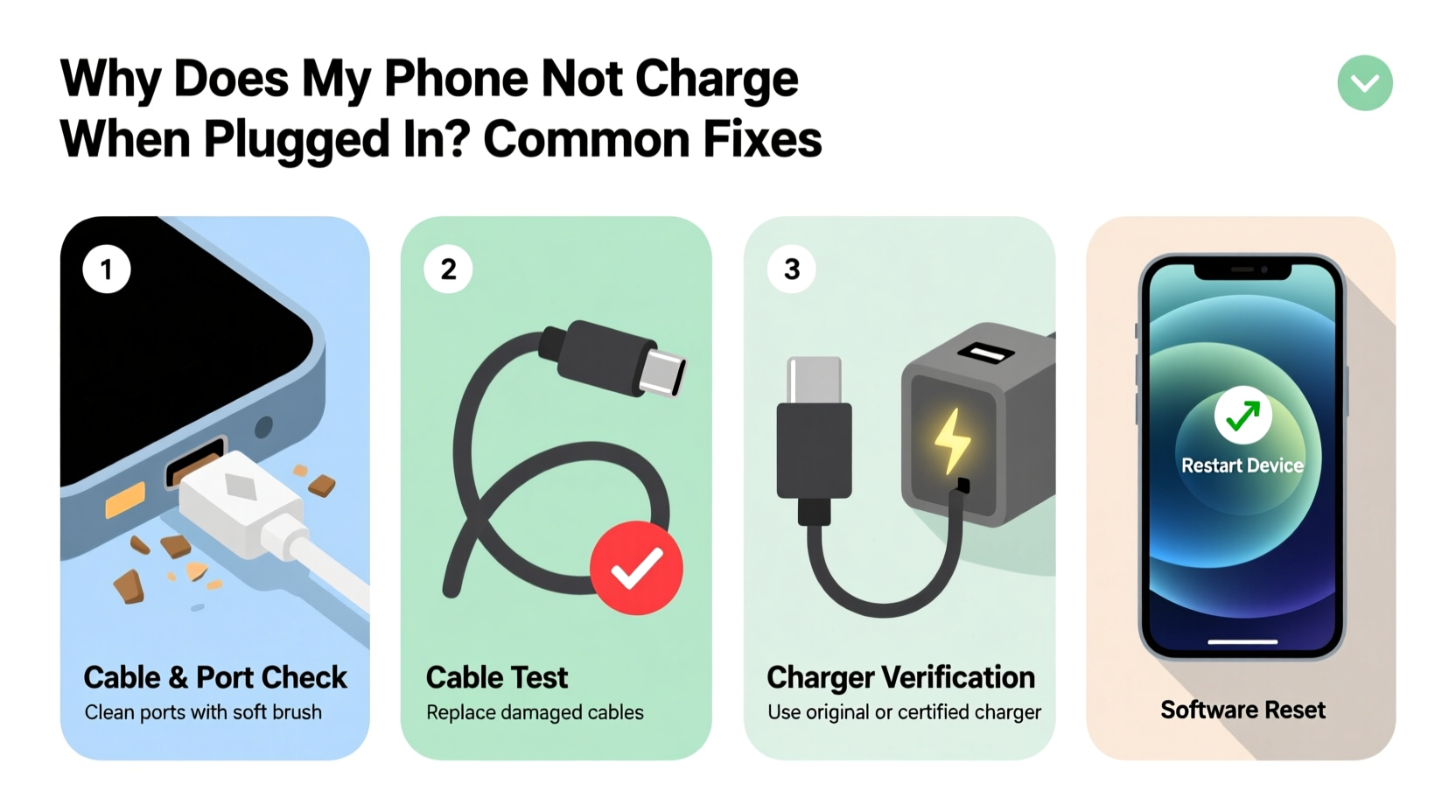
Before attempting fixes, it’s essential to identify what might be causing the problem. Charging issues typically fall into three categories: physical, electrical, and software-related.
- Physical damage: Bent pins in the charging port, frayed cables, or debris buildup can interrupt the connection.
- Electrical faults: Defective chargers, incompatible power sources, or worn-out batteries may prevent proper current flow.
- Software glitches: Operating system bugs or corrupted settings can interfere with the charging process, even if the hardware is intact.
Most users experience a combination of these factors over time. For example, using third-party accessories may introduce compatibility issues, while frequent exposure to dust or moisture accelerates wear on ports and cables.
Step-by-Step Troubleshooting Guide
Follow this logical sequence to isolate and resolve the issue efficiently. Start with the simplest checks before moving to advanced diagnostics.
- Check the power source. Plug the charger into a different outlet or try a known-working USB port on a computer or power bank. Some wall outlets may have tripped breakers or internal faults.
- Inspect the charging cable. Look for visible signs of wear—kinks, exposed wires, or bent connectors. Wiggle the cable near the ends while plugged in; if charging starts intermittently, the cable is likely damaged.
- Test with another charger. Borrow a compatible charger from a friend or use one you know works with a similar device. This helps determine if the issue lies with the charger itself.
- Clean the charging port. Use a dry toothbrush or compressed air to gently remove lint, dust, or pocket debris. Avoid metal tools, which could short-circuit the port.
- Restart your phone. A soft reboot can clear temporary software glitches affecting power management.
- Try wireless charging (if supported). If your phone charges wirelessly but not via cable, the problem is likely with the port or cable, not the battery.
If none of these steps restore charging, proceed to deeper diagnostics.
Do’s and Don’ts When Fixing Charging Issues
Mistakes during troubleshooting can worsen the problem. The table below outlines best practices and common errors to avoid.
| Do’s | Don’ts |
|---|---|
| Use OEM or MFi-certified cables and adapters | Use cheap, unbranded chargers from unknown vendors |
| Clean the port with non-conductive tools (plastic picks, brushes) | Poke the port with metal objects like paperclips |
| Keep the phone and port dry at all times | Attempt charging if the phone has been exposed to liquid recently |
| Update your phone’s operating system regularly | Ignore persistent warnings about battery health or charging errors |
| Store cables loosely coiled, away from heat sources | Yank the cable out by the cord instead of the plug |
“Over 60% of ‘dead’ charging ports are actually blocked by lint or pocket debris. A simple cleaning restores function in most cases.” — David Lin, Mobile Repair Technician with 12 years of field experience
Advanced Fixes: When Basic Steps Fail
If your phone still won’t charge after initial troubleshooting, consider these deeper solutions.
Reset All Settings (iOS and Android)
This resets network, display, and system preferences without deleting personal data. On iPhone, go to Settings > General > Transfer or Reset iPhone > Reset > Reset All Settings. On Android, navigate to System > Reset options > Reset Wi-Fi, mobile & Bluetooth (or similar path depending on OS version).
Check Battery Health
On iPhones, go to Settings > Battery > Battery Health & Charging. If “Maximum Capacity” is below 80%, the battery may need replacement. Android users can download apps like AccuBattery to monitor battery wear, though official diagnostics vary by manufacturer.
Boot in Safe Mode (Android Only)
Sometimes third-party apps interfere with power management. Booting in Safe Mode disables all non-essential apps. To enter Safe Mode, press and hold the power button, then long-press “Power off” and tap “OK” when prompted to reboot in Safe Mode. If the phone charges in Safe Mode, uninstall recently installed apps one by one.
DFU Restore (iPhone Only)
For persistent software issues, a Device Firmware Update (DFU) restore can reinstall iOS at the lowest level. This requires a computer and iTunes or Finder. While effective, it erases all data, so back up first.
Real-World Case Study: Sarah’s Intermittent Charging Issue
Sarah, a freelance photographer, relied heavily on her Android phone for client meetings and editing. One morning, her phone wouldn’t charge despite using her usual cable and wall adapter. She tried multiple outlets and even borrowed a colleague’s charger—no success. Frustrated, she nearly booked a repair appointment.
Instead, she remembered reading about port cleaning. Using a plastic toothpick and flashlight, she inspected the charging port and found a dense clump of lint blocking the connector pins. After carefully removing the debris with a soft brush, she plugged the phone in—and it began charging immediately.
The lesson? Physical obstructions are more common than people realize, especially in phones carried in pockets. A five-minute inspection saved Sarah $75 in service fees and a day without her device.
When to Seek Professional Help
Some issues require expert intervention. Consider professional repair if:
- The charging port feels loose or wobbly when inserting the cable.
- You notice corrosion or discoloration inside the port (often from liquid exposure).
- The phone only charges at certain angles or when held in a specific position.
- Battery drains rapidly even when not in use, suggesting internal circuit failure.
Authorized service centers have diagnostic tools to test voltage flow, port integrity, and battery condition. Attempting DIY repairs on sealed devices—especially prying open waterproof models—can void warranties and cause further damage.
Frequently Asked Questions
Why does my phone charge slowly or stop charging randomly?
Slow or intermittent charging often results from poor contact due to dirt in the port, a failing cable, or background apps consuming power faster than it’s being replenished. It can also occur if the phone overheats—charging pauses automatically as a safety measure. Let the device cool down before resuming.
Can a software update fix charging problems?
Yes. Manufacturers occasionally release updates that address power management bugs. For example, Apple issued iOS 14.6 to resolve a bug where some iPhones failed to charge past 80%. Always keep your device updated to benefit from stability improvements and security patches.
Is it safe to use third-party chargers?
Only if they’re certified. Look for labels like “MFi” (Made for iPhone/iPad) or USB-IF certification. Non-certified chargers may deliver unstable voltage, risking battery degradation or even fire hazards. Cheap knockoffs often lack surge protection and proper insulation.
Conclusion: Take Action Before It’s Too Late
Your phone’s ability to charge reliably is fundamental to its usefulness. Ignoring early warning signs—like delayed charging, overheating, or erratic behavior—can lead to complete battery failure or irreversible hardware damage. Most charging problems are preventable or easily fixed with basic maintenance and smart habits. Start by inspecting your cable and port today. Replace worn accessories promptly. Keep your software up to date. And don’t hesitate to seek help when something feels off.




 浙公网安备
33010002000092号
浙公网安备
33010002000092号 浙B2-20120091-4
Comments
No comments yet. Why don't you start the discussion?