
If you've noticed your phone playing the same notification sound twice in quick succession, you're not alone. This glitch affects both Android and iPhone users across various models and apps. While it may seem like a minor annoyance at first, repeated double alerts can quickly become disruptive—especially during work, meetings, or late at night. The good news is that this issue is usually fixable with a few targeted troubleshooting steps. Understanding the root causes behind the double playback will help you apply the right solution without unnecessary guesswork.
Understanding the Double Notification Sound Issue
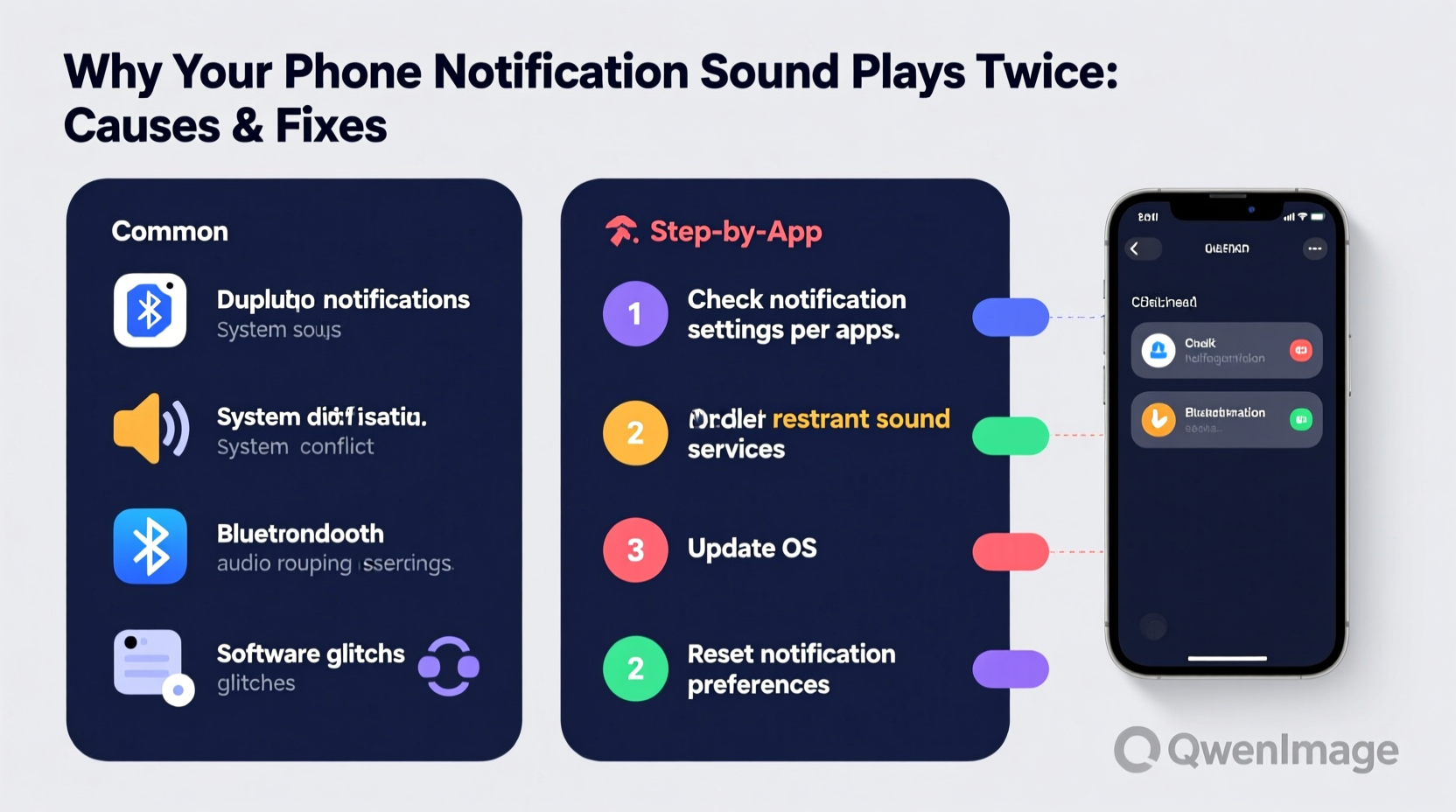
The phenomenon of a notification sound playing twice occurs when two separate system events trigger the same audio alert almost simultaneously. Instead of hearing one clear chime or buzz, you hear the same tone back-to-back. This doesn't always affect every app equally—it might happen only with messages, emails, or social media alerts. In some cases, the second sound is quieter or slightly delayed, making it feel like an echo rather than a true repeat.
This behavior stems from how modern smartphones manage notifications through layered software systems. A single incoming message may be processed by multiple services: the operating system, a messaging app, a notification assistant (like Bixby or Google Assistant), and even third-party accessibility tools. When more than one component decides to play a sound, the result is duplication.
“Double notification sounds are rarely hardware-related. They’re typically caused by overlapping software triggers or misconfigured settings.” — Dr. Lena Torres, Mobile Systems Engineer at TechInsight Labs
Common Causes Behind the Double Alert Problem
To resolve the issue effectively, it’s essential to identify what’s triggering the duplicate sound. Below are the most frequent culprits:
- Duplicate notification channels: Some apps create multiple notification categories (e.g., “Messages” and “Direct Messages”), each set to play a sound.
- Accessibility or assistant apps: Tools like Google Assistant, Siri, or screen readers may independently announce incoming notifications, adding a second audio layer.
- Third-party launchers or themes: Custom UIs sometimes override default notification behaviors and inadvertently enable dual alerts.
- Email or messaging sync loops: If your email client checks for new mail too frequently—or if push and fetch settings overlap—your phone may register the same message twice.
- System updates with bugs: Recent OS patches may introduce temporary glitches in how notifications are queued and played.
- Do Not Disturb exceptions: Misconfigured DND rules can cause a notification to bypass silence once, then trigger again under different conditions.
Step-by-Step Fixes for Android Devices
Android’s open architecture allows for greater customization but also increases the risk of conflicting settings. Follow these steps in order to eliminate the double notification sound on your Android phone.
- Check App-Specific Notification Settings
Open Settings > Apps > [App Name] > Notifications. Look for multiple notification types (e.g., “Messages,” “Group Chats”). Disable sound on all except the primary channel. - Disable Redundant Services
Go to Settings > Accessibility and review any active services such as “Text-to-Speech,” “Voice Access,” or “Notification Assistant.” Turn them off temporarily to test if the double sound stops. - Turn Off Google Assistant Announcements
Open the Google app, tap your profile icon, go to Settings > Voice > Hey Google & Voice Match, and disable “Hey Google” and “Access with voice.” Also, under Notifications > Announcements, turn off audio feedback. - Clear Notification Cache
Navigate to Settings > Apps > See All Apps > Menu (three dots) > Show System Apps. Find “Android System Intelligence” and “Google Play Services.” For each, go to Storage > Clear Cache. - Update or Reinstall the Problematic App
Visit the Google Play Store and ensure the app is up to date. If the issue persists, uninstall and reinstall it to reset its notification configuration. - Reset App Preferences
In Settings > Apps > Reset App Preferences, tap “Reset Preferences.” This restores default app behaviors without deleting data.
When to Consider Safe Mode Testing
If the problem continues, boot your phone into Safe Mode. On most Android devices, press and hold the power button, then long-press “Power Off” until “Reboot to Safe Mode” appears. Tap OK.
In Safe Mode, only pre-installed apps run. If the double sound disappears, a third-party app is likely responsible. Uninstall recently added apps one by one until the issue resolves.
iOS Solutions: Fixing Double Alerts on iPhone
Apple’s tightly controlled ecosystem reduces the chances of conflicts, but iOS users still report double notification sounds—especially after updates or when using cloud-synced accounts.
1. Review Notification Grouping and Sounds
Go to Settings > Notifications, select the problematic app (e.g., Messages), and check the following:
- Ensure “Sounds” is enabled only once.
- Verify that “Repeat Alerts” is set to “Never.”
- If “Summary Notifications” are enabled, disable them temporarily to rule out duplication from scheduled summaries.
2. Disable Siri Announcements
Siri may read out notifications while the app also plays a sound. To stop this:
- Open Settings > Siri & Search > Announce Notifications.
- Toggle off this feature or deselect specific apps.
3. Check Email Fetch Settings
Duplicate email alerts often stem from incorrect fetch intervals. If both “Push” and “Fetch” are active, your iPhone might receive the same message twice.
| Setting | Recommended Value | Risk if Misconfigured |
|---|---|---|
| Mail Fetch Interval | Manually or Hourly | Every 15 minutes may trigger duplicates |
| Push Enabled | On (if supported) | Push + Fetch = double alerts |
| Background App Refresh | Wi-Fi Only | Excessive refresh cycles increase conflict risk |
To adjust: Settings > Mail > Accounts > Fetch New Data. Choose “Push” if available. Otherwise, set fetch to “Hourly” or “Manually.”
4. Reset All Settings (Last Resort)
If no other fix works, reset your iPhone’s settings without losing data:
- Go to Settings > General > Transfer or Reset iPhone > Reset.
- Select Reset All Settings.
- Re-enter Wi-Fi passwords and reconfigure preferences.
This clears notification configurations, keyboard dictionaries, and privacy settings—but keeps photos, messages, and apps intact.
Tips and Best Practices to Prevent Future Issues
Once you’ve resolved the double notification problem, take proactive steps to prevent recurrence. Consistent device hygiene reduces the likelihood of software conflicts.
Checklist: Prevent Double Notifications
- ✅ Audit notification settings monthly
- ✅ Disable “Repeat Alerts” unless absolutely needed
- ✅ Limit accessibility announcement features to essential apps
- ✅ Avoid installing duplicate apps (e.g., two SMS managers)
- ✅ Keep your OS and apps updated to benefit from bug fixes
- ✅ Use built-in Do Not Disturb schedules instead of third-party silencing tools
Real Example: Sarah’s Messaging App Glitch
Sarah, a project manager, began receiving double pings every time a team member sent a Slack message. Initially, she assumed her phone was malfunctioning. After testing, she discovered that both the main Slack app and her email client were receiving the same alert—Slack sends email digests instantly, and her iPhone had notifications enabled for both.
She resolved it by:
- Disabling email notifications for Slack within the app’s web settings.
- Turning off “New Message Alerts” in her email app for Slack-related senders.
- Ensuring “Announce with Siri” was disabled for non-urgent apps.
Within minutes, the double alerts stopped. Her case highlights how cross-app syncing can create false duplicates—even when no single app is faulty.
Frequently Asked Questions
Why do only certain apps trigger double sounds?
This usually happens when an app integrates with another service (e.g., WhatsApp syncing to Facebook or backup tools). Each service may independently generate a notification. It can also occur if you have multiple accounts for the same app (e.g., two Gmail accounts checking the same inbox).
Can a factory reset fix double notification sounds?
Yes, but it should be a last resort. A factory reset wipes all data and returns the phone to its original state, eliminating any corrupted settings. However, always back up your data first. In most cases, simpler fixes like clearing cache or resetting app preferences are sufficient.
Does battery optimization affect notification playback?
Indirectly, yes. Aggressive battery-saving modes may delay or interrupt notification processing, causing the system to queue and replay alerts. On Android, ensure your messaging apps are exempt from battery optimization: Settings > Battery > Background Usage Limits.
Conclusion: Take Control of Your Notification Experience
Double notification sounds are more than just an irritation—they disrupt focus, reduce trust in your device’s reliability, and can even lead to missed alerts if you start ignoring them altogether. The root causes vary, from overlapping services to outdated settings, but the solutions are accessible to every user. By methodically reviewing your notification channels, disabling redundant assistants, and maintaining clean app configurations, you can restore calm and clarity to your phone’s alert system.




 浙公网安备
33010002000092号
浙公网安备
33010002000092号 浙B2-20120091-4
Comments
No comments yet. Why don't you start the discussion?