
There’s nothing more frustrating than missing an important message because your phone’s notification sound abruptly cuts off or stutters mid-tone. Whether you're using an Android or iOS device, this glitch can disrupt communication, create confusion, and even affect work or personal relationships. While the issue may seem random, it's often caused by a combination of software settings, background processes, or hardware limitations. Understanding the root causes and applying targeted fixes can restore reliable alert functionality and improve your overall mobile experience.
Common Causes of Notification Sound Skipping
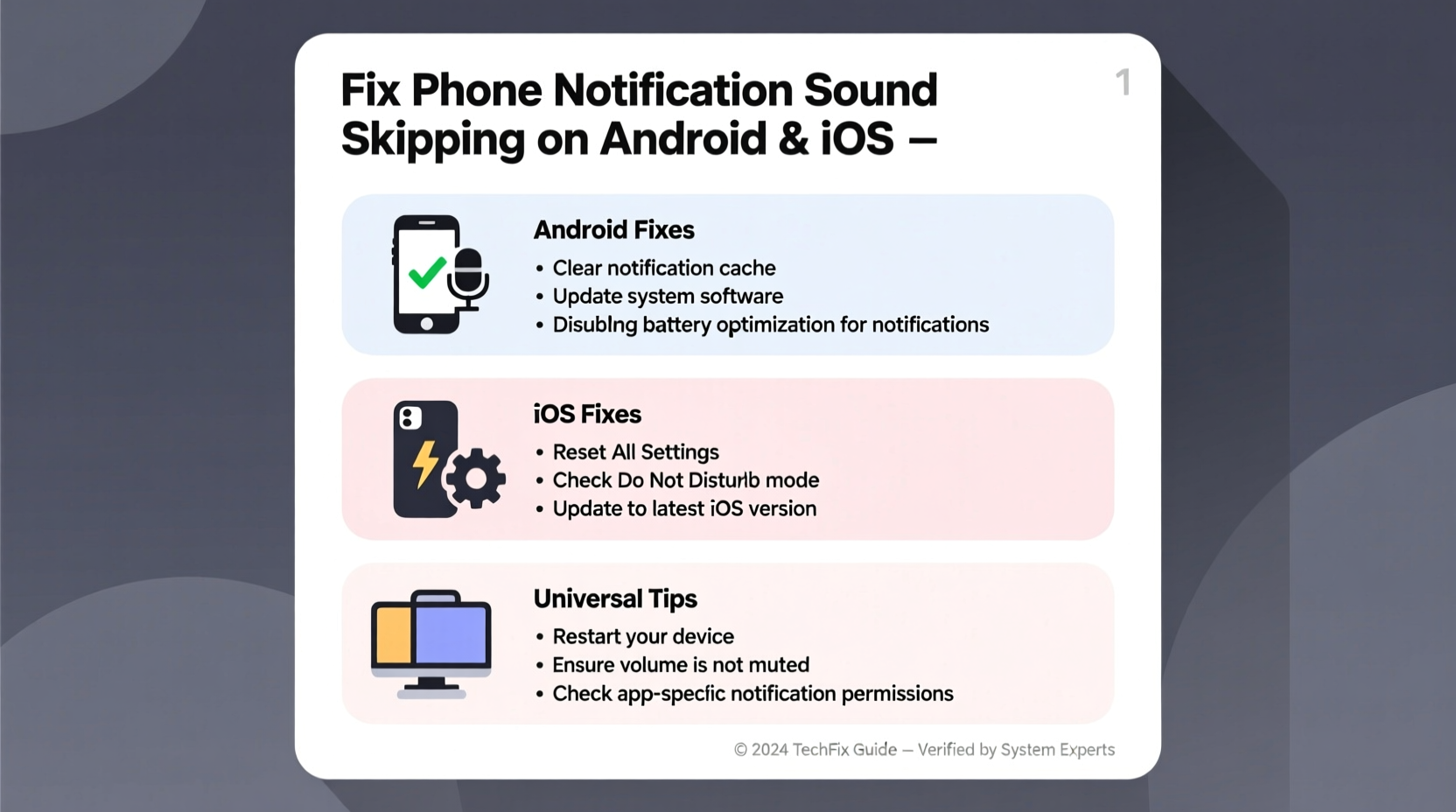
Notification sounds that skip, stutter, or cut off prematurely are rarely due to a single factor. Instead, they typically stem from overlapping system behaviors or misconfigurations. Identifying the source is the first step toward resolution.
- Audio Buffering Issues: Mobile operating systems use audio buffers to manage sound playback. When the buffer is too small or overwhelmed by other tasks, sounds may play incompletely.
- Background App Interference: Apps running in the background—especially music players, VoIP services, or voice assistants—can hijack audio focus, interrupting notifications.
- Power-Saving Modes: Aggressive battery optimization features on both Android and iOS can delay or truncate non-critical alerts to conserve energy.
- Faulty Sound Files: Corrupted or improperly encoded notification tones may fail to play correctly.
- Outdated Operating System: Bugs in older OS versions can cause audio subsystem instability.
- Bluetooth Audio Conflicts: Connected Bluetooth devices like headphones or car systems may not handle short audio clips reliably.
Step-by-Step Fixes for Android Devices
Android’s open ecosystem offers flexibility but also introduces complexity when managing system-level functions like notifications. The following sequence addresses the most frequent culprits behind skipped sounds.
- Restart Your Device: A simple reboot clears temporary memory conflicts and resets audio services. Hold the power button, select \"Restart,\" and wait 30 seconds before resuming use.
- Check Do Not Disturb & Focus Mode Settings: Navigate to Settings > Sound > Do Not Disturb. Ensure no active rules are silencing or altering notifications. Disable any scheduled modes temporarily for testing.
- Disable Battery Optimization for Messaging Apps: Go to Settings > Apps > [Your Messaging App] > Battery. Select “Unrestricted” to prevent the system from pausing background processes.
- Clear Cache Partition (Samsung & Pixel): Power off the device. Press and hold Volume Up + Power until the logo appears, then use volume keys to select “Wipe Cache Partition.” This removes corrupted temporary data without deleting personal files.
- Test with a Default Ringtone: In Settings > Sound > Notification Sound, switch to a built-in tone like “Luna” or “Serenade.” If custom ringtones skip, the file may be faulty.
- Update Apps and OS: Open the Google Play Store and update all apps, especially messaging and system utilities. Then check for OS updates under Settings > System > Software Update.
- Boot in Safe Mode: Hold the power button, long-press “Power Off,” and tap “Safe Mode.” If notifications work normally, a third-party app is interfering. Uninstall recently added apps one by one to identify the culprit.
Advanced Fix: Modify Audio Buffer Size (Root Required)
For advanced users, increasing the audio buffer via build.prop editing can reduce skipping during high-load scenarios. However, this requires root access and carries risks. Use only if familiar with system modifications.
“On heavily customized Android skins like Samsung One UI or Xiaomi MIUI, background service throttling is often the silent cause of truncated alerts.” — Rajiv Mehta, Mobile Systems Engineer at DevCore Labs
Solutions for iPhone (iOS) Users
iOS is generally more consistent with audio handling, but notification issues still occur—especially after updates or when multiple audio sources compete for control.
1. Verify Sound Settings and Haptics
Open Settings > Sounds & Haptics. Tap “Ringtone” and “Text Tone” to test each. Ensure “Change with Buttons” is enabled so volume adjustments affect alerts. Also, confirm that “Haptic Alerts” aren’t overriding sound duration.
2. Disable Low Power Mode
Low Power Mode limits background activity, including timely notification processing. Swipe down from the top-right corner (iPhone X and later) to open Control Center and disable the yellow battery icon. Alternatively, go to Settings > Battery and toggle it off.
3. Reset All Settings
If individual fixes fail, resetting system preferences—without erasing data—can resolve hidden misconfigurations. Go to Settings > General > Transfer or Reset iPhone > Reset > Reset All Settings. You’ll need to re-enter Wi-Fi passwords and reconfigure display brightness, but apps and media remain intact.
4. Check for Software Updates
Apple frequently patches audio bugs in minor iOS updates. Navigate to Settings > General > Software Update. Install any available version, preferably over Wi-Fi and with sufficient battery charge.
5. Manage Bluetooth Audio Routing
If your iPhone is connected to AirPods, a car stereo, or another Bluetooth device, the sound may be routed incorrectly or clipped due to latency. Disconnect all Bluetooth devices temporarily and test the notification again through the internal speaker.
Do’s and Don’ts: Notification Sound Best Practices
| Action | Platform | Recommendation |
|---|---|---|
| Use default notification tones | Both | Do: Reliable and optimized for quick playback. |
| Install third-party battery savers | Android | Don’t: Many aggressively kill background processes, breaking notifications. |
| Set volume via physical buttons before testing | Both | Do: Ensures sound isn’t muted or set too low accidentally. |
| Use high-bitrate MP3s as ringtones | Both | Don’t: Can cause lag; stick to 128kbps or AAC formats. |
| Keep iOS/Android updated | Both | Do: Critical for bug fixes and audio stability. |
Real-World Example: Sarah’s Work Communication Breakdown
Sarah, a project manager based in Toronto, began missing urgent Slack and email alerts despite having her iPhone set to ring. She assumed colleagues weren’t messaging her, only to discover hours later that notifications were arriving—but the sound played for less than half a second before cutting out. After testing various tones and restarting her phone, she realized the issue coincided with connecting to her car’s Bluetooth system during commutes. Even after disconnecting, iOS continued routing audio through a cached Bluetooth profile. By forgetting the car’s Bluetooth device and resetting network settings, she restored full notification playback. This case highlights how persistent Bluetooth pairing data can silently interfere with sound output.
Troubleshooting Checklist
Follow this checklist systematically to eliminate common causes:
- ✅ Restart your phone
- ✅ Test notification sound in airplane mode
- ✅ Ensure volume is up and not on vibrate/silent
- ✅ Disable Do Not Disturb or Focus modes
- ✅ Turn off Low Power/Battery Saver mode
- ✅ Disconnect all Bluetooth devices
- ✅ Switch to a default notification tone
- ✅ Update your operating system and apps
- ✅ Clear cache (Android) or reset settings (iOS)
- ✅ Boot into Safe Mode (Android) to check for app conflicts
Frequently Asked Questions
Why does my notification sound play only once and then stop working?
This often occurs when an app crashes after sending the alert or when the system fails to reload the sound file. It can also happen if the notification policy restricts repeated alerts within a time window. Rebooting usually resolves temporary glitches.
Can a case or screen protector cause sound skipping?
No, physical accessories do not affect digital audio playback. However, a poorly designed case might muffle sound output, creating the illusion of skipping. Test by removing the case and playing the notification in a quiet room.
Will resetting my phone fix notification sound issues?
A full factory reset can resolve deep-seated software corruption, but it should be a last resort. Always try resetting settings first (e.g., “Reset All Settings” on iPhone or clearing app caches on Android) to preserve your data.
Conclusion: Regain Control Over Your Alerts
Notification sound glitches are more than just annoying—they can impact your reliability, productivity, and peace of mind. Whether you’re on Android or iOS, the solutions lie in understanding how audio priority, power management, and connectivity interact behind the scenes. By methodically testing configurations, eliminating interference, and keeping software up to date, you can ensure every alert is heard clearly and completely.




 浙公网安备
33010002000092号
浙公网安备
33010002000092号 浙B2-20120091-4
Comments
No comments yet. Why don't you start the discussion?