
It’s a familiar frustration: you’re waiting for an important message, email, or alert, but your phone stays silent—no chime, no buzz, nothing. You check the screen, and sure enough, the notification is there. But why didn’t it make a sound? This inconsistency can be more than just annoying; in critical situations, missed alerts can lead to overlooked deadlines, miscommunications, or even safety concerns.
The reasons behind silent notifications are rarely random. They stem from a combination of software settings, power-saving features, app-specific configurations, and sometimes hardware behavior. Understanding the root causes—and how to fix them—is essential for anyone who relies on their phone to stay connected.
Common Causes of Missing Notification Sounds
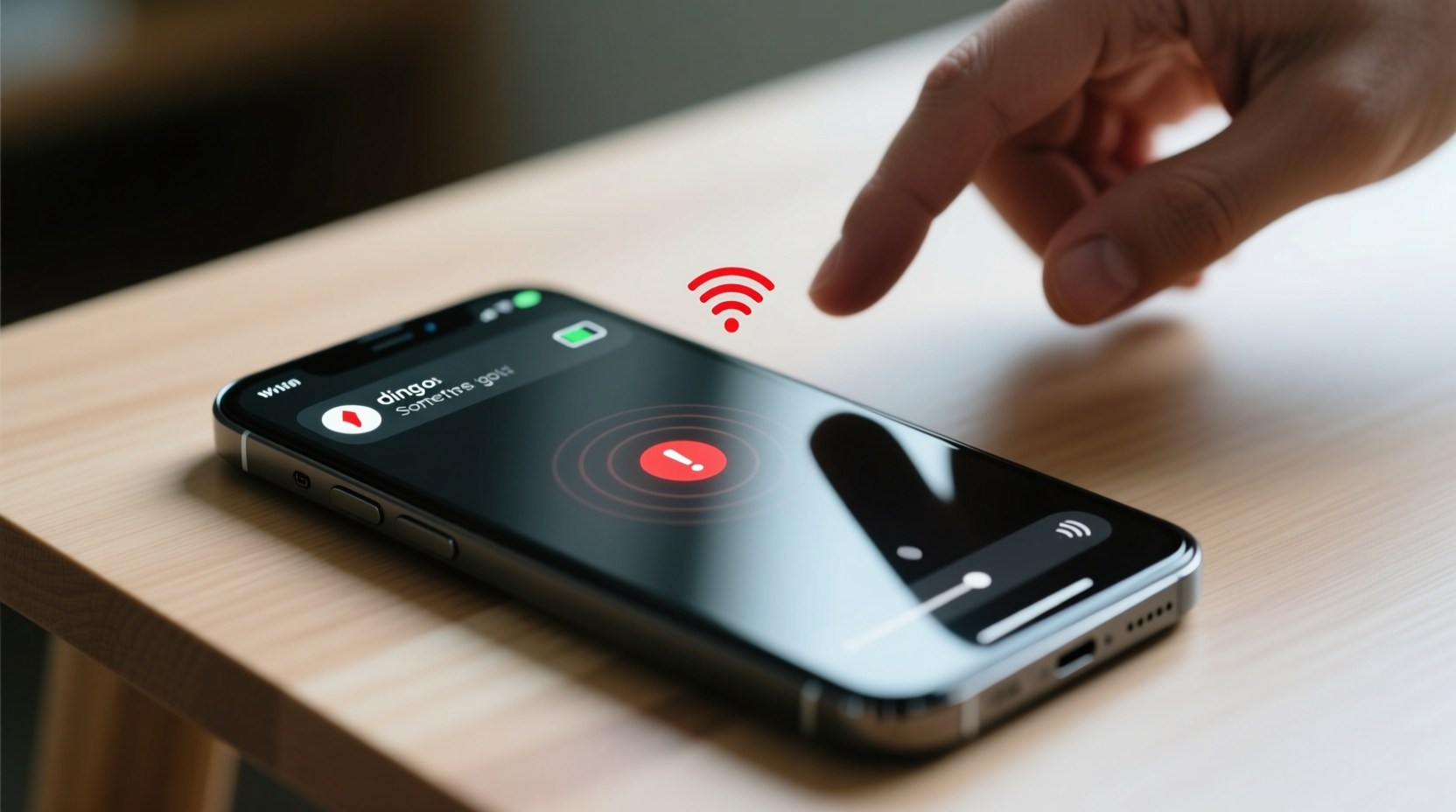
Notification sounds failing to play isn’t usually due to a single flaw in your device. Instead, multiple overlapping systems manage alerts, and a breakdown in any one layer can silence your phone unexpectedly.
- Muted or Do Not Disturb mode: The most obvious culprit. If your phone is in silent mode, DND, or Focus mode (on iOS), sounds will be suppressed—even if vibrations are still active.
- App-specific notification settings: Many apps have individual sound settings. A messaging app might be set to “No Sound” while still displaying banners.
- Battery optimization features: Both Android and iOS aggressively limit background activity to save power. This can delay or mute notifications from apps not deemed “priority.”
- Software bugs or glitches: Operating system updates can introduce bugs that interfere with audio routing or notification queuing.
- Volume level mismatches: Your media volume might be high, but your notification volume could be turned down or off entirely.
- Wi-Fi/Bluetooth interference: In rare cases, Bluetooth headsets or car audio systems may intercept notification sounds before they reach your phone’s speaker.
How Operating Systems Handle Notifications
Modern smartphones use complex prioritization systems to manage alerts. Android’s Notification Manager and iOS’s Notification Center don’t treat all alerts equally. Apps are categorized by importance, user engagement, and developer-defined urgency levels.
For example, a text message from a close contact may trigger a loud ringtone, while a social media update might only show silently in the notification shade. Over time, if you consistently ignore certain app alerts, the system may automatically downgrade their priority—sometimes without informing you.
“Smartphones now act like personal assistants, filtering noise rather than broadcasting everything. That means users must actively configure what deserves attention.” — Dr. Lena Torres, Mobile Usability Researcher at Stanford HCI Group
This intelligent filtering is helpful in theory but problematic when critical messages fall through the cracks. The key is understanding how your OS interprets urgency and adjusting accordingly.
Troubleshooting Checklist: Fix Silent Notifications
Follow this step-by-step checklist to diagnose and resolve inconsistent notification sounds. Complete each item systematically to isolate the cause.
- Check that the phone isn’t in Silent, Vibrate, or Do Not Disturb mode.
- Verify the notification volume is turned up (separate from media or alarm volume).
- Open Settings > Sound & Vibration (Android) or Sounds & Haptics (iOS) and test the default alert tone.
- Go to Settings > Notifications and review the affected app’s settings—ensure “Sounds” are enabled.
- Disable battery optimization for critical apps (especially messaging or productivity tools).
- Ensure the app is allowed to run in the background.
- Restart the phone to clear temporary software glitches.
- Update the operating system and the relevant app to the latest version.
- Clear the app cache (Android: Settings > Apps > [App Name] > Storage > Clear Cache).
- Reinstall the app if problems persist.
Advanced Fixes for Persistent Issues
If standard troubleshooting fails, deeper intervention may be required:
- Reset All Settings: On iPhone, go to Settings > General > Transfer or Reset iPhone > Reset > Reset All Settings. This restores system preferences without deleting data.
- Check Accessibility Settings: Some hearing aid modes or mono audio settings can affect sound output.
- Test Speaker Functionality: Play a video or music file to confirm the speaker works. If no sound plays, the issue may be hardware-related.
- Inspect Connected Devices: Disconnect Bluetooth headphones, speakers, or car systems to see if notifications resume on the phone’s internal speaker.
Platform-Specific Differences: Android vs. iPhone
While both platforms aim to deliver timely alerts, their approaches differ significantly. These differences explain why some users experience inconsistent behavior depending on their device.
| Factor | Android | iPhone |
|---|---|---|
| Background App Limits | Aggressive battery optimizations often kill background processes unless whitelisted. | More controlled multitasking; apps suspended but reactivated quickly upon trigger. |
| Notification Channels (Android) | Apps can create multiple channels (e.g., Promotions, Alerts), each with separate sound settings. | No equivalent; simpler per-app notification settings. |
| Focus Modes | Customizable DND profiles based on time, location, or app usage. | Focus modes integrated deeply with Calendar, Messages, and third-party apps. |
| Sound Interruptions | Media playback may block transient notification tones unless marked urgent. | iOS prioritizes alerts over media unless explicitly silenced via Control Center. |
| User Control Level | Highly customizable but complex; easy to misconfigure. | Simpler interface, fewer options, less room for error—but also less flexibility. |
Understanding these distinctions helps explain why a WhatsApp alert might play instantly on an iPhone but get delayed on a budget Android phone with strict battery saver rules.
Real-World Example: The Case of Delayed Work Messages
Sarah, a project manager in Toronto, began missing urgent Slack messages from her remote team. She saw the notifications appear on her lock screen but heard no sound. At first, she assumed her phone was faulty. After weeks of frustration, she discovered the root cause: Samsung’s Adaptive Battery feature had classified Slack as “low usage” because she typically opened it only once every few hours. As a result, background sync was limited, and notifications arrived minutes late—or silently.
She resolved the issue by adding Slack to her device’s “Sleeping Apps” exemption list and enabling “High Accuracy” mode in battery settings. Additionally, she adjusted Slack’s notification channel priorities within the app itself, ensuring critical messages bypassed power-saving delays.
Sarah’s experience highlights how modern phones balance performance and efficiency—but at the cost of predictability. Without proactive configuration, even mission-critical apps can be deprioritized.
Best Practices to Prevent Silent Notifications
Prevention is far more effective than constant troubleshooting. Implement these habits to maintain reliable alert delivery:
- Whitelist essential apps: Add messaging, email, calendar, and emergency apps to your battery optimization whitelist.
- Use custom ringtones: Assign distinct, attention-grabbing sounds to high-priority contacts or apps.
- Enable lock screen previews: Ensures you see notifications even if you don’t hear them.
- Set up repeat alerts: On iPhone, enable “Repeat Alerts” so missed notifications replay until acknowledged.
- Regularly audit notification settings: Monthly reviews prevent outdated permissions from causing issues.
Frequently Asked Questions
Why do some notifications make sound and others don’t?
This usually happens because apps use different notification channels with separate sound settings. For example, a banking app might assign transaction alerts to a “Priority” channel with sound, while promotional offers go to a silent “Marketing” channel. Check the app’s notification settings to adjust each category individually.
Can a software update cause notification sounds to stop working?
Yes. OS updates occasionally reset notification permissions or introduce bugs in audio handling. After an update, recheck your sound settings and app permissions. Developers often release patches within days to address such regressions.
Do dark mode or screen timeout settings affect notifications?
No, visual themes like dark mode don’t impact sound. However, screen timeout can make it seem like notifications aren’t arriving—if the screen turns off too quickly, you might miss the visual cue even if the sound played. Consider extending auto-lock time temporarily during high-alert periods.
Conclusion: Take Control of Your Alerts
Your phone is meant to keep you informed, not leave you guessing. When notification sounds fail inconsistently, it undermines trust in a device you rely on daily. The solution lies not in replacing your phone, but in mastering its settings. From disabling aggressive battery saving to fine-tuning app-specific alerts, small adjustments can restore reliability.
Technology should serve you—not the other way around. Don’t accept silent notifications as inevitable. Audit your settings, apply the fixes outlined here, and reclaim control over how and when you receive alerts. Your peace of mind depends on it.




 浙公网安备
33010002000092号
浙公网安备
33010002000092号 浙B2-20120091-4
Comments
No comments yet. Why don't you start the discussion?