
It’s a familiar scenario: you’re in the middle of an important call when your phone suddenly feels like it’s about to melt in your hand. The screen dims, performance slows, and a warning pops up—“Device overheating.” While occasional warmth is normal, consistent overheating during calls signals deeper issues that can affect battery life, system stability, and even hardware longevity.
Smartphones are designed to manage heat through internal thermal regulation, but certain conditions—especially prolonged voice or video calls—can push them beyond their limits. The good news? Most causes are preventable or fixable with simple adjustments. Understanding what triggers overheating allows you to take control before permanent damage occurs.
Why Phones Overheat During Calls: The Science Behind It
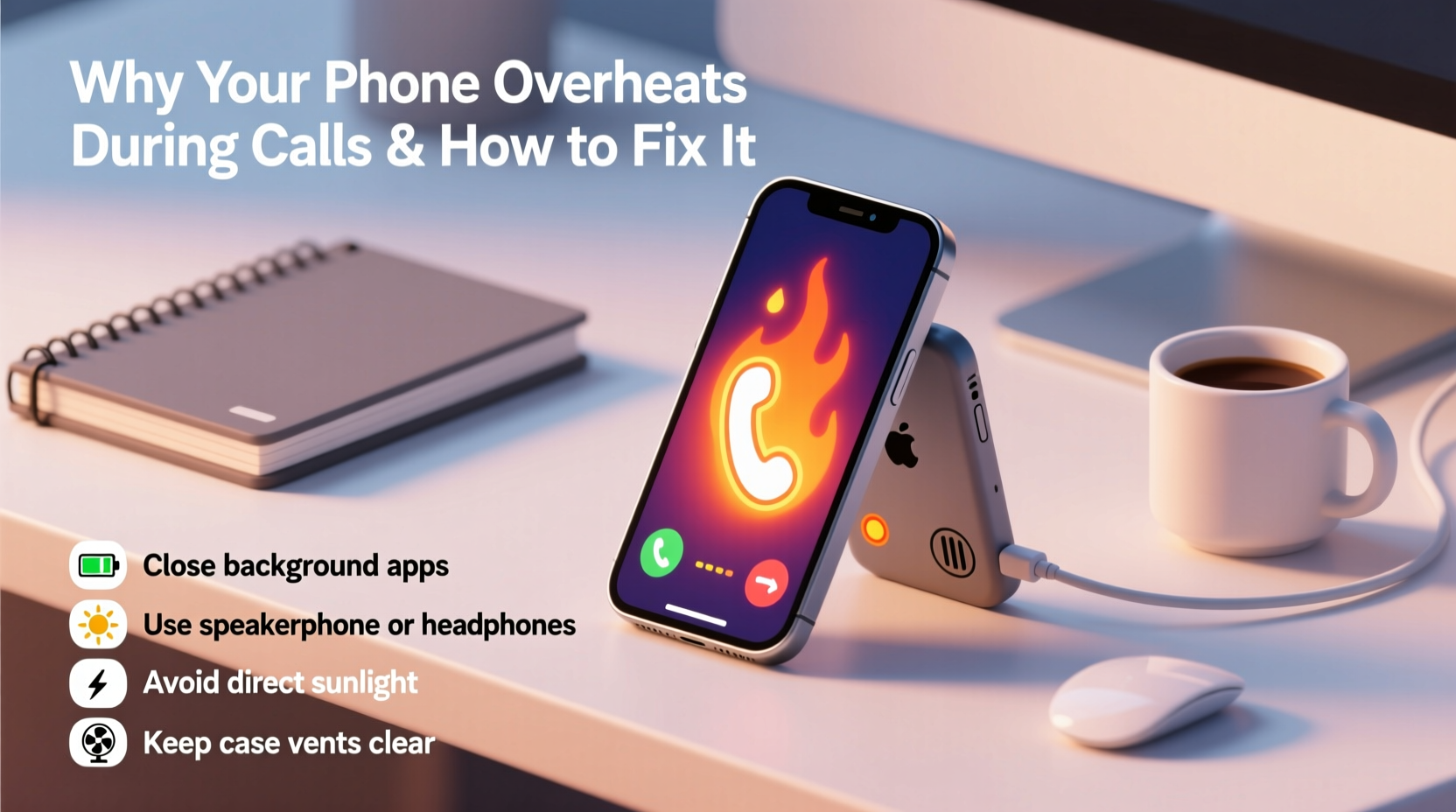
A smartphone generates heat whenever its components work hard. During a call, multiple systems activate simultaneously: the processor manages audio encoding/decoding, the radio module maintains cellular or Wi-Fi connectivity, the microphone and speaker operate continuously, and if it's a video call, the camera and display remain active for extended periods. This convergence of tasks increases power consumption and, consequently, heat production.
The primary sources of heat during calls include:
- Processor (CPU/GPU): Handles signal processing, background apps, and multimedia functions.
- Radio Transmitters (Cellular, Wi-Fi, Bluetooth): Work harder in areas with weak signals, constantly searching for stable connections.
- Battery: Chemical reactions inside the battery generate heat, especially when charging or under high load.
- Display and Camera: In video calls, both remain on at full brightness, contributing significantly to thermal output.
Modern phones use thermal throttling to reduce performance when temperatures rise, protecting internal components. However, frequent overheating can degrade the battery faster, shorten device lifespan, and lead to unexpected shutdowns.
“Continuous exposure to high temperatures accelerates lithium-ion battery degradation. Even short-term overheating episodes can cumulatively reduce capacity by up to 20% over six months.” — Dr. Alan Reyes, Mobile Hardware Engineer at TechSustain Labs
Common Causes of Call-Related Overheating
Not all overheating is due to hardware failure. Often, user behavior or environmental factors play a major role. Below are the most common contributors:
Poor Signal Strength
When your phone has weak reception, it boosts transmission power to maintain a connection. This extra effort from the cellular modem produces significant heat. Being in basements, elevators, or rural zones often forces the phone into “signal hunting” mode, increasing thermal load during calls.
Background Apps Running Simultaneously
Many users unknowingly run resource-heavy apps in the background while on calls—navigation, music streaming, or social media refresh cycles. These apps consume CPU cycles and memory, compounding the thermal stress caused by the call itself.
Using the Phone While Charging
Charging generates heat, and combining it with a long call doubles the thermal burden. Lithium-ion batteries are particularly sensitive to concurrent charging and high usage, which can push internal temperatures past safe thresholds.
Thick or Non-Breathable Cases
Silicone or rubber cases may offer protection, but they also trap heat. A case that fits too tightly around the phone prevents proper airflow, reducing the device’s ability to dissipate heat naturally.
Outdated Software or Buggy Apps
Firmware bugs or outdated operating systems can cause inefficient power management. For example, a bug in the telephony stack might keep the radio active longer than necessary, leading to unnecessary heating.
Step-by-Step Guide to Cool Down Your Phone During a Call
If your phone starts overheating mid-call, immediate action can prevent damage and restore usability. Follow this timeline to respond effectively:
- Pause the Call (If Possible): Switch to speakerphone or end the call briefly. Even 30 seconds allows some heat dissipation.
- Remove the Case: Take off any protective cover to expose the phone body and improve air cooling.
- Turn Off Unnecessary Features: Disable Bluetooth, GPS, and hotspot functions that aren’t needed.
- Lower Screen Brightness: Reduce brightness manually or enable auto-brightness to cut down display heat.
- Move to a Cooler Environment: Step out of direct sunlight or away from heat sources like radiators or car dashboards.
- Do Not Place in Refrigerator or Freezer: Rapid temperature changes can cause condensation inside the phone, leading to corrosion or short circuits.
- Wait Before Resuming Use: Allow the phone to cool for at least 5–10 minutes before restarting the call.
Once cooled, monitor whether the issue recurs. If yes, proceed with preventive measures outlined below.
Prevention Tips and Long-Term Fixes
Preventing overheating is more effective—and less stressful—than reacting to it. Implement these practical strategies to keep your phone running smoothly during calls:
Use Wi-Fi Calling When Signal Is Weak
Wi-Fi calling reduces reliance on the cellular radio, which is typically the biggest heat contributor in low-signal areas. Enable this feature in your phone settings (under Phone or Cellular options) and connect to a stable Wi-Fi network.
Limit Background Activity
Close unused apps before making long calls. On iOS, double-click the home button or swipe up from the bottom; on Android, use the Recent Apps menu. Also, disable auto-refresh for email and social media apps in settings.
Keep Software Updated
Manufacturers regularly release updates that optimize thermal management and fix known bugs. Check for OS updates monthly under Settings > System > Software Update (Android) or Settings > General > Software Update (iOS).
Optimize Battery Health
Aging batteries lose efficiency and generate more heat. Keep your battery between 20% and 80% charge when possible, avoid overnight charging, and replace the battery if health drops below 80% (available in iPhone Battery Health settings or via third-party apps on Android).
Switch to Airplane Mode Temporarily
If you're expecting a long call and have a strong Wi-Fi connection, turn on Airplane Mode and re-enable Wi-Fi. This disables cellular, Bluetooth, and GPS radios, drastically reducing heat generation.
| Tactic | Effectiveness | Effort Required |
|---|---|---|
| Use Wi-Fi Calling | High | Low |
| Close Background Apps | Medium-High | Low |
| Remove Phone Case During Calls | Medium | Low |
| Update Operating System | High | Medium |
| Replace Old Battery | Very High | High |
Real-World Example: How Sarah Fixed Her Overheating Issue
Sarah, a customer support representative, spent 4–6 hours daily on her Android phone. After two months, she noticed her device shutting down during calls, especially in the afternoons. Initially, she assumed it was a battery problem and considered buying a new phone.
Instead, she tested a few changes: first, she removed her thick silicone case during shifts. Then, she disabled live wallpapers and background sync for non-essential apps. She also switched to Wi-Fi calling since her home office had poor cellular reception. Finally, she started using a desk stand with a fan nearby for passive cooling.
Within a week, the overheating stopped entirely. Her phone no longer throttled during calls, and battery drain improved by nearly 30%. Sarah saved hundreds by avoiding an early upgrade—all through small, deliberate fixes.
Checklist: Prevent Phone Overheating During Calls
Use this actionable checklist to minimize overheating risks:
- ✅ Enable Wi-Fi calling in low-signal areas
- ✅ Close all unnecessary apps before starting a call
- ✅ Remove thick or insulating phone cases during long conversations
- ✅ Avoid using the phone while charging, especially for calls
- ✅ Keep your OS and carrier settings updated
- ✅ Monitor battery health and replace if degraded
- ✅ Use speakerphone or headphones to reduce direct contact and improve airflow
- ✅ Limit call duration in hot environments (e.g., inside parked cars)
Frequently Asked Questions
Is it dangerous if my phone gets hot during a call?
Occasional warmth is normal, but sustained high temperatures—especially above 45°C (113°F)—can damage internal components over time. Frequent overheating may lead to battery swelling, reduced lifespan, or unexpected shutdowns. If your phone becomes uncomfortably hot, stop using it immediately and let it cool down.
Can malware cause my phone to overheat during calls?
Yes. Malicious apps can run hidden processes that consume CPU and network resources without your knowledge. Signs include rapid battery drain, excessive heat even when idle, and unfamiliar apps appearing. Install reputable antivirus software and avoid downloading apps from unknown sources.
Does screen size affect overheating during calls?
Indirectly. Larger screens require more power, especially at high brightness, which contributes to overall heat. However, during standard voice calls, the display impact is minimal unless the screen stays on (e.g., during video calls). For long calls, turning off the screen or using voice-only mode helps reduce thermal load.
Conclusion: Take Control of Your Phone’s Temperature
Your phone doesn’t need to run hot to stay connected. Overheating during calls is a warning sign—not an inevitability. By understanding the triggers and applying practical fixes, you can protect your device’s performance, extend its lifespan, and enjoy uninterrupted communication.
Start today: remove that bulky case, update your software, and be mindful of where and how you use your phone. Small habits compound into big results. A cooler phone means a longer-lasting battery, smoother operation, and fewer frustrations.




 浙公网安备
33010002000092号
浙公网安备
33010002000092号 浙B2-20120091-4
Comments
No comments yet. Why don't you start the discussion?