
It’s a common frustration: you’re in the middle of an important Zoom meeting or catching up with family on FaceTime, and suddenly your phone becomes uncomfortably hot. The screen dims, the call stutters, and a warning message may even appear—“Device overheating.” You’re not alone. Millions of smartphone users experience this issue daily, especially as video calling has become a staple of personal and professional communication.
While occasional warmth is normal, persistent overheating can degrade battery life, slow performance, and even cause long-term hardware damage. Understanding why your phone heats up during video calls—and knowing how to respond—is essential for maintaining device health and ensuring smooth digital interactions.
The Science Behind Phone Overheating During Video Calls
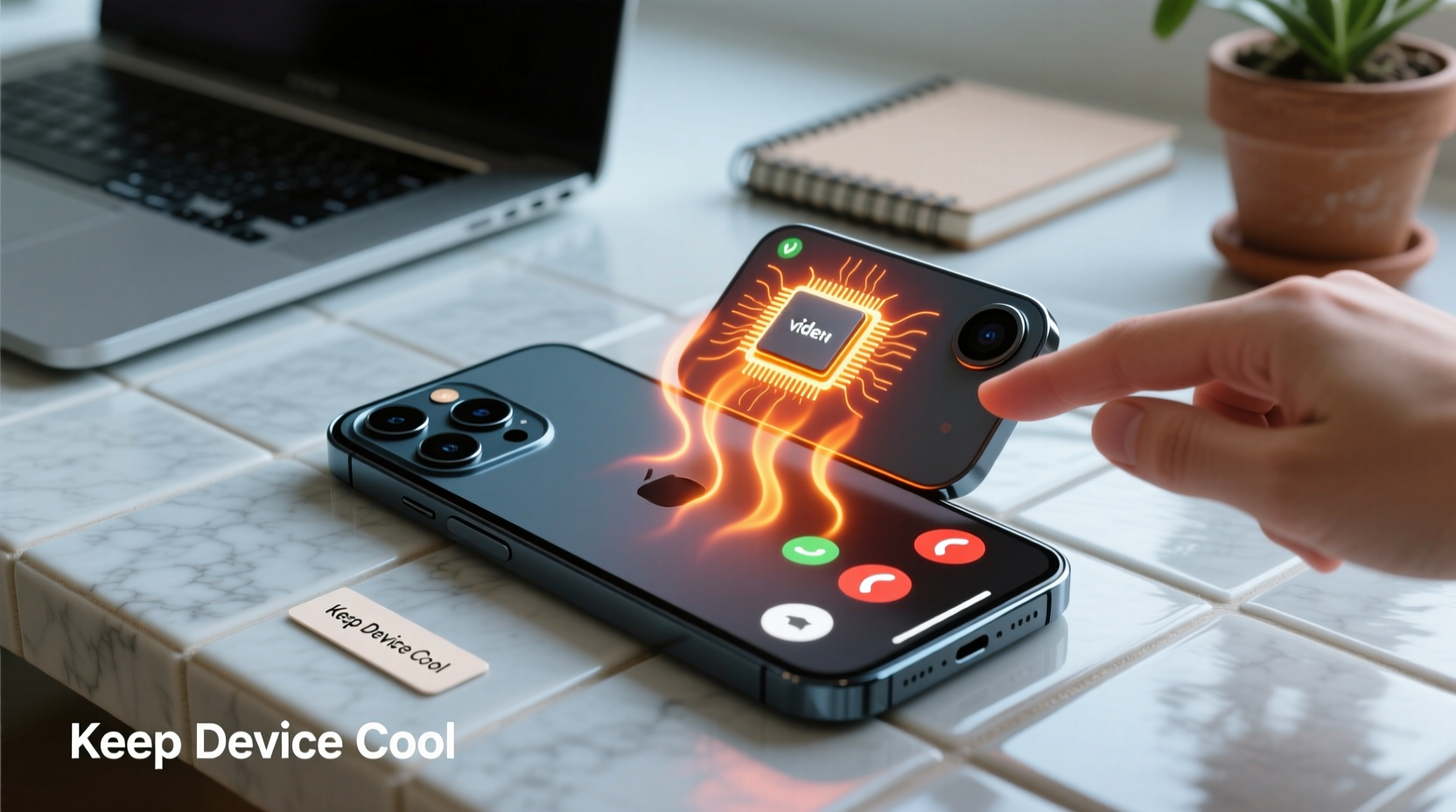
Video calling is one of the most resource-intensive tasks a smartphone performs. Unlike passive activities like reading emails or browsing static web pages, video calls demand simultaneous operation across multiple high-power components:
- Camera sensors: Both front and rear cameras activate, processing real-time video at high resolution.
- Microphones and speakers: Audio input and output require continuous signal processing.
- Processor (CPU/GPU): Encoding and decoding video streams consume significant computational power.
- Display: Brightness often increases automatically in low-light conditions, drawing more energy.
- Network radios: Wi-Fi or cellular data work at full capacity to transmit large amounts of data with minimal latency.
All these systems generate heat as they operate. Under normal circumstances, that heat dissipates naturally through the phone’s aluminum or glass body. But when usage is prolonged or environmental factors interfere, heat builds up faster than it can escape.
“Modern smartphones are essentially pocket-sized computers. When you run multiple high-demand processes simultaneously—like video encoding, network streaming, and display rendering—the thermal load can exceed the device’s cooling capacity.” — Dr. Rajiv Mehta, Electronics Thermal Management Researcher, MIT
Common Causes of Excessive Heat During Video Calls
Not all overheating is created equal. Some causes stem from user behavior, others from software inefficiencies or hardware limitations. Recognizing the root cause helps determine the right solution.
1. Prolonged Call Duration
Calls lasting more than 30–60 minutes continuously push system resources. The longer the call, the more heat accumulates, especially if background apps are also running.
2. Poor Network Conditions
Weak Wi-Fi or spotty cellular signals force your phone to boost its radio output. This increased transmission power generates extra heat. Video calls may also buffer or rebuffer, causing the processor to work harder.
3. High Screen Brightness
A bright screen, particularly on OLED displays, consumes substantial power. Many users keep brightness maxed during daytime calls, accelerating temperature rise.
4. Background Apps and Processes
Even if you don’t see them, apps running in the background—especially those syncing data, updating, or using GPS—add to CPU load and heat production.
5. Case Insulation
Silicone, leather, or thick plastic cases act like blankets, trapping heat inside. While they protect against drops, they hinder natural heat dissipation.
6. Outdated Software or Buggy Apps
Firmware bugs or inefficient code in outdated operating systems or video calling apps can cause unnecessary CPU cycles, leading to higher energy consumption and heat.
How to Cool Down Your Phone Safely (Without Risking Damage)
When your phone gets too hot, immediate action is necessary—but not all cooling methods are safe. Placing your phone in a freezer or under cold water might seem tempting, but such drastic measures can cause condensation inside the device, leading to short circuits or corrosion.
Instead, use gradual, controlled techniques to reduce temperature without risking hardware failure.
Step-by-Step Cooling Procedure
- End the call immediately – Stop the primary heat source.
- Turn off the screen – Press the power button to lock the display.
- Remove the case – Allow direct air contact with the phone’s body.
- Move to a cooler environment – Step into shade or an air-conditioned room.
- Place on a hard, cool surface – A wooden table or marble countertop helps draw heat away.
- Aim a fan gently at the phone – Airflow enhances passive cooling.
- Wait 10–15 minutes – Let the device cool naturally before resuming use.
Preventive Measures to Reduce Overheating
Prevention is far more effective than reaction. By adjusting habits and optimizing settings, you can significantly reduce the likelihood of overheating during future calls.
Optimize Video Call Settings
- Lower video resolution in app settings (e.g., switch from 1080p to 720p).
- Turn off HD video mode if your connection is stable enough for standard quality.
- Use audio-only mode when video isn’t necessary.
Manage Environmental Factors
- Avoid direct sunlight or hot interiors (e.g., cars parked in sun).
- Keep the phone away from heat sources like radiators or laptops.
- Use a clip-on shade or sunshade if outdoors.
Maintain Device Health
- Update your OS and apps regularly—patches often include performance and thermal fixes.
- Restart your phone weekly to clear memory and stop rogue processes.
- Clear cache files monthly to reduce background strain.
Use External Accessories Wisely
- Switch to a lightweight or ventilated case during long calls.
- Consider using wired headphones to reduce Bluetooth radio load.
- Use a small desk fan nearby—not blowing directly on the phone, but improving ambient airflow.
| Do’s | Don’ts |
|---|---|
| Remove case during long calls | Leave phone in thick case while calling |
| Use Wi-Fi instead of weak cellular signal | Force 5G in areas with poor coverage |
| Lower screen brightness manually | Keep auto-brightness disabled in bright light |
| Close unused apps before starting a call | Run gaming or navigation apps simultaneously |
| Take breaks every 45–60 minutes | Hold back-to-back hour-long meetings |
Real-World Example: How a Remote Worker Fixed Chronic Overheating
Sophia, a freelance graphic designer based in Phoenix, Arizona, relied heavily on video calls for client check-ins. During summer months, her phone would routinely overheat after just 20 minutes on Zoom, forcing her to pause meetings and wait for cooldown.
Initially, she blamed the desert heat. But after tracking her usage, she realized several contributing factors: she used a heavy silicone case, kept screen brightness at 100%, and ran design apps in the background. She also conducted calls near a south-facing window, where afternoon sun heated the room to over 90°F (32°C).
She implemented a simple four-step fix:
- Switched to a slim, metal-backed case that improved heat dispersion.
- Reduced screen brightness to 60% and enabled adaptive brightness.
- Created a “meeting mode” shortcut to close all non-essential apps.
- Relocated her workspace to a shaded corner with a small USB fan.
The result? Her phone no longer exceeded safe temperatures—even during two-hour calls. Battery life improved by nearly 15%, and she reported fewer app crashes.
“Thermal management isn’t just about comfort—it’s about reliability. A cooler phone performs better and lasts longer.” — Lena Park, Senior Mobile Engineer at a leading smartphone manufacturer
Frequently Asked Questions
Can overheating permanently damage my phone?
Yes. Repeated exposure to high temperatures can degrade the lithium-ion battery, reducing its maximum capacity over time. It can also weaken internal adhesives, affect display responsiveness, and shorten the lifespan of the processor. Modern phones have thermal throttling to protect themselves, but chronic overheating still takes a toll.
Is it safe to keep using my phone after it overheats?
Once the device cools down to normal operating temperature (usually below 35°C or 95°F), it’s generally safe to resume use. However, if overheating occurs frequently, investigate the underlying cause. Persistent warnings should not be ignored—they indicate a pattern that could lead to hardware issues.
Does using dark mode help prevent overheating?
On OLED or AMOLED screens, yes. Dark mode uses fewer pixels at full brightness, which reduces power consumption and heat generation. While the effect is modest, every bit helps during extended video sessions. On LCD screens, the benefit is negligible.
Checklist: Prevent Overheating During Your Next Video Call
- ✅ Close unnecessary apps before starting the call
- ✅ Remove thick or insulating phone case
- ✅ Lower screen brightness to 50–70%
- ✅ Connect to a strong Wi-Fi network (avoid weak cellular)
- ✅ Position phone in a shaded, well-ventilated area
- ✅ Use headphones to reduce Bluetooth and speaker load
- ✅ Limit call duration to 45 minutes with 10-minute breaks
- ✅ Ensure OS and calling app are up to date
- ✅ Keep ambient room temperature moderate
- ✅ Monitor phone temperature by touch every 15–20 minutes
Conclusion: Stay Cool, Stay Connected
Your phone doesn’t have to boil to keep you connected. Overheating during video calls is a solvable problem—one rooted in physics, usage patterns, and smart habits. By understanding what drives thermal stress and applying practical cooling and prevention strategies, you can maintain peak performance without risking your device’s longevity.
Start small: remove your case during long calls, dim the screen, and choose your environment wisely. These minor adjustments yield major results over time. Share your own tips in the comments—your experience could help someone else avoid a melted meeting or a fried phone.




 浙公网安备
33010002000092号
浙公网安备
33010002000092号 浙B2-20120091-4
Comments
No comments yet. Why don't you start the discussion?