
Smartphones are powerful tools, but they’re not immune to stress. If your phone heats up significantly when using specific apps—like games, video editors, or social media platforms—it’s more than just discomfort. Excessive heat can degrade battery life, slow performance, and even cause long-term hardware damage. Understanding why this happens is the first step toward protecting your device. The issue isn’t random; it’s a direct result of how modern smartphones manage power, processing demands, and thermal regulation under load.
Heat generation in phones is normal to a degree—especially during intensive tasks—but persistent or extreme heating signals inefficiencies or poor usage habits. This article breaks down the technical causes behind app-induced overheating, identifies high-risk applications, and provides actionable strategies to keep your phone cool and functioning optimally.
The Science Behind Phone Overheating
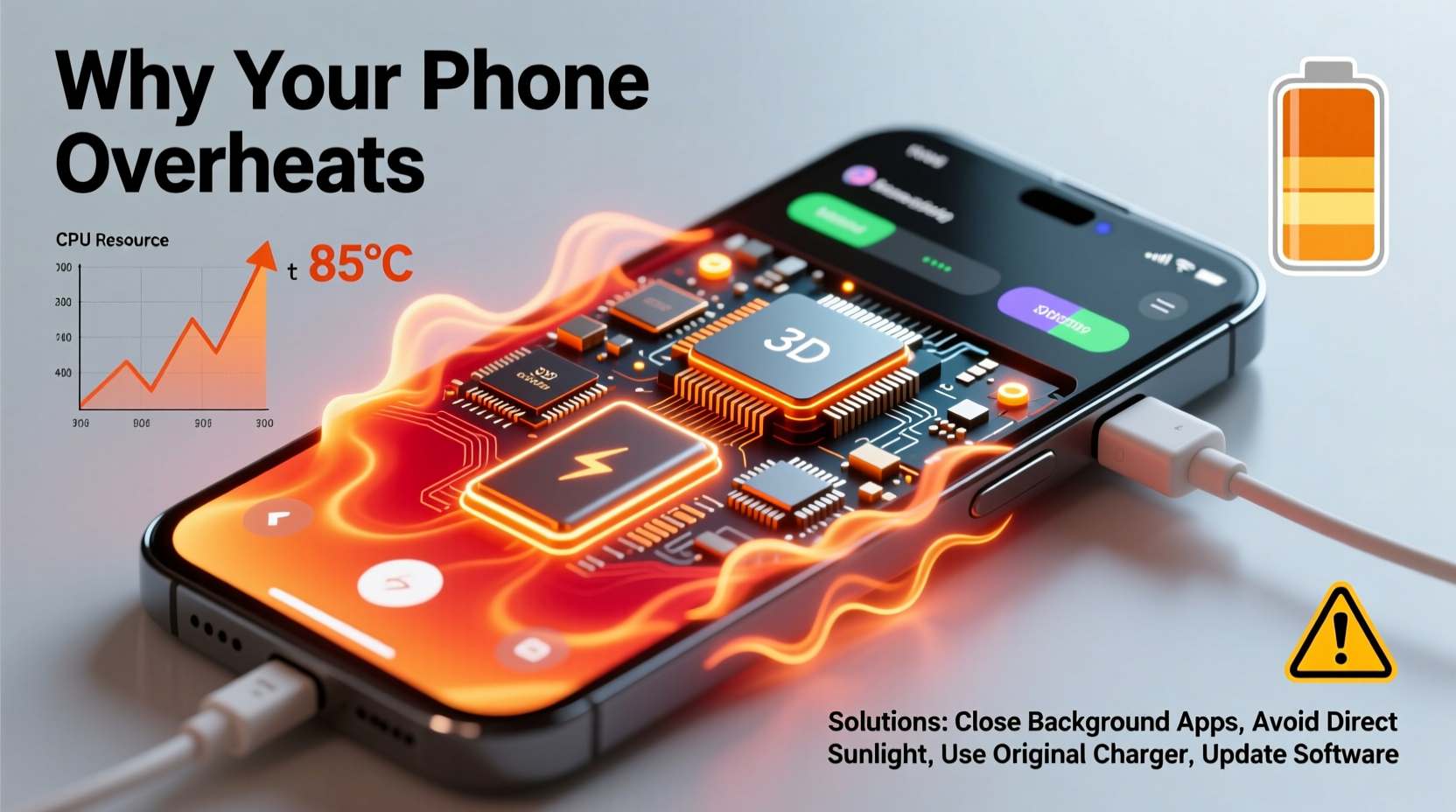
Every smartphone contains a system-on-a-chip (SoC), which integrates the CPU, GPU, memory, and other components into a single unit. When you open an app, especially one that requires real-time rendering, data processing, or constant connectivity, the SoC works harder. Increased workload means higher electrical current, which generates heat as a byproduct.
Unlike desktop computers with large heatsinks and fans, smartphones rely on passive cooling—metal frames, internal thermal pads, and limited airflow. As a result, heat builds up quickly in confined spaces. Apps that push multiple components simultaneously—such as GPS, camera, internet, and graphics processing—compound this effect.
For example, playing a 3D mobile game like Genshin Impact forces the GPU to render complex scenes at high frame rates while the CPU manages game logic, audio, and network sync. Meanwhile, the display runs at full brightness, the battery discharges rapidly, and the radio module maintains a stable Wi-Fi or cellular connection. All these systems generate heat, and together, they can raise internal temperatures beyond safe thresholds.
“Thermal throttling is a safety mechanism, but frequent overheating still accelerates component aging.” — Dr. Lin Zhao, Mobile Hardware Engineer at a leading semiconductor firm
Manufacturers design phones with thermal throttling: when temperatures rise too high, the processor slows down to reduce heat output. While this prevents immediate damage, it leads to lag, frame drops, and a frustrating user experience. Repeated exposure to high temperatures can also degrade lithium-ion batteries, reducing their capacity over time.
Which Apps Are Most Likely to Cause Overheating?
Not all apps are equal when it comes to resource consumption. Some are optimized for efficiency, while others demand maximum performance at the cost of energy and heat. Here are the most common categories of heat-inducing apps:
- Gaming apps: High-resolution 3D games with continuous rendering are the top culprits.
- Video editing and rendering tools: Processing 4K footage or applying effects uses both CPU and GPU heavily.
- Streaming services: Watching HD or 4K videos for extended periods keeps the screen, processor, and network active.
- Augmented reality (AR) apps: These use the camera, sensors, and graphics engine simultaneously.
- Social media apps with auto-play video: TikTok, Instagram Reels, and YouTube Shorts constantly load and play video content.
- Navigation apps: Real-time GPS tracking, voice guidance, and map rendering create sustained load.
Common Causes of App-Induced Overheating
While some heat is expected during heavy use, excessive warming often points to underlying issues. Here are the primary contributors:
1. Poor App Optimization
Some apps are poorly coded, failing to release system resources when idle. For example, an app might continue polling location data or refreshing content in the background, keeping the CPU active unnecessarily. Developers who don’t follow platform-specific best practices often ship bloated, inefficient software.
2. Outdated Software
Running old versions of apps or operating systems can lead to compatibility issues and inefficiencies. Updates often include performance improvements and bug fixes that reduce resource strain.
3. Background Processes and Bloatware
Many phones come preloaded with unused apps that run in the background. Even if you don’t open them, they may sync data, show ads, or update content, contributing to cumulative heat buildup.
4. Charging While Using Demanding Apps
Using your phone intensively while charging forces the battery to handle both input (charging) and output (powering the device). This dual load increases resistance and heat production significantly.
5. Environmental Factors
Using your phone in hot environments—like direct sunlight, inside a car, or near heaters—reduces its ability to dissipate heat. A warm starting temperature means less thermal headroom before overheating occurs.
| Cause | How It Contributes to Heat | Solution |
|---|---|---|
| Poorly optimized apps | Waste CPU cycles and memory | Uninstall or replace with lighter alternatives |
| Background syncing | Constant network and processor activity | Disable auto-sync for non-essential apps |
| High screen brightness | Display is a major power consumer | Lower brightness or enable adaptive mode |
| Charging under load | Battery heats up from dual charge/discharge | Avoid gaming or streaming while charging |
| Physical case insulation | Traps heat instead of allowing dissipation | Remove case during heavy use |
Step-by-Step Guide to Prevent Overheating
Preventing overheating doesn’t require technical expertise—just consistent habits and smart choices. Follow this timeline-based approach to minimize heat buildup and protect your phone.
- Monitor temperature regularly. If your phone feels hot to the touch, pause usage and let it cool. Don’t wait for warning messages.
- Close unused apps. Swipe them away from the recent apps menu to free up RAM and stop background processes.
- Turn off unnecessary features. Disable Bluetooth, GPS, and NFC when not in use. These radios consume power and generate heat.
- Reduce screen brightness and timeout. Set brightness to 50% or lower and shorten screen-off delay to 30 seconds.
- Use airplane mode when possible. During offline tasks like gaming or photo editing, disable cellular and Wi-Fi to cut radio load.
- Update your OS and apps. Go to settings weekly to check for updates that improve efficiency.
- Clear cache monthly. Accumulated temporary files can slow performance and increase processing effort.
- Restart your phone weekly. This clears memory leaks and resets background services.
- Keep the phone uncovered during intense use. Remove thick cases that trap heat.
- Avoid direct sunlight and hot surfaces. Never leave your phone on a car dashboard or near radiators.
Real-World Example: Gaming on a Budget Phone
Jamal, a college student, noticed his two-year-old Android phone frequently shutting down during gameplay. He played mobile RPGs for hours after class, often while charging. The phone would become too hot to hold, then abruptly power off—even though the battery showed 60% charge.
After researching, Jamal realized his behavior was compounding thermal stress: he was running a graphics-heavy game while charging, with the phone inside a rubberized case, on a sunny windowsill. He changed his habits: he stopped charging while gaming, removed the case, lowered in-game graphics settings, and enabled battery saver mode. Within days, the phone stayed cool, performance improved, and shutdowns stopped.
This case illustrates how user behavior—not just hardware limits—drives overheating. Small adjustments made a dramatic difference without requiring a new device.
Checklist: How to Keep Your Phone Cool
Print or bookmark this checklist to maintain optimal phone temperature:
- ✅ Avoid using the phone under direct sunlight
- ✅ Remove protective case during gaming or video editing
- ✅ Lower screen brightness and enable auto-brightness
- ✅ Close background apps before launching intensive ones
- ✅ Disable vibration and haptic feedback where possible
- ✅ Turn off location services for non-critical apps
- ✅ Update apps and OS regularly
- ✅ Restart your phone at least once a week
- ✅ Use dark mode on OLED screens
- ✅ Avoid charging while using demanding apps
Frequently Asked Questions
Is it dangerous if my phone gets hot?
Moderate warmth during use is normal. However, if the phone is too hot to touch, shuts down unexpectedly, or shows a temperature warning, it’s a sign of excessive heat. Prolonged exposure can damage the battery and internal components. Stop using it immediately and let it cool down in a shaded, well-ventilated area.
Can a software update fix overheating issues?
Yes. Manufacturers and developers often release updates that optimize resource usage, patch memory leaks, and improve thermal management. Keeping your phone updated ensures you benefit from these fixes. However, updates can sometimes introduce new bugs—so monitor performance after installing them.
Does closing apps help reduce heat?
Closing apps that aren’t actively used can reduce heat, especially if those apps are running background processes like location tracking, ad loading, or data syncing. Modern operating systems manage memory efficiently, so you don’t need to close every app constantly—but terminating known resource-heavy apps before starting intensive tasks is beneficial.
Conclusion: Take Control of Your Phone’s Temperature
Your phone’s tendency to overheat during app use isn’t inevitable—it’s manageable. By understanding the relationship between software demands, hardware limitations, and environmental factors, you can take meaningful steps to reduce thermal stress. Simple changes like removing your case during gaming, lowering screen brightness, or avoiding simultaneous charging and heavy usage can make a significant difference.
Long-term, maintaining a cooler device extends battery lifespan, preserves performance, and prevents unexpected shutdowns. Think of your phone like a high-performance engine: it needs proper care and ventilation to run smoothly. Treat it with attention, and it will serve you reliably for years.




 浙公网安备
33010002000092号
浙公网安备
33010002000092号 浙B2-20120091-4
Comments
No comments yet. Why don't you start the discussion?