
It’s a familiar scenario: you’re on a long drive, relying on GPS navigation to guide you through unfamiliar roads, when suddenly your phone grows uncomfortably hot. The screen dims, the app slows down, and a warning pops up—“Device is too hot.” This isn’t just inconvenient; in extreme cases, it can lead to temporary shutdowns or long-term battery degradation. But why does this happen so often during navigation? And more importantly, what can you do about it?
GPS navigation is one of the most demanding tasks for a smartphone. It doesn’t just use the GPS chip—it engages multiple systems simultaneously, creating a perfect storm for heat buildup. Understanding the underlying causes and adopting smart usage habits can prevent overheating, protect your device, and ensure uninterrupted travel.
The Science Behind Phone Overheating During GPS Use
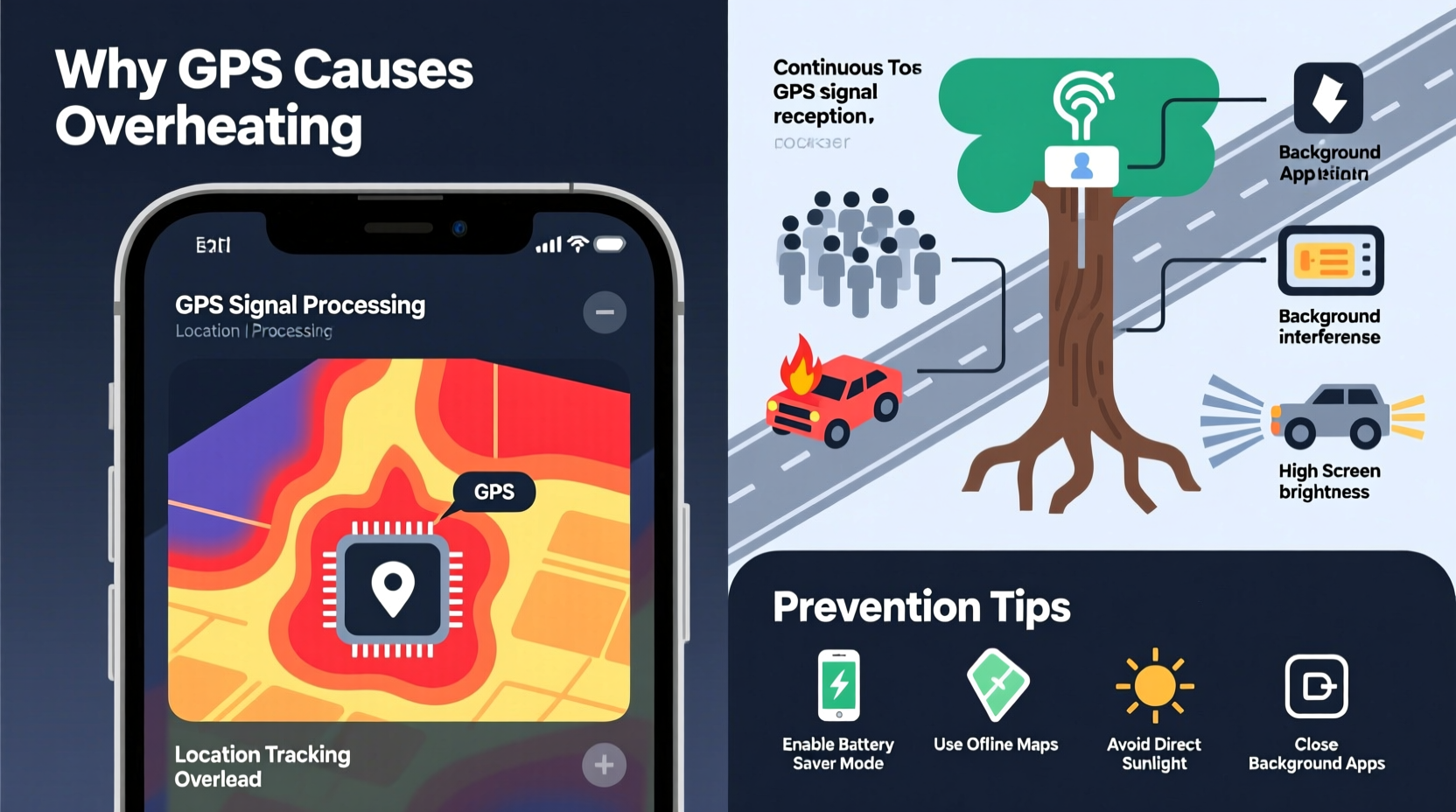
When your phone runs GPS navigation, several components work at near-maximum capacity:
- GPS receiver: Constantly triangulating position using satellite signals.
- CPU and GPU: Processing map data, route calculations, animations, and real-time traffic updates.
- Display: Running at high brightness for visibility in sunlight.
- Cellular and Wi-Fi radios: Downloading live traffic, weather, and updated maps.
- Vibration and audio: Providing turn-by-turn alerts.
All these processes generate heat. While phones are designed with thermal management systems, sustained load—especially in poor ventilation conditions—can overwhelm them. Unlike laptops or desktops, smartphones lack active cooling like fans. They rely solely on passive dissipation, which becomes ineffective when the device is enclosed, exposed to sunlight, or already warm from ambient conditions.
“Smartphones aren’t built for continuous peak performance. GPS navigation pushes multiple subsystems hard for extended periods, making thermal throttling almost inevitable without proper precautions.” — Dr. Alan Zhou, Mobile Hardware Engineer at TechInsight Labs
Common Causes of Excessive Heat During Navigation
While some warmth is normal, excessive heat usually stems from specific factors that amplify the strain on your device.
1. Poor Ventilation (e.g., Dashboard Mounts)
Mounting your phone on a car dashboard exposes it to direct sunlight and traps heat. Glass surfaces absorb and radiate heat, turning your car into an oven—even on mild days. A phone stuck in a closed mount with no airflow can reach internal temperatures exceeding 50°C (122°F), triggering thermal protection modes.
2. High Screen Brightness
To see maps clearly in daylight, users often max out screen brightness. The display alone can consume up to 40% of total power, significantly contributing to heat generation, especially on OLED screens where bright white elements (like maps) require more energy.
3. Background Apps and Services
Having music apps, messaging services, or social media running in the background increases CPU load. Even if minimized, these apps continue syncing, updating, or processing notifications, adding to the cumulative thermal burden.
4. Outdated Software or Buggy Apps
Older versions of navigation apps may have inefficient code or memory leaks. Similarly, outdated OS versions might lack optimized power management features, leading to unnecessary processor cycles and heat.
5. Weak Signal Conditions
In rural areas or urban canyons, GPS and cellular signals fluctuate. Your phone compensates by boosting radio power to maintain connectivity, increasing energy draw and heat output. Frequent signal searching is a major contributor to overheating.
Step-by-Step Guide to Prevent GPS-Related Overheating
Preventing overheating isn’t about eliminating GPS use—it’s about optimizing how you use it. Follow this sequence before and during navigation to minimize risk.
- Close Unnecessary Apps
Before starting navigation, swipe away all background apps. This reduces CPU contention and memory pressure. - Lower Screen Brightness
Manually set brightness to 60–70%. Enable auto-brightness if available, but test its responsiveness in changing light. - Use Offline Maps
Download regional maps in Google Maps, Waze, or Apple Maps. This reduces reliance on constant data downloads and minimizes cellular radio strain. - Enable Battery Saver Mode
This limits background activity, reduces processor speed, and caps frame rates—all helping to lower heat output. - Avoid Direct Sunlight
Position your phone in a shaded area. If using a mount, choose one attached to the windshield’s top edge (under the visor’s shadow) or a vent mount not facing the sun. - Remove Thick Cases
Some protective cases trap heat. Consider removing them during long drives or switching to a thinner, thermally conductive case. - Keep the Phone Plugged In Wisely
Use a high-quality charger and cable. Fast charging while navigating can increase heat. Opt for standard charging if temperature rises.
Do’s and Don’ts: Best Practices Table
| Do’s | Don’ts |
|---|---|
| Do download offline maps before departure | Don’t stream live traffic updates continuously in weak signal areas |
| Do use airplane mode with GPS enabled (if supported) | Don’t leave Bluetooth devices constantly searching |
| Do restart your phone periodically to clear cache | Don’t ignore repeated overheating warnings |
| Do keep software and apps updated | Don’t use cheap third-party chargers that cause voltage instability |
Real-World Example: The Cross-Country Drive Incident
Consider Sarah, a freelance photographer traveling from Denver to Phoenix. Midway through her journey, she relied on her Android phone for navigation through remote stretches of New Mexico. She mounted it on the dashboard, kept brightness at 100%, and left Spotify and Instagram running in the background. After two hours, the phone began lagging, then displayed a “Temperature Too High” alert. GPS froze, and the device shut down.
Sarah pulled over, let the phone cool for 20 minutes, and restarted it. This time, she downloaded offline maps, lowered brightness, closed all other apps, and moved the phone to a vent mount under the shade of the steering wheel. For the remaining six-hour drive, the phone remained functional and only slightly warm. Her experience highlights how small adjustments can make a critical difference in real-world conditions.
Expert-Recommended Fixes and Long-Term Prevention
Beyond immediate fixes, long-term habits and hardware choices play a key role in managing heat.
Optimize App Settings
In Google Maps or Waze, disable features like:
- Live traffic (use periodic refresh instead)
- Street view previews
- Unnecessary voice prompts
These reduce computational load and data fetching frequency.
Invest in a Dedicated GPS Device
For frequent travelers, a standalone GPS unit (like Garmin or TomTom) offloads the task from your phone. These devices are built for continuous operation, have better thermal design, and don’t run distracting apps.
Use a Cooling Accessory (Judiciously)
Phone cooling fans or magnetic coolers exist, but they’re often overkill. A simple solution is placing the phone near an air vent (not blowing directly on it) to aid passive cooling. Avoid commercial coolers that claim rapid results—they can cause condensation inside the device.
Monitor Battery Health
An aging battery degrades faster when exposed to heat. Check your phone’s battery health (in settings on iOS or via third-party apps on Android). If capacity is below 80%, consider replacement. A healthy battery manages charge cycles more efficiently and generates less excess heat.
Frequently Asked Questions
Can GPS overheating damage my phone permanently?
Yes, prolonged exposure to high temperatures can degrade the battery, reduce processor lifespan, and weaken internal adhesives (especially in waterproof models). While occasional heating is manageable, repeated thermal stress accelerates wear.
Does using GPS drain the battery even when the screen is off?
Yes. The GPS chip continues to operate and report location to apps, consuming power and generating heat. However, it uses less energy than when combined with screen, data, and audio.
Is it safe to keep my phone plugged in during navigation?
It’s safe if using a reliable charger and cable. However, charging while under heavy load (like GPS + screen + data) creates a heat loop: the battery heats up while charging, and the processor heats up from navigation. Using standard (not fast) charging helps mitigate this.
Checklist: Pre-Navigation Heat Prevention
- ☐ Download offline maps for your route
- ☐ Close all background apps
- ☐ Lower screen brightness to 60–70%
- ☐ Remove thick phone case
- ☐ Position phone in shaded, ventilated mount
- ☐ Enable battery saver mode
- ☐ Update navigation app and OS
- ☐ Use a high-quality charging cable if needed
Conclusion: Stay Cool, Stay Navigated
Your phone is a powerful tool, but it has physical limits. GPS navigation pushes those limits, especially when combined with environmental stressors. By understanding the causes of overheating and applying practical, tested strategies, you can avoid disruptions and extend your device’s life.
Start implementing these changes today—before your next road trip. Small adjustments in how you use your phone can prevent big problems down the highway. Share your own tips or experiences with GPS overheating in the comments below. Let’s build a smarter, cooler way to navigate together.




 浙公网安备
33010002000092号
浙公网安备
33010002000092号 浙B2-20120091-4
Comments
No comments yet. Why don't you start the discussion?