
If you’ve noticed your phone screen flickering when ambient light drops—especially during evening use or in dimly lit rooms—you’re not alone. This subtle but distracting issue affects both Samsung and Apple devices, often leading to eye strain, discomfort, and reduced usability. While the cause isn’t always obvious, it’s typically rooted in display technology, software behavior, or adaptive brightness systems. Understanding why this happens—and how to fix it—is essential for preserving visual comfort and device longevity.
Flickering in low light is more than just a nuisance; it can interfere with reading, video consumption, and even sleep due to blue light exposure. The good news: most cases are fixable without visiting a repair shop. Whether you own an iPhone or a Galaxy flagship, targeted troubleshooting steps can resolve or significantly reduce the flicker.
Understanding Screen Flicker: PWM vs. DC Dimming
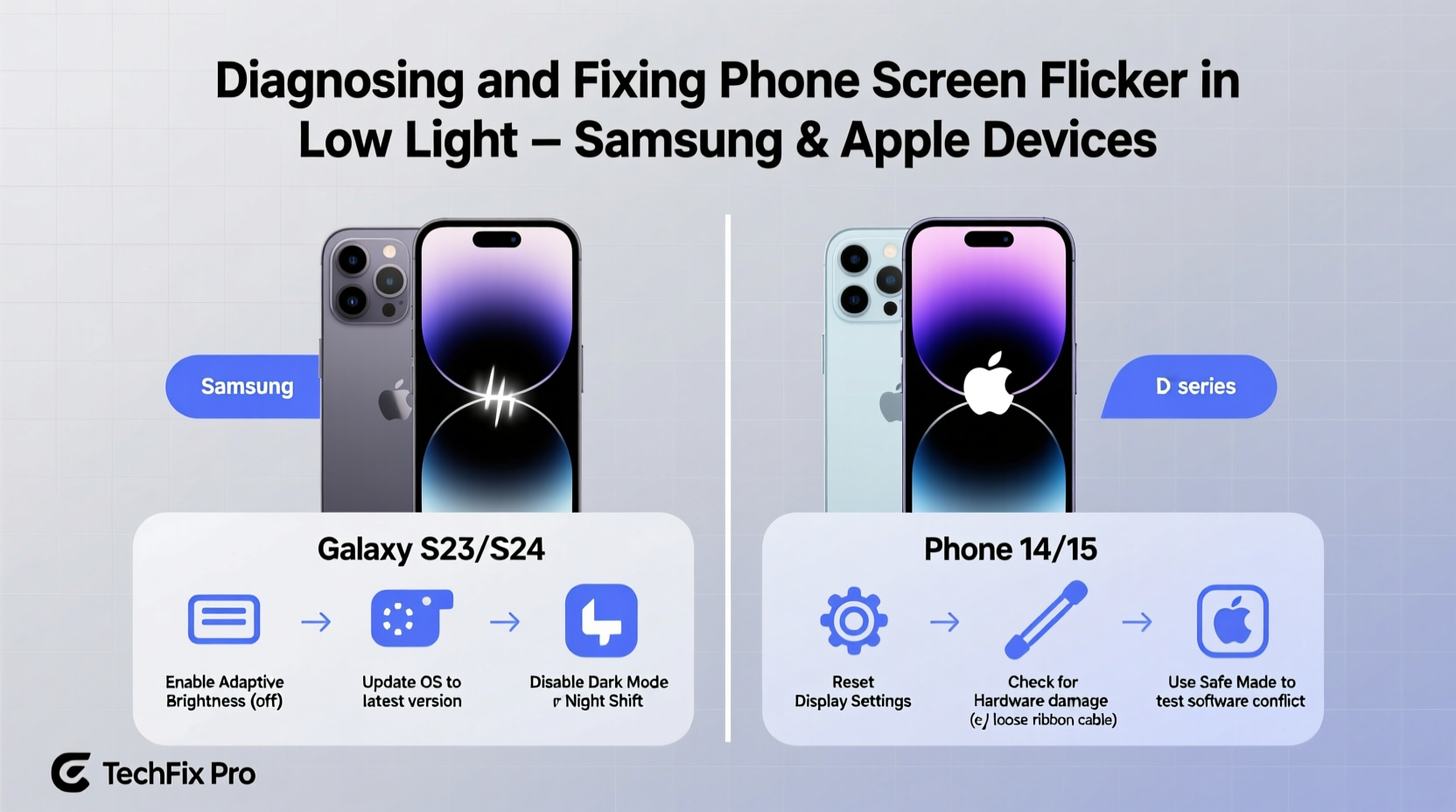
The root of low-light screen flickering lies in how modern smartphones control brightness. Two primary methods are used: Pulse Width Modulation (PWM) and Direct Current (DC) dimming. Most OLED displays—including those on iPhones and Samsung Galaxy phones—rely on PWM at lower brightness levels.
PWM works by rapidly turning the pixels on and off to simulate lower brightness. At full brightness, the screen stays constantly lit. But as you dim it, the \"off\" periods increase. In low light, this flickering becomes more noticeable because your pupils dilate, making subtle fluctuations more apparent to the human eye—even if you don’t consciously register the blinking.
In contrast, DC dimming reduces brightness by lowering voltage, eliminating flicker entirely. However, many manufacturers avoid using pure DC dimming on OLED panels due to potential color accuracy issues at low brightness. As a result, users experience flicker when the screen dims automatically in dark environments.
“OLED screens using PWM below 50% brightness can trigger discomfort in sensitive individuals, especially in prolonged low-light use.” — Dr. Lena Torres, Vision Ergonomics Researcher, MIT Media Lab
Common Causes of Low-Light Flickering
Screen flickering in dim conditions isn't always due to PWM alone. Several interrelated factors contribute:
- Auto-Brightness Adjustment: Your phone continuously adjusts screen brightness based on ambient light. In fluctuating lighting—like near a lamp or under dim overhead lights—the sensor may overcorrect, causing visible pulsing.
- Software Glitches: Bugs in OS updates can interfere with display drivers, leading to erratic flickering, especially after major iOS or Android upgrades.
- Third-Party Apps: Some apps override system brightness settings or force high refresh rates, disrupting smooth display output.
- Dark Mode Interactions: Switching between light and dark interfaces can momentarily confuse the display processor, particularly during transitions.
- Hardware Defects: Rarely, a failing OLED panel or loose internal connection causes persistent flickering unrelated to lighting conditions.
iPhone-Specific Triggers
Apple uses OLED panels on iPhone models starting from the iPhone X. These displays employ PWM at lower brightness levels, typically below 40–50%. Features like True Tone and Night Shift can interact unpredictably with PWM, increasing perceived flicker. Additionally, iOS's aggressive auto-brightness algorithm sometimes overshoots adjustments in low light, creating a strobing effect.
Samsung-Specific Triggers
Samsung Galaxy phones, especially S and Z series models, also use OLED (or Dynamic AMOLED) displays with PWM dimming. While Samsung has experimented with hybrid dimming modes, many devices still default to PWM in dim environments. Furthermore, Samsung’s “Adaptive Brightness” and “Eye Comfort Shield” can conflict, producing inconsistent screen behavior when ambient light changes.
Step-by-Step Fixes for iPhone and Samsung Devices
Before assuming hardware failure, try these systematic fixes. Most flickering issues stem from software or settings and can be resolved in minutes.
- Disable Auto-Brightness
Go to Settings > Accessibility > Display & Text Size (iPhone) or Settings > Display (Samsung). Turn off “Auto-Brightness” or “Adaptive Brightness.” Manually set brightness to a stable level (e.g., 60%) to prevent automatic fluctuations. - Adjust True Tone or Eye Comfort Shield
On iPhone: Disable True Tone temporarily via Control Center or Settings > Display & Brightness.
On Samsung: Go to Settings > Display > Eye Comfort Shield and disable it or adjust the intensity slider. Test whether flicker persists. - Update Your Operating System
Check for software updates. Both Apple and Samsung regularly patch display-related bugs. On iPhone: Settings > General > Software Update. On Samsung: Settings > Software Update > Download and Install. - Reset All Settings
This won’t erase data but resets display, network, and sound preferences. On iPhone: Settings > General > Transfer or Reset iPhone > Reset > Reset All Settings. On Samsung: Settings > General Management > Reset > Reset Settings. - Test in Safe Mode (Android Only)
Boot your Samsung into Safe Mode to rule out third-party app interference. Press and hold Power button > Long-press “Power Off” > Tap “Safe Mode.” If flickering stops, uninstall recently added apps one by one. - Enable/Disable Dark Mode Temporarily
Switch to Light Mode and observe screen behavior. Some users report flicker reduction when avoiding dark themes at low brightness.
Device Comparison: Flicker Behavior Across Models
Different phone models exhibit varying degrees of flicker due to display design and firmware implementation. Here’s a comparison of common devices:
| Device | Display Type | Dimming Method | Low-Light Flicker Risk | Recommended Fix |
|---|---|---|---|---|
| iPhone 14 Pro | OLED | PWM (~240Hz) | Medium-High | Disable True Tone, manual brightness |
| iPhone 15 | OLED | PWM (~240Hz) | Medium | Update iOS, turn off Auto-Brightness |
| Samsung Galaxy S23 | Dynamic AMOLED 2X | PWM at low brightness | High | Use Eye Comfort Shield at 30%, disable Adaptive Display |
| Samsung Galaxy Z Fold 5 | Inner OLED Panel | PWM + Limited DC | Medium | Avoid minimum brightness, update One UI |
| iPhone SE (3rd gen) | LCD | DC Dimming | Low | Rarely affected; likely software issue if flickering |
Note: LCD screens (like those on older or budget iPhones) do not suffer from PWM-induced flicker, making them preferable for users with light sensitivity.
Real User Case: Resolving Persistent Flicker on a Galaxy S22
Jamal, a freelance writer from Portland, began noticing his Galaxy S22 Ultra screen flickering while reading e-books at night. He initially assumed it was eye fatigue. After weeks of discomfort, he tested disabling Adaptive Brightness—no change. Then he turned off Eye Comfort Shield and manually set brightness to 70%. The flicker vanished immediately.
Later, he discovered a recently installed reading app was forcing brightness overrides. Uninstalling it and resetting display settings restored normal function. His case highlights how software interactions—not hardware defects—are often the culprit.
Expert Tips and Preventive Checklist
Maintaining a flicker-free screen involves proactive habits. Use this checklist to minimize risk:
- ✅ Disable auto-brightness in consistently lit environments
- ✅ Keep brightness above 50% during nighttime use
- ✅ Update your phone’s OS monthly to receive display patches
- ✅ Avoid extreme contrast themes (pure black backgrounds)
- ✅ Use built-in Night Mode or Blue Light filters after sunset
- ✅ Restart your phone weekly to clear display driver glitches
- ✅ Test screen in different lighting before concluding hardware failure
Frequently Asked Questions
Is screen flicker harmful to my eyes?
While occasional flicker isn’t dangerous, prolonged exposure—especially in low light—can contribute to digital eye strain, headaches, and disrupted sleep patterns. Individuals with photosensitive conditions should take extra precautions.
Can I switch my OLED phone to DC dimming?
Most consumer smartphones don’t offer a user-accessible DC dimming toggle. However, some Samsung models support “low flicker” modes via Developer Options (Settings > About Phone > Software Information > Tap Build Number 7 times > Return > Developer Options > Disable HW Overlay). Results vary and may affect performance.
Does screen protector cause flickering?
No, standard screen protectors don’t cause flickering. However, poorly applied film or electronic accessories (like electrostatic cleaners) might interfere with touch sensors, creating visual artifacts mistaken for flicker.
When to Seek Hardware Repair
If you’ve tried all software fixes and the screen continues to flicker—especially if it occurs at all brightness levels, in all apps, and across lighting conditions—it may indicate a hardware problem. Common signs include:
- Flickering accompanied by colored lines or pixel distortion
- Intermittent blackouts or unresponsive touch input
- Flicker that worsens when bending the phone (relevant for foldables)
In such cases, contact Apple Support or an authorized Samsung service center. For iPhones, use the Apple Diagnostics tool (Settings > General > About > scroll to diagnostics). Samsung users can run self-tests via Settings > Help Center > Device Care > Diagnostics.
Conclusion: Take Control of Your Viewing Experience
Screen flicker in low light is a widespread yet solvable issue affecting both Samsung and Apple users. By understanding the role of PWM dimming and adjusting key settings like auto-brightness and display modes, most people can eliminate the problem without technical expertise. The key is methodical testing: isolate variables, prioritize manual control over automation, and stay updated on software improvements.




 浙公网安备
33010002000092号
浙公网安备
33010002000092号 浙B2-20120091-4
Comments
No comments yet. Why don't you start the discussion?