
It’s a common yet unsettling experience: you're using your phone in a dimly lit room or at night, and suddenly the screen begins to flicker. The display pulses faintly, like a strobe light on low intensity, making it difficult to read text or watch videos. This issue affects users across brands and models, from budget devices to flagship smartphones. While occasional flickering might seem trivial, persistent behavior can strain your eyes, disrupt usability, and indicate deeper hardware or software problems. Understanding the root causes—ranging from adaptive brightness glitches to OLED panel defects—is essential for diagnosing and resolving the problem efficiently.
What Causes Phone Screen Flickering in Low Light?
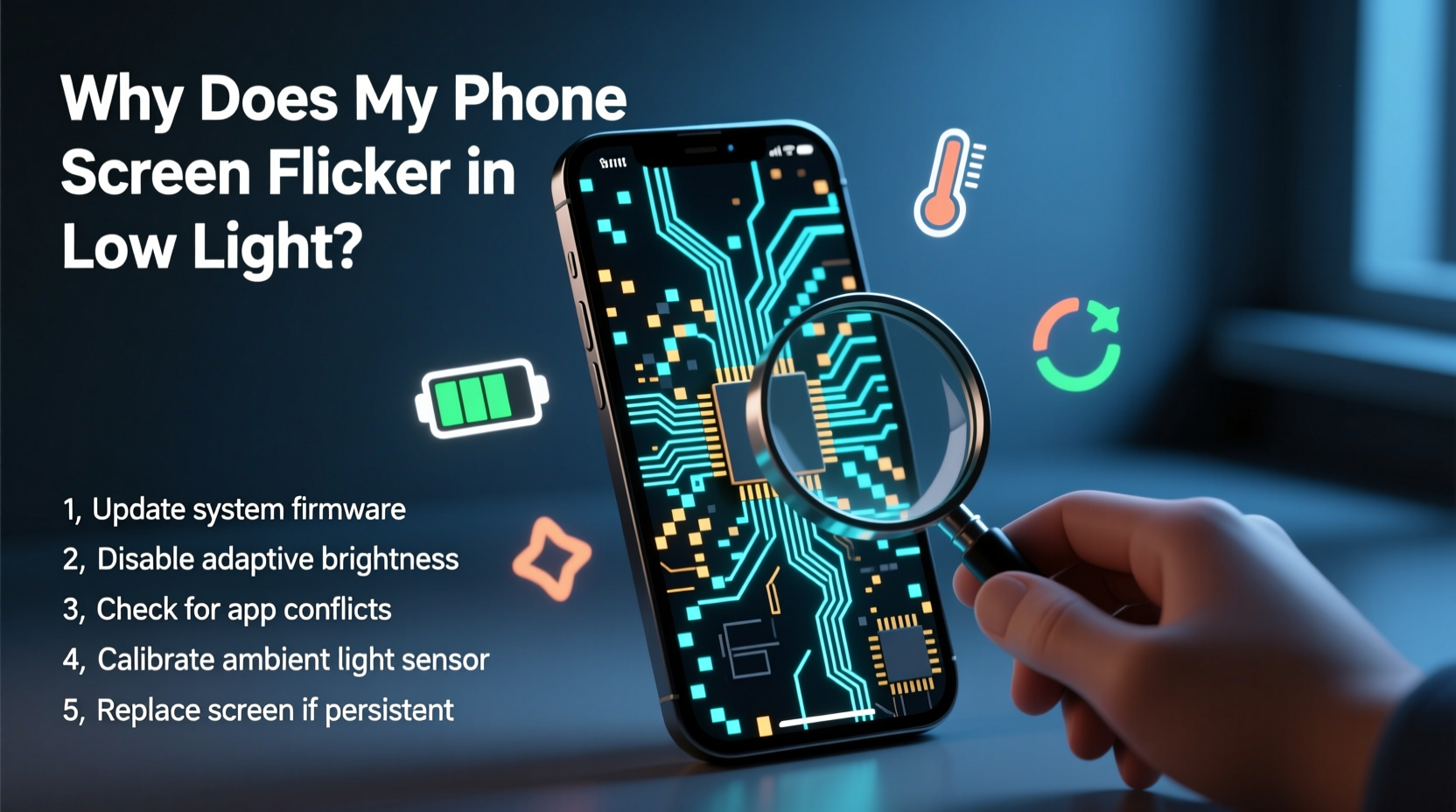
Screen flickering in low-light environments is often tied to how modern displays manage brightness and refresh rates. Unlike older LCD screens, many current smartphones use OLED or AMOLED panels that rely on pulse-width modulation (PWM) to control brightness. At lower brightness levels, PWM rapidly turns pixels on and off to simulate dimming. When this pulsing frequency drops below a certain threshold—often between 200Hz and 400Hz—it becomes perceptible to sensitive users, causing visible flickering or a \"shimmering\" effect.
This phenomenon is more noticeable in dark settings because your pupils dilate, increasing sensitivity to rapid light changes. Some individuals are naturally more susceptible due to visual processing differences. Additionally, software features like automatic brightness adjustment may misinterpret ambient lighting, leading to erratic screen behavior.
“Low-frequency PWM in OLED displays can cause eye fatigue and perceived flicker, especially in dim environments.” — Dr. Lena Torres, Display Technology Researcher, MIT Media Lab
Hardware vs. Software Triggers
The flicker could stem from either hardware limitations or software bugs. Hardware-related issues include:
- Inferior OLED panel quality with suboptimal PWM implementation
- Faulty backlight circuits (in LCD models)
- Physical damage to the display assembly
On the software side, common culprits are:
- Buggy firmware updates altering brightness algorithms
- Conflicts between third-party apps and system-level display services
- Misconfigured accessibility or battery-saving modes
Solutions to Stop Screen Flickering
Before assuming hardware failure, explore these practical fixes. Most flickering issues can be mitigated through adjustments to settings or minor troubleshooting steps.
1. Adjust Brightness Settings Manually
Auto-brightness relies on ambient light sensors that sometimes malfunction or overreact. Switching to manual mode gives you direct control. Increase brightness slightly—even by 5–10%—above your preferred level; this often pushes the PWM frequency into a non-visible range.
2. Disable Adaptive or True Tone Features
Features like Apple’s True Tone or Samsung’s Adaptive Display adjust color temperature and brightness based on surroundings. While useful, they can introduce instability. Turn them off via:
- iOS: Settings > Display & Brightness > True Tone (toggle off)
- Android: Settings > Display > Adaptive Display / Eye Comfort Shield
3. Update Your Operating System
Manufacturers frequently release patches addressing display anomalies. Check for updates:
- Navigate to Settings > Software Update (iOS) or System > System Update (Android).
- Install any available updates.
- Restart the device after installation.
For example, Samsung issued One UI 4.1 to resolve widespread flickering reports on Galaxy S21 series devices under low brightness.
4. Boot in Safe Mode (Android Only)
If flickering began after installing an app, boot into Safe Mode to isolate third-party interference.
- Press and hold the power button.
- Long-press “Power off” until “Reboot to safe mode” appears.
- Confirm and wait for restart.
If the screen stops flickering in Safe Mode, uninstall recently added apps one by one to identify the culprit.
5. Reset All Settings
This restores system preferences without erasing personal data. On iPhone: Settings > General > Transfer or Reset iPhone > Reset > Reset All Settings. On Android: Settings > System > Reset Options > Reset Wi-Fi, Mobile & Bluetooth.
Known Recalls and Affected Models
While screen flickering isn’t always a defect, some manufacturers have acknowledged specific issues and initiated repair programs or recalls.
| Brand | Model(s) | Issue Description | Status |
|---|---|---|---|
| Apple | iPhone 12 series | Green tint and flickering at low brightness | Under review; limited free repairs reported |
| Samsung | Galaxy Note 9, S9, S10 base models | PWM-induced flicker complaints; no official recall | Firmware updates released; no hardware replacement |
| Pixel 4 XL | Flickering linked to Soli radar interference with display driver | Extended warranty offered in select regions | |
| OnePlus | OnePlus 7 Pro | Fluid AMOLED flicker at ~200Hz PWM below 50% brightness | No recall; acknowledged as design limitation |
In 2021, Apple quietly expanded a service program for iPhone 12 units exhibiting display anomalies, though public documentation remains sparse. Users reporting flickering through Apple Support have occasionally received replacements at no cost, depending on region and proof of issue persistence.
Mini Case Study: Sarah’s Persistent Flicker Issue
Sarah, a freelance writer from Portland, noticed her Galaxy S20 FE screen flickering during evening reading sessions. Initially dismissing it as eye strain, she later observed the same behavior on multiple apps and even the lock screen. She tested auto-brightness toggles, updated to One UI 5.0, and disabled Eye Comfort Shield—but the flicker remained.
After visiting a Samsung service center, diagnostics revealed no hardware fault. A technician suggested enabling “High brightness mode” in developer options, which forces higher PWM frequency. Upon activation, the flickering disappeared. Sarah now keeps this setting active and uses blue light filters separately through third-party apps.
Her case illustrates that not all flickering indicates failure—sometimes, it's a trade-off between energy efficiency and visual comfort, solvable through advanced settings.
Expert Recommendations for Long-Term Prevention
To minimize recurrence, adopt proactive habits that protect both display performance and eye health.
Use Dark Mode with Caution
While dark mode reduces power consumption on OLED screens, very dark backgrounds at low brightness amplify flicker perception. Opt for near-black themes instead of pure black, or use gray-based dark interfaces where available.
Enable High Refresh Rate When Possible
Devices with 90Hz or 120Hz displays often maintain higher PWM frequencies during low-brightness operation. Ensure high refresh rate is enabled in settings (e.g., Settings > Display > Screen Refresh Rate on Samsung).
Avoid Extreme Temperature Exposure
Cold environments can worsen display response times and intensify flickering. Keep your phone at room temperature whenever possible, especially during prolonged use.
“The best defense against screen flicker is awareness. Know your device’s display technology and adjust usage accordingly.” — Rajiv Mehta, Senior Engineer at DisplayMate Technologies
Step-by-Step Troubleshooting Timeline
Follow this structured approach to diagnose and resolve flickering within 24 hours:
- Day 1 – Initial Assessment (10 minutes): Confirm flickering occurs consistently in low light. Test across apps and brightness levels.
- Action: Disable auto-brightness and set brightness to 30–40%. Observe for 5 minutes.
- Step 2 – Eliminate Software Conflicts (15 minutes): Reboot device. On Android, enter Safe Mode. On iOS, close background apps.
- Step 3 – Check for Updates (5 minutes): Install latest OS and security patches.
- Step 4 – Adjust Display Features (10 minutes): Turn off True Tone, Night Shift, Adaptive Display, or similar.
- Step 5 – Factory Reset (Optional, 30 minutes): Backup data and reset if issue persists. Reinstall apps gradually to detect conflicts.
- Final Step – Professional Diagnosis: If flickering continues, visit authorized service center for hardware testing.
Frequently Asked Questions
Is screen flickering harmful to my eyes?
Yes, prolonged exposure to low-frequency flickering can contribute to eye strain, headaches, and fatigue, particularly in low-light conditions. It doesn’t cause permanent damage but can worsen discomfort for individuals with light sensitivity or migraines.
Can I prevent flickering without increasing brightness?
Limited options exist. Some phones allow custom firmware or developer settings to raise PWM frequency. Alternatively, use third-party apps that overlay a slight brightness filter or enable DC dimming if supported (e.g., certain Xiaomi or RedMagic models).
Does screen protector type affect flickering?
No direct link exists between screen protectors and flickering. However, poorly applied films may create optical interference patterns that mimic flicker under certain lighting. Remove the protector temporarily to rule it out.
Checklist: Fix Phone Screen Flicker in Low Light
- ☐ Disable auto-brightness and set manual level above 30%
- ☐ Turn off True Tone, Adaptive Display, or Night Mode
- ☐ Install latest OS update
- ☐ Restart phone or boot into Safe Mode (Android)
- ☐ Test without third-party screen overlays or battery savers
- ☐ Enable high refresh rate in display settings
- ☐ Visit authorized service center if unresolved
Conclusion
Phone screen flickering in low light is more than a minor annoyance—it reflects the complex interplay between display engineering, software logic, and human perception. While some degree of PWM-induced flicker is inherent in many OLED devices, persistent or disruptive behavior warrants attention. By methodically adjusting settings, staying updated on manufacturer advisories, and understanding your device’s technical limits, you can restore smooth, comfortable viewing—even in the darkest rooms.




 浙公网安备
33010002000092号
浙公网安备
33010002000092号 浙B2-20120091-4
Comments
No comments yet. Why don't you start the discussion?