
It’s a familiar frustration: you pull out your phone to record a friend showing off their latest app, or you're capturing a presentation from a tablet, only to see strange flickering lines or pulsing waves ripple across the screen in your recording. The device looks perfectly smooth to your eyes, but the camera tells a different story. This phenomenon isn’t a glitch in your phone or camera—it’s physics meeting digital technology in an unexpected way.
The flicker you’re seeing is caused by a mismatch between how screens refresh and how cameras capture images. While invisible to the human eye under normal conditions, this effect becomes glaringly obvious when one electronic device records another. Understanding the science behind it—and knowing how to prevent it—can save time, improve video quality, and reduce post-production headaches.
The Science Behind Screen Flicker in Recordings
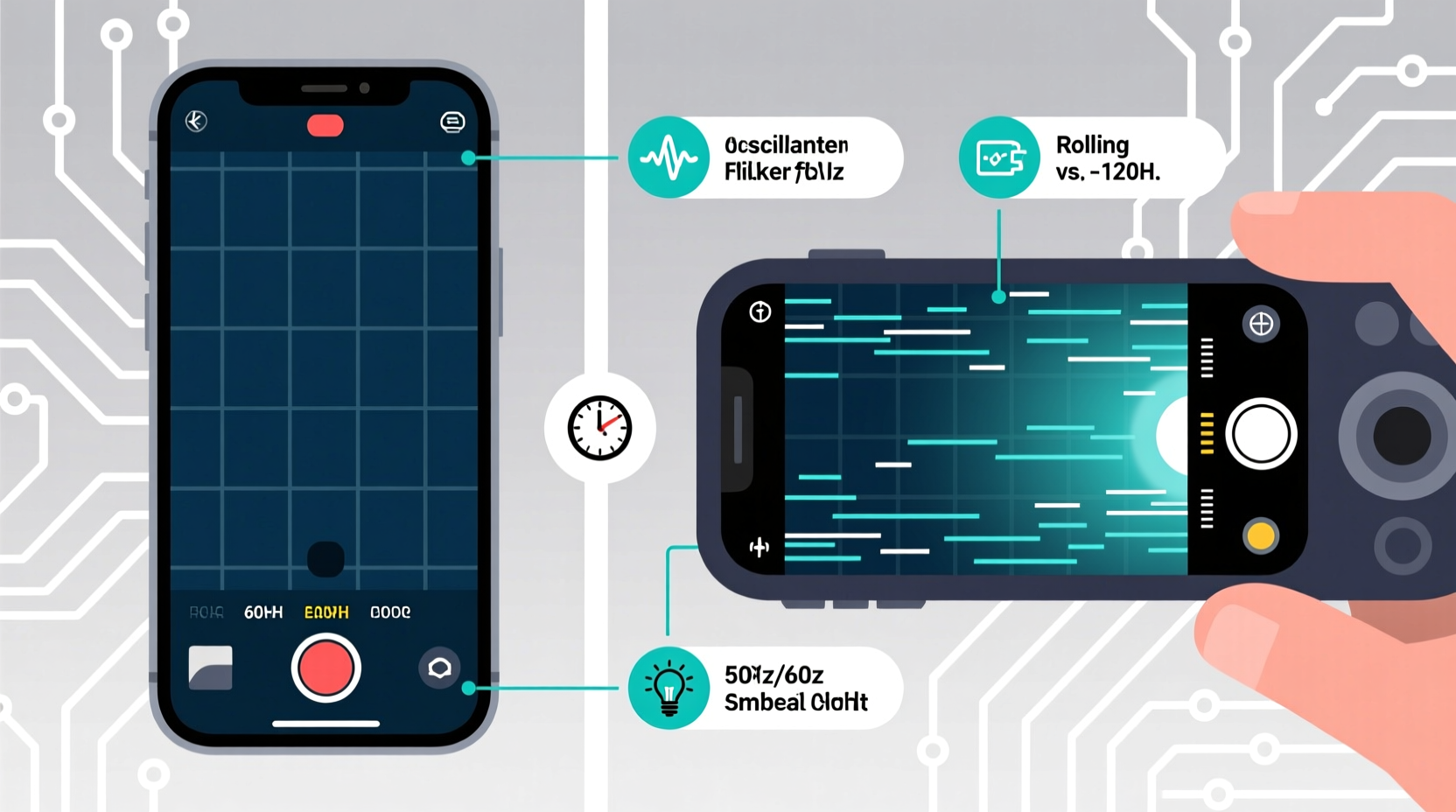
Digital screens don’t display images continuously. Instead, they refresh many times per second, typically at 60Hz, 90Hz, or even 120Hz. This means the screen redraws its image 60, 90, or 120 times every second. Similarly, cameras capture video by taking a series of still frames—usually 30 or 60 frames per second (fps). When these two cycles don’t align, interference occurs.
This misalignment creates a visual artifact known as a rolling shutter effect or flicker banding. It appears as dark bands moving across the screen, pulsating brightness, or a strobing effect. The issue is especially common when recording LED-backlit screens such as smartphones, tablets, monitors, and TVs.
The root cause lies in how screens manage light output. Many modern displays use pulse-width modulation (PWM) to control brightness. Instead of reducing the intensity of the backlight, PWM rapidly turns the light on and off. At high frequencies, this is imperceptible to humans. But cameras, with their fixed exposure timing, can catch the “off” moments, resulting in visible flicker.
“Flicker during screen recording is not a defect—it’s a consequence of temporal mismatch between display refresh and camera frame capture.” — Dr. Lena Torres, Imaging Systems Researcher, MIT Media Lab
Key Factors That Influence Screen Flicker
Several variables determine whether—and how severely—a screen will flicker when recorded. These include:
- Refresh rate of the source screen: Higher refresh rates (e.g., 120Hz) are less prone to noticeable flicker but aren’t immune.
- Camera frame rate: Recording at 30fps vs. 60fps can dramatically change how flicker appears.
- Lighting conditions: Artificial lighting, especially fluorescent or LED lights, often flickers at 50Hz or 60Hz due to AC power cycles, compounding the problem.
- Brightness settings: Lower brightness levels on PWM-controlled screens increase the duration of “off” pulses, making flicker more likely to be captured.
- Rolling shutter vs. global shutter: Most smartphone cameras use rolling shutters, which scan the image line by line. This scanning process can amplify flicker effects compared to global shutters, which capture the entire frame at once.
How Lighting Exacerbates the Problem
Ambient lighting plays a surprisingly large role in screen flicker during recordings. Most artificial lights—especially fluorescent tubes and budget LEDs—are powered by alternating current (AC), which cycles at 50Hz (in Europe) or 60Hz (in North America). This causes the light itself to flicker, though too quickly for most people to notice.
When this flickering light illuminates a screen that’s also refreshing electronically, the combined effect can create chaotic interference patterns. The camera captures both the screen’s refresh cycle and the fluctuating ambient light, leading to shimmering, banding, or pulsing in the footage.
For example, filming a phone screen under office fluorescent lights at 30fps may result in severe flicker because both the lights and the screen are cycling near multiples of 30Hz, but slightly out of sync.
| Light Source | Flicker Frequency | Impact on Screen Recording |
|---|---|---|
| Incandescent Bulbs | Minimal flicker | Low – heat-based glow reduces flicker visibility |
| Fluorescent Lights | 100–120Hz (double AC frequency) | High – strong flicker under AC power |
| LED Lights (low quality) | 50–120Hz | Medium to High – depends on driver circuit |
| Natural Daylight | No flicker | None – ideal for screen recording |
Step-by-Step Guide to Prevent Screen Flicker in Videos
If you frequently record screens—whether for tutorials, social media, or documentation—follow this proven sequence to eliminate or minimize flicker:
- Adjust camera frame rate: Set your recording device to match the refresh rate of the screen being filmed. For a 60Hz screen, use 60fps. For 120Hz, use 60fps or 30fps (which divides evenly).
- Use natural lighting: Film near a window during daylight hours. Natural light doesn’t flicker and reduces reliance on artificial sources.
- Disable auto-brightness on the source screen: Manually set the screen brightness to a mid-to-high level. This reduces PWM duty cycles and stabilizes light output.
- Turn off nearby flickering lights: Replace or disable fluorescent fixtures. Use high-quality, flicker-free LED bulbs if needed.
- Stabilize the shot: Use a tripod to eliminate motion blur, which can worsen the perception of flicker.
- Test before recording: Do a 10-second test clip and review it on a larger screen to check for banding or pulsing.
- Use screen mirroring instead of physical recording: Whenever possible, mirror the device screen directly to a computer using HDMI or wireless casting, then record the output digitally. This bypasses the camera entirely.
Real-World Example: The Influencer’s Dilemma
Sophia, a tech reviewer with over 200K followers on YouTube, spent weeks filming app walkthroughs in her home studio. Despite using a high-end smartphone and external microphone, viewers consistently complained about “weird lines” moving through her videos when she recorded other devices.
After consulting a video engineer, she discovered her studio’s LED panel lights operated at 100Hz, while her recording phone used 30fps. The mismatch created beat frequencies that manifested as slow-moving dark bands. By switching to daylight-balanced, flicker-free LED panels and adjusting her frame rate to 60fps, the issue vanished overnight. Her video clarity improved, and engagement rose by 27% in the following month.
This case underscores how easily environmental factors can undermine production quality—even for experienced creators.
Troubleshooting Checklist
Use this checklist before recording any screen to avoid flicker issues:
- ✅ Confirm the refresh rate of the screen being recorded (e.g., 60Hz, 90Hz, 120Hz)
- ✅ Set camera frame rate to match or divide evenly into the screen’s refresh rate
- ✅ Film in natural light or use flicker-free artificial lighting
- ✅ Increase brightness on the source screen to at least 70%
- ✅ Avoid mixed lighting environments (e.g., sunlight + fluorescent)
- ✅ Use manual focus and exposure settings on your camera if available
- ✅ Test with a short clip and zoom in to check for banding
- ✅ Consider screen mirroring for critical recordings
Frequently Asked Questions
Why doesn’t my eye see the flicker, but the camera does?
The human visual system has persistence of vision, meaning it blends rapid changes into a continuous image. Cameras, however, capture discrete frames at fixed intervals. If a screen is off during part of a frame’s exposure, the camera records that as a dark band or flicker—something your brain naturally smooths over.
Can software fix screen flicker after recording?
Limited correction is possible using video editing tools like Adobe Premiere Pro or DaVinci Resolve. Filters such as \"deflicker\" or \"temporal smoothing\" can reduce the appearance of banding, but they may introduce blurriness or artifacts. Prevention is always better than post-processing.
Do OLED screens flicker more than LCDs?
Many OLED screens use PWM for brightness control, especially at lower levels, making them more prone to flicker than traditional LCDs with DC dimming. However, higher-end OLEDs now use hybrid or high-frequency PWM (e.g., 1000Hz+), which significantly reduces flicker visibility—even to cameras.
Conclusion: Master the Details for Flawless Recordings
Screen flicker in video recordings isn’t random—it’s a predictable interaction between display technology, lighting, and camera mechanics. While it can’t always be eliminated entirely, it can be controlled with the right knowledge and preparation. By aligning frame rates, optimizing lighting, and understanding how screens emit light, you gain full command over your video quality.
Whether you're creating educational content, documenting bugs, or sharing digital experiences, crisp, flicker-free footage builds credibility and enhances viewer experience. Don’t let a technical quirk undermine your message. Apply these insights today, and transform your screen recordings from amateur to professional.




 浙公网安备
33010002000092号
浙公网安备
33010002000092号 浙B2-20120091-4
Comments
No comments yet. Why don't you start the discussion?