
A phone screen that appears yellow instead of neutral white can be frustrating—especially when comparing photos, reading in daylight, or watching videos. This subtle color shift isn’t always a defect; it’s often intentional, driven by settings, hardware design, or environmental adaptation. Understanding the root causes and knowing how to correct them empowers you to restore visual accuracy and comfort. Whether you're using an iPhone, Android, or another mobile platform, this guide breaks down the science behind the yellow tint, explains how modern displays adapt, and walks you through practical steps to recalibrate your screen for optimal clarity.
Why Your Phone Screen Looks Yellow: Common Causes
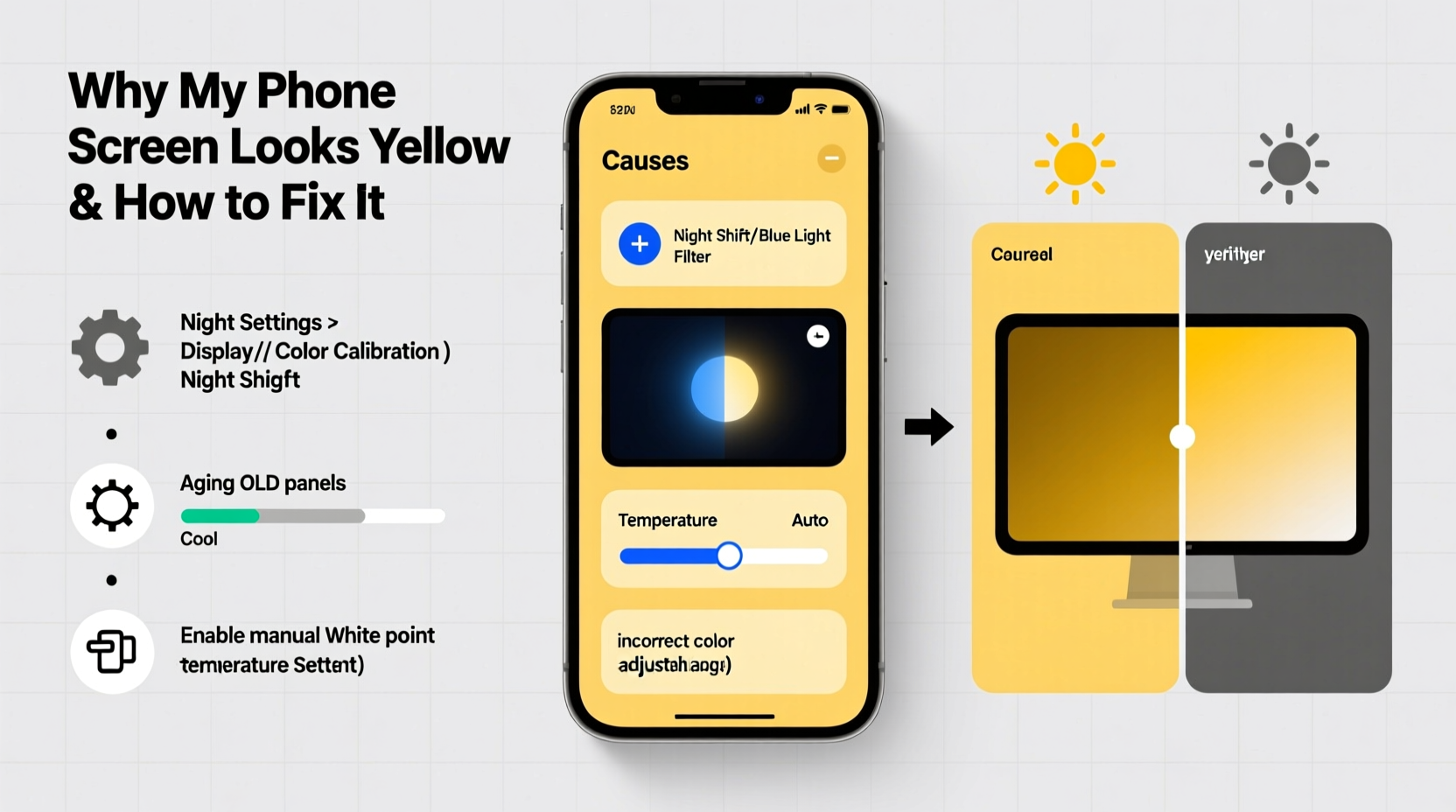
The yellowish cast on your phone screen usually stems from deliberate software features or natural aging processes rather than a manufacturing flaw. Here are the most common reasons:
- Night Mode / Blue Light Filter: Most smartphones now include a “Night Shift” (iOS) or “Blue Light Filter” (Android) feature designed to reduce blue light emission during evening hours. These filters shift the color temperature toward warmer tones—yellow, amber, or orange—to minimize disruption to melatonin production and improve sleep quality.
- Adaptive Display Settings: High-end phones use ambient light sensors to automatically adjust brightness and color tone based on surroundings. Indoors under warm lighting, the screen may adopt a similar hue to appear more natural to your eyes.
- True Tone or Similar Technologies: Apple’s True Tone and Samsung’s Adaptive Display analyze ambient light color temperature and dynamically tweak the screen to match it. While scientifically sound, some users find the result overly warm, especially in cooler environments.
- Aging OLED Panels: Over time, OLED screens degrade unevenly. Blue subpixels deteriorate faster than red and green ones, leading to a gradual yellow or pinkish tint—a phenomenon known as burn-in or color drift.
- Color Profile Misconfiguration: Some devices default to saturated or stylized color modes like “Vivid” or “Cinematic,” which boost warmth and contrast at the expense of accuracy.
How to Calibrate Display Colors on iPhone and Android
Calibrating your display ensures colors appear as intended by content creators, without artificial warming or oversaturation. The process varies between platforms but is generally accessible through built-in settings.
iOS: Fine-Tuning Color With Accessibility and Display Settings
- Open Settings > Display & Brightness.
- Toggle off Night Shift if enabled. To prevent automatic activation, go into Night Shift settings and set it to “Off” or customize schedule times.
- Disable True Tone temporarily to see if the yellow tint disappears. This allows you to assess baseline color performance.
- Navigate to Settings > Accessibility > Display & Text Size > Color Filters.
- Enable Color Filters and select Color Tint. Use the sliders to adjust intensity and hue toward cooler (bluer) tones if needed.
- For professional calibration, consider using third-party apps calibrated for color accuracy, though iOS restricts deep-level access to RGB channels.
Android: Manual Calibration and Developer Options
- Go to Settings > Display.
- Turn off Blue Light Filter or Eye Comfort Shield, depending on manufacturer (Samsung, Xiaomi, etc.).
- Select Screen Mode or Color Mode and switch from “Warm” or “Vivid” to “Natural” or “sRGB” for more accurate tones.
- Some Samsung devices offer Advanced Display Calibration in Developer Options:
- Enable Developer Options by tapping Build Number seven times in About Phone.
- Go to Developer Options > Simulate Color Space to test different profiles (use cautiously).
- Use manual RGB slider adjustments if available under Display settings to balance red, green, and blue output.
| Platform | Feature Name | Effect on Color | How to Disable |
|---|---|---|---|
| iOS | Night Shift | Shifts to warm/yellow tones after sunset | Settings > Display & Brightness > Night Shift > Schedule Off |
| iOS | True Tone | Adjusts white balance to ambient light | Settings > Display & Brightness > True Tone (toggle off) |
| Android | Blue Light Filter | Adds amber overlay in evenings | Settings > Display > Blue Light Filter > Disable |
| Android (Samsung) | Adaptive Display | Auto-adjusts color based on environment | Settings > Display > Color Mode > Choose Natural |
When Hardware Is the Culprit: OLED Aging and Panel Defects
While software settings account for most yellow tints, physical degradation cannot be ignored—especially on older devices. OLED panels emit light per pixel, and over time, organic compounds in blue pixels degrade faster due to higher energy requirements. As blue diminishes, the overall image leans toward yellow or even magenta.
This issue is irreversible and becomes noticeable after 2–3 years of heavy usage, particularly with static elements like navigation bars or status icons left on-screen for long durations.
“OLED color decay is inevitable. After 2,000 hours of use, blue pixel luminance can drop by up to 15%, visibly shifting white points.” — Dr. Lin Zhao, Display Technology Researcher at MIT.nano
If your screen shows inconsistent coloring—such as a yellow top half and neutral bottom—or ghosting around frequently used UI elements, it may indicate advanced panel wear. In such cases, no amount of calibration will fully restore neutrality. Consider screen replacement or upgrading your device for true color fidelity.
Step-by-Step Guide to Proper Display Calibration
Follow this structured approach to ensure your phone’s display delivers accurate, balanced colors suitable for both casual and creative use.
- Start in a Neutral Environment: Perform calibration in a room with consistent, white-balanced lighting (around 5000K). Avoid direct sunlight or warm incandescent bulbs.
- Reset Display Settings: Turn off all adaptive features—Night Shift, True Tone, Blue Light Filter, Adaptive Display.
- Select a Standard Color Mode: Choose “sRGB” or “Natural” mode if available. These aim for industry-standard color reproduction.
- Adjust Brightness Manually: Set brightness to about 70% in indoor conditions. Auto-brightness can interfere with consistent perception.
- Use a Test Image: Load a standard grayscale ramp (black to white) and neutral gray background. On a properly calibrated screen, each step should be distinct without visible color casts.
- Check White Balance: View pure white text on black background. It should appear clean white, not yellow or blue. Similarly, black should be deep and uniform.
- Refine with RGB Sliders (if available): On Android devices with manual controls, fine-tune red, green, and blue gains until whites look neutral.
- Validate Across Content: Open photos, websites, and video apps to confirm consistency. Pay attention to skin tones and sky blues—they’re sensitive indicators of imbalance.
- Re-enable Features Gradually: Once baseline accuracy is achieved, re-enable True Tone or blue light filters only if they don’t compromise your visual needs.
Mini Case Study: Recovering Color Accuracy on a Two-Year-Old iPhone
Sarah, a freelance graphic designer, noticed her iPhone 13 Pro screen looked increasingly yellow over six months. Initially assuming it was Night Shift, she disabled it—but the tint persisted. She tested True Tone by toggling it on and off and observed a dramatic difference: with True Tone on, the screen matched her kitchen lighting too closely, appearing unnaturally warm.
She reset her display settings, selected “Standard” display mode, and manually adjusted her wallpaper to a neutral gray to better judge white balance. Using a calibration app compatible with iOS, she compared her screen against a reference monitor and made small tweaks via accessibility color filters. Though limited by iOS restrictions, she managed to reduce the yellow cast significantly. Ultimately, she concluded that prolonged exposure to warm indoor lighting had conditioned her expectations, making neutral whites seem cold at first. After a week of adjustment, her calibrated screen felt more accurate and less straining during photo editing tasks.
FAQ: Common Questions About Yellow Screens and Calibration
Can I completely remove the yellow tint from my phone?
Yes, in most cases. Disabling Night Shift, True Tone, or Blue Light Filter removes the primary sources of yellowing. If the tint persists, switching to a cooler color profile or calibrating RGB values (on supported Android devices) can further correct it. However, permanent hardware degradation cannot be reversed through software.
Is a yellow screen bad for my eyes?
No—in fact, warmer screens are often easier on the eyes at night because they emit less blue light, which can suppress melatonin. However, excessive warmth during daytime use may cause visual fatigue or make content appear dull. Balance is key: use adaptive settings wisely, but prioritize color accuracy during creative or detailed work.
Do I need special tools to calibrate my phone screen?
For basic calibration, no. Built-in settings and free test images online are sufficient for everyday improvements. For professional-grade accuracy, hardware colorimeters (like Datacolor Spyder or X-Rite i1Display) paired with compatible software can measure and correct output precisely—but these are typically overkill for mobile devices.
Expert Insight: The Science Behind Perceived Color
Human vision adapts rapidly to ambient lighting—a process called chromatic adaptation. This means that even if your phone emits perfectly neutral white light, it may appear yellow under warm household bulbs. Conversely, the same screen might look blue in cool daylight.
“Our brains constantly reinterpret what ‘white’ means based on context. That’s why two people in different rooms might disagree on whether a screen looks yellow—even if it’s technically accurate.” — Dr. Naomi Patel, Vision Scientist at University College London
This psychological factor complicates calibration. What matters isn’t just technical precision but perceptual comfort. The goal isn’t to force a universal standard but to align the display with your typical usage environment and personal sensitivity.
Conclusion: Take Control of Your Visual Experience
A yellow phone screen is rarely a crisis—it’s usually a simple setting, a thoughtful wellness feature, or a sign of normal aging. But understanding the why gives you the power to decide what’s right for you. Whether you prefer the cozy warmth of Night Mode or the crisp neutrality of sRGB, the choice should be intentional, not accidental.
Take a few minutes today to review your display settings, disable unnecessary filters, and perform a quick visual calibration. Your eyes—and your photos—will thank you. Share your experience in the comments: Did disabling True Tone or adjusting color mode make a noticeable difference? Let others benefit from your insight.




 浙公网安备
33010002000092号
浙公网安备
33010002000092号 浙B2-20120091-4
Comments
No comments yet. Why don't you start the discussion?