
If you've noticed that your phone screen appears unnaturally yellow—especially when compared to other devices or under neutral lighting—you're not alone. This discoloration can be frustrating, particularly for users who rely on accurate color representation for photography, design, or even everyday reading. While a yellow tint might seem like a hardware defect, it’s often the result of intentional settings, automatic features, or environmental adaptations built into modern smartphones. Understanding the root causes and knowing how to correct them ensures you get the most accurate, comfortable viewing experience from your device.
Why Your Phone Screen Looks Yellow: Common Causes
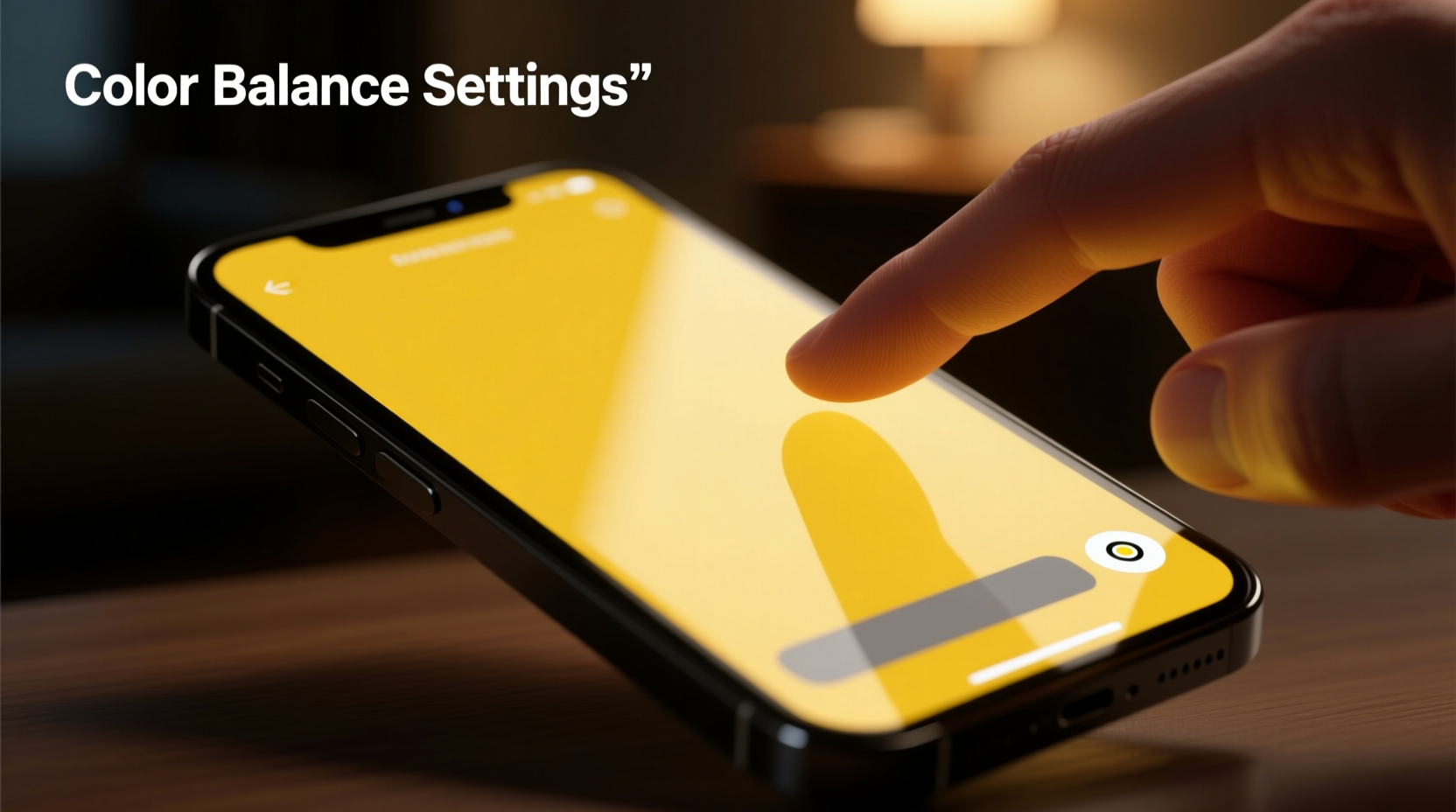
The yellow appearance of your phone screen is rarely random. Most modern smartphones use advanced display technologies that adapt to ambient conditions and user behavior. Several factors contribute to this warm tone:
- Night Mode / Blue Light Filter: Many phones automatically reduce blue light in the evening to minimize disruption to sleep cycles. This shifts the color temperature toward warmer (yellow/orange) tones.
- True Tone or Adaptive Display Features: iPhones with True Tone and many Androids with similar adaptive color systems adjust screen warmth based on surrounding light. In warm indoor lighting, the screen mimics that hue to appear more natural.
- Color Calibration Settings: Custom display profiles or accidental changes in color mode (e.g., switching to “Warm” or “sRGB”) can skew output.
- Accessibility Features: Options like Color Filters or Color Inversion may have been enabled unintentionally, altering overall screen appearance.
- Aging OLED Panels: Over time, OLED screens can suffer from uneven pixel degradation, sometimes leading to a yellowish cast, especially in older devices.
- Screen Protectors or Cases: Some low-quality screen protectors apply a yellowish film marketed as “blue light blocking,” which affects color accuracy.
“Display adaptation features like True Tone are designed to reduce eye strain, but they can mislead users into thinking their screen is defective.” — Dr. Lena Park, Vision & Display Researcher, MIT Media Lab
How to Fix Yellow Tint on iPhone
Apple's ecosystem includes several intelligent display features that enhance comfort but can cause confusion when left unadjusted. Here’s how to diagnose and correct a yellow screen on an iPhone:
Step 1: Disable Night Shift
Night Shift is Apple’s version of a blue light filter. It activates automatically during evening hours and warms the screen.
- Open Settings.
- Tap Display & Brightness.
- Select Night Shift.
- Toggle off Scheduled or disable it entirely.
- Adjust the color temperature slider toward “Less Warm” if you prefer partial filtering.
Step 2: Turn Off True Tone
True Tone uses ambient light sensors to dynamically adjust color and brightness. While useful, it can make the screen appear yellow under warm indoor lights.
- Go to Settings > Display & Brightness.
- Toggle off True Tone.
- Observe the screen immediately—it should shift back to a cooler, more neutral white.
Step 3: Check Accessibility Settings
Accidental activation of color filters can drastically alter screen appearance.
- Navigate to Settings > Accessibility > Display & Text Size.
- Tap Color Filters.
- If enabled, toggle it off.
- If already on, ensure the filter type isn’t set to “Warm” or “Low Light Amplifier.”
Step 4: Reset Display Zoom (Rare Fix)
In rare cases, zoomed display modes can affect rendering. Reset by going to Settings > Display & Brightness > Display Zoom and selecting “Standard.”
Fixing Yellow Screen Issues on Android Devices
Android manufacturers implement various display tuning technologies depending on brand and model. Samsung, Google, OnePlus, and others offer different paths to correct color imbalances.
Step 1: Disable Blue Light Filter or Eye Comfort Mode
This feature goes by different names: “Blue Light Filter” (Samsung), “Eye Comfort Shield” (OnePlus), or “Night Light” (stock Android).
- Open Settings.
- Go to Display (or Wallpaper & Style on some models).
- Find Night Light, Blue Light Filter, or similar.
- Turn it off or adjust the schedule and intensity.
- Drag the warmth slider toward “Cool” for a neutral baseline.
Step 2: Adjust Color Mode
Many Android phones default to “Adaptive” or “Warm” color profiles, which favor skin tones but sacrifice neutrality.
- In Settings > Display, look for Color Mode or Screen Mode.
- Select Basic, sRGB, or Natural for accurate colors.
- Avoid “Vivid” or “Boosted” modes if color fidelity matters to you.
Step 3: Disable Adaptive Display or AI Enhancements
Some brands use AI to tweak brightness and color in real time.
- Samsung: Settings > Display > Adaptive Display > Toggle off.
- Google Pixel: Settings > Display > Adaptive Brightness – disable if affecting color tone.
- OnePlus: Settings > Display & Brightness > Reading Enhancement – turn off.
Step 4: Use Developer Options for Fine-Tuning (Advanced)
For rooted or technically inclined users, Android’s Developer Options allow RGB adjustment.
- Enable Developer Options: Go to Settings > About Phone, tap “Build Number” 7 times.
- Return to Settings > System > Developer Options.
- Look for “Simulate Color Space” – ensure it’s set to “Disabled.”
- If available, use “Color Adjustment” sliders to balance red, green, and blue channels manually.
Do’s and Don’ts: Managing Screen Color Balance
| Do’s | Don’ts |
|---|---|
| Calibrate your screen monthly if color accuracy is critical (e.g., for photo editing). | Leave blue light filters on full strength during daytime use. |
| Use sRGB or standard color mode for consistent web and app visuals. | Apply third-party “screen calibrator” apps that lack system access—they often don’t work. |
| Check for OS updates; display bugs are frequently patched. | Assume a yellow tint means hardware failure without checking software first. |
| Remove yellow-tinted screen protectors if they’re affecting color perception. | Expose your phone to extreme heat, which accelerates OLED yellowing. |
Mini Case Study: Sarah’s Unexpected Screen Shift
Sarah, a freelance photographer, began noticing that her iPhone 13 Pro’s screen looked increasingly yellow over two weeks. Initially, she assumed the OLED panel was degrading. She avoided editing photos on it, relying instead on her laptop. After reading about True Tone, she decided to test it. She turned off both True Tone and Night Shift in her settings. Immediately, the screen returned to a crisp, neutral white. She realized that during a recent update, True Tone had re-enabled itself after a reset. Since then, she keeps Night Shift on a strict nighttime schedule and disables True Tone when doing color-sensitive work. Her workflow improved instantly—no repair needed.
Comprehensive Checklist: Fix Yellow Screen Fast
Follow this checklist to quickly identify and resolve screen discoloration:
- ✅ Check if Night Shift (iOS) or Night Light (Android) is active.
- ✅ Disable True Tone (iPhone) or Adaptive Display (Android).
- ✅ Verify no color filters are enabled in Accessibility settings.
- ✅ Inspect screen protector for yellow tint—remove temporarily to test.
- ✅ Switch display mode to Neutral, sRGB, or Standard.
- ✅ Restart your phone after making changes to apply them fully.
- ✅ Update your operating system to the latest version.
- ✅ Test screen on a white background to confirm neutrality.
- ✅ If issue persists, consider professional diagnostics for OLED degradation.
Frequently Asked Questions
Is a yellow phone screen a sign of damage?
Not necessarily. Most yellow tints are caused by software features like Night Shift or True Tone. However, if the discoloration is uneven (e.g., one corner is yellower) or worsens over time despite software fixes, it could indicate OLED burn-in or aging—a hardware concern requiring service.
Can I permanently disable all color adjustments?
Yes. On iPhone, disable both Night Shift and True Tone. On Android, turn off Night Light and set the color mode to “sRGB” or “Natural.” Avoid using AI-driven display enhancements. For complete control, some custom ROMs or rooted setups allow deeper calibration, though this voids warranties.
Does a yellow screen harm my eyes?
No—in fact, warmer screens at night may reduce eye strain and support better sleep by minimizing blue light exposure. However, for tasks requiring true color judgment (graphic design, photo editing), a neutral screen is essential to avoid misjudging hues.
Conclusion: Regain Control of Your Display Accuracy
A yellow phone screen is usually a simple setting away from correction. Modern smartphones prioritize comfort and battery efficiency over absolute color accuracy, which means default behaviors can mislead users into thinking something is wrong. By understanding the role of adaptive technologies and learning how to manage them, you regain control over your viewing experience. Whether you're a casual user or a creative professional, taking a few minutes to audit your display settings can make a dramatic difference. Don’t rush to replace your device—first, recalibrate, reset, and reassess.




 浙公网安备
33010002000092号
浙公网安备
33010002000092号 浙B2-20120091-4
Comments
No comments yet. Why don't you start the discussion?