
If you've noticed your phone screen taking on a yellow or orange tint after sunset, you're not alone—and your device isn’t broken. This shift in color is intentional, part of a feature designed to reduce eye strain and support better sleep. However, if the warm tone feels too strong or disrupts your viewing experience, adjusting your display settings can restore a balanced, natural look. Understanding why this happens and how to control it gives you full command over your screen’s appearance—day or night.
The Science Behind the Yellow Tint
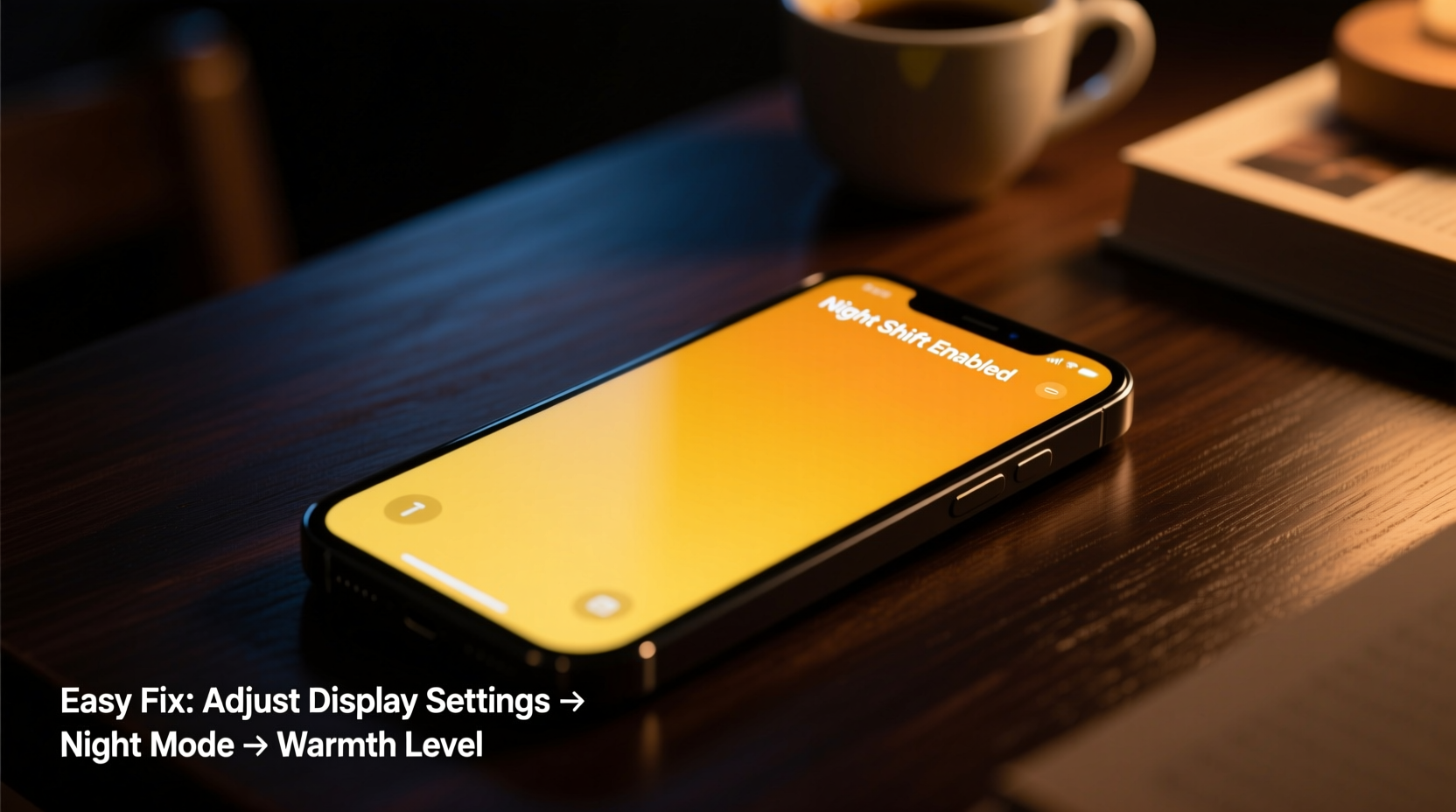
Modern smartphones use blue light to produce bright, crisp visuals during daylight hours. While effective for visibility, excessive blue light exposure in the evening can interfere with melatonin production—the hormone responsible for regulating sleep. To counteract this, manufacturers have integrated features that gradually reduce blue light as the sun sets, shifting the screen toward warmer tones (yellow, amber, or orange).
This function mimics the natural progression from daylight to candlelight, helping your brain transition into nighttime mode. The technology is known by various names across brands: Apple calls it Night Shift, Samsung uses Blue Light Filter, Google labels it Blue Light Dim on Pixel devices, and others may refer to it as Eye Comfort Mode or Warm Display.
“Exposure to cooler, blue-rich light in the evening delays circadian rhythms and suppresses melatonin more than warm light.” — Harvard Medical School, Division of Sleep Medicine
While the intent is beneficial, some users find the resulting yellow cast distracting—especially when editing photos, watching videos, or reading text where color accuracy matters.
How Night Mode Features Work Automatically
These display-shifting functions don’t activate randomly. They rely on one or more triggers:
- Time-based scheduling: Set to turn on at sunset and off at sunrise based on your location.
- Manual activation: You can toggle the filter on or off anytime via Quick Settings or Display settings.
- Sunset/sunrise detection: Uses GPS data to determine local twilight times.
- Scheduled hours: Allows custom start and end times (e.g., 8 PM to 7 AM).
The intensity of the warmth varies by model and setting. Some phones apply a subtle shift; others go noticeably amber. If left unadjusted, the change can feel jarring—particularly in well-lit rooms or when comparing screens side-by-side.
Step-by-Step Guide to Adjust or Disable the Yellow Screen
Follow these clear steps to regain control over your screen’s color temperature, whether you want to fine-tune the warmth or eliminate it entirely.
For iPhone (iOS) – Turning Off or Adjusting Night Shift
- Open the Settings app.
- Tap Display & Brightness.
- Select Night Shift.
- To disable it temporarily: Toggle off “Scheduled” and ensure “Manually Enabled Until Tomorrow” is also off.
- To keep it but adjust warmth: Use the slider under “Color Temperature” to make the screen less yellow (move toward “Less Warm”).
- To customize timing: Choose “Sunset to Sunrise” or set specific start/end times under “Schedule.”
For Samsung Galaxy (Android) – Managing Blue Light Filter
- Go to Settings.
- Navigate to Display > Blue Light Filter.
- Toggle the filter off, or tap “Schedule” to define when it activates.
- Adjust intensity using the slider (recommended: 50–60% for balance).
- Optional: Enable “Turn on automatically” with geolocation or custom hours.
For Google Pixel – Using Blue Light Dim
- Open Settings.
- Tap Display > Blue Light Dim.
- Toggle it off to stop the yellow tint.
- To schedule: Tap “Turn on on schedule” and select either “Sunset to Sunrise” or a custom time range.
- Note: Unlike other models, Pixels do not allow intensity adjustment—only on/off or scheduled use.
For Other Android Devices (OnePlus, Xiaomi, etc.)
- Enter Settings.
- Find Display or Screen settings.
- Look for options like Eye Comfort Mode, Reading Mode, or Screen Color Adjustment.
- Disable the mode or modify its intensity and schedule.
- Some brands offer a color calibration tool—use it to manually correct white balance if needed.
Do’s and Don’ts: Managing Screen Warmth Effectively
| Do’s | Don’ts |
|---|---|
| Do use a moderate warmth level if you read at night—it reduces glare without distorting images. | Don’t leave the filter on maximum strength all night if you’re doing color-sensitive tasks. |
| Do pair warm display settings with reduced brightness for optimal eye comfort. | Don’t disable the feature entirely if you’re sensitive to screen strain—try adjusting instead. |
| Do calibrate your screen if colors seem off even after turning off filters. | Don’t confuse software filters with hardware issues—yellowing due to aging OLED panels requires repair. |
| Do check for system updates; manufacturers often refine display algorithms over time. | Don’t rely solely on third-party apps for blue light filtering—they may reduce performance or battery efficiency. |
Real Example: Sarah’s Late-Night Editing Problem
Sarah, a freelance photographer, began noticing her phone displayed photos with an unnatural golden hue every evening. At first, she thought her new phone had a defective screen. She returned it, only to face the same issue with the replacement. After consulting a tech-savvy friend, she discovered the Blue Light Filter was set to activate daily at 6:30 PM with maximum intensity.
She didn’t mind the idea of reducing eye strain, but the aggressive warmth made it impossible to review client images accurately. By adjusting the filter intensity to 55% and delaying activation until 9 PM, she found a sweet spot: her eyes stayed comfortable, and her photo previews remained true-to-life. A small tweak saved her both time and frustration.
Troubleshooting Persistent Yellow Tints
Sometimes, even after disabling night modes, the screen still appears yellowish. Consider these less obvious causes:
- Adaptive Display or AI Color Enhancement: Some phones automatically boost warmth in low-light environments. Check under Display settings for “Adaptive Display,” “AI Scene Optimization,” or similar features and disable them if color fidelity is critical.
- Color Mode Selection: Phones often offer presets like “Vivid,” “Natural,” or “Saturated.” Switching to “Natural” or “Standard” can neutralize artificial warmth.
- Accessibility Settings: Under Accessibility > Display & Text Size, look for “Color Filters” or “Color Correction.” These are meant for vision impairments but can inadvertently tint the entire screen yellow if enabled.
- Hardware Aging (OLED Only): On older OLED screens, blue subpixels degrade faster than red and green ones, leading to a permanent yellowish cast. This cannot be fixed via settings and typically indicates the need for screen replacement.
“When evaluating screen color issues, always rule out software settings before assuming hardware failure.” — David Lin, Senior Mobile Technician at TechCare Pro
Checklist: Fix Your Phone’s Yellow Screen in 5 Minutes
Use this quick checklist to diagnose and resolve unwanted screen warmth:
- ✅ Swipe down and check if Night Mode, Blue Light Filter, or Eye Comfort is active.
- ✅ Go to Settings > Display and locate any color-warming feature.
- ✅ Turn off automatic scheduling or adjust the time window.
- ✅ Reduce the filter intensity rather than disabling it completely (if keeping it).
- ✅ Verify that no accessibility color filters are enabled.
- ✅ Change display mode to “Natural” or “Standard” for accurate colors.
- ✅ Test screen appearance in different lighting conditions.
- ✅ If the yellow tint persists in all modes, consider professional inspection for OLED degradation.
Frequently Asked Questions
Is a yellow screen bad for my eyes?
No—in fact, warmer screens are generally easier on the eyes at night. Blue light can contribute to digital eye strain and disrupt sleep patterns. A slightly yellow screen helps mitigate these effects, especially in dim environments. The key is balance: too much warmth can distort visuals, while none may lead to fatigue during prolonged use.
Can I keep the warm filter but make it less intense?
Yes, most modern phones allow you to adjust the strength of the blue light filter. iPhones offer a “Color Temperature” slider in Night Shift settings. Samsung and many Android devices include an intensity bar in their Blue Light Filter menu. Reducing the intensity maintains eye comfort while preserving more natural colors.
Why does my screen look fine during the day but yellow at night?
This is normal behavior if you have a night mode feature enabled. These settings are designed to activate based on time, ambient light, or location. During daylight, the screen operates in standard mode. After sunset, the filter engages automatically unless disabled. Review your schedule settings to confirm when it turns on and off.
Final Thoughts and Action Plan
Your phone’s yellow screen at night isn’t a flaw—it’s a thoughtful feature aimed at supporting healthier screen habits. But just because it’s intentional doesn’t mean you have to accept it unchanged. With a few simple adjustments, you can tailor the display to match your preferences, environment, and usage needs.
Start by identifying which feature is causing the shift, then decide whether to disable it, reschedule it, or simply tone it down. Remember, optimal screen settings aren’t one-size-fits-all. What works for a student reading e-books in bed might not suit a designer reviewing portfolios late at night.




 浙公网安备
33010002000092号
浙公网安备
33010002000092号 浙B2-20120091-4
Comments
No comments yet. Why don't you start the discussion?