
If you’ve noticed that your smartphone screen appears unusually warm—leaning toward amber or yellow instead of crisp white—it’s not necessarily a sign of hardware failure. In fact, most modern phones are designed to shift their display tone throughout the day. This change is often intentional, driven by built-in features aimed at reducing eye strain and improving sleep quality. But what exactly causes this yellow tint? And should you be concerned?
The answer lies in understanding color temperature: a scientific measurement of light that determines whether a display looks cool (bluish) or warm (yellowish). While many users assume a yellow screen indicates damage or aging, it’s more likely tied to software settings, ambient lighting, or automatic adaptive features. This article breaks down the science behind screen color shifts, explains common causes, and provides actionable steps to adjust or disable unwanted warmth.
Understanding Color Temperature in Digital Displays
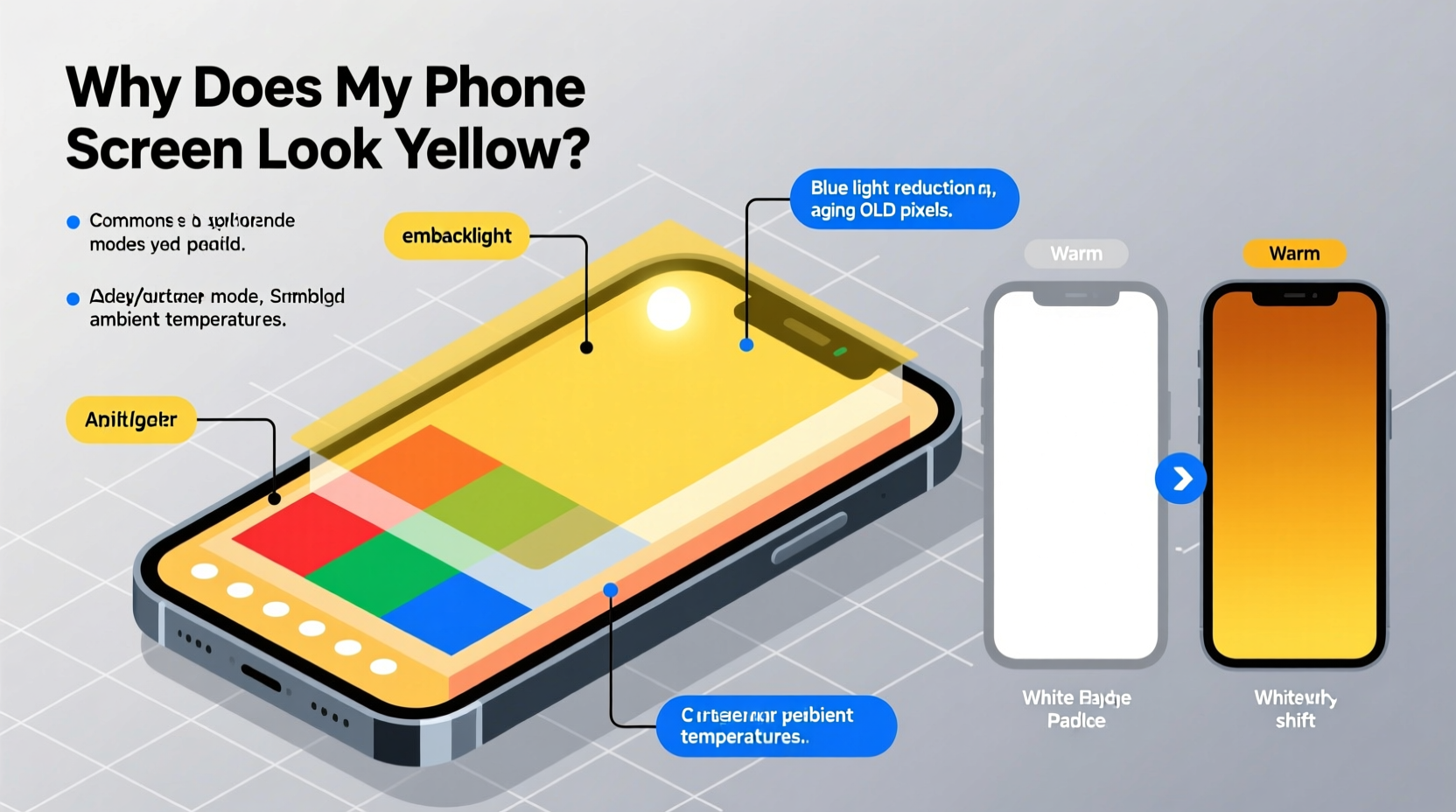
Color temperature refers to the hue of light emitted by a screen, measured in Kelvin (K). Lower values (around 2700K–4000K) produce warmer, yellow-to-orange tones, while higher values (6500K–9000K) appear cooler, with a bluish-white cast. Natural daylight averages around 5500K–6500K, which is considered \"neutral\" white.
Smartphone displays use LED backlights combined with liquid crystal or OLED technology to generate images. These screens can dynamically adjust their color output based on settings and environmental conditions. The human eye adapts easily to these changes, which is why some users don’t immediately notice a yellow tint—until they compare their device side-by-side with another phone set to a cooler profile.
In practical terms, a warmer screen reduces blue light emission. Blue light, especially in the 400–490 nanometer range, has been linked to disrupted melatonin production, potentially interfering with sleep when viewed at night. As a result, manufacturers have integrated features that automatically lower color temperature after sunset.
“Adjusting screen color temperature isn’t just about aesthetics—it’s a deliberate health-focused design choice.” — Dr. Lena Torres, Vision & Human Factors Researcher, MIT Media Lab
Common Causes of a Yellow-Tinted Phone Screen
A yellow appearance isn’t random. It typically stems from one or more of the following sources:
- Night mode or blue light filter activation: Most phones include a “Night Shift,” “Blue Light Filter,” or “Eye Comfort Shield” feature that warms the display during evening hours.
- Adaptive display settings: Some devices use ambient light sensors to adjust both brightness and color tone based on surroundings.
- Manufacturer default settings: Brands like Apple and Samsung often ship devices with warmer default profiles to appeal to general user preferences for softer visuals.
- Accessibility features: Options such as “Color Filters” or “Display Accommodations” may be enabled accidentally, altering perceived color balance.
- Firmware updates introducing new display logic: System updates sometimes reset display calibration or enable warming features by default.
How to Diagnose and Adjust Your Phone’s Color Settings
Before assuming hardware issues, verify if software settings are responsible. Follow this step-by-step process to identify and correct the issue:
Step-by-Step Guide: Checking and Correcting Display Tone
- Check for active night mode: Open Settings > Display > Night Mode (or equivalent). Disable it temporarily to see if the yellow tint disappears.
- Review scheduled settings: Ensure Night Mode isn’t set to activate automatically at certain times. You can customize start/end times or turn off scheduling entirely.
- Inspect color profile options: Navigate to Display > Color Mode or Picture Adjustment. Look for presets like “Warm,” “Natural,” “Standard,” or “Cool.” Switch to a neutral or cooler option.
- Disable accessibility color filters: Go to Accessibility > Display & Text Size > Color Filters (iOS) or Accessibility > Color Correction (Android). Turn off any active filters.
- Reset display calibration: On some Android devices, clearing the display settings cache or resetting app preferences can restore default color behavior.
- Compare with another device: Place your phone next to a friend’s phone showing the same content. This helps isolate whether the warmth is relative or objectively strong.
Platform-Specific Fixes
| Platform | Feature Name | Path to Adjust | Default Behavior |
|---|---|---|---|
| iOS (iPhone) | Night Shift | Settings > Display & Brightness > Night Shift | Activates sunset to sunrise; can be scheduled manually |
| Android (Samsung) | Blue Light Filter | Settings > Display > Blue Light Filter | Can run on timer or continuously; intensity adjustable |
| Android (Pixel) | Wind Down / Night Light | Settings > Display > Night Light | Tied to bedtime routines; integrates with Digital Wellbeing |
| OnePlus / Oppo | Reading Mode / Eye Comfort | Settings > Display > Reading Mode | Often enabled by default; reduces blue light aggressively |
Real-World Example: A User’s Experience with Unexpected Warmth
Sarah, a graphic designer in Chicago, upgraded her iPhone 14 from an older model. Within days, she noticed her photos looked “off”—colors seemed muted, and whites had a distinct golden hue. At first, she assumed the new OLED screen was defective. She visited an Apple Store, where a technician confirmed the hardware was functioning normally.
After reviewing her settings, they discovered that “Night Shift” was enabled from 6 PM to 8 AM—and because Sarah worked late, she was seeing the warmed display during critical editing hours. Disabling the schedule and switching to “Color Temperature” set to “Less Warm” restored accurate color representation. Sarah now manually enables Night Shift only before bed, preserving visual accuracy during creative work.
This case highlights how automated wellness features, while beneficial for general users, can interfere with professional tasks requiring color precision.
When a Yellow Screen Might Signal Hardware or Calibration Issues
While most cases stem from software, persistent yellowing—even after disabling all filters—could indicate deeper problems:
- Uneven OLED degradation: Over time, blue subpixels in OLED panels degrade faster than red or green ones, leading to a gradual yellow or pinkish cast, especially noticeable in dark mode.
- Poor factory calibration: Budget devices may lack precise color tuning, resulting in inconsistent white balance across units.
- Third-party screen replacements: Aftermarket repairs often use lower-quality panels with inaccurate color profiles that cannot be fully corrected via software.
- Firmware bugs: Rarely, corrupted display drivers or failed OTA updates can lock the screen into a single color mode.
If adjustments fail and the yellow tint worsens over time, consider contacting the manufacturer or authorized service provider. Persistent discoloration could qualify under warranty, particularly if it affects usability.
Best Practices for Managing Screen Color Temperature
Balancing eye comfort and visual accuracy requires thoughtful management of your phone’s display settings. Use the following checklist to maintain optimal screen performance:
✅ Display Optimization Checklist
- ☑️ Disable Night Mode/Blue Light Filter during daytime or color-critical tasks
- ☑️ Set color mode to “Natural” or “Standard” unless you prefer warmer tones
- ☑️ Schedule warming features only during actual bedtime hours
- ☑️ Calibrate your screen using trusted reference images (e.g., grayscale gradient)
- ☑️ Avoid third-party apps claiming to reduce blue light—they often overlay tints without proper control
- ☑️ Regularly clean your screen; smudges and oils can distort color perception
- ☑️ Update your OS regularly to benefit from improved display algorithms
Frequently Asked Questions
Is a yellow phone screen bad for my eyes?
No—in fact, warmer screens are generally easier on the eyes in low-light environments. By reducing blue light exposure in the evening, a yellow-tinted display may help maintain natural circadian rhythms and reduce digital eye strain.
Can I completely remove the yellow tint?
Yes, in most cases. Disable all warming features (Night Shift, Blue Light Filter), select a cooler color preset, and ensure no accessibility filters are active. However, even “cool” modes rarely match the stark blue-white of older LCD monitors, as modern displays prioritize visual comfort over clinical neutrality.
Does screen yellowing mean my phone is dying?
Not necessarily. Gradual yellowing over several years, especially on OLED devices, can result from pixel wear. But sudden or patchy discoloration may point to hardware faults or poor repair quality. Monitor the progression—if it spreads or distorts images, seek technical evaluation.
Conclusion: Take Control of Your Viewing Experience
Your phone’s yellow screen is likely not broken—it’s adapting. Modern smartphones are engineered to shift color temperature dynamically, aligning with our biological needs and environmental context. However, awareness and control are key. Without checking your settings, you might unknowingly sacrifice color accuracy for comfort, or miss out on benefits meant to support better sleep.
By understanding how color temperature works and learning where to find display controls, you gain the power to tailor your screen to each moment: sharp and neutral for photo editing, warm and soothing before bedtime. Don’t let automation override your preferences. Review your settings today, make informed choices, and enjoy a display that serves both your eyes and your lifestyle.




 浙公网安备
33010002000092号
浙公网安备
33010002000092号 浙B2-20120091-4
Comments
No comments yet. Why don't you start the discussion?