
If you've recently picked up your phone only to find the display looking unusually warm or yellowish, you're not alone. Many users report their screens shifting toward a yellow tint without warning. This change can be disorienting—especially if you rely on accurate colors for work, photography, or reading in low light. The good news is that most causes are easily reversible. Whether it's due to software settings, hardware aging, or environmental triggers, understanding the root issue is the first step toward restoring a balanced, natural display.
The yellow tint on your phone screen isn’t usually a sign of permanent damage. Instead, it’s often linked to intentional features designed to reduce eye strain or extend battery life. However, when these settings activate unexpectedly or don’t align with your preferences, they can create confusion. This guide will walk you through the most common reasons behind a yellow-tinted screen, how to diagnose the cause, and practical steps—including precise color calibration methods—to restore clarity and comfort to your viewing experience.
Common Causes of a Yellow-Tinted Phone Screen
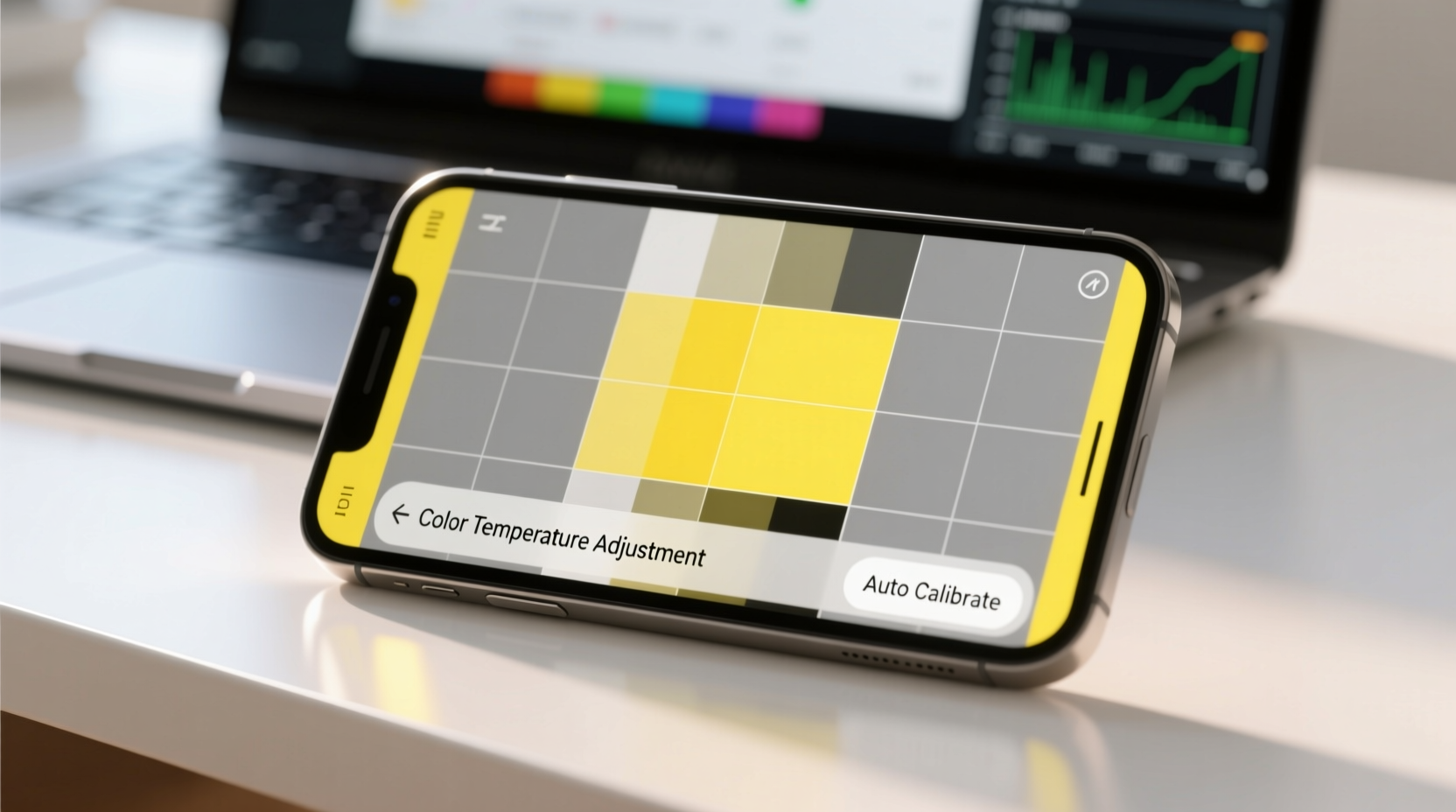
A sudden shift in screen color temperature can stem from several sources. Some are user-controlled, while others are automatic system behaviors. Identifying which applies to your situation is key to resolving it efficiently.
- Night Mode or Blue Light Filter Activation: Most modern smartphones include a blue light reduction feature that warms the screen tone during evening hours. If scheduled or manually enabled, this can make whites appear yellowish.
- Color Inversion or Accessibility Settings: Certain accessibility modes, such as grayscale or color correction, may alter overall display output and introduce a yellow cast.
- Auto-Brightness or Adaptive Display: Some phones adjust color temperature based on ambient light, sometimes over-warming the display in dim environments.
- Screen Aging (OLED Displays): Over time, OLED subpixels degrade at different rates. Blue pixels typically fade faster, leaving red and green tones more dominant—resulting in a warmer, yellower appearance.
- Firmware or OS Update Glitches: Software updates occasionally reset display settings or introduce bugs affecting color rendering.
- Third-Party Apps: Some apps, especially screen filters or battery savers, apply overlays that tint the entire interface.
Step-by-Step Guide to Diagnose and Fix Yellow Screen Issues
Follow this structured approach to identify and resolve the source of the yellow tint on your phone’s display.
- Check for Active Night Mode or Blue Light Filter
Navigate to Settings > Display > Night Mode (or similar). If enabled, toggle it off. On iPhones, go to Settings > Display & Brightness > Night Shift and disable it. - Review Scheduled Settings
Even if not visibly active, check whether Night Shift (iOS) or Blue Light Filter (Android) is set to turn on automatically at certain times. Adjust or disable the schedule if needed. - Inspect Accessibility Features
Go to Settings > Accessibility > Display & Text Size (iOS) or Settings > Accessibility (Android). Look for options like “Color Filters,” “Color Correction,” or “Invert Colors.” Disable any active filters. - Restart Your Device
A simple reboot clears temporary glitches that might affect display rendering after an update or app conflict. - Boot into Safe Mode (Android Only)
Hold the power button, then long-press “Power Off” and select “Safe Mode.” If the yellow tint disappears, a third-party app is likely responsible. - Test Display with Neutral Content
Open a pure white webpage or image. View it in a well-lit room. If the background appears distinctly yellow, the issue persists beyond ambient perception. - Compare with Another Device
Side-by-side comparison with a known-neutral screen helps confirm whether the discoloration is real or perceptual.
Real Example: Unexpected Tint After iOS Update
Sophia, a freelance photographer in Portland, noticed her iPhone 13 Pro screen looked unnaturally yellow one morning. She hadn’t changed any settings, but the shift made photo editing inaccurate. After ruling out physical damage, she discovered that a recent iOS update had re-enabled Night Shift on a 24-hour schedule. Disabling the feature instantly restored the screen’s natural balance. “I didn’t even remember setting it up originally,” she said. “But once I found it in the settings, the fix took seconds.”
Color Calibration: Restoring Accurate Display Output
Calibrating your phone’s screen ensures colors are displayed as accurately as possible. While smartphones lack professional-grade calibration tools, built-in settings allow meaningful adjustments.
For Android Devices
Many Samsung, Google Pixel, and OnePlus devices offer manual color tuning:
- Go to Settings > Display > Advanced > Color Mode (varies by brand).
- Select between presets like “Adaptive,” “Natural,” “Dynamic,” or “sRGB.”
- Choose “Natural” for the most color-accurate output, closest to standard white point (D65).
- Some models allow fine-tuning red, green, and blue sliders under “Color Balance.” Adjust until white areas appear neutral.
For iPhones
iOS provides limited but effective calibration options:
- Open Settings > Display & Brightness > Color Filters.
- Enable “Color Filters” and select “None” if another preset is active.
- Adjust “Intensity” and “Hue” sliders back to zero unless used for vision assistance.
- Use Settings > Accessibility > Display & Text Size > Auto-Brightness—toggle off temporarily to test if ambient sensors are over-warming the screen.
“Even minor shifts in color temperature can impact visual tasks like photo editing or reading. Calibrating your screen monthly ensures consistent performance.” — Dr. Lena Torres, Human-Computer Interaction Researcher, MIT Media Lab
Do’s and Don’ts: Managing Screen Color Health
| Do | Don't |
|---|---|
| Use “Natural” or “sRGB” color mode for accurate visuals | Leave Night Mode on 24/7 unless medically advised |
| Calibrate your screen after major OS updates | Apply third-party screen filters without testing alternatives |
| Disable auto-warm features if working with color-sensitive content | Ignore gradual yellowing on OLED screens—it may indicate aging |
| Store your phone away from extreme heat, which accelerates pixel degradation | Assume a yellow screen always means hardware failure |
When Hardware Might Be the Culprit
While software accounts for most yellow screen cases, hardware degradation—especially in older OLED devices—can cause irreversible warming. Unlike LCDs, OLED screens use organic compounds for each pixel, and blue subpixels degrade faster than red or green ones. After two to three years of heavy use, this imbalance becomes visible as a persistent yellow or pinkish hue, particularly in white backgrounds.
This phenomenon, known as “OLED burn-in” or “pixel wear,” cannot be fixed through software calibration. However, you can slow its progression:
- Reduce screen brightness when possible.
- Avoid displaying static bright elements (e.g., navigation bars, status icons) for extended periods.
- Use dark mode themes to minimize pixel stress.
- Enable screen timeout after 30 seconds of inactivity.
If the yellowing is severe and localized (e.g., patches near the top edge), it may indicate physical damage or manufacturing defect. In such cases, contact the manufacturer or authorized repair service.
FAQ: Frequently Asked Questions
Why did my phone screen turn yellow overnight?
This is typically due to Night Shift (iPhone) or Blue Light Filter (Android) activating on a schedule. Check your display settings to see if a timer was set. It could also result from a recent software update resetting defaults.
Can I completely remove the yellow tint without turning off Night Mode?
Yes. Most phones let you adjust the warmth level of Night Mode. In Settings > Display > Night Shift (or equivalent), reduce the “Color Temperature” slider toward “Less Warm.” This keeps eye protection benefits while minimizing yellow distortion.
Is a yellow screen harmful to my eyes?
No—the yellow tint itself isn’t harmful. In fact, reducing blue light in the evening may improve sleep quality by supporting melatonin production. However, if the tint makes text harder to read or causes visual discomfort, recalibration is recommended.
Conclusion: Take Control of Your Display Experience
A yellow-tinted phone screen is rarely a crisis, but it can disrupt your digital experience. By methodically checking software settings, understanding calibration options, and recognizing signs of hardware aging, you regain control over how your device presents the world. Most fixes take less than five minutes and require no technical expertise. Whether you're a casual user or a visual professional, maintaining a balanced, accurate display enhances both comfort and productivity.
Start today: open your settings, review your display modes, and perform a quick visual test. If needed, follow the calibration steps outlined here. Small adjustments now can prevent long-term frustration and ensure your phone continues to deliver a crisp, true-to-life viewing experience.




 浙公网安备
33010002000092号
浙公网安备
33010002000092号 浙B2-20120091-4
Comments
No comments yet. Why don't you start the discussion?